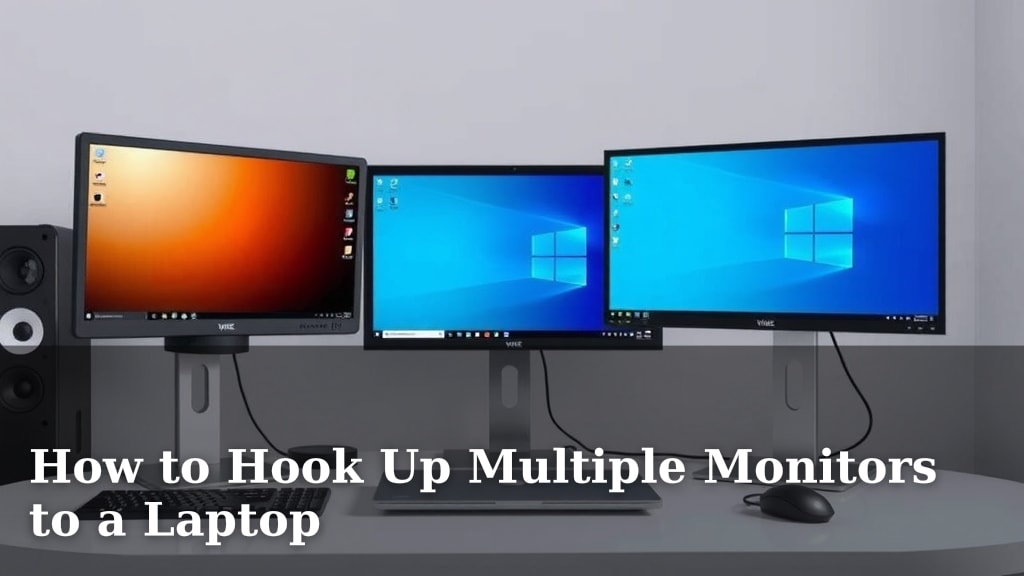
How to Hook Up Multiple Monitors to a Laptop
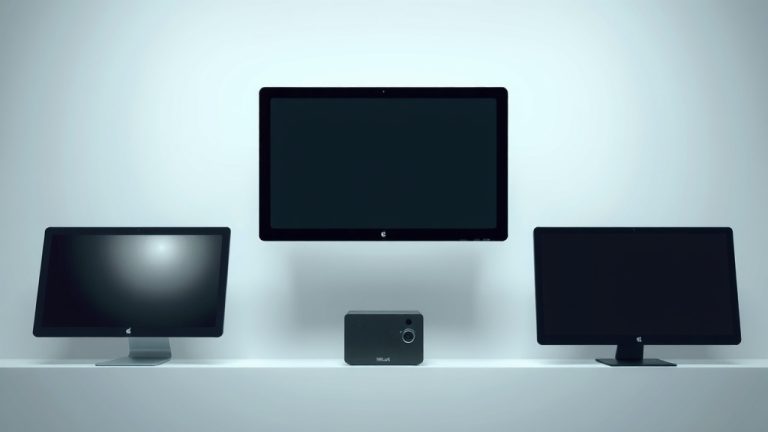
Yes, you can absolutely hook up multiple monitors to your laptop. It’s a fantastic way to boost your productivity and create a more immersive workspace. You just need the right connections and potentially a docking station or adapter.
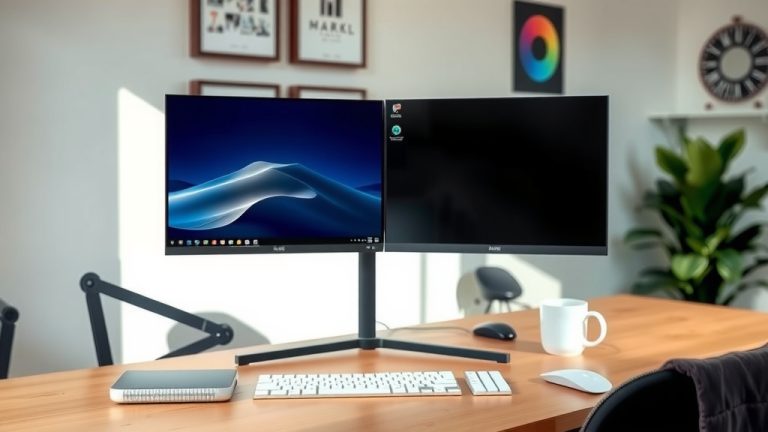
Connecting more screens lets you spread out your work. Imagine having your code on one screen, your browser on another, and your communication apps on a third. We found this setup drastically improves workflow for many tasks. It’s like giving your laptop superpowers for multitasking.
- Connect more screens to your laptop.
- Use HDMI, DisplayPort, or USB-C ports.
- Docking stations and adapters can help.
- Set up your displays in your laptop’s settings.
- Enjoy a more productive workspace!
Let’s walk through exactly how to get your extra monitors connected and working with your laptop.
Getting Your Laptop Ready for Extra Screens
Hooking up more monitors to your laptop is totally doable. It can make a huge difference in how much you get done. You just need to know which ports to use and maybe grab a little adapter. We’re going to break it down so you can get your multi-monitor setup running.
Checking Your Laptop’s Ports for External Displays
The first step is to see what your laptop offers. Different ports support different numbers of monitors and resolutions. Think of them as the doors your laptop uses to talk to other devices.
Understanding Video Output Ports
Most laptops have specific ports for video. These are the primary ways you’ll connect your external monitors. The most common ones are HDMI, DisplayPort, and USB-C. Knowing which you have is key.
HDMI Ports: The Most Common Connection
HDMI is everywhere. You’ll find it on most laptops and nearly all modern TVs and monitors. It’s a simple plug-and-play solution for video and audio. If your laptop has HDMI, you’re in good shape for at least one external display. Many laptops have just one HDMI port, but some higher-end models might have more.
DisplayPort: Great for High Resolutions and Refresh Rates
DisplayPort is another excellent video connector. It’s often found on business laptops and gaming laptops. DisplayPort can handle very high resolutions and refresh rates, making it great for demanding tasks like graphic design or gaming. You might also see Mini DisplayPort, which is just a smaller version.
USB-C Ports: The Versatile Connector
USB-C is the modern connector that’s becoming standard. It’s small and reversible. Many USB-C ports can do more than just transfer data. They can also carry video signals, a feature known as DisplayPort Alternate Mode. This means a single USB-C port might be able to power an external monitor. Some USB-C ports also support Thunderbolt, which offers even more bandwidth and capabilities, including daisy-chaining multiple monitors from one port on compatible devices.
How Many Monitors Can Your Laptop Support?
This is a big question! Your laptop’s graphics card and processor play a major role. Generally, a laptop can support at least two external displays plus its own built-in screen. Some powerful laptops can handle three or even four external monitors. You can usually find this information in your laptop’s specifications or by checking your graphics card’s control panel (like NVIDIA Control Panel or AMD Radeon Software).
Connecting Your Monitors: What You’ll Need
Once you know your ports, you can figure out the best way to connect your screens. It’s like picking the right cables for your stereo system.
Using the Right Cables
You’ll need cables that match the ports on your laptop and your monitors. For example, if your laptop has HDMI and your monitor has HDMI, you need an HDMI to HDMI cable. If your laptop has USB-C and your monitor has HDMI, you’ll need a USB-C to HDMI adapter or cable. Always check the cable’s connectors to ensure they match your devices.
When Adapters and Docking Stations Come In Handy
What if your laptop doesn’t have enough ports or the right type of ports? That’s where adapters and docking stations shine. They are like translators, allowing different devices to communicate.
Adapters: Small but Mighty
An adapter is a simple device that changes one port type to another. For instance, a USB-C to DisplayPort adapter lets you plug a DisplayPort monitor into a USB-C port. They are great for adding just one or two extra displays without much fuss. Many experts recommend them for straightforward expansions.
Docking Stations: The Ultimate Hub
A docking station is a more robust solution. It connects to your laptop with a single cable (often USB-C or Thunderbolt) and provides multiple ports. You can find docks with several video outputs (HDMI, DisplayPort), USB-A ports, Ethernet, audio jacks, and even SD card readers. This turns your laptop into a desktop-like workstation. Many professionals find docks essential for easily connecting and disconnecting multiple peripherals.
Understanding Your Graphics Card’s Capabilities
Your laptop’s integrated or dedicated graphics card dictates how many displays it can handle and at what resolution. Integrated graphics (like Intel UHD Graphics) are fine for basic productivity. Dedicated graphics cards (like NVIDIA GeForce or AMD Radeon) offer much more power for gaming, video editing, and more complex multi-monitor setups. Research and found that checking your graphics card’s specifications is a good way to understand its limits.
Setting Up Your Displays in Windows or macOS
Once everything is physically connected, you need to tell your operating system how to use the new screens. This part is usually quite straightforward.
For Windows Users
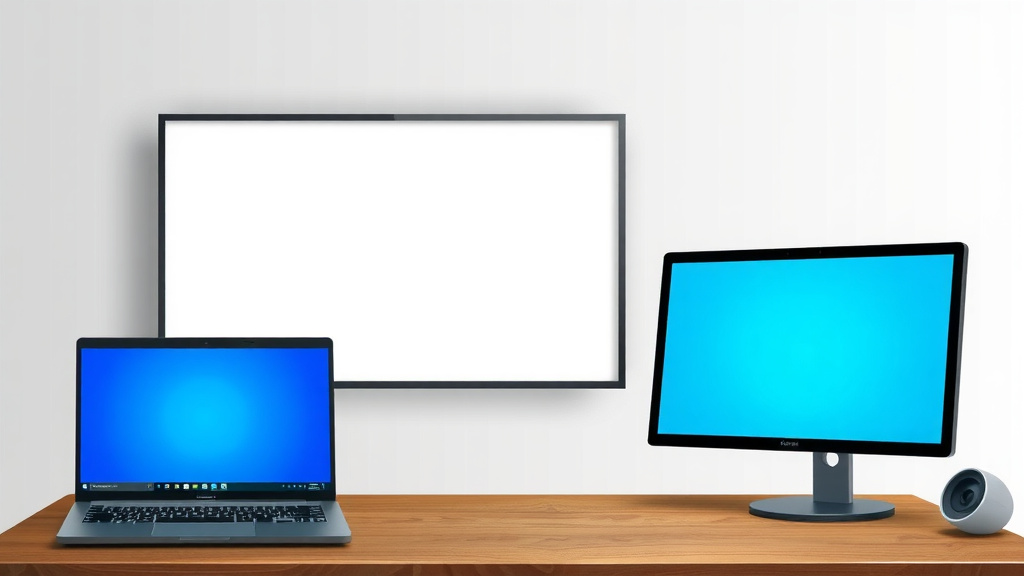
Right-click anywhere on your desktop and select ‘Display settings.’ Here, you’ll see rectangles representing your monitors. You can drag these to match how your monitors are physically arranged. You can also choose how you want to extend your desktop across them. Options include ‘Duplicate these displays’ (showing the same thing on all screens) or ‘Extend these displays’ (spreading your desktop across them). Most people prefer ‘Extend’ for productivity.
For macOS Users
Go to ‘System Settings’ (or ‘System Preferences’ on older macOS versions) and click on ‘Displays.’ Your connected monitors will appear here. You can arrange them by dragging their representations to match their physical layout. macOS also allows you to set up a ‘Primary’ display. You can also choose whether to mirror your displays or use them as separate extended desktops.
Adjusting Resolution and Orientation
Within the display settings, you can also adjust the resolution for each monitor. You can also change the orientation from landscape to portrait if you have a monitor that you’ve physically rotated. Making sure each display is set to its native resolution will give you the sharpest image.
Quick Checklist for Your Multi-Monitor Setup
- Verify your laptop’s video ports (HDMI, DisplayPort, USB-C).
- Check your laptop’s manual or manufacturer website for display support limits.
- Purchase the correct cables or adapters needed.
- Connect all monitors physically.
- Configure display settings in Windows or macOS.
- Test each monitor to ensure it’s working correctly.
Conclusion
You’ve got this! Hooking up multiple monitors to your laptop is an achievable goal. By understanding your laptop’s ports like HDMI, DisplayPort, and USB-C, and knowing when to use adapters or docking stations, you can expand your digital workspace. Remember to check your graphics card’s limits and then configure your displays within your operating system. Start by checking your laptop’s ports. Then, get the right cables or a dock. You’ll be enjoying a supercharged setup in no time!
Frequently Asked Questions
Can I connect monitors that use different ports (e.g., HDMI and DisplayPort) at the same time?
Yes, absolutely! Most modern laptops and docking stations support mixed connections. You’ll just need the correct cables or adapters for each monitor. Your operating system’s display settings will let you manage them all together.
Will connecting multiple monitors slow down my laptop?
It’s possible, especially if your laptop has older hardware or integrated graphics. Driving multiple high-resolution displays can be demanding. For basic tasks, it’s usually fine, but for heavy gaming or video editing, a more powerful laptop is recommended. Research your laptop’s specs to see its graphical capabilities.
How do I know if my USB-C port supports external displays?
Look for a small symbol next to the USB-C port that resembles a lightning bolt (for Thunderbolt) or a DisplayPort logo. You can also check your laptop’s user manual or the manufacturer’s website for port specifications. Not all USB-C ports support video output.
Can I use my old laptop as a second monitor for my current laptop?
Generally, no. Laptops are designed to output video signals, not receive them like a standard monitor. You can’t simply plug one laptop into another to extend your desktop. You would need a dedicated external monitor.
What’s the difference between “Extend these displays” and “Duplicate these displays”?
“Extend these displays” lets you spread your desktop across multiple monitors, giving you more space to work. “Duplicate these displays” shows the exact same content on all screens, which is useful for presentations. For productivity, most users prefer extending their displays.