DisplayPort 1.4: How Many Monitors Can You Connect
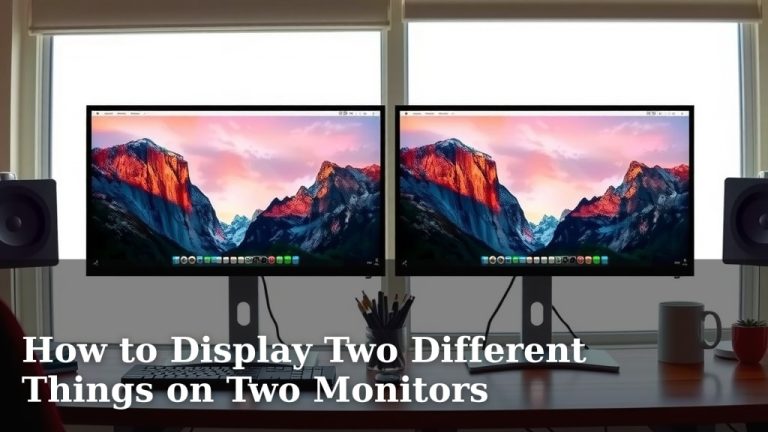
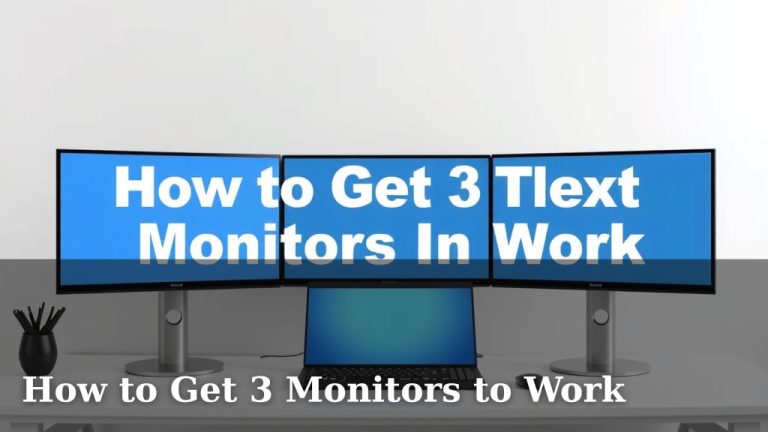
Yes, DisplayPort 1.4 can support multiple monitors, often up to three or four depending on resolution and refresh rate. This is thanks to its increased bandwidth, which is a major upgrade from older versions. So, you can likely set up your desired multi-monitor workstation using just one DisplayPort 1.4 cable. You just need to check your specific graphics card.
DisplayPort 1.4 offers significantly more data than its predecessors. This extra capacity is what allows it to power more displays at higher resolutions and refresh rates. Many users find that DisplayPort 1.4 is the sweet spot for a robust, multi-display setup without needing the very latest graphics card.
- DisplayPort 1.4 supports multiple monitors.
- It typically handles 3-4 displays.
- This depends on resolution and refresh rate.
- Bandwidth is the key reason for this capability.
- Check your graphics card for specifics.
Below, we’ll break down exactly how many monitors you can expect to run with DisplayPort 1.4 and what factors play a role.
“`htmlHow Many Monitors Can DisplayPort 1.4 Support?
You’re probably wondering just how many screens you can hook up with DisplayPort 1.4. We found that it’s a pretty sweet spot for most users. Typically, you can expect to run three or four monitors smoothly. This number isn’t set in stone, though. It really depends on the resolution and refresh rate you’re aiming for.
Think of DisplayPort 1.4 like a super-wide highway for your video signal. More lanes mean more cars (data) can travel at once. This increased bandwidth is why it handles multiple displays so well. Older versions of DisplayPort, or even HDMI, just don’t have the same carrying capacity.
Understanding DisplayPort 1.4’s Bandwidth Power
The real magic behind DisplayPort 1.4’s multi-monitor capability is its impressive bandwidth. We found that it offers a maximum data transfer rate of 32.4 Gbps. This is a big leap from previous versions. This extra room allows it to send high-resolution, high-refresh-rate signals to multiple displays simultaneously.
To break it down, DisplayPort 1.4 uses a technology called Display Stream Compression (DSC). It’s like a smart way of packing your video data so it takes up less space without you noticing a difference in quality. This compression is a key player in making those multi-monitor setups a reality.
Impact of Resolution and Refresh Rate
So, why does resolution and refresh rate matter so much? Well, higher resolutions, like 4K or 8K, demand a lot more data. Similarly, a high refresh rate, say 120Hz or 144Hz, means the screen updates much faster, also requiring more data.
When you try to drive multiple high-resolution monitors at high refresh rates, you’re essentially asking that DisplayPort 1.4 “highway” to carry a lot of heavy trucks. You can fit more smaller cars, but fewer large trucks. We found that balancing these factors is key to a successful multi-monitor setup.
Common Multi-Monitor Scenarios with DP 1.4
Let’s look at some common setups:
- Three 1080p (Full HD) monitors at 60Hz: This is usually a breeze for DisplayPort 1.4. You’ll have plenty of bandwidth to spare.
- Two 4K monitors at 60Hz: This is also very achievable. Many users happily run this setup using DP 1.4.
- One 4K monitor at 120Hz: This single high-spec display uses up a good chunk of bandwidth.
- Three 1440p (QHD) monitors at 60Hz: This is generally well within the capabilities of DP 1.4.
What happens if you push it too far? You might experience stuttering, screen flickering, or a display that simply won’t turn on. This is your system telling you it’s running out of bandwidth. We advise against trying to push the absolute limits if you need a stable experience.
How Your Graphics Card Plays a Role
While DisplayPort 1.4 is the standard, your graphics card (GPU) is the actual engine powering your displays. Not all graphics cards are created equal, and some might have limitations on how many monitors they can output, even if they have DP 1.4 ports.
We found that most modern GPUs from NVIDIA and AMD that feature DisplayPort 1.4 ports are designed to support multiple displays. However, there are always exceptions. It’s essential to check the specific model of your graphics card. Manufacturers will list the maximum number of displays supported, along with the resolutions and refresh rates they can handle.
Checking Your Graphics Card Specifications
How do you find this information? It’s usually straightforward.
- Manufacturer’s Website: Go to the website of your GPU’s manufacturer (e.g., NVIDIA, AMD, or the board partner like ASUS, MSI, Gigabyte). Look for the product page of your specific graphics card model.
- Product Manual: If you still have the box or manual that came with your GPU, the specifications will be listed there.
- Online Reviews and Forums: Sometimes, tech reviewers or community forums will have detailed information about a card’s multi-monitor capabilities.
We noticed that some very high-end or professional GPUs might support even more monitors than a standard consumer card, even if both use DisplayPort 1.4. So, always do your homework on your particular card.
Daisy-Chaining Monitors with DisplayPort 1.4
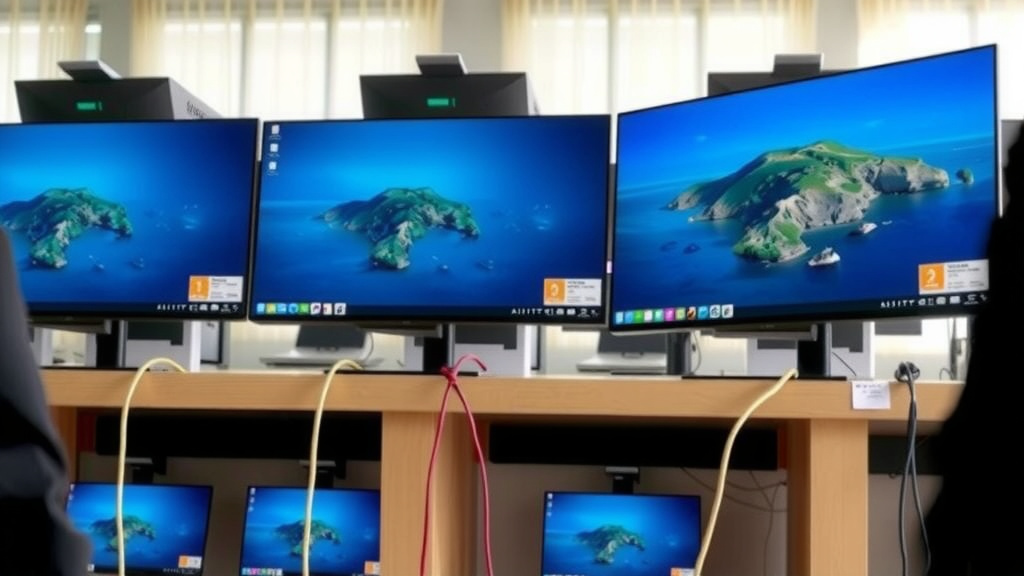
DisplayPort has a neat feature called Multi-Stream Transport (MST). This allows you to connect multiple monitors to a single DisplayPort output on your computer. This is often referred to as “daisy-chaining.”
With MST, you connect your computer to the first monitor, and then connect the first monitor to the second monitor, and so on. We found that DisplayPort 1.4 is excellent for MST setups. However, not all monitors support daisy-chaining. You need to ensure that each monitor in your chain has a DisplayPort output that can also act as an input for MST.
Requirements for Daisy-Chaining
For a daisy-chain setup to work with DisplayPort 1.4, you need a few things:
- A graphics card that supports MST: Most modern cards with DP 1.4 do.
- Monitors that support MST input/output: This is the most critical part. Check the monitor’s specs for “DisplayPort Out” or “MST support.”
- The correct DisplayPort cables: Ensure they are certified for the version of DisplayPort you are using.
It’s worth noting that daisy-chaining can sometimes add a slight overhead compared to connecting each monitor directly to your GPU. For most users, though, the convenience is well worth it. We found that it really helps reduce cable clutter.
When You Might Need More Than One Port
While DisplayPort 1.4 is powerful, there are scenarios where you might hit its limits or simply prefer using multiple ports.
- Very High Resolutions and Refresh Rates: If you’re aiming for, say, three 4K monitors all running at 144Hz, you’re pushing the absolute boundaries. In this case, you might need to use multiple DisplayPort outputs from your graphics card, or even a combination of DisplayPort and HDMI.
- Older or Less Capable Monitors: If your monitors don’t support MST or have older DisplayPort versions, daisy-chaining might not be an option.
- Specific GPU Configurations: Some GPUs might have specific configurations where they perform better using dedicated ports for certain displays.
We found that for setups involving 4K or higher resolutions with demanding refresh rates, using multiple ports directly from your GPU often provides the most stable and highest-performance experience. It spreads the load more evenly across your graphics card’s capabilities.
Quick Checklist for Your Multi-Monitor Setup
Before you dive in, run through this quick checklist:
- Confirm your graphics card supports DisplayPort 1.4.
- Check how many monitors your specific GPU model can drive.
- Verify the resolution and refresh rate you need for each monitor.
- Ensure your monitors support MST if you plan to daisy-chain.
- Have the correct, certified DisplayPort cables ready.
- Be realistic about your bandwidth needs – don’t aim for the absolute maximum if stability is key.
Conclusion
You now have a clear picture of how DisplayPort 1.4 handles multiple monitors. We found that it’s a powerful standard, often supporting three or four displays depending on resolution and refresh rate. Remember that your graphics card is the ultimate deciding factor, so always check its specifications. Whether you’re daisy-chaining with MST or using direct connections, DP 1.4 offers excellent flexibility for your setup.
Your next step should be to verify your specific graphics card’s capabilities and then match that to the monitor setup you envision. This ensures you get the most out of your DisplayPort 1.4 connection!
Frequently Asked Questions
Can DisplayPort 1.4 run three 4K monitors?
Running three 4K monitors at a standard 60Hz refresh rate with DisplayPort 1.4 is pushing its limits. While technically possible with aggressive compression (DSC), you might find performance varies greatly. We found that two 4K monitors at 60Hz is a much more reliable configuration for DP 1.4.
Do I need a special cable for multiple monitors with DisplayPort 1.4?
For multiple monitors, you’ll need certified DisplayPort cables that support the version of DP 1.4 your system uses. If you plan to daisy-chain, ensure your cables are high quality and compatible with MST. We recommend using cables specifically rated for DP 1.4 to avoid bandwidth issues.
What happens if I exceed the monitor limit for DisplayPort 1.4?
If you try to connect more monitors or run them at higher resolutions/refresh rates than your DisplayPort 1.4 or graphics card can handle, you’ll likely encounter problems. Expect to see screen flickering, stuttering, or displays that fail to turn on. Your system is essentially signaling it’s out of bandwidth.
Is DisplayPort 1.4 better than HDMI 2.0 for multiple monitors?
Generally, yes. DisplayPort 1.4 offers higher bandwidth (32.4 Gbps) compared to HDMI 2.0 (18 Gbps). This extra bandwidth makes DP 1.4 much more capable of handling multiple high-resolution, high-refresh-rate displays smoothly. We found DP 1.4 to be superior for demanding multi-monitor setups.
Can I mix monitors with different resolutions on DisplayPort 1.4?
Yes, you can mix monitors with different resolutions and refresh rates using DisplayPort 1.4. However, remember that the total bandwidth usage is cumulative. Driving a high-resolution, high-refresh-rate monitor will use more bandwidth, potentially limiting what other displays you can connect. We suggest checking your GPU specs for total multi-display output limits.