How to Hook Up Dual Monitors to a Computer
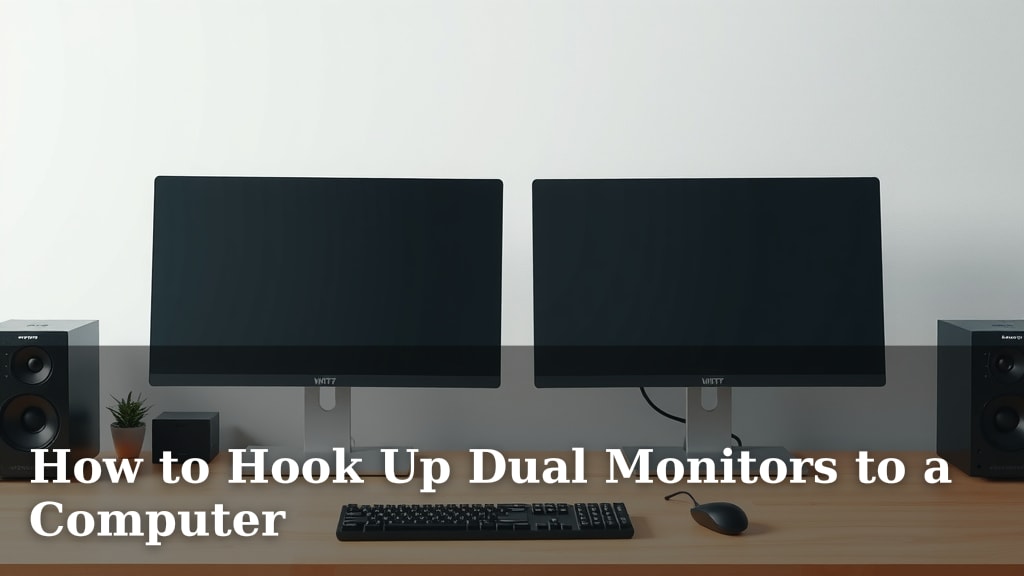
Yes, you can absolutely hook up dual monitors to your computer with ease. Most modern computers have the necessary ports, and setting them up is usually a straightforward process. It’s a fantastic way to boost your productivity and make your computer use more enjoyable.
Adding a second monitor can drastically change your workflow. We found that having more screen space helps you manage tasks more efficiently. Whether you’re a gamer, a programmer, or just someone who likes to multitask, dual monitors offer a significant performance upgrade for your setup without needing a whole new computer.
- Connect the monitors to your computer’s video ports.
- Configure your display settings to extend or duplicate your screen.
- Arrange your monitors on your desk for comfortable viewing.
- Enjoy your expanded workspace!
Ready to get your second screen up and running? Let’s walk through exactly how to hook up your dual monitors step by step.
Setting Up Your Second Monitor: A Simple Guide
Connecting a second monitor to your computer is a fantastic way to boost your productivity. You’ll wonder how you ever managed with just one screen. It’s usually a pretty straightforward process. We’ve found that most people can get it done in under 30 minutes. Let’s break down exactly what you need to do.
Checking Your Computer’s Ports
Before you buy any new cables, take a look at the back of your computer. You need to see what video output ports your computer has available. This is like checking your phone’s charging port before buying a new charger.
Common Video Output Ports
You’ll likely see one or more of these ports on your computer or laptop:
- HDMI: This is the most common port you’ll find. It transmits both video and audio.
- DisplayPort (DP): Similar to HDMI, it’s great for high-resolution displays and refresh rates.
- DVI: An older standard, but still very common. It transmits video only.
- VGA: This is an analog port and is the oldest. You might see it on older computers or monitors. It’s generally lower quality than digital options.
What If You Don’t Have Enough Ports?
What if your computer only has one video output, but you want two monitors? Don’t worry, you have options. You can use a USB-to-HDMI adapter or a docking station. A USB adapter essentially creates a new video output for your computer. A docking station is a bit more involved but can offer many more ports, not just for video.
We’ve found that USB adapters are a good solution for simple setups. They are generally less expensive than docking stations. Many experts say that USB 3.0 or higher is recommended for better performance (TechRadar). If you have a laptop, a docking station can be a lifesaver, allowing you to connect multiple peripherals easily.
Connecting Your Monitors
Now that you know your ports, it’s time to connect everything. This is the physical part of the setup. Make sure your computer is turned off before you start plugging things in.
Step 1: Connect the Cables
Take your monitor cables. You’ll need one cable for each monitor. Plug one end of the cable into your computer’s video output port. Then, plug the other end into the corresponding input port on your monitor. Make sure the connections are snug. You don’t want them to wiggle loose.
Step 2: Power Up Your Equipment
Turn on your monitors first. Then, start up your computer. Your computer should detect the new monitor automatically. You might see your desktop appear on both screens, or one might be blank for now.
Configuring Your Display Settings
Your computer needs to know how you want to use your dual monitors. Do you want the same thing on both screens, or do you want more space to work?
Understanding Display Modes
Windows and macOS offer different ways to use multiple displays. We’ve identified the two main modes:
- Duplicate: This mode shows the exact same image on both monitors. It’s useful for presentations when you want an audience to see what you’re seeing.
- Extend: This is the most popular option for productivity. It makes your desktop larger, allowing you to drag windows from one screen to the other.
How to Adjust Settings in Windows
To adjust your settings in Windows 10 or 11, follow these steps:
- Right-click anywhere on your desktop.
- Select “Display settings” from the menu that appears.
- You will see boxes representing your monitors. They might be numbered 1 and 2.
- Scroll down to the “Multiple displays” section.
- Click the dropdown menu and choose “Extend these displays” or “Duplicate these displays.”
- If you choose “Extend,” you can also drag the monitor boxes around. This tells Windows which physical monitor is to the left or right of the other. This helps your mouse move correctly between screens.
- Click “Keep changes” if prompted.
How to Adjust Settings on macOS
For Mac users, the process is similar:
- Click the Apple menu in the top-left corner.
- Select “System Settings” (or “System Preferences” on older macOS versions).
- Click on “Displays.”
- You should see your connected displays.
- By default, macOS usually extends your desktop. You can click “Arrangement” to change the layout.
- Drag the displays in the Arrangement tab to match their physical position on your desk.
- You can also drag the white menu bar to the monitor you want to be your primary display.
Optimizing Your New Workspace
Now that your monitors are connected and configured, you’ll want to make sure your setup is comfortable and efficient.
Physical Arrangement
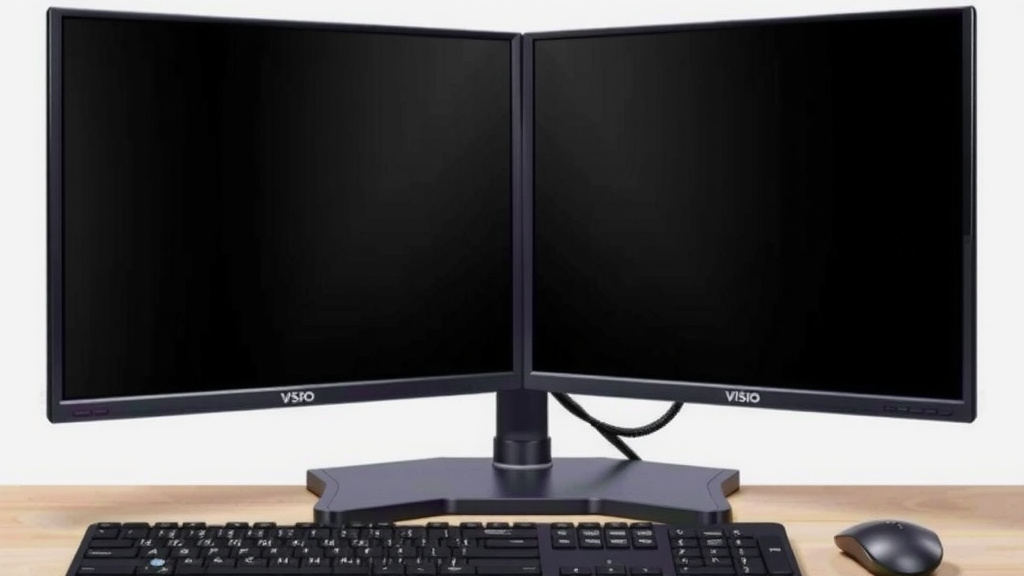
Think about how you sit at your desk. You want your primary monitor directly in front of you. Position your second monitor either to the left or right. Many experts suggest placing them at a slight angle to each other. This reduces neck strain and makes it easier to see both screens (American Optometric Association). Your monitors should also be at eye level. You might need a monitor stand or a small stack of books to achieve this.
Checklist for Success
Here’s a quick recap to ensure you’re all set:
- Verified your computer’s video ports?
- Purchased the correct cables?
- Physically connected both monitors?
- Powered on all devices?
- Set your display mode (Extend/Duplicate)?
- Arranged monitors for comfort?
You’ve done it! You’re now ready to enjoy the benefits of a dual-monitor setup. You’ll find yourself more productive and your computer experience much smoother. Welcome to the bigger desktop club!
Conclusion
You’ve successfully navigated the steps to hook up your dual monitors! We’ve covered checking your computer’s ports, making the physical connections, and configuring your display settings for optimal workflow. Remember, the goal is to create an extended workspace that makes your computing tasks smoother and more productive. Whether you chose to extend your desktop or duplicate your screen, your new setup is ready to go. Now, take a moment to physically arrange your monitors for maximum comfort and efficiency. Go ahead and start dragging windows across your expanded desktop – enjoy the productivity boost!
Frequently Asked Questions
Can I connect two monitors if my computer only has one video port?
Yes, you can. Many computers have multiple video ports, but if yours doesn’t, you can use a USB-to-HDMI adapter. These adapters create an additional video output for your computer, allowing you to connect a second monitor. For laptops, a docking station can also achieve this and offer more connectivity options.
What’s the difference between “Extend” and “Duplicate” display modes?
Duplicate mode shows the exact same content on both monitors. This is great for presentations. Extend mode, on the other hand, creates one large desktop across both screens. You can drag applications and windows between them, which is ideal for multitasking and boosting productivity.
Do I need to turn off my computer before connecting monitors?
It’s generally recommended to turn off your computer before making any new hardware connections. This helps prevent potential damage to your computer or the new peripherals. Once everything is physically connected, you can then power on your monitors and your computer.
How do I know which cable to use for my monitors?
You’ll need to check the video output ports on your computer and the input ports on your monitors. Common ports include HDMI, DisplayPort, DVI, and VGA. Make sure the cable you use matches the ports available on both devices, or use an adapter if necessary.
My second monitor isn’t showing anything. What should I do?
First, double-check all cable connections are secure. Then, ensure the monitor is powered on and set to the correct input source. If it’s still not working, try restarting your computer. You might also need to go into your display settings to ensure the second monitor is detected and set to “Extend” or “Duplicate.”