Monitor Height: Finding Your Ergonomic Sweet Spot
Your monitor should be positioned so the top of your screen is at or slightly below your eye level. This helps you look slightly down, which is the most comfortable position for your neck and eyes. Getting this right can make a big difference in your daily comfort.
Finding the perfect monitor height is key to avoiding neck strain and headaches. It’s about more than just comfort, though. Proper ergonomics, like the right monitor setup, can actually boost your productivity. Many experts agree that a well-adjusted workstation is essential for long-term health and work performance.
- Your monitor’s top edge should align with your eyes.
- This helps prevent neck strain and eye fatigue.
- Your computer chair height also plays a role.
- Adjusting your setup reduces discomfort.
Below, we’ll walk you through exactly how to adjust your monitor for optimal comfort and health. Let’s make sure your workspace is set up right for you!
Setting Your Monitor to the Perfect Height for Comfort
Getting your monitor height just right is more important than you might think. Your eyes and neck will thank you. We’re going to show you how to achieve that sweet spot.
The Golden Rule: Eye Level is Key
Experts and ergonomic guidelines consistently point to one simple rule: the top of your monitor should be at or slightly below your natural eye level. This isn’t just a suggestion; it’s a fundamental aspect of good posture. When you position your monitor this way, you naturally look slightly downward. This slight downward gaze is the most comfortable position for your eyes and neck. It reduces the strain that comes from looking up or craning your neck too far down. Many people spend hours at their computers, so this small adjustment makes a huge difference over time (Mayo Clinic).
Why This Angle Works Wonders
Think about it like reading a book. You naturally tilt your head down slightly. Your monitor setup should mimic this natural, relaxed posture. Looking straight ahead or slightly up forces your neck muscles to work harder. This can lead to stiffness, headaches, and that familiar ache in your shoulders. Aligning the monitor with your eye level ensures your head stays in a neutral position, minimizing muscular effort.
Your Chair Height Matters Too
Your monitor’s height is only one piece of the ergonomic puzzle. The height of your chair plays an equally vital role. When you’re sitting correctly, your feet should be flat on the floor. Your thighs should be roughly parallel to the floor. If your chair is too high, you might find yourself angling your monitor up too much, which defeats the purpose. If it’s too low, you might be looking too far down, creating a hunch. It’s about finding a balanced setup where both your monitor and chair work together.
Achieving the Right Chair-to-Desk Relationship
Many adjustable office chairs allow you to fine-tune the height. Aim for a position where your elbows are at about a 90-degree angle when your hands are resting on the keyboard. This also helps maintain a relaxed shoulder posture. If your desk is too high and you can’t adjust your chair enough, consider a footrest. Conversely, if your desk is too low, you might need to raise it or use monitor risers. It’s all about creating a harmonious workspace tailored to you.
Adjusting Your Monitor for Optimal Viewing
Now that you understand the basic principles, let’s get into the practical steps of adjusting your monitor. This process is straightforward and can be done with minimal fuss.
Finding Your Natural Eye Level
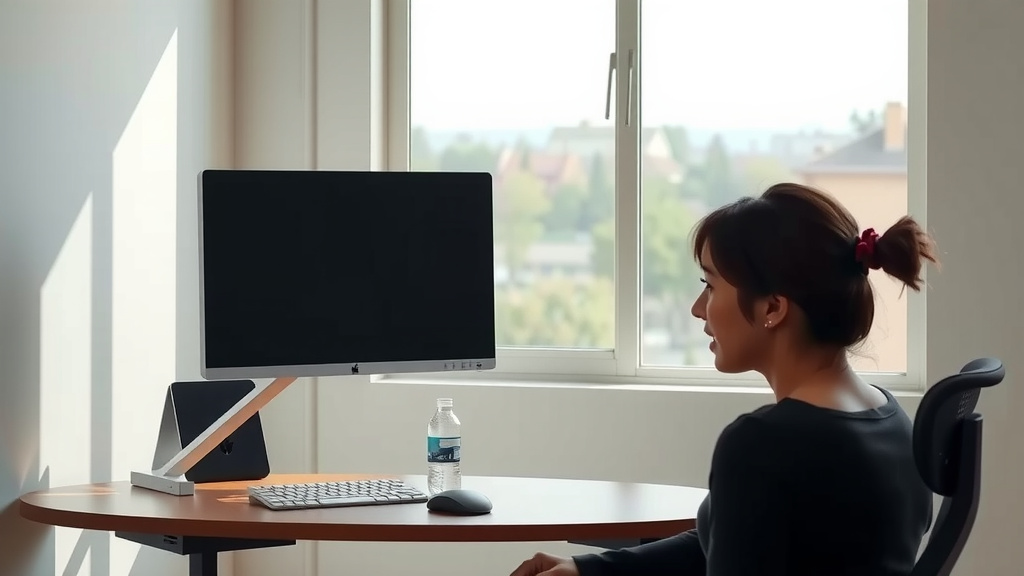
The easiest way to find your eye level is to sit up straight in your chair, with your feet flat on the floor. Relax your shoulders and look straight ahead. Imagine a line extending from your eyes to the monitor. The top edge of the monitor should land on or just below this imaginary line. If you wear bifocals or progressive lenses, you might prefer the top of the screen to be slightly lower, so you’re looking through the center of your lenses when reading.
Using a Monitor Stand or Riser
Most monitors don’t have an adjustable stand that offers enough height. This is where monitor stands or risers come in handy. You can buy them commercially, or even get creative with sturdy books or a specialized shelf. Place the riser on your desk and position your monitor on top of it. You can then stack items to achieve the perfect height. The goal is to get that monitor top aligned with your eye level without straining.
What About Laptop Users?
Laptops present a unique challenge. The screen is often too low, forcing you into a hunched position. To fix this, use a separate keyboard and mouse. Then, place your laptop on a stand or books to raise the screen to the correct eye-level height. This turns your laptop into a more ergonomic desktop setup. Without this adjustment, you’re setting yourself up for neck pain. It’s a simple fix with big rewards.
Considering Screen Distance and Tilt
Height isn’t the only factor for comfortable viewing. The distance between you and your monitor is also important. A good rule of thumb is to place your monitor about an arm’s length away. You should be able to comfortably reach your screen without fully extending your arm. This distance helps prevent eye strain. Furthermore, tilting your monitor slightly upward (about 10-20 degrees) can improve viewing comfort and reduce glare. You want the screen angled so you aren’t fighting reflections from overhead lights.
The Role of Lighting and Glare
Poor lighting can exacerbate eye strain, even with the perfect monitor height. Position your monitor so that windows or bright lights aren’t directly behind or in front of it. This minimizes glare. If you can’t avoid it, consider using a screen filter or adjusting your blinds. A well-lit room, but with indirect light on your screen, is ideal for long work sessions.
A Quick Checklist for Your Ergonomic Setup
Let’s quickly recap the key points to get your workspace optimized. Tick these off as you check them:
- Monitor Top Aligned: Is the top of your screen at or just below eye level?
- Chair at the Right Height: Are your feet flat on the floor and thighs parallel to the ground?
- Elbows at 90 Degrees: Do your elbows form roughly a right angle when typing?
- Screen Distance: Is your monitor about an arm’s length away?
- Screen Tilt: Is the monitor tilted slightly upward for comfortable viewing?
- Lighting Check: Is glare minimized on your screen from windows or lights?
Conclusion
You’ve now learned how crucial monitor height is for your comfort and health. Aligning the top of your screen with your eye level is your golden rule. Remember to also consider your chair height and screen distance for a balanced setup. These simple adjustments can prevent aches and boost your productivity. Take a moment today to check your workstation and make these easy ergonomic tweaks. Your body will thank you for it!
Frequently Asked Questions
What if I wear glasses with progressive lenses?
If you wear progressive lenses, you might prefer to set your monitor slightly lower. This way, you can look through the center of your lenses when reading text on your screen. It helps avoid craning your neck to find the right focal point. Experiment to find the perfect height for your specific vision needs.
How do I know if my monitor stand is tall enough?
Your monitor stand is tall enough if, with it in place, you can achieve the ideal setup. This means the top of your monitor screen is at or just below your natural eye level. You shouldn’t have to tilt your head up or strain your eyes to see the top of the screen. If it’s not tall enough, you’ll need a riser or to stack sturdy items.
Can I use books as a monitor riser?
Yes, you can absolutely use sturdy books or even a specialized shelf as a monitor riser. The key is stability. Ensure whatever you use is strong enough to hold your monitor securely. The goal is to safely raise the monitor to the correct ergonomic height. It’s a practical and often cost-effective solution.
Is monitor height important for preventing headaches?
Yes, monitor height is very important for preventing headaches. When your monitor is too low or too high, you often strain your neck and eye muscles. This strain can easily lead to tension headaches. Setting your monitor at the correct eye level reduces this physical stress, contributing to fewer headaches and overall better comfort.
How does a laptop’s built-in screen compare ergonomically?
A laptop’s built-in screen is often too low for comfortable, long-term use. This forces you to hunch over, leading to neck and shoulder pain. For better ergonomics, it’s best to use an external keyboard and mouse and elevate the laptop screen to eye level with a stand or books. This essentially turns your laptop into a more desktop-like ergonomic setup.