Monitor Distance: The Ergonomic Sweet Spot
Your monitor should be about an arm’s length away, which is typically around 20-30 inches. This distance helps you see the entire screen without straining your eyes or neck. Getting this ergonomic monitor distance right is key for comfort and preventing eye strain.
Did you know poor monitor placement can lead to headaches and neck pain? Experts recommend this viewing distance to reduce visual fatigue. It’s a simple adjustment that makes a big difference for your daily computer use and overall well-being. You want a setup that feels good for hours.
- Monitor distance: arm’s length (20-30 inches).
- Prevents eye strain and neck pain.
- Helps you see the whole screen easily.
- A simple change for better comfort.
Let’s walk through exactly how to find that perfect monitor distance for your workspace.
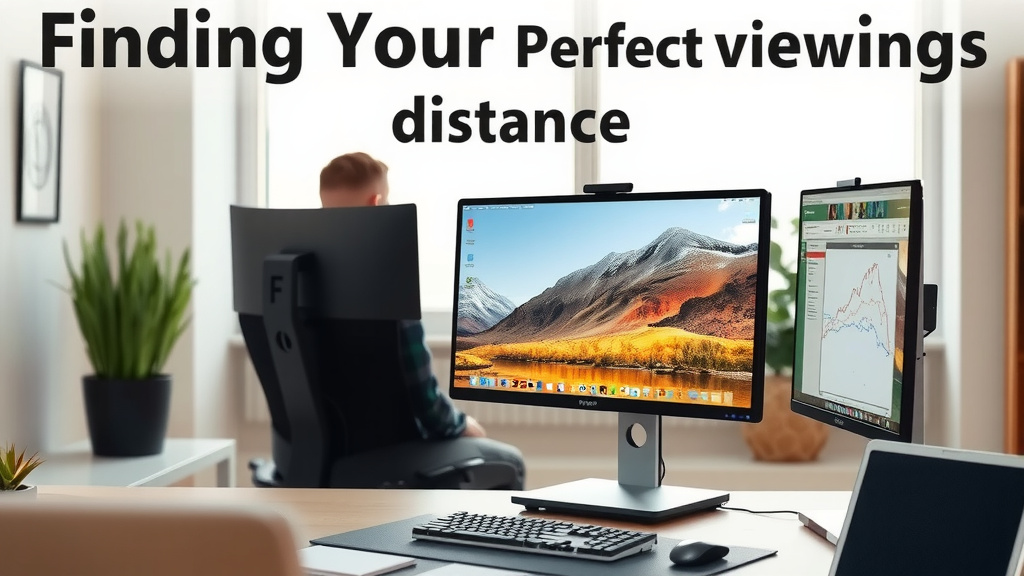
Finding Your Perfect Monitor Viewing Distance
So, you’ve got your monitor set up, but does it feel just right? Or are you squinting, leaning in, or craning your neck? Getting your monitor distance dialed in is one of the easiest ways to boost your comfort and reduce strain. It’s all about finding that sweet spot where your eyes and neck can relax.
Most experts agree that your monitor should be about an arm’s length away. This usually translates to somewhere between 20 and 30 inches. Think of it like reading a book – you wouldn’t hold it right up to your nose, nor would you hold it so far away you can’t see the words clearly. Your monitor is no different!
Why Monitor Distance Matters So Much
You might be thinking, “Is it really that big of a deal?” Absolutely! Spending hours with your monitor too close or too far can lead to some unwelcome guests: eye strain, headaches, and even neck and shoulder pain. We’ve all been there, rubbing our tired eyes after a long day. Proper placement can help prevent that.
The American Optometric Association suggests that your viewing distance should allow you to see the entire screen without excessive head or eye movement. This is key for maintaining a relaxed posture. When you’re constantly adjusting your head or straining to see, your muscles work overtime.
The Risks of Poor Monitor Placement
Let’s talk about what happens when your monitor isn’t at the right distance. If it’s too close, your eyes have to work harder to focus. This constant effort can lead to visual fatigue, dry eyes, and blurred vision. It’s like running a marathon without stretching – your body isn’t happy.
On the flip side, if your monitor is too far away, you might find yourself leaning forward. This puts your neck and upper back in an awkward, unsupported position. Over time, this can contribute to stiff necks, shoulder pain, and even lower back discomfort. Your body is designed to be in a more neutral position.
How to Measure Your Ideal Monitor Distance
Finding your perfect distance is surprisingly simple. You don’t need fancy tools, just yourself and your workspace. The goal is to find a spot where you can comfortably see all parts of your screen without moving your head.
The Arm’s Length Test
This is the go-to method for a reason. Simply extend your arm straight out from your body, keeping it relaxed. Your fingertips should be able to gently touch the screen. If you can reach it easily with a relaxed arm, you’re likely in the right ballpark.
Now, take a step back. Can you still see the screen clearly without any strain? You might need to adjust slightly. The key is to find a distance where the entire screen fits within your field of vision. This means you shouldn’t have to turn your head much to see things on the edges of the screen.
Considering Screen Size and Resolution
While the arm’s length rule is a great starting point, the size and resolution of your monitor can play a role. Larger monitors, especially ultrawide ones, might require you to sit a bit further back to take in the whole picture comfortably. You want to avoid scanning back and forth like you’re watching a tennis match.
Higher resolution displays generally allow you to sit closer because they pack more pixels into the same space, meaning text and images appear sharper. However, the general guidelines still hold true. It’s about finding that balance that feels natural for your eyes.
| Screen Size (Diagonal) | Approximate Distance | Notes |
|---|---|---|
| 19-22 inches | 20-25 inches | Good for smaller desks or general use. |
| 24-27 inches | 25-30 inches | Common size, often considered the sweet spot for many. |
| 30+ inches (or Ultrawide) | 30-40 inches | May require adjusting desk setup or using monitor arms. |
Setting Up Your Monitor Correctly: Beyond Just Distance
Distance is a big piece of the puzzle, but other ergonomic adjustments can make a world of difference too. Think of it like tuning a musical instrument – getting all the parts right creates harmony.
Monitor Height is Just as Important
Your monitor should be positioned so the top of the screen is at or slightly below your eye level. This helps you look slightly downward, which is a more natural and relaxed position for your neck and eyes. Imagine you’re looking at the horizon – your gaze is level or slightly down.
Many people find themselves looking up at their screens all day. This can strain your neck muscles. If your monitor is too low, you can often fix this with a monitor stand or even a stack of sturdy books. Yes, books can be ergonomic tools!
Angle Your Monitor for Comfort
Once you have the height and distance sorted, consider the angle. You generally want to tilt your monitor slightly upward, about 10-20 degrees. This angle helps reduce glare from overhead lights or windows. It also naturally encourages that slight downward gaze.
Experiment with this tilt. You’ll know it’s right when you can see the screen clearly without squinting or tilting your head back. It’s all about minimizing distractions and maximizing your viewing comfort.
Minimizing Glare and Reflections
Glare is a silent enemy of eye comfort. Bright lights or windows reflecting off your screen force your eyes to work harder. Try repositioning your monitor or using an anti-glare screen protector. Sometimes, simply closing the blinds can solve the problem.
The goal is to have a consistent, comfortable level of brightness. If you find yourself constantly adjusting the brightness on your monitor, it might be a sign that glare is playing a role. Making a few small changes can lead to a big improvement in how your eyes feel.
Your Ergonomic Monitor Checklist
Ready to put this into practice? Here’s a quick checklist to help you find your perfect monitor setup:
- Measure the Distance: Extend your arm; fingertips should lightly touch the screen.
- Check Your Height: The top of the screen should be at or below eye level.
- Test the Angle: Tilt the monitor slightly upward (10-20 degrees) to reduce glare.
- Scan Your Field of Vision: Ensure you can see the entire screen without turning your head.
- Assess for Glare: Adjust blinds or consider an anti-glare screen if needed.
- Listen to Your Body: Does it feel comfortable for extended periods?
Conclusion
You’ve learned how crucial monitor distance is for comfort and health. Getting your monitor about an arm’s length away, between 20-30 inches, is key. Remember to also check your monitor’s height and angle. These simple ergonomic adjustments prevent eye strain and neck pain. They make your daily computer use much more enjoyable and sustainable. Take a moment today to apply these tips. Your eyes and neck will thank you for it!
Frequently Asked Questions
What if my desk setup makes an arm’s length distance difficult?
If your desk is too shallow or deep, you might need to get creative. Consider using a monitor arm to bring the screen closer or extend it. Sometimes, a different desk or adjusting your seating position can help achieve the ideal ergonomic distance.
How does screen size affect the ideal monitor distance?
Larger monitors, especially ultrawide ones, generally require you to sit a bit further back. This helps you take in the entire screen without excessive eye or head movement. Smaller screens might allow for a slightly closer distance, but the arm’s length rule remains a good baseline.
Can I adjust my monitor distance if I wear bifocal or progressive lenses?
Yes, people who wear bifocals or progressives might need to adjust. You may find it more comfortable to tilt the monitor down slightly more or adjust the distance so you can comfortably view the screen through the appropriate part of your lens. Experiment to find your sweet spot.
How often should I check my monitor’s ergonomic setup?
It’s a good idea to check your monitor’s setup periodically, especially if you experience discomfort. Things can shift over time, or you might find new needs. Make it a habit to do a quick ergonomic assessment every few months or whenever you feel strain.
Is it okay to lean forward if I can see the screen better?
No, leaning forward is usually a sign your monitor is too far away or too low. This posture can strain your neck and back. It’s better to adjust the monitor’s position to a comfortable distance and height. Your body should remain in a relaxed, neutral position.