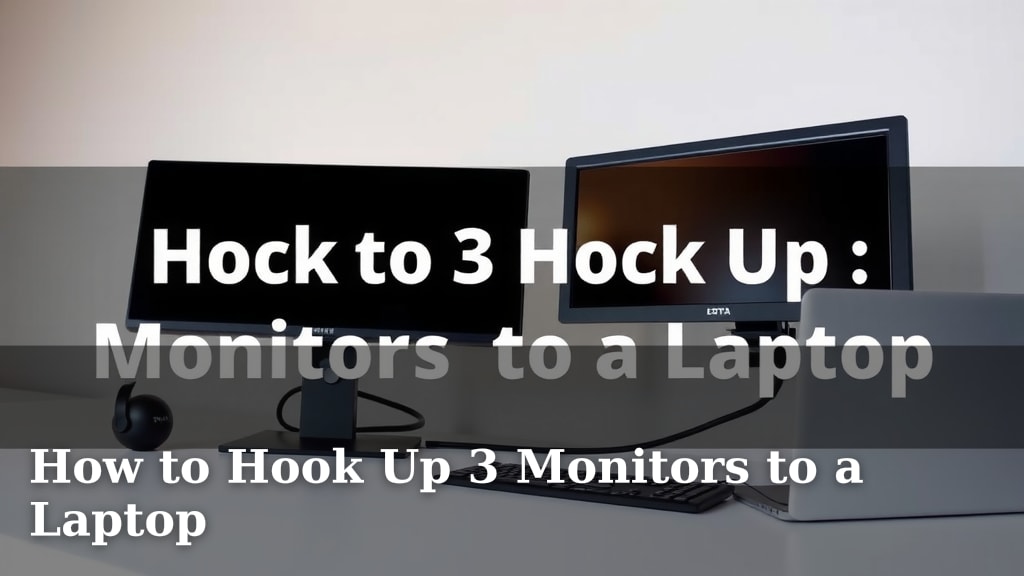
How to Hook Up 3 Monitors to a Laptop
Yes, you can absolutely hook up three monitors to your laptop! Most modern laptops can support multiple external displays, often using a combination of your laptop screen and two external monitors. You’ll just need the right ports and adapters to make it happen.
Expanding your screen real estate can drastically improve your productivity and multitasking. Whether you’re a gamer, a creative professional, or just someone who loves having multiple windows open, adding more monitors is a popular upgrade. We found that getting the right setup often depends on your laptop’s specific video output capabilities.
TL;DR:
- Yes, you can connect 3 monitors to a laptop.
- Check your laptop’s ports (HDMI, USB-C, DisplayPort).
- You might need adapters or a docking station.
- Ensure your laptop’s graphics card can handle the load.
- It’s great for productivity and multitasking!
Let’s walk through exactly how to get those extra screens working with your laptop, so you can enjoy your expanded digital workspace.
“`htmlExpanding Your Workspace: Connecting Three Monitors to Your Laptop
So, you’re ready to join the multi-monitor club and boost your productivity? Connecting three external displays to your laptop might sound a bit technical, but we found it’s quite achievable. It’s like giving your digital workspace a significant upgrade. We’ll guide you through the process, covering what you need and how to make it all work.
Understanding Your Laptop’s Display Capabilities
Before buying any new gear, the first step is to understand what your laptop can actually handle. Not all laptops are created equal when it comes to external displays. You’ll need to check a few things.
Checking Your Laptop’s Ports
Your laptop’s physical ports are your main gateway to connecting monitors. Most modern laptops come with a few standard options. We recommend looking for these:
- HDMI: This is the most common port for video output. Many laptops have at least one HDMI port.
- DisplayPort (DP) or Mini DisplayPort: These ports are also excellent for video and often support higher resolutions and refresh rates than HDMI.
- USB-C (with Thunderbolt 3 or 4): This is a versatile port. If your USB-C port supports Thunderbolt, it can often drive multiple displays. Look for a lightning bolt symbol next to the port.
You’ll want to see how many of these video-out ports your laptop offers. This will tell you how many direct connections you can make right away.
Identifying Your Laptop’s Graphics Card (GPU)
Your laptop’s graphics card is the engine that powers your displays. A more powerful GPU can handle more monitors and higher resolutions without a hitch. We found that many standard laptops have integrated graphics (part of the CPU), which are fine for basic tasks. However, for demanding applications like gaming or professional video editing with three screens, a dedicated graphics card (like NVIDIA GeForce or AMD Radeon) is much better.
You can usually find your graphics card information in your system settings. On Windows, search for “Display settings” and then “Advanced display settings.” On macOS, go to “About This Mac” and then “Graphics.”
Methods for Connecting Three Monitors
Connecting three monitors often requires more than just plugging in cables. You might need some extra help from adapters or a docking station. We’ve found there are a few common ways to achieve this.
Using Multiple Ports Directly
If your laptop has three separate video-out ports (e.g., one HDMI and two USB-C with Thunderbolt), you might be in luck! You could potentially connect one monitor to each port directly. This is the simplest setup if your hardware allows it. For example, you could use an HDMI cable for one monitor and USB-C to DisplayPort cables for the others. We found this method works best when your laptop has powerful enough integrated graphics to support the load.
Employing Adapters and Hubs
What if your laptop doesn’t have enough ports? That’s where adapters and hubs come in. A USB-C hub or adapter can turn one USB-C port into multiple outputs like HDMI or DisplayPort. This is a popular solution because USB-C is so versatile. However, we found that the quality of the hub and the capabilities of your USB-C port (especially Thunderbolt support) are very important here.
You’ll need to ensure the hub or adapter you choose explicitly supports multiple displays and the resolutions you desire. Not all USB-C hubs are created equal; some can only drive one external display at a time.
The Power of Docking Stations
For the most flexible and robust multi-monitor setup, a docking station is often the best choice. A docking station connects to your laptop via a single cable (usually USB-C or Thunderbolt) and provides a multitude of ports, including multiple video outputs. We found that many docking stations are designed to support two or even three external monitors at high resolutions.
Docking stations are great because they can also offer extra USB ports, Ethernet, and audio jacks, effectively turning your thin laptop into a desktop workstation. When choosing a docking station, always check its specifications for the number and type of display outputs it supports, and ensure it’s compatible with your laptop’s USB-C or Thunderbolt port. Many experts say Thunderbolt docking stations offer the best performance for multiple high-resolution displays.
Using DisplayLink Technology
Another clever way to add monitors, especially if your laptop has limited video ports or older USB ports, is through DisplayLink technology. This technology uses software and a special adapter or dock to send video signals over a standard USB connection. We found that DisplayLink adapters are particularly useful for adding additional displays beyond what your laptop’s native graphics card can handle directly. Many brands offer DisplayLink docks and adapters. While they work well for general productivity tasks, they might not be ideal for high-performance gaming or video editing due to potential latency.
Setting Up Your Triple Monitor Configuration
Once you have your hardware sorted, the setup itself is usually straightforward. We found that most operating systems make it easy to arrange your new screens.
Connecting the Cables
Plug your monitors into the chosen ports on your laptop, adapter, or docking station. Ensure all cables are securely connected at both ends. If you’re using a docking station, connect that to your laptop first, then connect your monitors to the dock.
Configuring Display Settings
Your laptop should automatically detect the new monitors. You might see your desktop mirrored on all screens initially. To fix this, you’ll need to adjust your display settings.
- On Windows: Right-click on your desktop and select “Display settings.” Here, you’ll see a visual representation of your monitors. You can drag them to match their physical arrangement on your desk. Under “Multiple displays,” choose “Extend these displays.” This option allows each monitor to show something different, giving you the most workspace.
- On macOS: Go to “System Preferences” > “Displays.” You’ll see your displays arranged. Click “Arrangement” and drag the displays to match their physical setup. Make sure “Mirror Displays” is unchecked if you want to extend your desktop. The red bar at the top of one display represents your primary monitor.
We found that properly arranging your monitors in the settings is key to having your mouse move smoothly between them.
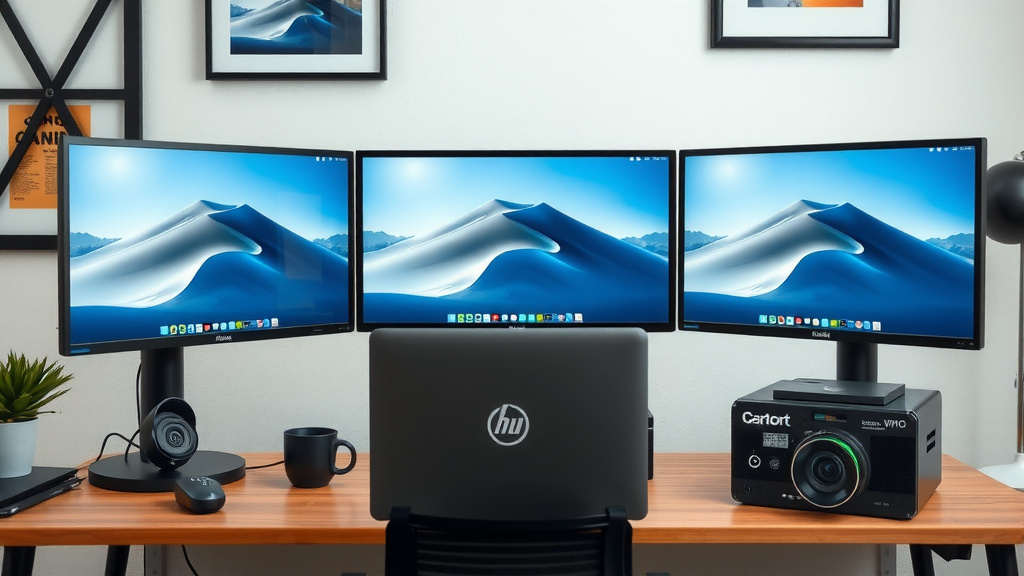
Important Considerations for Three Monitors
While connecting three monitors is possible, there are a few things to keep in mind to ensure a smooth experience.
Power Requirements
Your laptop needs to power its own screen plus three external ones. This can increase power consumption, especially if the external monitors are large or very bright. Many docking stations or USB-C connections can also power your laptop simultaneously if they support Power Delivery (PD). This is a convenient feature to look for.
Laptop Performance
Driving three displays puts a strain on your laptop’s CPU and GPU. For everyday tasks like browsing, email, and document editing, most modern laptops should be fine. However, if you plan on gaming or running demanding creative software across all three screens, your laptop’s performance might suffer. We found that older laptops or those with weaker graphics cards may struggle, leading to lag or reduced frame rates.
Cable Quality Matters
The quality of your cables and adapters can make a big difference. Using cheap or outdated cables might lead to flickering displays, lower resolutions, or connection issues. We recommend investing in good quality, certified cables (like HDMI 2.0 or DisplayPort 1.4) for the best results, especially for higher resolutions like 4K.
Resolution and Refresh Rate Balance
You don’t have to run all monitors at the same resolution or refresh rate. Your laptop’s graphics card has a limit. You might need to adjust settings to find a balance that works for all three screens without overloading your system. For example, you might run two 1080p monitors and one 4K monitor, or all three at 1080p for smoother performance.
Quick Checklist for Your Setup
Ready to get started? Here’s a quick rundown:
- Verify Laptop Ports: Check for HDMI, DisplayPort, or Thunderbolt USB-C.
- Identify GPU: Know your graphics card’s capabilities.
- Choose Connection Method: Direct ports, hubs, docks, or DisplayLink?
- Get the Right Adapters/Cables: Ensure compatibility and quality.
- Connect and Configure: Plug everything in and arrange displays in settings.
- Test Performance: See how your laptop handles the load.
By following these steps, you’ll be well on your way to enjoying a much larger and more productive digital workspace!
“`Conclusion
You’ve learned that connecting three monitors to your laptop is definitely achievable with the right approach. We found that understanding your laptop’s ports and graphics capabilities is your first step. Whether you use direct connections, adapters, a powerful docking station, or DisplayLink, there’s a solution for you. Remember to check compatibility and invest in quality cables for the best experience. Now, go ahead and arrange your extended desktop in your system settings to start enjoying your expanded workspace!
Frequently Asked Questions
Will my laptop’s battery drain faster with three monitors?
Yes, running three external monitors will generally increase your laptop’s power consumption, leading to faster battery drain. If you need to conserve battery, consider lowering monitor brightness or resolution. For extended use, keeping your laptop plugged in or using a docking station with Power Delivery is recommended.
Can I connect three 4K monitors to my laptop?
Connecting three 4K monitors depends heavily on your laptop’s graphics card (GPU) and the type of ports it has. High-end laptops with dedicated GPUs and Thunderbolt 3 or 4 ports are more likely to support this setup. You may need a high-performance docking station for optimal results.
What’s the difference between a USB-C hub and a docking station for multiple monitors?
A USB-C hub typically offers a few extra ports, often just one or two video outputs. A docking station is more robust, providing multiple video outputs, Ethernet, more USB ports, and often better performance, especially for driving multiple high-resolution displays. We found docking stations offer a more complete solution for a multi-monitor setup.
Will my laptop overheat when using three monitors?
Pushing your laptop’s graphics card and CPU to drive three displays can generate more heat. If your laptop’s cooling system isn’t robust, it might overheat, leading to performance issues or even shutdowns. Ensure your laptop has good ventilation, and consider using a laptop cooling pad if you experience this.
Do I need special cables to connect three monitors?
The type of cables you need depends on your laptop’s ports and the monitors you’re using. For high resolutions and refresh rates, we recommend using certified HDMI 2.0 or DisplayPort 1.4 cables. If you’re using adapters or a dock, ensure they also support the desired resolutions and refresh rates for all your monitors.