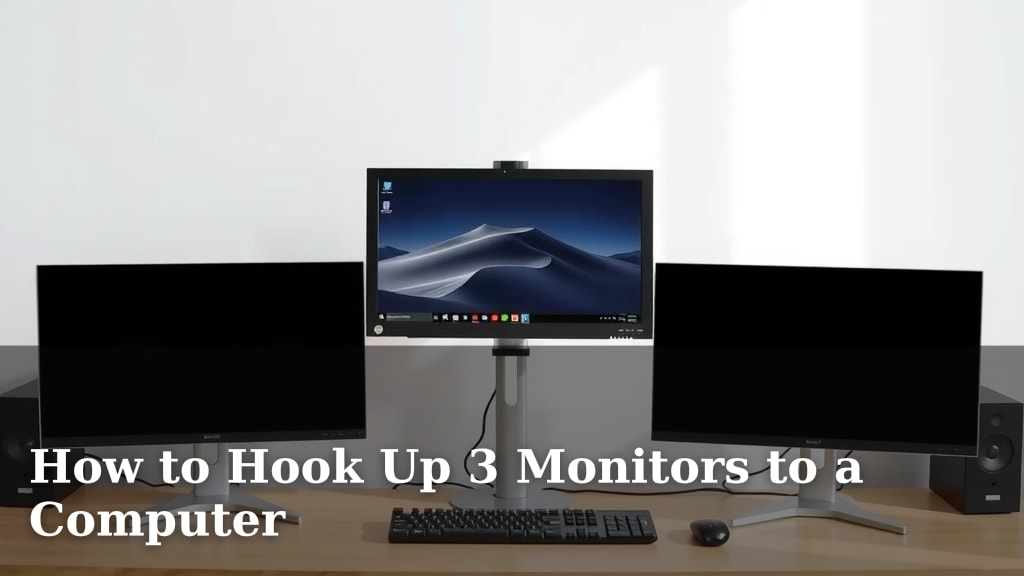
How to Hook Up 3 Monitors to a Computer
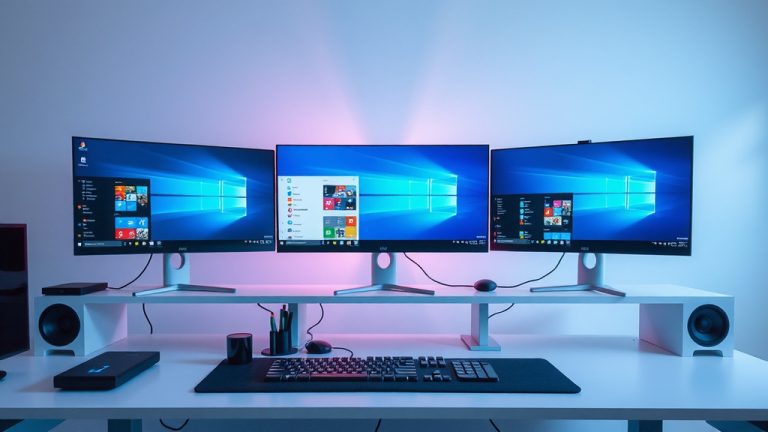
Yes, you can absolutely hook up 3 monitors to your computer. Most modern computers and graphics cards support multiple displays, making it easier than you might think to expand your workspace. You’ll just need to check your computer’s ports and ensure you have the right cables to achieve a three-monitor setup.
Adding more screens can really boost your productivity. You’ll have more room for open windows and applications. Many users find this setup improves multitasking and makes tasks like coding or design much more manageable. It’s a popular upgrade for many!
TL;DR:
- Check your computer’s available video ports (HDMI, DisplayPort, DVI, VGA).
- Make sure your graphics card supports multiple displays.
- You’ll need the correct cables for each monitor.
- Consider a docking station or adapter if your ports are limited.
- Setting up is usually straightforward through your operating system.
Ready to enjoy a wider view? Let’s walk through exactly how to get those three monitors connected and working with your computer.
“`htmlGetting Your Computer Ready for Three Monitors
So, you’re ready to expand your visual real estate? Hooking up three monitors might seem a bit daunting, but it’s often much simpler than you think. We’ll guide you through the essentials so you can get that super-productive multi-display setup running smoothly.
Understanding Your Computer’s Display Capabilities
The first and most important step is to figure out what your computer can actually handle. Not all machines are built the same. You need to know what your graphics card supports and what ports are available on your computer. This information is key to a successful setup.
Checking Your Graphics Card
Most modern desktop computers come with a dedicated graphics card, often made by NVIDIA or AMD. Laptops usually have integrated graphics built into the CPU. You can check which graphics card you have by looking in your computer’s system information. For Windows, you can search for “System Information” and then look under “Components” > “Display.” You’ll see your graphics card listed there. Many graphics cards are designed to handle multiple displays right out of the box. We found that even some integrated graphics can support up to three screens, especially with newer processors.
Identifying Available Ports
Once you know your graphics card, it’s time to look at the physical ports on the back of your computer (or on the sides for laptops). The most common video output ports you’ll find are:
- HDMI: This is very common on modern devices, carrying both video and audio.
- DisplayPort (DP): Often considered the most advanced, DisplayPort is great for high resolutions and refresh rates, and it also supports audio.
- DVI: An older but still common standard. DVI ports can be analog or digital.
- VGA: The oldest of the bunch, typically blue, and it only carries analog video signals.
You’ll need to count how many of these video output ports your computer has. For a three-monitor setup, you’ll ideally want at least three distinct video outputs. Sometimes, a single graphics card might have multiple ports of the same type (like two HDMI ports). This is perfectly fine!
Choosing the Right Cables and Adapters
Now that you know what ports you have, you need the right cables to connect your monitors. Compatibility is everything here. If your computer has three HDMI ports, you’ll need three HDMI cables. Simple enough, right?
Matching Ports to Cables
The simplest scenario is when your computer has three unique video output ports that match the input ports on your monitors. For example, if your computer has HDMI, DisplayPort, and DVI, and your monitors have corresponding inputs, you’re golden. You’d just need one HDMI cable, one DisplayPort cable, and one DVI cable.
When Ports Don’t Match: Adapters and Docking Stations
What if your computer has, say, only two HDMI ports and one USB-C port that supports DisplayPort Alternate Mode? This is where adapters and docking stations come into play.
Adapters: These small devices can convert one type of port to another. For instance, you could use a USB-C to HDMI adapter to get a third HDMI output. Many experts suggest ensuring your adapter is from a reputable brand to avoid compatibility issues (TechRadar). Just be sure the adapter specifically supports video output.
Docking Stations: If you’re using a laptop, or if your desktop has very limited ports, a docking station can be a lifesaver. These devices plug into your computer (often via USB-C or Thunderbolt) and provide multiple video outputs, USB ports, and other connections. Some docking stations are designed to support three or even more displays. We found that for laptops, a good docking station is often the easiest way to achieve a multi-monitor setup.
Connecting Your Three Monitors
With your ports identified and your cables/adapters ready, it’s time for the physical connection. This part is usually straightforward.
Step-by-Step Connection Process
First, make sure your computer and monitors are powered off. Then, connect one end of your video cable to the corresponding output port on your computer. Connect the other end to the input port on your first monitor. Repeat this for your second and third monitors, using the available ports on your computer.
If you’re using adapters or a docking station, connect those to your computer first, and then connect your monitor cables to the adapter or docking station. It’s like building blocks for your workstation!
Configuring Your Displays in the Operating System
Once everything is physically plugged in, it’s time to tell your computer how to use those new screens. Your operating system (Windows or macOS) has built-in tools for this.
Setting Up in Windows
After connecting your monitors, turn on your computer. Windows should detect the new displays. You might see your desktop appear on all three screens, or they might all show the same image. To adjust this, right-click on your desktop and select “Display settings.” Here, you’ll see representations of your monitors. You can drag them around to match their physical arrangement on your desk. This helps with mouse movement between screens.
Under the “Multiple displays” dropdown, you can choose how you want them to work:
- Duplicate these displays: Shows the same thing on all screens.
- Extend these displays: This is what most people want for a productivity boost, allowing you to spread windows across all three screens.
- Show only on 1, 2, or 3: Disables the other screens.
We recommend selecting “Extend these displays” for your three-monitor setup. You can also adjust the resolution and orientation for each monitor here.
Setting Up in macOS
For Mac users, the process is similar. Go to the Apple menu, select “System Preferences” (or “System Settings” on newer versions), and then click on “Displays.” Your connected monitors will be shown. You can arrange them by dragging their icons to match their physical layout. To have them work as separate screens, ensure “Mirror Displays” is NOT checked in the arrangement tab. Your Mac will automatically extend the desktop across the displays.
You can set your primary display by dragging the white menu bar to the monitor you want to be your main screen. Adjusting resolution and refresh rates is also done within this “Displays” section.
Troubleshooting Common Issues
Most of the time, this setup process is smooth sailing. However, sometimes you might run into a snag. Don’t worry, we’ve got you covered with a few common fixes.
Monitor Not Detected
If one or more monitors aren’t showing up, try these steps:
- Check Cables: Ensure all cables are securely plugged into both the computer and the monitor. A loose connection is often the culprit.
- Restart Computer: A simple restart can often resolve detection issues.
- Update Graphics Drivers: Outdated drivers can cause problems. Visit the website of your graphics card manufacturer (NVIDIA, AMD, or Intel) and download the latest drivers for your specific model. Many users find this fixes detection problems (PCMag).
- Try a Different Port/Cable: If possible, test your monitor with a different port on your computer or a different cable to rule out hardware failure.
Incorrect Resolution or Display Quality
If your screens look fuzzy or aren’t filling the screen properly, it’s likely a resolution issue. In your operating system’s display settings, make sure you select the recommended resolution for each monitor. This is usually indicated by “(Recommended)” next to the resolution number. Also, check that the refresh rate is set appropriately – typically 60Hz or higher for smooth visuals.
“`
Conclusion
You’ve now got the roadmap to successfully hook up three monitors to your computer. We’ve covered checking your hardware, selecting the right cables and adapters, and configuring your displays within your operating system. Don’t let limited ports hold you back; adapters and docking stations offer great solutions. With a little attention to detail, you can easily create a more expansive and productive workspace. So, go ahead and get those screens connected – your future productive self will thank you!
Frequently Asked Questions
Can my laptop really support three external monitors?
Yes, many modern laptops can support three external monitors, but it depends on the laptop’s specifications and ports. You’ll often need a USB-C docking station or an adapter that can split the video signal to achieve this.
Will I need a new graphics card to run three monitors?
For most desktops, your existing graphics card likely supports three displays if it has enough output ports. If it doesn’t, you might need to upgrade your graphics card or use a docking station if you have a laptop.
What’s the difference between extending and duplicating displays?
Extending your displays creates one large desktop across all monitors, giving you more space for windows. Duplicating shows the exact same content on each screen, which is useful for presentations.
Do all three monitors have to be the same brand or resolution?
No, your monitors do not need to match. Your computer can handle different brands and resolutions, though it’s generally best practice to set them to their native resolutions for optimal clarity.
My computer only has two video ports, but I need three monitors. What do I do?
This is where adapters or a docking station become essential. You can use a USB-C to HDMI/DisplayPort adapter for one monitor, or a more advanced docking station that offers multiple video outputs from a single connection.