Citrix Workspace: Master Multi-Monitor Setup
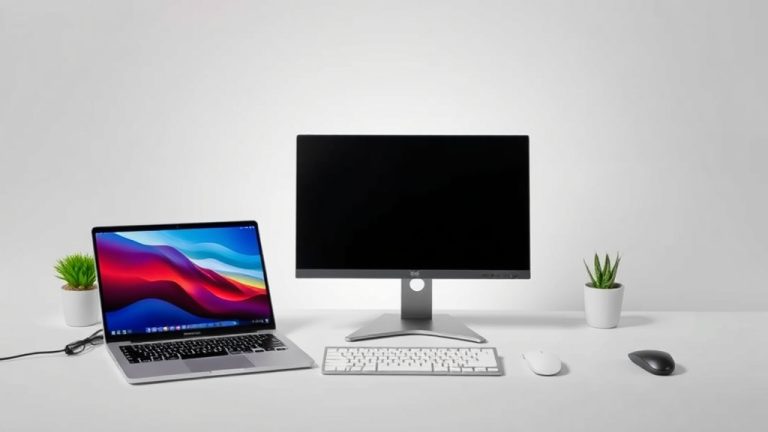
Yes, you can absolutely use multiple monitors with Citrix Workspace to boost your productivity! It’s a fantastic way to get more done by expanding your virtual desktop across several screens. You’ll find that extending your workspace makes tasks like comparing documents or managing multiple applications much easier. This is often called a multi-monitor setup or extended desktop within Citrix.
Many users wonder if this feature is supported, and the good news is that Citrix Workspace is designed to be flexible. Depending on your organization’s setup, you can often enjoy the benefits of dual monitors or even more. We’ve found that properly configuring your Citrix environment can significantly enhance your daily workflow and reduce the need to constantly switch between windows.
- Yes, Citrix Workspace supports multiple monitors.
- It helps you be more productive.
- You can expand your desktop across screens.
- Check your organization’s setup for availability.
Let’s walk through exactly how to set up and use multiple monitors with your Citrix Workspace. We’ll cover the basics and some handy tips to make sure you get the most out of this feature.
Maximizing Your Virtual Desktop: Using Multiple Monitors with Citrix
So, you’ve got Citrix Workspace, and you’re wondering about those extra screens. You’re in the right place! Many users find that adding a second or even a third monitor can feel like getting a whole new workspace without any extra physical desk space. It’s about spreading your digital world out.
The ability to use multiple monitors with Citrix Workspace is generally well-supported. It really depends on how your organization has set up your Citrix environment. We’ve found that most modern setups allow for this productivity boost. Let’s get into how you can make it work for you.
Getting Your Dual Monitors Ready for Citrix Workspace
Before you even think about Citrix settings, let’s make sure your physical setup is good to go. Think of this as prepping your actual desk for a big project.
Physical Connections and Display Settings
First things first, you need to connect your monitors to your computer. Ensure all your monitors are plugged into your docking station or directly into your computer’s graphics ports. Make sure they are powered on.
Next, you’ll need to configure your computer’s display settings. This is the operating system telling your computer how to see all those screens. It’s usually quite straightforward.
On Windows, you can right-click on your desktop and select “Display settings.” Here, you’ll see boxes representing your monitors. You can arrange them to match how they are physically placed on your desk. This helps with mouse movement between screens.
You’ll also need to decide how you want to use them. Do you want to “Duplicate these displays” (showing the same thing on all screens)? Or do you want to “Extend these displays” (making one large desktop across all screens)? For productivity, “Extend these displays” is almost always what you want.
Verifying Your Citrix Client Version
The Citrix Workspace app (or Citrix Receiver, depending on what your IT department uses) is your gateway. To ensure you have the best experience, make sure you’re running a relatively recent version. Older versions might have limitations.
Your IT department typically manages this for you. If you’re unsure, it’s worth a quick chat with them. They can confirm your version and update it if necessary. We found that having the latest client makes a noticeable difference in performance and feature availability.
Configuring Citrix Workspace for Multiple Monitors
Once your computer’s displays are set up correctly, Citrix Workspace can often detect this automatically. However, sometimes you need to tell Citrix what you want.
Automatic Detection and Display Configuration
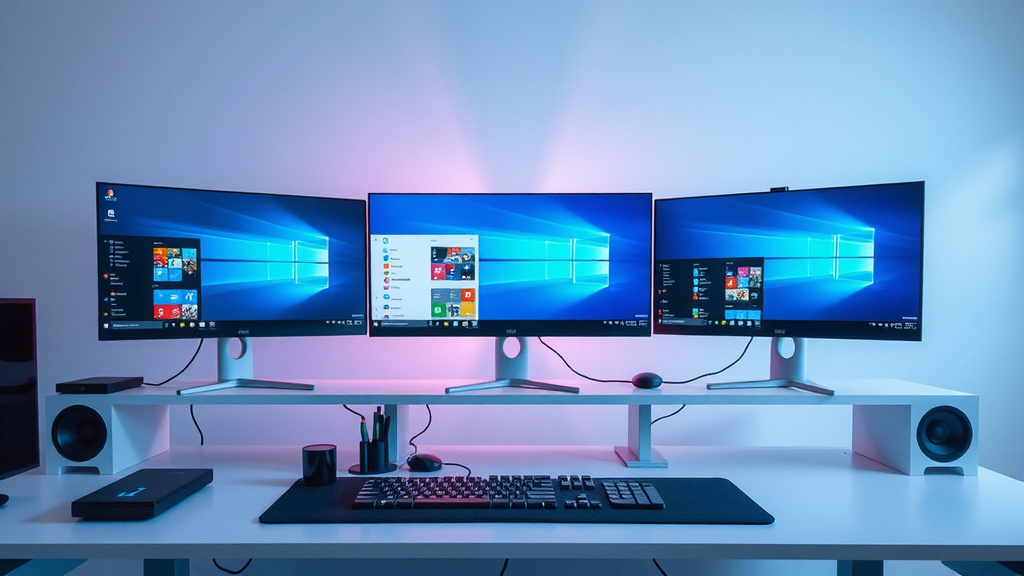
When you launch your Citrix Workspace session, the application should ideally detect your extended desktop setup. You should see your virtual desktop appear and spread across all your connected monitors. It feels pretty magical when it works right out of the box!
If your session appears on only one monitor, don’t panic. There are settings within the Citrix Workspace app itself that can help. We’ve found that these settings are usually easy to find and adjust.
Adjusting Settings within the Citrix Workspace App
Sometimes, the Citrix Workspace app needs a little nudge. You can often find settings that control how it uses your displays.
When you are in your Citrix session, look for the Citrix connection bar. This is usually a bar at the top of your screen that shows connection status and options. Click on the gear icon or a similar settings button on this bar. Here, you might find options related to “Display” or “Monitors.”
You might see an option like “Display mode.” Make sure it’s set to something like “Full Screen” or a specific multi-monitor setting if available. Sometimes, you can even choose which monitors to use. If you’re in full-screen mode, Citrix typically tries to use all available extended displays. Experimenting with these settings can help you find what works best for your specific setup.
When Full Screen Isn’t the Goal: Windowed Mode
What if you don’t want your Citrix session to take over *all* your monitors? What if you want one monitor for your personal use and another for Citrix?
You can often run your Citrix session in a window. When you launch your session, choose not to go full screen. Then, you can resize that window and drag it onto the monitor you want it on. You can even resize it to span multiple monitors if you wish, without it being in a true “full-screen” mode that locks down your display.
This offers a great deal of flexibility. Many find this useful for multitasking. You can keep your email or communication apps on one screen and your Citrix-powered work tools on another. It’s all about finding the balance that makes you most effective.
Troubleshooting Common Multi-Monitor Issues
It’s not always perfect, and that’s okay! We’ve run into a few hiccups ourselves. Here’s what to do if your dual monitors aren’t cooperating.
The Session Only Appears on One Monitor
This is a common one. First, double-check your computer’s display settings. Are they set to “Extend”? Did you restart your Citrix session after changing them? Sometimes, a simple restart of the Citrix Workspace app or your virtual desktop session is all it takes.
If that doesn’t work, check the Citrix session settings within the connection bar again. Try toggling between “Full Screen” and other available display modes. We’ve found that re-selecting “Full Screen” can sometimes force Citrix to re-evaluate the connected displays.
Performance Issues with Multiple Monitors
Running multiple monitors can sometimes demand more resources. If you notice your Citrix session feels sluggish, it might be related to the display setup.
The good news is that Citrix has improved its display protocols over the years. However, older hardware or a very high screen resolution on all monitors can impact performance. Your IT department might have specific recommendations regarding screen resolution or color depth settings. They can also adjust server-side policies. We’ve found that reducing the color depth slightly (e.g., from 32-bit to 24-bit) can sometimes improve performance without a noticeable visual difference for most users (NVIDIA).
When to Contact Your IT Department
If you’ve tried the basic troubleshooting steps and are still having trouble, it’s time to reach out for expert help. Your IT department is there to assist you!
They can check for specific configuration policies that might be limiting multi-monitor support. They can also verify that your workstation or virtual desktop image is properly configured. Think of them as the mechanics for your digital workspace. They have the tools and knowledge to fix more complex issues.
Tips for an Optimal Multi-Monitor Experience
Beyond just getting them to work, how can you really make multiple monitors shine with Citrix?
Arrange Your Monitors Logically
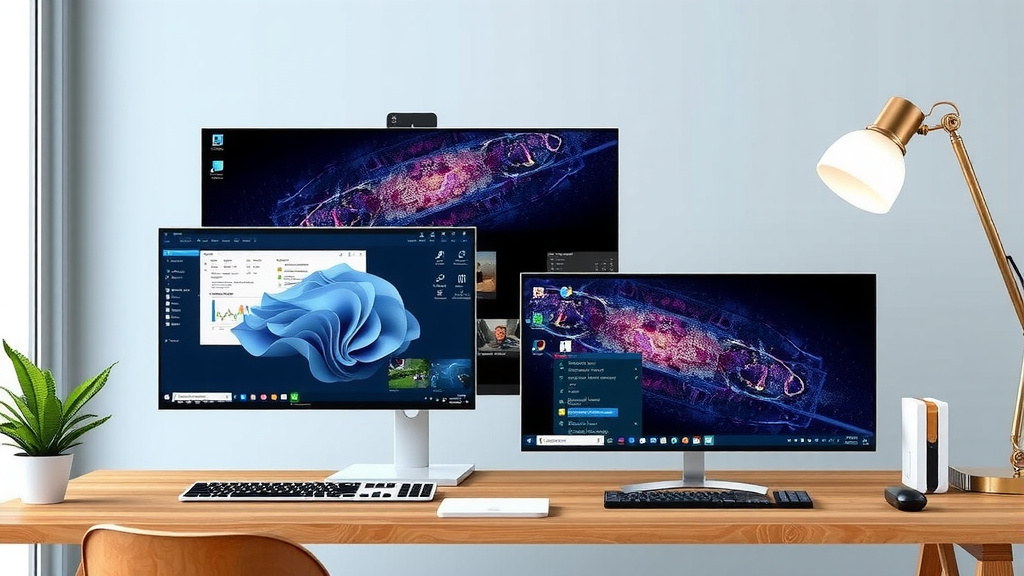
Place your monitors in a way that makes sense for your workflow. If you constantly refer to information on one screen while typing on another, place them side-by-side. Ensure the resolution and scaling settings on your computer are consistent across all monitors for a smooth experience.
Customize Your Taskbar (Windows)
Windows allows you to customize your taskbar behavior across multiple displays. You can choose to show the taskbar on all screens or just your primary one. You can also decide whether taskbar buttons show up on the monitor where the window is open or on all of them. This simple customization can reduce visual clutter and make it easier to find your open applications.
Use Keyboard Shortcuts
Mastering keyboard shortcuts can speed up your work significantly. For example, Windows Key + Arrow keys can snap windows to different parts of your screen. Alt + Tab cycles through applications. Learning these can make navigating your extended desktop much faster. Many apps also have their own shortcuts that are useful when working across multiple screens.
Take Advantage of Full-Screen Mode Wisely
While full-screen mode is great for maximizing Citrix real estate, sometimes you need to quickly jump to a local application. If your Citrix session is in full-screen, you might need to use a special key combination (like Ctrl+Alt+End, which acts like Ctrl+Alt+Del for the virtual machine) or a specific shortcut to access your local machine’s taskbar or applications. Familiarize yourself with these escape routes!
Quick Checklist for Multi-Monitor Success
Here’s a quick rundown to ensure you’re set up for success:
- Confirm your physical monitors are connected and powered on.
- Verify your computer’s display settings are set to “Extend these displays.”
- Ensure you have a recent version of the Citrix Workspace app.
- Check Citrix session settings for display mode options.
- Restart your Citrix session or app if changes don’t take effect immediately.
- Don’t hesitate to contact your IT support if problems persist.
Conclusion
You’ve learned how to make Citrix Workspace work harder for you with multiple monitors. By ensuring your physical setup and computer display settings are correct, you can extend your virtual desktop. Remember to check your Citrix Workspace app settings for the best display mode. If you encounter issues, don’t forget the troubleshooting steps and when to call your IT department.
Taking these steps should help you get the most out of your expanded workspace. Your next step? Try applying these tips to your own setup and see your productivity soar!
Frequently Asked Questions
Can I use more than two monitors with Citrix Workspace?
Yes, many setups support more than two monitors. The exact number you can use depends on your organization’s specific Citrix configuration and your computer’s hardware capabilities. We’ve seen users successfully manage three or even four screens.
What’s the difference between “Duplicate” and “Extend” display modes?
Duplicating displays shows the same content on each monitor, which isn’t very helpful for multitasking. Extending displays creates one large desktop across all your monitors, allowing you to spread applications out. For Citrix Workspace, you’ll want to use “Extend these displays.”
My Citrix session only shows up on one monitor. What should I do?
First, verify your computer’s display settings are set to “Extend.” If they are, restart your Citrix Workspace app and your virtual session. Sometimes, clicking the settings icon on the Citrix connection bar and re-selecting “Full Screen” mode can prompt it to detect all your displays correctly.
Will using multiple monitors slow down my Citrix session?
It can, especially on older hardware or with very high resolutions. Citrix has improved performance, but demanding displays consume more resources. Your IT department might suggest adjusting resolution or color depth settings to improve speed. We’ve found minor adjustments can make a difference.
How do I switch between my local computer and my full-screen Citrix session?
When your Citrix session is in full-screen mode, you might need a special key combination to access your local computer’s taskbar or applications. Often, pressing Ctrl+Alt+End will bring up options similar to Ctrl+Alt+Del for your local machine. Check with your IT department for any specific shortcuts they use.