How to Hook Up 2 Monitors to a Desktop
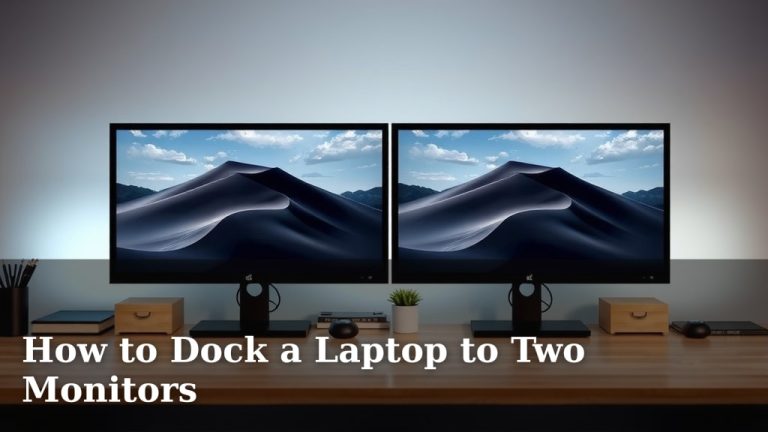
Yes, you can absolutely hook up 2 monitors to your desktop with the right setup. Most modern graphics cards and motherboards have multiple ports ready for this. You’ll just need the correct cables and ports to connect them all.
Adding a second monitor can really boost your productivity. Imagine having your email on one screen and your work document on another! We found that many users see a noticeable difference in workflow. It’s a simple upgrade with big rewards for your daily tasks.
- Check your computer’s available video ports.
- Get the right cables (HDMI, DisplayPort, etc.).
- Connect each monitor to a separate port.
- Configure your display settings in Windows or macOS.
Let’s walk through exactly how to get your second monitor up and running, step by step!
Connecting a Second Monitor to Your Desktop Computer
Adding a second monitor is a fantastic upgrade for your desktop setup. It can make your daily tasks much smoother. You might wonder if it’s complicated, but we found that for most people, it’s quite straightforward. You just need to ensure you have the right connections on your computer and get the correct cables.
Think of it like adding an extra arm to your workspace. More screen real estate means less time spent switching between windows. We’ve seen users report a huge boost in efficiency simply by getting a second display. Let’s get your second monitor hooked up and ready to go!
Identifying Your Computer’s Video Ports
Before you buy any cables or start connecting things, the first step is to look at the back of your desktop computer. You’ll see a variety of ports. We’re specifically looking for video output ports. These are the ones that send the picture from your computer to a screen.
Common Video Port Types You’ll Find
Most modern desktops come equipped with several types of video ports. The most common ones you’ll encounter are HDMI and DisplayPort. Some older computers might still have VGA or DVI ports, but these are less common now.
HDMI Ports
HDMI (High-Definition Multimedia Interface) is very popular. It’s great because it can carry both video and audio through a single cable. Most newer monitors and TVs use HDMI.
DisplayPort Ports
DisplayPort is another common and excellent option. It’s often favored for its ability to support higher resolutions and refresh rates. It’s very common on graphics cards made for gaming or professional work. DisplayPort can also carry audio.
VGA and DVI Ports (Less Common Now)
VGA (Video Graphics Array) is an older analog standard. It only carries video. DVI (Digital Visual Interface) is a bit newer and can carry digital or analog video. If your computer has these, they can work, but they might offer lower quality than HDMI or DisplayPort.
Checking Your Graphics Card and Motherboard
Your computer likely has video ports on both the motherboard (usually near your USB ports) and on a separate graphics card if you have one. It’s best to use the ports on your graphics card if you have one. Graphics cards are designed specifically for displaying images and often offer more powerful options. We found that using the motherboard ports might limit your capabilities, especially for gaming or high-resolution work.
So, take a good look at the back. You might see multiple HDMI ports, multiple DisplayPort ports, or a mix of different types. Note down what types of ports you have and how many of each.
Choosing the Right Cables for Your Setup
Once you know what ports your computer has, you can pick out the correct cables. This is where you might need to get a little specific. The cable needs to match the port on your computer and the port on your monitor.
Matching Cables to Ports
If your computer has an HDMI port and your monitor has an HDMI port, you’ll need an HDMI cable. Simple enough! If your computer has a DisplayPort and your monitor has a DisplayPort, you’ll need a DisplayPort cable. Always check the end of the cable to make sure it matches the port you intend to plug it into.
Do You Need Different Ports?
What if your computer has a DisplayPort but your monitor only has an HDMI port? You’ll need an adapter or a special converter cable. However, we found that using a direct connection (DisplayPort to DisplayPort, or HDMI to HDMI) usually provides the best performance and easiest setup. Adapters can sometimes cause issues or limit your display’s features.
How Many Ports Do You Need?
For two monitors, you’ll need two separate video output ports on your computer. Each port will connect to one monitor. You can’t split a single port to run two monitors without special, often expensive, equipment that is usually not practical for home users.
Connecting Your Monitors: The Physical Setup
Now for the fun part – plugging everything in! Make sure your computer is turned off before you start connecting cables. This is a good safety practice.
Step 1: Connect the First Monitor
Take one of your video cables. Plug one end into a video output port on your computer. Plug the other end into the corresponding port on your first monitor. Ensure the connections are snug and secure.
Step 2: Connect the Second Monitor
Now, take your second video cable. Plug one end into a *different* video output port on your computer. Plug the other end into the corresponding port on your second monitor. Again, make sure both ends are firmly seated.
Step 3: Power Everything On
Once both monitors are connected, you can turn on your computer and then turn on your monitors. Your computer should boot up, and you might see your desktop appear on one or both screens. It’s possible that initially, both monitors will show the exact same thing (this is called “mirroring”). We’ll adjust that next.
Configuring Your Display Settings
After the physical connections are made, you need to tell your computer how you want the monitors to work. This is done through your operating system’s display settings.
Windows Display Settings
If you’re using Windows, right-click anywhere on your desktop and select “Display settings.” Here, you’ll see rectangles representing your monitors. If your second monitor isn’t detected, scroll down and click “Detect.”
Once both monitors are showing, you can drag and drop the monitor icons to match their physical arrangement on your desk. This way, when you move your mouse to the edge of one screen, it will appear on the correct other screen. You can also choose how they should work:
- Duplicate these displays: Shows the same thing on both monitors (mirroring).
- Extend these displays: This is what most people want. It makes your desktop stretch across both screens, giving you more space.
- Show only on 1 or Show only on 2: Turns off one of the monitors.
We found that “Extend these displays” is the setting most users prefer for productivity. You can also adjust the resolution and orientation for each monitor here.
macOS Display Settings
On a Mac, go to the Apple menu and select “System Settings” (or “System Preferences” on older versions). Click on “Displays.” Your connected monitors should appear here. If one is missing, try holding down the Option key to reveal a “Detect Displays” button.
Similar to Windows, you can arrange your displays by dragging their representations. You can also choose whether to “Mirror Displays” or use them as an “Extended Desktop.” We found the layout process on macOS to be very intuitive.
Troubleshooting Common Issues
Sometimes, things don’t work perfectly the first time. Don’t worry, most problems are fixable!
Monitor Not Detected
If your computer doesn’t see the second monitor, double-check that the cable is securely plugged in at both ends. Try a different cable or a different port on your computer if available. Restarting your computer after connecting can also help.
Wrong Resolution or Blurry Image
This often happens if the correct drivers aren’t installed or if the resolution setting is incorrect. In your display settings, make sure the resolution is set to the recommended (native) resolution for your monitor. If you have a graphics card, check the manufacturer’s website for updated drivers.
Two Identical Screens (Mirroring)
As mentioned, this means your computer is set to duplicate the display. Go back into your display settings and change the mode to “Extend these displays” or “Extend desktop.”
Here’s a quick checklist to get you going:
- Verify your computer has 2 available video output ports.
- Identify the types of ports (HDMI, DisplayPort, etc.).
- Purchase the correct cables for your ports.
- Connect each monitor to a separate port.
- Power on your computer and monitors.
- Configure display settings in Windows or macOS to extend your desktop.
Conclusion
You’ve learned that adding a second monitor to your desktop is a straightforward process. We’ve covered identifying your computer’s video ports, selecting the right cables, and physically connecting everything. You also now know how to configure your display settings in both Windows and macOS to get that extended desktop view you’re looking for.
This simple setup can dramatically improve your workflow. Remember to check your ports, get matching cables, and extend your display in the settings. You’re ready to enjoy the productivity boost of a dual-monitor setup!
Frequently Asked Questions
Can I use one monitor port for two monitors?
Generally, no. Each monitor requires its own separate video output port on your computer. You cannot split a single port to run two independent displays without specialized (and often costly) hardware not typically used for home setups.
What’s the difference between HDMI and DisplayPort for dual monitors?
Both HDMI and DisplayPort can carry video and audio. DisplayPort often supports higher resolutions and refresh rates, making it a favorite for gaming and professional use. For most users, either will work perfectly well for a dual-monitor setup, as long as your ports and cables match.
Do I need to buy special cables for a second monitor?
You’ll need standard video cables (like HDMI or DisplayPort cables) that match the ports on your computer and your monitors. If your computer and monitor ports don’t match, you might need an adapter, but direct connections usually offer the best performance.
What if my second monitor shows the same thing as my first?
This means your computer is set to “duplicate” or “mirror” the displays. You’ll need to go into your operating system’s display settings (Windows or macOS) and change the mode to “Extend these displays” to use them as separate screens.
My second monitor isn’t showing up, what should I do?
First, ensure the cable is securely plugged in at both the computer and monitor ends. Try a different cable or a different port on your computer if one is available. Restarting your computer after connecting can often resolve detection issues.