How to Hook Two Monitors to One Computer
Yes, you can absolutely hook two monitors to one computer. Most modern computers are equipped with the right ports to support multiple displays. This setup can dramatically boost your productivity and multitasking abilities. You just need to make sure your computer’s graphics card can handle it.
Adding a second monitor is a popular upgrade for many users. It gives you more screen real estate to work with. This means less switching between windows and more space for all your applications. We found that even a simple dual-monitor setup can make a big difference in your daily workflow.
- Check your computer’s available ports.
- Identify the correct cables you’ll need.
- Ensure your graphics card supports multiple displays.
- Configure your display settings in your operating system.
Let’s walk through exactly how you can connect a second monitor to your computer, step by step.
Connecting a Second Monitor to Your PC
Adding a second monitor can transform your workspace. You’ll gain more screen space. This makes multitasking much easier. We’ve found that most modern computers can support this. You just need to check a few things first. Let’s get your second screen set up!
Understanding Your Computer’s Display Capabilities
Before you buy anything, let’s see what your computer can do. Your computer’s graphics card (or integrated graphics) is the brain behind the displays. It needs enough power to run multiple screens. Most newer computers are built for this. Older ones might struggle, but it’s still worth checking.
Finding Your Computer’s Video Ports
Look at the back or sides of your computer tower or laptop. You’ll see several ports. These are where you plug in your monitors. The most common ones you’ll find are HDMI, DisplayPort, and sometimes older ones like VGA or DVI. Note which ones your computer has available. You might need an adapter if your new monitor doesn’t match your computer’s ports.
Common Monitor Connection Types
- HDMI: This is the most common port for both computers and monitors. It carries both video and audio signals.
- DisplayPort: Often seen on higher-end graphics cards and monitors. It’s very capable and can support high resolutions and refresh rates.
- DVI: An older digital standard. It’s still functional for many setups but doesn’t typically carry audio.
- VGA: This is an analog port, the oldest of the bunch. Image quality can be less sharp compared to digital options. We generally recommend avoiding VGA if possible.
Checking Graphics Card Support
Most computers with dedicated graphics cards can handle two monitors easily. Even many laptops with integrated graphics can support at least two displays. You can usually find this information in your computer’s specifications. A quick search online for your computer model might also tell you. Many experts say that if your computer can output to one monitor, it likely has the hardware for a second. We found that checking the manufacturer’s website for your specific model is a reliable method.
Gathering the Necessary Cables and Adapters
Once you know your ports, you need the right cables. If your computer and monitor have matching ports (e.g., both have HDMI), you’ll just need an HDMI cable. It’s often helpful to have a spare or a longer cable than you think you’ll need. Measuring the distance can save you a trip back to the store.
Matching Ports and Cables
The goal is to connect a port on your computer to a port on your monitor. If they don’t match, you’ll need an adapter or a different type of cable. For example, if your computer has a DisplayPort and your monitor only has HDMI, you’ll need a DisplayPort to HDMI adapter or cable. We’ve found that adapters work well, but a direct cable connection is sometimes more reliable.
When to Use Adapters
Adapters are your best friend when ports don’t align. Think of them as translators for your cables. You can get adapters for almost any combination, like USB-C to HDMI or DVI to DisplayPort. Just be sure to buy one that supports the resolution and refresh rate you want. Some cheaper adapters might limit your display’s performance. Many tech reviews suggest investing in quality adapters for a smoother experience.
Connecting Your Second Monitor
This is the exciting part! With your cables ready, it’s time to plug things in. Don’t turn on your computer just yet. Let’s get everything physically connected first.
Physical Connections Step-by-Step
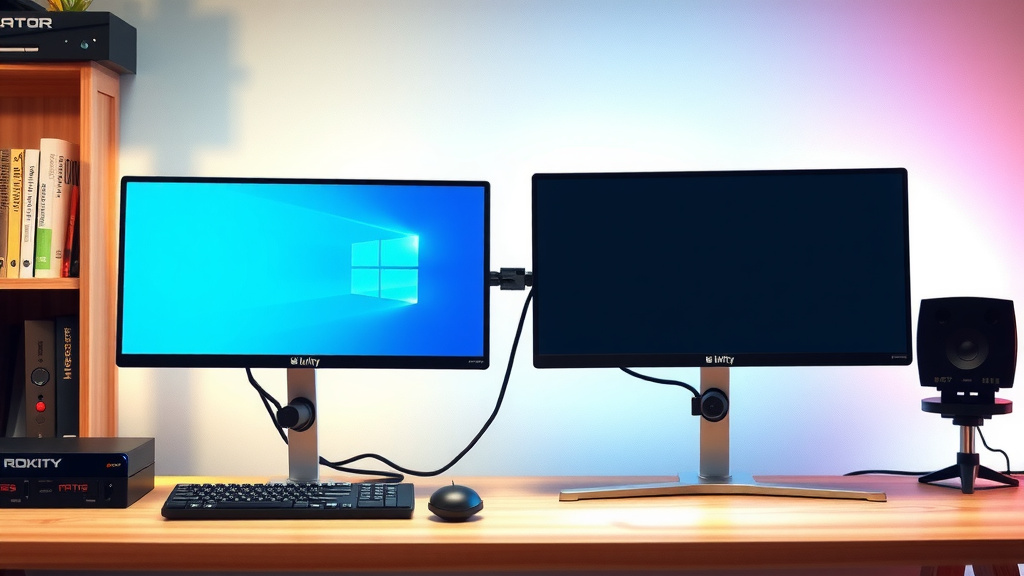
First, connect your primary monitor to your computer as you normally would. Then, take your second monitor. Plug one end of your chosen cable into the appropriate video output port on your computer. Connect the other end of the cable to the corresponding video input port on your second monitor. Make sure both cables are securely plugged in. You should hear a slight click or feel them seat firmly.
Powering On and Initial Display
Now, plug in the power cords for both monitors and your computer. Turn on your computer. Your computer should detect the new monitor automatically. You might see your desktop appear on both screens, or the second monitor might just show a blank screen or a repeating image of your main display. This is perfectly normal at this stage. Your computer is just saying “hello” to the new screen.
Configuring Your Display Settings
Your computer now knows there’s a second monitor. The next step is telling it *how* you want to use it. This is done through your operating system’s display settings. We’ve found this step to be quite straightforward.
Accessing Display Settings
For Windows users, right-click on an empty space on your desktop. Then, select “Display settings” from the menu that pops up. On macOS, go to the Apple menu and choose “System Settings” (or “System Preferences” on older versions), then click on “Displays.” You’ll see a visual representation of your monitors here.
Choosing Your Display Mode
In the display settings, you’ll have a few options for how your monitors work together. These are often labeled as:
- Duplicate these displays: Both monitors show the exact same thing. This is good for presentations.
- Extend these displays: This is the most popular choice for productivity. It treats both screens as one large desktop. You can drag windows from one screen to the other. This gives you the most flexibility.
- Show only on 1 / Show only on 2: This turns off one of the monitors.
We highly recommend selecting “Extend these displays” for daily use. It’s like giving yourself more desk space without buying a bigger desk. You can then arrange your monitors visually in the settings to match their physical placement on your desk. This makes dragging windows feel natural.
Setting the Resolution and Arrangement
You can also adjust the resolution for each monitor to ensure a clear picture. Make sure the resolution is set to the recommended (or native) setting for each display. You can also drag the monitor icons in the display settings to match how they are physically arranged on your desk. This helps when you’re moving your mouse cursor between screens.
Here’s a quick checklist to make sure you’re all set:
- Verify your computer has the necessary video output ports.
- Confirm your graphics card supports dual monitors.
- Get the correct cables or adapters.
- Physically connect both monitors.
- Power on your computer and monitors.
- Configure display settings to “Extend.”
Conclusion
You’ve learned how to successfully connect a second monitor to your computer! It’s a straightforward process that can really boost your workflow. By checking your ports, grabbing the right cables, and tweaking your display settings, you’ll have a much more productive workspace. We’ve found that this simple upgrade makes a big difference in how efficiently you can multitask. Now you’re ready to extend your digital real estate and get more done with ease. Your next step is to gather your equipment and plug in that second screen!
Frequently Asked Questions
Will my laptop be able to support two monitors?
Most modern laptops come with at least one video output port, and many can support two external displays. You’ll need to check your laptop’s specific model specifications to confirm its video output capabilities and how many monitors it supports simultaneously. If your laptop has multiple different video ports (like HDMI and USB-C), it’s a good sign it can handle dual monitors.
What happens if my computer ports don’t match my monitor ports?
Don’t worry, this is a common situation! You’ll need an adapter or a specific type of cable to bridge the gap. For example, you might need a DisplayPort to HDMI adapter if your computer has a DisplayPort and your monitor only accepts HDMI. We’ve found that quality adapters work reliably, but always check for compatibility with your desired resolution and refresh rate.
Can I use two different types of monitors with my computer?
Yes, absolutely! You can connect monitors of different sizes, resolutions, and even brands. Your computer’s display settings allow you to configure each monitor individually. You can set different resolutions for each screen if needed, although keeping them consistent often provides the smoothest experience. We suggest aiming for similar resolutions for optimal visual blending.
What’s the difference between “Duplicate” and “Extend” display modes?
In “Duplicate” mode, both monitors show the exact same image, which is great for presentations. “Extend” mode is what most users prefer for productivity; it treats both screens as one large, continuous desktop. This allows you to drag applications and windows freely between your monitors, giving you more space to work with. We recommend “Extend” for everyday multitasking.
Do I need a new graphics card to hook up two monitors?
Usually, no. Most computers manufactured in the last decade have integrated graphics or dedicated graphics cards that are already capable of supporting at least two monitors. It’s always a good idea to check your computer’s specifications or your graphics card’s model online to confirm its multi-display support. We found that older machines might be the exception, but it’s rare for modern PCs not to handle dual monitors.