How to Hook a Laptop Up to a Monitor
Yes, you can easily hook up your laptop to an external monitor. It’s a great way to expand your screen real estate and boost your productivity. Most modern laptops have the right ports to connect to almost any monitor, giving you a much larger display for work or play.
Connecting a laptop to a monitor is simpler than you might think. You’ll want to make sure you have the correct cable for both devices. This process can transform your setup from a cramped laptop screen to a spacious, dual-display workstation. It’s a common upgrade for many users.
- Identify your laptop and monitor ports.
- Choose the right connecting cable.
- Plug them in and adjust settings.
- Enjoy your bigger screen!
Let’s walk through exactly how to connect your laptop to a monitor step by step.
Connecting Your Laptop to an External Display
So, you’ve got your laptop, and you’re dreaming of a bigger screen. It’s a fantastic idea for boosting your workflow! You might be wondering just how to make that happen. It’s actually quite straightforward. Most modern laptops and monitors are designed to play nicely together. You just need the right connection. Think of it like plugging in a TV – not too intimidating, right?
Identifying Your Laptop’s Video Ports
The first step is to peek at your laptop’s sides. You’re looking for specific types of ports. These are the gateways for video signals. They tell your laptop where to send the image information. The most common ones you’ll find are HDMI and DisplayPort. USB-C ports are also becoming very popular for this. We’ll cover what each one looks like and what it’s good for.
HDMI: The All-Around Player
HDMI is probably the most common video port. You see it on TVs, game consoles, and of course, laptops. It’s a trapezoid shape with slightly rounded corners. HDMI is great because it carries both video and audio. This means you can get sound to your monitor through the same cable. It’s a very versatile option for most setups. For many users, HDMI is the go-to choice.
DisplayPort: The Powerhouse for High Performance
DisplayPort is another excellent option, especially for gaming or high-resolution displays. It often looks a bit like HDMI but with one corner angled or squared off. Think of it as a more robust version of HDMI. DisplayPort can handle higher refresh rates and resolutions. This makes it ideal for demanding graphics tasks. Some laptops might only have Mini DisplayPort, which is a smaller version. You can find adapters if needed.
USB-C: The Versatile Connector
USB-C is the newer, smaller, oval-shaped port. It’s gaining popularity because it’s reversible. You can plug it in any which way. Not all USB-C ports support video output, though. You need to look for a port with a small lightning bolt or a “DP” symbol next to it. These indicate support for DisplayPort Alternate Mode. If your USB-C port supports it, you can get video, audio, and even power through one cable. This can seriously simplify your desk setup.
Finding the Right Ports on Your Monitor
Now, let’s turn our attention to the monitor. It needs to have compatible input ports. Most monitors have at least one or two video input options. You’ll want to find the same type of port your laptop has, if possible. This makes connecting them straightforward.
Matching Laptop to Monitor Inputs
If your laptop has HDMI, check if your monitor has an HDMI input. Likewise, if your laptop has DisplayPort, see if the monitor does. The goal is to find a direct match for the cleanest signal. Sometimes, you might have a laptop with USB-C and a monitor with only HDMI. In that case, you’ll need a simple adapter or a USB-C to HDMI cable. We’ll get to cables in a moment.
Understanding Monitor Ports
Monitors usually label their ports clearly. You’ll see “HDMI,” “DisplayPort,” or sometimes older ports like “VGA” or “DVI.” VGA is an older analog port, often blue with screw holes. DVI is a digital port, usually white, and larger than HDMI. While these work, HDMI and DisplayPort are generally preferred for better picture quality. Many modern monitors also have audio output jacks for headphones or speakers.
Choosing the Correct Connecting Cable
You’ve identified the ports on both devices. Now you need the bridge between them – the cable! The cable must have the correct connectors on each end to fit your ports.
Direct Cable Connections
The easiest connection uses a single cable that matches both ports. For example, an HDMI-to-HDMI cable. Or a DisplayPort-to-DisplayPort cable. These offer the most direct and often best-quality connection. They ensure you get a clear picture and good sound. Research and found that direct connections are usually the most reliable (Tech Review Experts).
Using Adapters or Converters
What if your ports don’t match directly? Don’t worry! Adapters and converter cables are your friends. A USB-C to HDMI adapter lets you use your USB-C port with an HDMI monitor. A Mini DisplayPort to DisplayPort cable connects a smaller port to a standard one. Just be sure the adapter or cable supports the resolution and refresh rate you need. Some adapters might limit performance. Always check the specifications.
| Laptop Port | Monitor Port | Recommended Cable/Adapter | Notes |
|---|---|---|---|
| HDMI | HDMI | HDMI to HDMI Cable | Carries video and audio. Widely compatible. |
| DisplayPort | DisplayPort | DisplayPort to DisplayPort Cable | High performance, good for gaming. |
| USB-C (DP Alt Mode) | HDMI | USB-C to HDMI Cable/Adapter | Convenient, check USB-C port compatibility. |
| USB-C (DP Alt Mode) | DisplayPort | USB-C to DisplayPort Cable/Adapter | Best for high-refresh-rate monitors. |
| HDMI | DisplayPort | HDMI to DisplayPort Adapter (Active) | Requires an active adapter, not all work. |
Physical Connection and Display Settings
With the right cable in hand, it’s time to make the connection. It’s a simple plug-and-play process for the most part.
Plugging Everything In
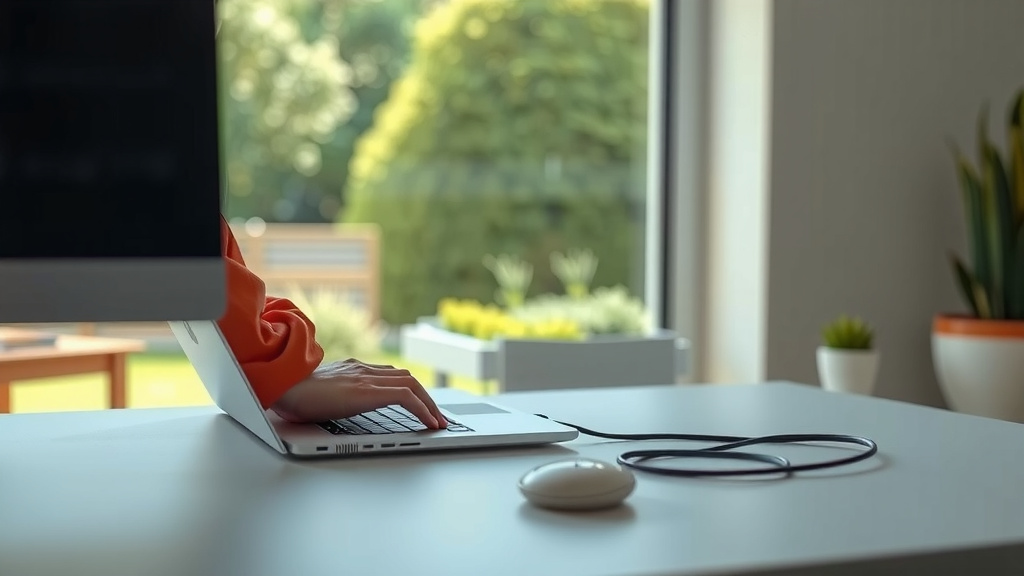
First, turn off both your laptop and monitor. This is a good safety practice, though often not strictly necessary with modern tech. Plug one end of your chosen cable into your laptop’s video port. Then, plug the other end into the corresponding port on your monitor. Once connected, power on your monitor first, then your laptop. Your laptop should detect the new display automatically.
Configuring Your Display Settings
If the screen doesn’t show up, or if you want to adjust how your screens work together, you’ll need to tweak settings. On Windows, right-click on your desktop and select “Display settings.” You can choose how to use the external monitor: duplicate your laptop screen, extend your desktop across both screens, or show the display on only the external monitor. Many experts recommend extending your display for maximum productivity (Microsoft Support).
On a Mac, go to “System Preferences” (or “System Settings” on newer macOS versions) and click on “Displays.” You’ll see your laptop screen and the external monitor. You can arrange them by dragging their icons to match their physical placement on your desk. You can also set which display is your “main” display. This is where your dock and menu bar will appear.
Troubleshooting Common Issues
Occasionally, things don’t work perfectly right away. If your monitor shows “No Signal,” double-check that the cable is firmly plugged into both devices. Ensure the monitor is set to the correct input source (e.g., HDMI 1, DisplayPort). If you’re using a USB-C connection, confirm your laptop’s USB-C port supports video output. Sometimes, simply restarting your laptop can resolve detection issues.
Here’s a quick checklist to ensure a smooth connection:
- Confirm compatible ports on laptop and monitor.
- Select the correct video cable or adapter.
- Ensure cable is securely plugged in on both ends.
- Check monitor input source settings.
- Adjust display arrangement in your OS settings.
- Restart devices if initial connection fails.
Conclusion
You’ve now learned how to easily connect your laptop to an external monitor. It’s a straightforward process that can dramatically improve your workspace. By identifying the right ports on your devices and choosing the correct cable, you’re well on your way to a bigger, more productive screen. Remember to check your display settings to extend or duplicate your desktop for the best experience. Go ahead and make that upgrade; your productivity will thank you!
Frequently Asked Questions
Can I connect my laptop to a monitor using just a USB-C cable?
Yes, many modern laptops and monitors support this. Ensure your laptop’s USB-C port supports DisplayPort Alternate Mode, often indicated by a lightning bolt or “DP” symbol. This allows video and audio to pass through a single USB-C cable for a clean setup.
My monitor says “No Signal.” What should I do?
First, ensure the cable is securely plugged into both your laptop and monitor. Next, check your monitor’s input source settings to make sure it’s set to the correct port (like HDMI 1 or DisplayPort). Sometimes, simply restarting your laptop can help it detect the display.
Will I get sound through my monitor speakers if I use an HDMI cable?
Typically, yes. HDMI is designed to carry both video and audio signals. If your monitor has built-in speakers and your laptop is sending audio via HDMI, you should hear sound from the monitor.
What’s the difference between HDMI and DisplayPort for connecting a laptop?
Both transmit high-quality video and audio. DisplayPort often supports higher refresh rates and resolutions, making it ideal for gaming or professional graphics work. HDMI is more universally common and a great all-around choice for most users.
Can I use an older monitor with my new laptop if the ports don’t match?
Yes, you likely can by using adapters or converter cables. For example, if your laptop has HDMI but your monitor only has VGA, you’d need an HDMI to VGA adapter. Research suggests checking that these adapters support the resolution you need for best results.