How to Hook Up Two Monitors to a Desktop
Yes, you can absolutely hook up two monitors to most desktop computers. It’s a straightforward process that can dramatically boost your productivity and make multitasking much easier. You just need to ensure your computer has the right ports and the correct cables.
Adding a second display is a popular upgrade for many PC users. It gives you more screen real estate, letting you spread out your work. Many experts agree that dual monitors are a great way to improve workflow and reduce the need to constantly switch between windows.
- Connect monitors using appropriate cables (HDMI, DisplayPort, DVI, VGA).
- Ensure your graphics card supports multiple displays.
- Configure display settings in your operating system.
- Choose between extending your desktop or mirroring displays.
Let’s walk through exactly how to get your second monitor set up and running in no time!
“`htmlAdding a Second Monitor to Your Desktop PC
You’re probably here because you’re tired of jumping between windows like a frantic squirrel. Good news! Connecting a second monitor to your desktop is a fantastic way to boost your productivity. We’ll walk you through the steps to get your dual-monitor setup humming. It’s simpler than you might think.
Checking Your Computer’s Display Capabilities
Before you buy anything, let’s make sure your PC can handle two screens. Most modern desktops can, but it’s wise to check. Your computer’s graphics card (also called a GPU) is the main player here. It dictates how many displays your system can output at once.
Understanding Your Graphics Card’s Ports
Look at the back of your computer tower. You’ll see a collection of ports. These are where you plug in your monitor cables. Common ports include HDMI, DisplayPort, DVI, and sometimes older VGA ports. You need to know what ports your graphics card has available. If you have a dedicated graphics card, the ports will likely be separate from the ones on your motherboard (which are usually higher up, near your USB ports).
Key takeaway: You need at least two output ports on your graphics card, or one on your motherboard and one on your graphics card if your CPU has integrated graphics. Most experts recommend using DisplayPort or HDMI for the best quality and features.
Confirming Graphics Card Support
Can your graphics card physically output to two monitors? Generally, any graphics card made in the last decade can handle at least two displays. You can often find this information by looking up your specific graphics card model online. Many manufacturers list the number of supported displays in their specifications. If you’re unsure, a quick search for “[Your Graphics Card Model] max displays” should give you the answer.
If your current graphics card doesn’t support two monitors, you might need to consider upgrading it. This can seem daunting, but we’ve found many users find a mid-range card more than sufficient for dual-monitor setups without breaking the bank.
Choosing the Right Cables and Adapters
Once you know your ports, you need the right cables. The goal is to match the port on your computer to the port on your monitor. The most common and recommended cables today are HDMI and DisplayPort.
Matching Ports: HDMI, DisplayPort, DVI, and VGA
Here’s a quick rundown:
- HDMI: Very common, found on almost all modern TVs and monitors. Transmits both audio and video.
- DisplayPort: Similar to HDMI but often offers higher refresh rates and resolutions, especially for gaming. Becoming standard on newer hardware.
- DVI: An older digital standard. Still works well but lacks audio and some advanced features.
- VGA: An old analog port. Avoid if possible, as it offers the lowest quality and is prone to interference.
When Adapters Might Be Necessary
What if your computer has, say, only DisplayPort outputs, but your monitor only has HDMI inputs? That’s where adapters come in. You can get adapters to convert one port type to another. For example, a DisplayPort to HDMI adapter is common. However, we’ve found that using direct connections (e.g., DisplayPort to DisplayPort) usually provides the best performance and fewest potential issues.
Be mindful: Some adapters are one-way (e.g., DisplayPort output to HDMI input). Always check compatibility before purchasing. Researching reliable adapter brands is also a good idea, as cheap ones can sometimes cause signal problems.
Connecting Your Monitors: The Physical Setup
Now for the hands-on part! This is where you’ll physically connect everything.
Step-by-Step Connection Process
1. Turn off your computer. It’s a good safety measure, though many modern components can handle hot-plugging. Better safe than sorry!
2. Connect the first monitor. Plug one end of your chosen cable into the graphics card port on your PC and the other end into your first monitor. Make sure it’s seated firmly.
3. Connect the second monitor. Repeat step 2 with your second monitor, using a different port on your graphics card. Ensure you’re using a port on the graphics card, not the motherboard, unless you’re specifically using integrated graphics for one display.
4. Power on your monitors. Turn them on before you power up your PC.
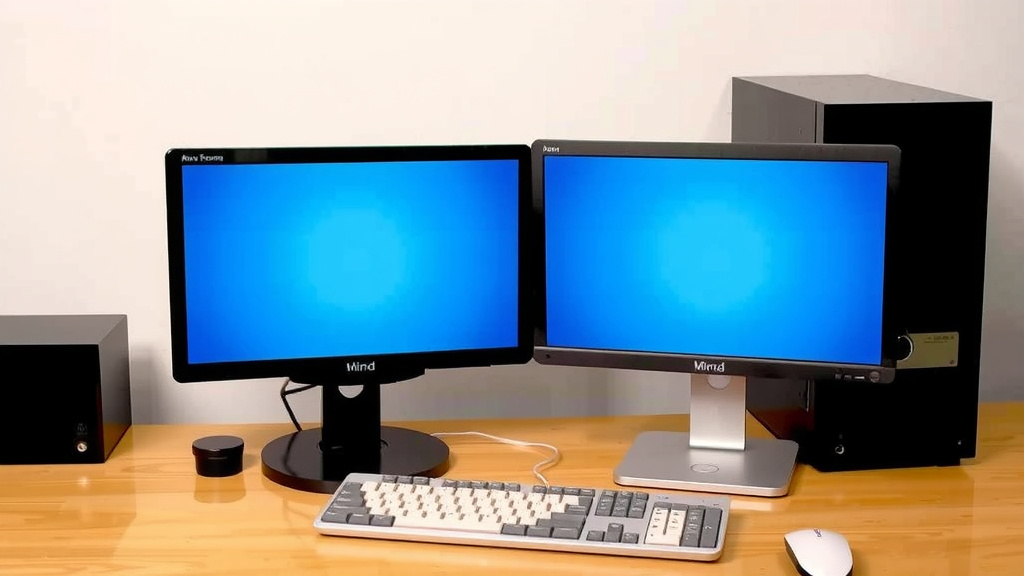
5. Power on your computer. Your computer should now boot up. You might see your desktop appear on one screen, or perhaps both will show the same thing initially. That’s perfectly normal!
Configuring Your Display Settings in Windows
With the monitors connected, your operating system needs to know how you want them to work. Windows makes this pretty straightforward.
Accessing Display Settings
On your keyboard, press the Windows key + P. This brings up a quick menu for display modes. You can also right-click on your desktop background and select “Display settings.”
Understanding Display Modes: Extend vs. Duplicate
You’ll see a few options here. The two most important for dual monitors are:
- Extend these displays: This is what most people want for productivity. It treats your two monitors as one large desktop. You can drag windows between them. It’s like giving yourself a bigger workspace.
- Duplicate these displays: This shows the exact same image on both monitors. It’s useful for presentations or when you want to mirror content.
To set up dual monitors, select “Extend these displays.”
Arranging Your Monitors
In the “Display settings” window, you’ll see rectangles representing your monitors. Click and drag them to match their physical arrangement on your desk. If your second monitor is to the left of your main one, drag its rectangle to the left. This ensures your mouse cursor moves naturally between screens. Click “Apply” when you’re done.
You can also set which monitor is your “main display” by clicking on its representation and scrolling down to find the “Make this my main display” checkbox. This is where your taskbar and icons will primarily appear.
Adjusting Resolution and Scaling
Each monitor can often have its own resolution and scaling settings. Make sure each monitor is set to its native resolution (usually marked as “Recommended”). Scaling adjusts the size of text and icons. If things look too small on one monitor, you can adjust its scaling percentage without affecting the other. Many users find that keeping scaling consistent across both monitors feels most comfortable. We’ve found that Windows usually does a good job of detecting optimal settings, but a quick manual check never hurts.
Troubleshooting Common Dual-Monitor Issues
Sometimes, things don’t work perfectly the first time. Don’t worry; these are common hiccups.
Monitor Not Detected
If one of your monitors isn’t showing up, first double-check all cable connections on both ends. Make sure they are securely plugged in. Next, try a different cable or a different port on your graphics card. Within Windows Display Settings, click “Detect” to see if the system can find the missing monitor.
Incorrect Resolution or Refresh Rate
If the picture looks fuzzy or too large, you likely need to adjust the resolution. Go back to Display Settings, select the affected monitor, and choose the “Advanced display settings” option. Ensure the correct resolution and refresh rate are selected. The native resolution is almost always the best choice for clarity. Some older cables or adapters might limit your refresh rate options.
Cursor Movement Isn’t Right
If your mouse jumps weirdly between screens, it’s usually because the monitor arrangement in Windows doesn’t match your physical setup. Go back to Display Settings and drag the monitor representations to mirror how they are placed on your desk. This simple fix solves most cursor-related frustrations.
Quick Checklist for Success
To recap and ensure you’re all set, here’s a quick checklist:
- Confirm PC Graphics Support: Does your graphics card support multiple outputs?
- Identify Available Ports: What ports (HDMI, DP, DVI) does your GPU have?
- Select Correct Cables: Do you have the right cables to match your PC and monitor ports?
- Connect Safely: Turn off PC, connect all cables firmly, then power up.
- Configure in Windows: Set to “Extend,” arrange monitors, and check resolution.
- Test Your Setup: Drag windows, move your mouse, and enjoy your expanded workspace!
Following these steps should have your second monitor up and running in no time, making your computing experience much more efficient and enjoyable.
“`Conclusion
You’ve successfully learned how to hook up two monitors to your desktop! By checking your graphics card, selecting the right cables, and configuring your display settings in Windows, you’re well on your way to a more productive workspace. Remember to arrange your monitors virtually to match their physical placement for smooth mouse movement. Now, go enjoy that extra screen real estate and multitask like a pro!
Frequently Asked Questions
Will hooking up a second monitor slow down my computer?
Generally, no. Most modern graphics cards are designed to handle multiple displays without a noticeable performance hit. You might only see a slight impact if you’re running very demanding applications on both screens simultaneously, or if your graphics card is quite old.
Can I connect two monitors with different resolutions?
Yes, you absolutely can. Windows allows you to set different resolutions, refresh rates, and scaling for each monitor. While it’s often recommended to use the native resolution for each, you can mix and match to find what works best for your setup.
What’s the difference between “Extend” and “Duplicate” display modes?
The “Extend” mode treats your monitors as one large, continuous desktop, letting you drag windows between them. This is ideal for productivity. “Duplicate” mode simply mirrors the content of your primary display onto the second monitor, which is useful for presentations.
Do I need a special graphics card for two monitors?
Most desktop computers made in the last decade come with graphics cards that can support at least two monitors out of the box. You just need to ensure your card has enough compatible output ports (like HDMI or DisplayPort) and that it’s physically capable of driving two displays.
Can I use one monitor from my motherboard and one from a graphics card?
Yes, this is often possible if your CPU has integrated graphics. You can plug one monitor into the motherboard’s video output and another into your dedicated graphics card’s output. Windows will manage both sources, allowing you to extend your desktop across them.