How to Know If Your Monitor Has a Webcam
Your monitor might have a built-in webcam if you see a small camera lens near the top edge. Many modern monitors, especially those designed for video calls, include this feature. You can also check your monitor’s user manual or manufacturer’s website to confirm.
Figuring this out is simpler than you might think. If you don’t see an obvious lens, it’s likely your monitor does not have a webcam. You might need to buy a separate webcam for your computer setup. We’ve researched common monitor designs to help you spot it.
- Look for a small lens on the top bezel.
- Check your monitor’s model number online.
- Review the user manual for built-in features.
- If you can’t find a lens, you probably don’t have one.
Let’s walk through exactly how to tell for sure, step by step.
Figuring Out If Your Monitor Has a Webcam
You’re probably wondering if your monitor is secretly a spy cam waiting to transmit your late-night snack habits. It’s a fair question! Many people upgrade their tech and then scratch their heads.
So, how do you know if that sleek screen has a hidden camera? Let’s make this super simple. We’ve broken down the easiest ways to check. You might be surprised to find you already have one!
The Quick Visual Check: Look for the Lens
The most obvious clue is right in front of your eyes. Well, almost. Your monitor might have a tiny camera lens built into its frame. Think of it like a miniature eye peeking out.
Where to Spot the Lens
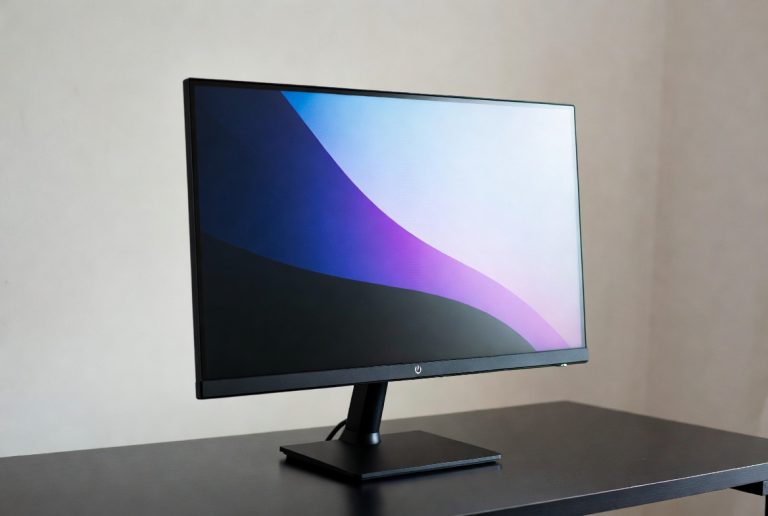
Most monitors place their built-in webcams in a consistent spot. You’ll usually find it along the top edge of the monitor’s bezel. This is the plastic frame surrounding the screen.
Look for a small, dark circle. It’s often just a few millimeters wide. Sometimes it might be accompanied by a tiny LED light that turns on when the camera is active. This light is a good indicator that a camera is present and working.
What if You Don’t See Anything?
If you’ve scanned the top bezel carefully and see absolutely nothing resembling a lens, chances are good your monitor doesn’t have a webcam. Don’t feel bad! This is very common, especially with older models or monitors designed purely for display.
Some monitors have a small privacy cover that can slide over the lens. If you see a tiny slider, try moving it. If there’s no lens visible at all, then you’ve got your answer.
Using Your Monitor’s Identity: Model Number and Manual
Sometimes, the visual check isn’t enough. The lens might be cleverly hidden, or you might just not be sure. That’s where your monitor’s details come in handy.
Finding Your Monitor’s Model Number
Every piece of tech has an identity. Your monitor’s model number is like its name tag. You can usually find it on a sticker on the back or bottom of the monitor.
It will be a string of letters and numbers. Write it down exactly as it appears. Keep an eye out for words like “Model No.” or “M/N”.
Searching Online for Specs
Once you have that model number, you’re ready to go online. Open your favorite web browser. Type the manufacturer’s name and the model number into the search bar.
For example, if your monitor is a “Samsung S27F350”, you’d search for “Samsung S27F350 specifications” or “Samsung S27F350 webcam”. Look for links to the manufacturer’s official product page or reputable tech review sites.
These pages will list all the features your monitor boasts. Scroll through the specs. If it has a built-in webcam, it will almost always be listed there under “Features” or “Connectivity.”
Consulting the User Manual
Remember that booklet that came with your monitor? It might seem old-fashioned, but the user manual is a treasure trove of information. If you still have it, flip through the pages.
Look for a section detailing the monitor’s features or specifications. It will clearly state if a webcam is included. Many manuals even have diagrams pointing out all the parts.
No physical manual? No problem! You can almost always find a digital version (PDF) online. Just search for “[Your Monitor Model Number] manual” or “[Your Monitor Model Number] user guide.”
Checking Your Computer’s Device Manager (Windows)
If you’re using a Windows computer, you can use the Device Manager to see what hardware your computer recognizes. This is a very reliable method.
How to Access Device Manager
It’s easier than it sounds! Right-click on the Start button (the Windows logo) in the bottom-left corner of your screen. A menu will pop up. Select “Device Manager” from the list.
Looking for Camera Devices
Once Device Manager is open, you’ll see a list of hardware categories. Scroll down until you find “Cameras” or “Imaging devices”. Click the little arrow next to it to expand the category.
If you see an entry listed here, such as “Integrated Webcam,” “Built-in Camera,” or a specific brand name (like Logitech or Dell), then your monitor (or laptop lid) likely has a webcam that your computer can detect. If you don’t see a “Cameras” or “Imaging devices” category, or if it’s empty, it’s a strong sign there’s no webcam.
What About Mac Users?
Mac users have a similar way to check. It’s all about seeing what the system recognizes.
Using System Information on macOS
Click the Apple menu in the top-left corner of your screen. Select “About This Mac”. Then, click the “System Report…” button. This opens a detailed overview of your Mac’s hardware.
In the left-hand sidebar, under the “Hardware” section, look for “Camera”. Click on it. If your Mac detects a built-in camera (which is standard on MacBooks and iMacs), you’ll see its details listed here. If there’s no “Camera” entry, or it shows nothing, then your display unit doesn’t have one.
Considerations for Different Monitor Types
Not all monitors are created equal. The likelihood of having a built-in webcam can depend on what kind of monitor you have.
All-in-One Computers
If you have an all-in-one computer (like an iMac or a Microsoft Surface Studio), the webcam is almost always built directly into the display unit. It’s usually located at the top center.
Standard Desktop Monitors
For separate desktop monitors, it’s more of a 50/50 chance. Many business-oriented monitors or those marketed for video conferencing will include a webcam. Consumer-grade monitors often do not.
Laptop Screens
If you’re asking about your laptop, the webcam is almost universally built into the lid, above the screen. It’s a standard feature on virtually all laptops made in the last decade.
Quick Checklist: Did You Find a Webcam?
Let’s quickly recap the easiest ways to tell. Think of this as your final confirmation step.
- Scan the top bezel for a small lens.
- Check the back/bottom for a model number sticker.
- Search the model number online for official specs.
- Look in your computer’s Device Manager (Windows) or System Information (Mac) for camera entries.
- If you still can’t find any evidence, it’s likely not built-in.
Conclusion
You’ve now learned several easy ways to check if your monitor has a built-in webcam. We’ve covered the quick visual scan for a lens, using your monitor’s model number to search online, and checking your computer’s system information. Don’t worry if your monitor doesn’t have one; a separate webcam is a simple and effective solution. If you’ve gone through these steps and still aren’t sure, it’s very likely your monitor lacks this feature. Your next step is to decide if you need a webcam and then research affordable external options if needed.
Frequently Asked Questions
What should I do if I can’t find a lens but suspect my monitor has a webcam?
If you’ve thoroughly checked the bezel and found nothing, try using your monitor’s model number. Search online for its specifications or user manual. Sometimes, the lens is very small or cleverly disguised, and official specs will confirm its presence or absence.
My monitor has a small dot that lights up. Does that mean it has a webcam?
Yes, that’s a strong indicator! A small LED light that turns on when your computer is active often accompanies a built-in webcam. This light is usually designed to signal when the camera is in use for privacy reasons.
Can I check for a webcam using my phone instead of a computer?
While you can use your phone to search for your monitor’s model number online, you can’t directly use your phone to check your computer’s hardware for the webcam. You’ll need to use your actual computer for methods like Device Manager or System Information.
Will this method work for older monitors from the early 2000s?
It’s much less likely that very old monitors will have built-in webcams. While the methods for checking (visual inspection, model number search) still apply, webcams were not a common feature on desktop monitors until more recently, especially with the rise of video conferencing.
If my monitor doesn’t have a webcam, is it difficult to set up an external one?
Not at all! Setting up an external webcam is usually very straightforward. Most modern webcams are plug-and-play, meaning you just connect them via USB to your computer, and they should be recognized automatically. You might occasionally need to install simple drivers.