How to Get 2 Monitors to Show Different Things
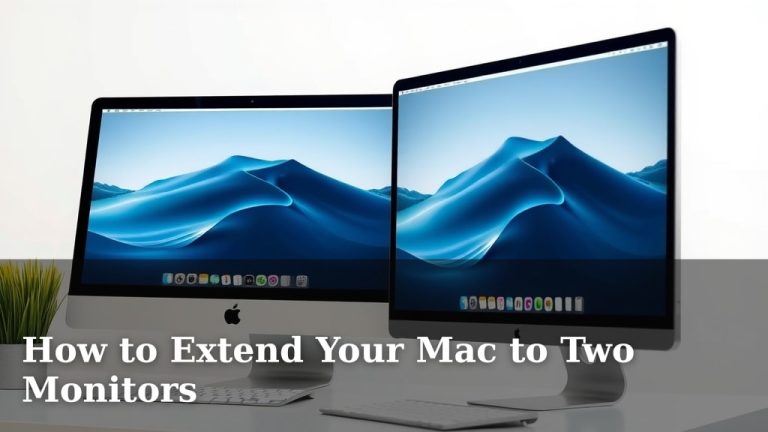
Yes, you can absolutely get two monitors to show different things, and it’s surprisingly easy! This setup, often called a dual-monitor display, lets you extend your desktop across both screens. You can drag windows between them, making multitasking much simpler. Many users find this setup boosts productivity.
When your computer recognizes two separate displays, it treats them as one large workspace. This means you can have one application open on your main screen and another on your second monitor. It’s a fantastic way to keep your primary tasks visible while referencing information elsewhere. We found this setup makes comparing documents or keeping communication apps open much easier.
- Extend your desktop to two monitors.
- Drag and drop windows between screens.
- Keep different applications open on each display.
- Improve your multitasking and productivity.
Let’s walk through exactly how to set up your two monitors to show different things, step by step.
Setting Up Two Monitors to Show Different Things
Getting two monitors to display different content is a fantastic way to boost your productivity. You simply need to tell your computer that you have more than one screen. It’s like giving yourself a bigger workspace. We’ve found this setup is a real game-changer for multitasking.
Connecting Your Monitors
First things first, you need to physically connect your monitors. Most modern computers have ports like HDMI, DisplayPort, or USB-C. You’ll need to match the cable type to the ports on both your computer and your monitors. Make sure you have the right cables handy. This step is straightforward, but it’s essential!
Choosing the Right Cables
Look at the back of your computer and your monitors. You’ll see different shapes. HDMI is very common for video and audio. DisplayPort is also popular and often offers higher refresh rates. USB-C can handle video, data, and power, which is super convenient if your laptop supports it. Ensure your cable supports the resolution and refresh rate you want for both screens.
Physical Connection Steps
Plug one end of the cable into your computer. Then, plug the other end into your first monitor. If you have a second cable, repeat the process for your second monitor. Once everything is plugged in, turn on your monitors and your computer. Your computer should automatically detect the displays. We found that using the correct ports makes a big difference.
Configuring Your Display Settings
Once your monitors are connected, your computer needs to know how you want to use them. Windows and macOS have simple settings for this. You’ll want to select the “Extend these displays” option. This makes your desktop appear across both screens, not just mirrored.
Windows Display Settings
On Windows, right-click anywhere on your desktop. You’ll see an option for “Display settings.” Click that. You should see two rectangles representing your monitors. If you don’t see two, click “Detect.” Then, scroll down to the “Multiple displays” section. Select “Extend these displays” from the dropdown menu. This is the key step.
Identifying and Arranging Monitors
In the Display settings, you can click “Identify” to see which number corresponds to which physical monitor. Then, you can drag and drop the monitor rectangles to match their physical placement on your desk. This ensures your mouse cursor moves logically between screens. We found accurate arrangement makes a big difference.
Setting the Main Display
You can choose which monitor is your “main” display. This is where your taskbar and system icons will appear. Simply select the monitor you want as primary. Then, check the box that says “Make this my main display.” Most people prefer their largest or highest-resolution monitor as the main one. This is easy to change later if you want.
macOS Display Settings
For Mac users, go to the Apple menu. Click on “System Settings” (or “System Preferences” on older macOS versions). Then, select “Displays.” You should see your connected monitors represented graphically. If one is missing, try closing and reopening the settings or restarting your Mac.
Arranging Your Mac Displays
Within the Displays settings, you’ll see your monitors. You can drag them to match their physical arrangement. A red bar at the top of a monitor’s representation indicates it’s the primary display. You can drag this red bar to the monitor you want to be primary. This is very intuitive. We like how simple this is.
Understanding “Extended Desktop”
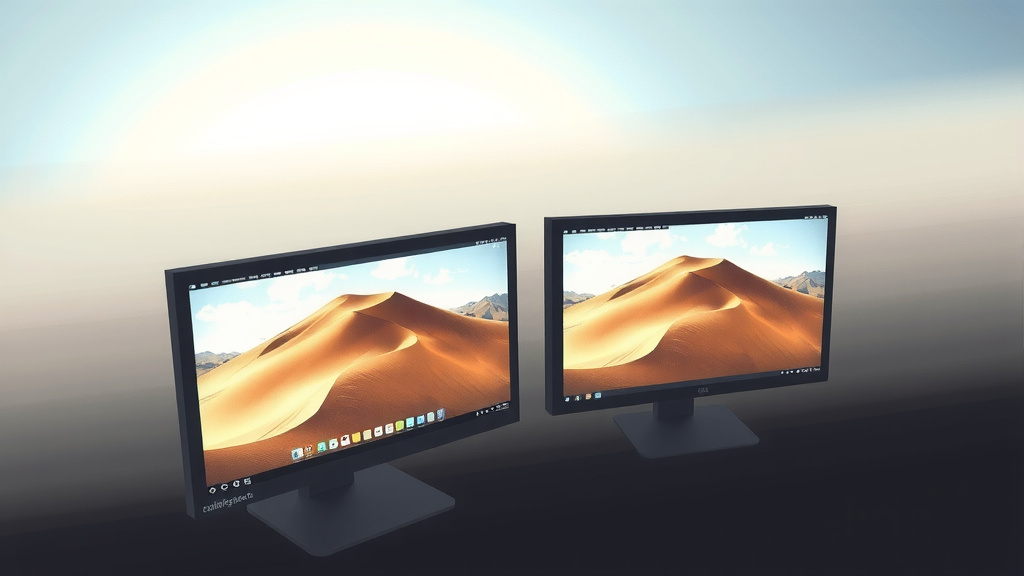
Choosing “Extend” means your computer treats both screens as one large desktop. You can drag windows from one monitor to the other. Imagine your desktop is a big table; you’re just using two smaller placemats on it. You can put different things on each placemat. This is the goal for showing different content.
Using Your Dual Monitors Effectively
With your setup complete, you can now enjoy the benefits of a dual-monitor system. The ability to have multiple windows open and visible simultaneously is a massive productivity booster. Many experts agree that more screen real estate helps concentration (Nielsen Norman Group).
Multitasking Made Easy
You can have your main work application on one screen, like a word processor or coding IDE. Then, use the second monitor for reference materials, emails, or communication tools like Slack or Teams. No more alt-tabbing frantically! Researchers have found that dual-monitor setups can reduce task switching time significantly.
Specific Use Case Examples
Think about comparing two documents side-by-side. Or perhaps referencing a spreadsheet while working on a report. Gamers often use a second monitor for game guides, streaming software, or chat. Video editors can place their timelines on one screen and the preview on another. The possibilities are vast.
Troubleshooting Common Issues
Sometimes, a monitor might not be detected. Double-check your cable connections. Ensure the monitor is powered on and set to the correct input source (HDMI 1, DisplayPort, etc.). If you still have trouble, try restarting your computer. Most issues are resolved with a simple reboot or connection check.
Performance Considerations
Running two monitors generally doesn’t strain most modern computers too much. However, if you’re using very high resolutions or refresh rates, especially with demanding applications or games, your graphics card might work harder. For everyday tasks like browsing and document editing, it’s usually not an issue. Many sources suggest checking your graphics card’s specifications if you’re concerned.
Here’s a quick checklist to make sure you’re all set:
- Connect both monitors with appropriate cables.
- Power on your monitors and computer.
- Open display settings (Windows or macOS).
- Select “Extend these displays.”
- Arrange monitors to match their physical layout.
- Set your preferred main display.
Conclusion
You’ve now learned how simple it is to extend your desktop across two monitors, transforming your workflow. By correctly connecting your displays and configuring your system’s settings, you gain a powerful advantage for multitasking and productivity. This setup allows you to view different applications side-by-side, making it easier to compare information or keep communication tools readily accessible. Ready to boost your efficiency? Your next step is to gather your cables and dive into your computer’s display settings to get your dual-monitor setup running.
Frequently Asked Questions
Can I use two monitors with different resolutions?
Yes, you absolutely can. Your computer will adapt to the different resolutions of each monitor. You can set the primary display to your higher-resolution monitor for the best experience. The “Extend these displays” setting allows each screen to operate at its native resolution while still working together.
What if my computer only has one video output port?
If your computer only has one video port, you might need a docking station or a USB-to-video adapter. These accessories can provide multiple video outputs. Ensure the dock or adapter supports the number of displays you want and the desired resolutions. This is a common solution for laptops with limited ports.
Does using two monitors consume more power?
Yes, using two monitors will consume more power than a single monitor. Each monitor requires its own power supply. The total increase in power consumption is usually modest for most standard setups. Modern monitors are generally quite energy-efficient, so the impact is often minimal for everyday use.
How do I make sure my mouse moves smoothly between monitors?
To ensure smooth mouse movement, you need to arrange your virtual monitors in the display settings to match their physical placement on your desk. If your second monitor is to the right of your main one, you should drag its representation to the right in the display settings. This visual mapping helps your cursor transition logically between screens.
Can I mirror my main screen to the second monitor instead?
Yes, you can choose to mirror your displays instead of extending them. In Windows display settings, select “Duplicate these displays” from the “Multiple displays” dropdown. On macOS, you can usually find a mirroring option within the Displays settings. This duplicates the content on both screens, which can be useful for presentations.