Asus Monitor: Easily Switch Input Sources
Switching input on your Asus monitor is usually quite simple. You can typically do this by pressing the “Input” or “Source” button on your monitor’s physical controls, or by navigating through its on-screen display (OSD) menu. Many Asus monitors feature a dedicated button for quick input changes, making it easy to toggle between devices.
This process is handy when you connect multiple devices, like a gaming console and a computer, to the same display. You might need to switch inputs when moving from work to play, or when using your monitor for different tasks. Understanding how to change your monitor’s source ensures a smooth user experience.
- Find the “Input” or “Source” button on your Asus monitor.
- Press this button to cycle through available input signals.
- Alternatively, use the monitor’s OSD menu to select your desired input.
- Common inputs include HDMI, DisplayPort, and VGA.
- Switching inputs allows you to display content from different devices.
Let’s walk through exactly how to switch inputs on your Asus monitor, step by step.
“`htmlQuickly Changing Your Asus Monitor’s Display Source
Switching the input on your Asus monitor is a straightforward process. It allows you to easily toggle between different devices connected to your screen. Think of it like changing channels on your TV, but for your computer, gaming console, or other media players. We’ll guide you through the steps.
Locating Your Monitor’s Input Controls
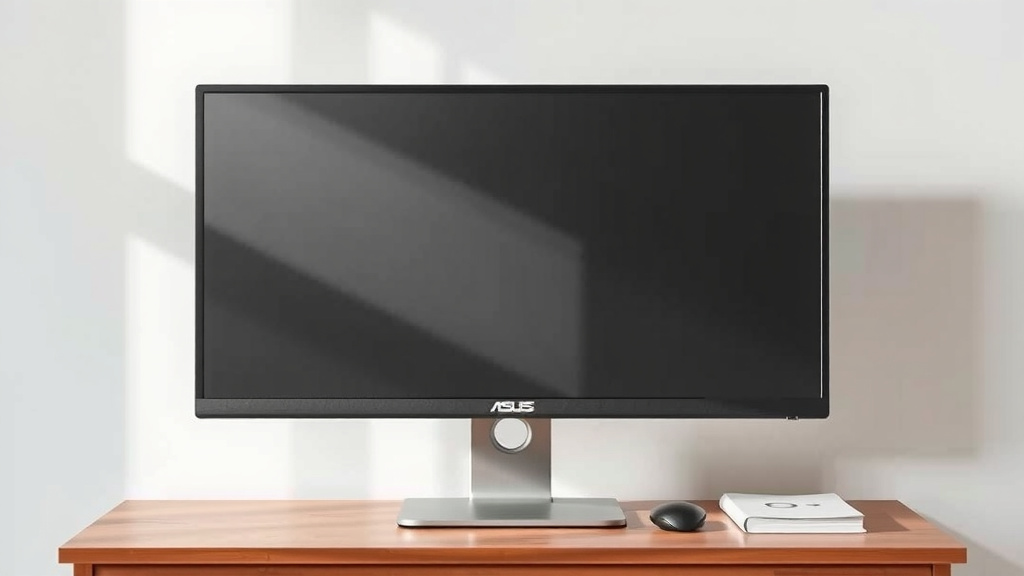
Most Asus monitors have physical buttons located on the bottom, side, or back panel. These buttons are your primary tools for managing your display settings. You’re looking for one specifically labeled “Input” or “Source.” Sometimes, it might have an icon resembling an arrow pointing into a box.
The Dedicated Input Button: Your Fastest Route
The easiest way to switch inputs is by using a dedicated button. Press this button once, and your monitor will cycle through the available input ports. You might see options like HDMI 1, HDMI 2, DisplayPort, or VGA appear on your screen. Keep pressing the button until you land on the input connected to the device you want to use.
We found that this method is incredibly efficient when you frequently switch between two or three devices. It avoids digging through menus.
Navigating the On-Screen Display (OSD) Menu
If your monitor doesn’t have a dedicated input button, or if you prefer a more visual approach, you’ll use the OSD menu. Look for a button labeled “Menu” or “OSD.” Pressing this will bring up a menu overlay on your screen.
Once the OSD menu is active, you’ll use other buttons (often labeled with arrows or simply “+” and “-“) to navigate. Find the “Input Selection” or “Source” option within the menu. Highlight it and press the “Enter” or “Select” button (usually the “Menu” button again or a separate confirmation button).
You’ll then be presented with a list of available inputs. Use the arrow buttons to highlight your desired input and press “Enter” to confirm your selection. We found this method gives you a clear overview of all available connections.
Understanding Common Input Types
Asus monitors support a range of input types, each designed for different devices and signal qualities. Knowing these can help you choose the right connection.
HDMI: The All-Rounder
HDMI (High-Definition Multimedia Interface) is incredibly common. It transmits both high-definition video and audio signals over a single cable. You’ll find HDMI ports on almost all modern computers, gaming consoles (like PlayStation, Xbox), Blu-ray players, and streaming devices.
Many Asus gaming monitors offer multiple HDMI ports. This is great for connecting both your PC and your favorite console. We recommend using HDMI for most general use and gaming.
DisplayPort: The Powerhouse for High Performance
DisplayPort is another digital interface, often favored by PC gamers and professionals. It generally supports higher refresh rates and resolutions than HDMI, especially at older HDMI versions. If your graphics card has a DisplayPort output, and your Asus monitor has a DisplayPort input, this is often the best connection for a smooth gaming experience.
Research suggests that DisplayPort can offer superior performance for high-end graphics. It’s also known for its “Multi-Stream Transport” feature, allowing you to connect multiple monitors in a daisy-chain configuration (though not all Asus monitors support this).
VGA: The Classic Connection
VGA (Video Graphics Array) is an older analog connection. While still present on some monitors and older computers, it generally provides lower image quality compared to HDMI or DisplayPort. If you’re using a very old PC or projector, you might need VGA.
We generally advise against using VGA if a digital option like HDMI or DisplayPort is available. The difference in clarity and color can be quite noticeable. Many newer Asus monitors might not even include a VGA port.

Troubleshooting Input Switching Issues
Sometimes, switching inputs might not work as expected. Don’t panic! Here are a few common reasons and solutions.
Is the Cable Securely Connected?
This might sound obvious, but a loose cable is a frequent culprit. Make sure the cable (HDMI, DisplayPort, etc.) is firmly plugged into both your Asus monitor and the source device. Sometimes, unplugging and replugging both ends can fix a connection issue.
Is the Source Device Powered On and Set to Output?
Your monitor can only display what the connected device is sending. Ensure the device you’re trying to switch to is powered on. Some devices might have specific settings to enable video output through their respective ports. For example, a PC might need to have its display output enabled in its system settings.
Have You Selected the Correct Input on the Monitor?
Double-check that you’ve cycled through all available inputs using the monitor’s buttons or OSD menu. It’s easy to accidentally skip over the one you need. If you’re unsure, try cycling through them slowly again.
Try a Different Cable or Port
If you suspect a faulty cable, try using a different one that you know works. Similarly, if your monitor has multiple ports of the same type (e.g., two HDMI ports), try connecting to the other port. This helps rule out a specific port malfunction.
Checklist: Quick Input Switching Guide
Here’s a quick rundown to get you back to your desired display:
- Locate the physical “Input” or “Source” button on your Asus monitor.
- Press this button to cycle through available connections (HDMI, DP, VGA).
- Alternatively, press the “Menu” button to access the OSD.
- Navigate the OSD to find “Input Selection” and choose your source.
- Ensure the connected device is powered on and configured correctly.
- Verify that your cables are securely plugged into both devices.
Conclusion
You’ve learned how easy it is to switch input sources on your Asus monitor. Whether you’re using a quick physical button or navigating the OSD menu, changing your display source is a skill that enhances your user experience. Remember to check your cables and ensure your connected devices are active. Now, you’re ready to jump between your gaming console, work computer, or any other device without a hitch. Your next step is to practice switching inputs a few times to make it second nature!
Frequently Asked Questions
My Asus monitor isn’t showing anything after I switch the input. What should I do?
First, double-check that the cable is securely connected to both your monitor and the source device. Also, ensure the device you’re trying to connect to is powered on and set to output a signal. Sometimes, simply cycling the input again or restarting the connected device can resolve the issue.
Can I switch inputs using software on my computer instead of the monitor buttons?
Generally, you cannot switch monitor inputs using computer software. The input selection is a hardware function controlled by the monitor itself, usually through its physical buttons or OSD menu. Your computer software can only control what’s being sent *to* the selected input, not the input selection itself.
My Asus monitor has multiple HDMI ports. Do I need to do anything special to use them?
No, not usually. You just need to make sure you select the correct HDMI port number (e.g., HDMI 1, HDMI 2) from your monitor’s input selection menu or by pressing the “Input” button until you reach the desired one. Each port functions independently for a different device.
What’s the difference between selecting an input and changing the resolution?
Selecting an input tells your monitor which port to receive the video signal from (like HDMI or DisplayPort). Changing the resolution, on the other hand, adjusts how many pixels are displayed on the screen for the active signal. You select the input first, and then you can adjust the resolution of the signal coming from that input.
How do I know which input my Asus monitor is currently using?
When you switch inputs, your Asus monitor will typically display a small on-screen notification indicating the currently selected input source (e.g., “HDMI 1,” “DisplayPort”). If you don’t see this, you can usually find the current input displayed within the monitor’s OSD menu under the “Input Selection” or “Source” setting.