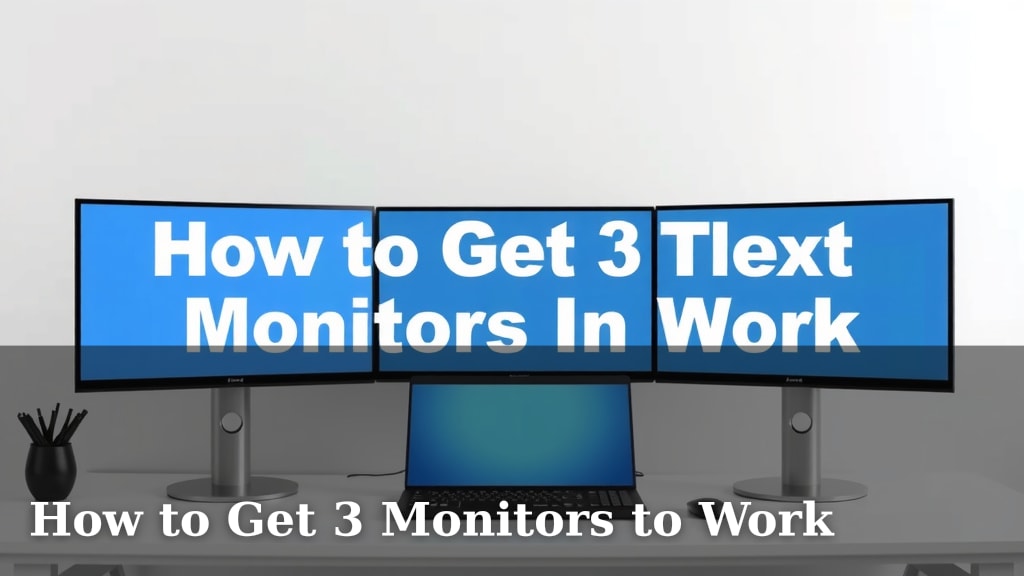
How to Get 3 Monitors to Work
Yes, you absolutely can get 3 monitors to work together on your computer. Most modern computers and graphics cards support multiple displays, and the setup is usually quite straightforward. You’ll need to ensure your graphics card has enough output ports and that your operating system is configured correctly for the extended desktop. This setup can boost your productivity and make multitasking much easier.
Setting up multiple monitors, often called a “multi-monitor” or “dual/triple monitor setup,” is a popular way to expand your screen real estate. It allows you to have different applications open on each screen, reducing the need to constantly switch between windows. Many people find that having three monitors significantly improves their workflow, whether for gaming, coding, graphic design, or just everyday browsing. You can even arrange them in different configurations to suit your desk space.
- Check your graphics card ports.
- Connect your monitors using the right cables.
- Configure display settings in your operating system.
- Arrange your monitors for optimal viewing.
Ready to expand your view? Let’s walk through the steps to get your three monitors up and running so you can enjoy your expanded workspace.
Setting Up Your Triple Monitor Display
Getting three monitors to work together is totally achievable. You’re probably wondering if your current setup can handle it. The good news is, most modern computers and graphics cards are designed to support multiple displays. We found that the setup process is usually quite straightforward.
Understanding Your Graphics Card’s Capabilities
The first and most important step is to check what your graphics card can do. Think of your graphics card as the engine that drives your display. It needs enough “outlets,” or ports, to connect to each of your monitors. We found that many newer graphics cards come with multiple ports. These are often a mix of DisplayPort, HDMI, and sometimes DVI or VGA.
Identifying Your Monitor Ports
Take a look at the back of each of your monitors. You’ll see the specific types of ports they have for video input. It’s essential that these match the ports on your graphics card, or that you have the right adapters.
Checking Your Graphics Card Ports
Now, examine the ports on your computer’s graphics card. Most commonly, you’ll see DisplayPort and HDMI. Some older cards might still have DVI. You need to ensure there are at least three available ports that you can use for your three monitors.
Connecting Your Monitors
Once you know your ports, it’s time to connect everything. You’ll need the appropriate cables. For DisplayPort, use a DisplayPort cable. For HDMI, use an HDMI cable. If you need to connect a DisplayPort monitor to an HDMI port (or vice versa), you might need an adapter or a specific type of cable. We found that using the correct cable type is key for a stable connection.
Choosing the Right Cables and Adapters
Make sure your cables are in good condition. A damaged cable can cause flickering or a complete loss of signal. If your graphics card has three DisplayPort outputs and your monitors have DisplayPort inputs, that’s the simplest scenario. If you have a mix, like two HDMI and one DisplayPort on your card, and your monitors have various inputs, you’ll need to plan your connections carefully. Many experts suggest using DisplayPort whenever possible, as it often supports higher resolutions and refresh rates (NVIDIA).
Physical Connections
Plug one end of each cable into a monitor and the other end into a corresponding port on your graphics card. It doesn’t usually matter which port you use on the graphics card for which monitor, as long as the types match or you’re using a compatible adapter. Once physically connected, turn on your monitors and then power up your computer.
Configuring Your Display Settings
After your monitors are physically connected and powered on, your computer needs to recognize them. Most modern operating systems, like Windows and macOS, will automatically detect new displays. You might see your desktop appear on one or all of the screens. Now, you need to tell your computer how to use these screens together.
Accessing Display Settings
On Windows, you can right-click anywhere on your desktop and select “Display settings.” On macOS, go to “System Settings” (or “System Preferences”) and then click on “Displays.” This is where the magic happens for your triple monitor setup.
Windows Display Settings
In Windows Display settings, you’ll see boxes representing each of your monitors. They might be numbered. You can click and drag these boxes to match the physical arrangement of your monitors on your desk. This is important for smooth mouse movement between screens. Look for the option that says “Multiple displays.” Here, you’ll want to select “Extend these displays.” This creates one large desktop space across all three monitors, rather than mirroring them.
macOS Display Settings
On macOS, under Displays, you’ll see your connected monitors. Click on “Arrange.” Similar to Windows, you can drag the monitor icons to reflect their physical layout. Ensure that “Mirror Displays” is unchecked. Your Mac will automatically extend the desktop space.
Arranging Your Monitors for Optimal Workflow
How you position your monitors can make a big difference. Think about where you spend most of your time and what you’ll be doing. Many people find a horizontal setup works well.
Horizontal Layout (Side-by-Side)
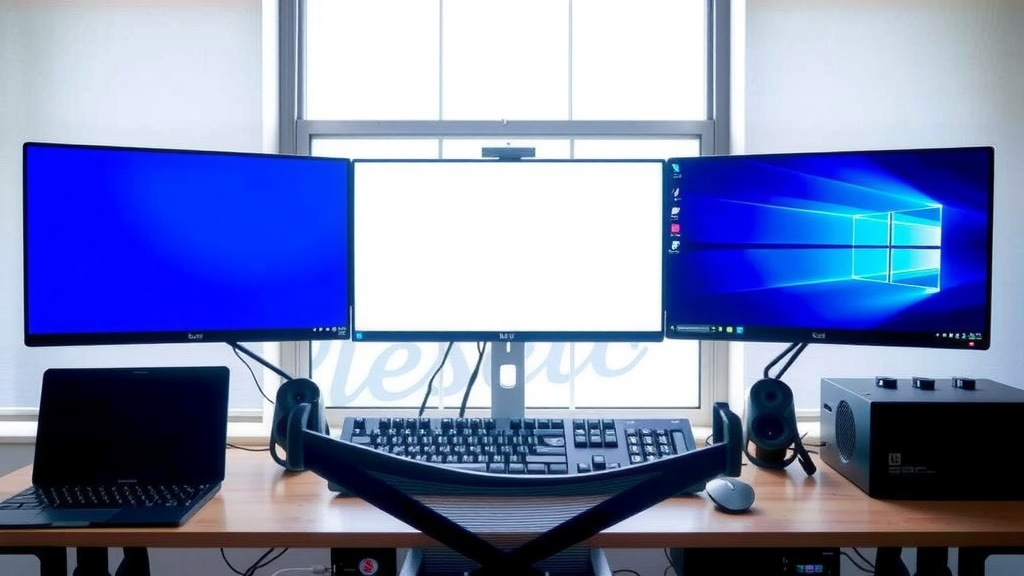
This is the most common setup. You place your monitors next to each other in a row. This gives you a wide, panoramic workspace. Your main monitor is usually in the center, with one to its left and one to its right. This arrangement is great for tasks where you need to see multiple documents or code side-by-side.
Vertical Layout (Stacked)
Some users prefer to stack monitors, with one above another. This is less common for three monitors but can work if you have limited desk width. You might have one primary monitor and two smaller ones stacked above or below. We found that this setup is often favored by coders or those who deal with long scrolling lists.
L-Shape or Other Configurations
You can also get creative. An L-shape, with one monitor above and two side-by-side, or vice versa, is another option. Consider your desk space and your viewing comfort. The goal is to minimize neck strain and maximize your productivity.
Quick Checklist for Your Setup
- Verify your graphics card has at least three video output ports.
- Gather the correct cables and any necessary adapters.
- Connect each monitor to the graphics card.
- Power on your monitors and computer.
- Open display settings and select “Extend these displays.”
- Arrange monitor icons to match your physical setup.
Conclusion
You’ve learned that setting up three monitors is entirely within your reach. By checking your graphics card ports, using the right cables, and configuring your operating system, you can create a spacious and productive workspace. Remember to arrange your monitors in a way that feels comfortable and efficient for your daily tasks. With these steps, you’re ready to expand your view and boost your productivity. Your next step is to gather your equipment and start connecting!
Frequently Asked Questions
What if my graphics card doesn’t have enough ports?
If your graphics card has fewer than three ports, you might need to upgrade your graphics card. Alternatively, some USB-to-HDMI or USB-to-DisplayPort adapters can add external display capabilities. Research adapters carefully to ensure they meet your needs and monitor resolution requirements.
Can I mix different types of monitors (e.g., 144Hz and 60Hz)?
Yes, you can mix monitors with different refresh rates. Your system will typically run each monitor at its native refresh rate, but your overall experience might be limited by the slowest monitor when dragging windows or full-screen applications across them. Your operating system handles these differences.
What’s the best way to arrange three monitors?
The most common and often best arrangement is a horizontal row, with one monitor in the center and one on each side. This provides a wide, panoramic view for most tasks. However, the ideal setup depends on your desk space and how you plan to use each screen. Experiment to find what works for you.
Do I need a powerful computer to run three monitors?
For basic productivity tasks like web browsing and office work, most modern computers should handle three monitors. However, for demanding applications like gaming or video editing, you will need a more powerful graphics card and processor to ensure smooth performance across all displays.
Will my mouse movement feel laggy between screens?
Generally, mouse movement should be smooth as long as your computer is adequately powered and you are using the correct display settings (“Extend these displays”). If you experience lag, check your graphics card drivers, ensure cables are secure, and verify your computer isn’t overloaded with background processes.