Connect 2 External Monitors to Your Laptop: A Simple Guide
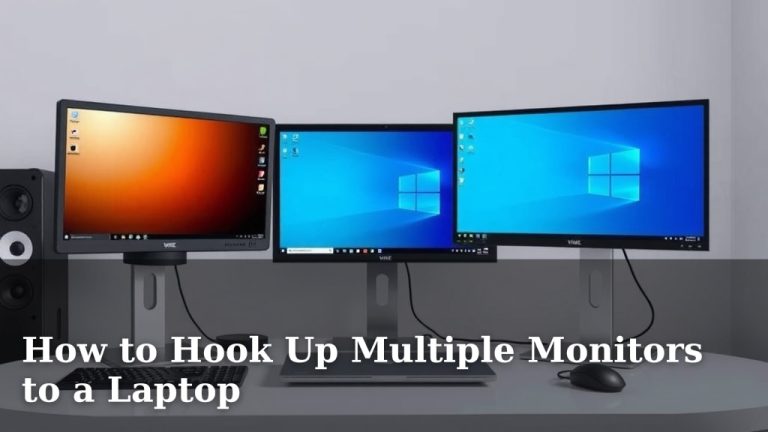
Yes, you can absolutely connect two external monitors to your laptop! Most modern laptops have the ports needed to support multiple displays. You’ll likely need a docking station or adapter if your laptop doesn’t have enough display outputs. This setup can drastically boost your productivity and multitasking abilities.
Adding more screens can transform your workspace. You can arrange windows side-by-side for easier comparison. Many users find that having multiple monitors makes their work flow much smoother. We’ve found that it’s a popular upgrade for both home and office setups.
- Check your laptop’s available ports (HDMI, DisplayPort, USB-C).
- Determine the type of connection your monitors use.
- You might need a docking station or adapter for more ports.
- Ensure your laptop’s graphics card can handle multiple displays.
- Connect your monitors and configure display settings in your operating system.
Let’s walk through exactly how to get those extra screens up and running!
You’re ready to expand your screen real estate! Adding a second external monitor to your laptop can really supercharge your workflow. It’s like giving your brain a bigger desk to spread things out on. You’ll wonder how you ever managed before. Let’s figure out exactly how to make this happen for your setup.
Connecting More Displays to Your Laptop
Getting two external monitors connected is often easier than you think. Most modern laptops are built with multi-display capabilities in mind. The main thing to figure out is how your laptop talks to screens. And if it doesn’t have enough ways to talk, we have solutions for that too!
Assessing Your Laptop’s Ports
First things first, take a peek at the sides of your laptop. You’re looking for specific types of ports. These are the digital highways that send video signals out. Common ones include HDMI, DisplayPort, and USB-C. Your laptop might have one or more of these.
HDMI (High-Definition Multimedia Interface)
HDMI is the most common port you’ll find. It’s versatile and widely used. You see it on TVs, gaming consoles, and of course, laptops. If your laptop has an HDMI port, it’s a good starting point. Your monitors likely have an HDMI input too.
DisplayPort
DisplayPort is another excellent option, often found on business laptops or higher-end machines. It’s known for supporting higher resolutions and refresh rates than HDMI. Many monitors designed for gaming or professional use will have DisplayPort inputs.
USB-C (and Thunderbolt)
USB-C is a newer, smaller connector. It’s becoming more prevalent on slim laptops. What’s cool about USB-C is that it can do a lot of things. It can handle data, power, and video output, often all at once. Some USB-C ports are also Thunderbolt 3 or 4, which are even more powerful and can support multiple high-resolution displays through a single port.
What Kind of Monitors Do You Have?
Once you know what your laptop offers, check your monitors. Most external monitors will have at least one of the ports we just discussed. HDMI is super common on monitors. Some might have DisplayPort as well. Knowing this helps you pick the right cables or adapters.
When Your Laptop Doesn’t Have Enough Ports
This is where things can get a little tricky, but don’t worry! What if your laptop only has one video output, but you want to connect two monitors? You’ll need a little help. The most common solutions are docking stations or adapters.
Docking Stations: The All-in-One Solution
A docking station acts like an expansion hub for your laptop. You typically connect it to your laptop with a single cable (often USB-C or Thunderbolt). Then, the dock provides multiple ports: several USB ports, Ethernet, and usually, multiple video outputs (like HDMI or DisplayPort). This is a clean way to get multiple connections from one port.
Adapters and Hubs: For Specific Needs
If a full docking station seems like overkill, you can use adapters or smaller USB hubs. For example, if your laptop has a USB-C port that supports video output, you could use a USB-C hub that has two HDMI or DisplayPort outputs. This is a more portable and often cheaper solution.
The Difference Between USB-C and Thunderbolt Docks
It’s important to know that not all USB-C ports are created equal. Some are just for charging and data. To drive multiple monitors effectively from a USB-C port, it needs to support DisplayPort Alternate Mode (often called “DP Alt Mode”). Thunderbolt 3 and 4, which use the USB-C connector, are built for high performance and easily support multiple displays.
We found that checking your laptop’s specifications online is the best way to confirm its USB-C capabilities. Search for your laptop’s model number plus “specs” or “ports.”
Checking Your Laptop’s Graphics Card Capability
Your laptop’s graphics card (or integrated graphics chip) does the heavy lifting of creating the images you see. Most modern laptops can handle at least two external displays. However, if you’re running older hardware or trying to drive very high-resolution monitors at high refresh rates, you might hit a limit. Most manufacturers provide specifications on how many external displays their graphics chips can support.
Making the Physical Connections
Once you have your ports identified and any necessary docks or adapters, it’s time to plug things in. You’ll need the correct cables for your chosen ports. Many monitors come with HDMI cables. If you’re using DisplayPort or need a specific length, you might need to purchase those separately.
Connect one end of the video cable to your laptop (or docking station/adapter) and the other end to your first external monitor. Repeat this for the second external monitor. Make sure the cables are securely seated in the ports.
Configuring Your Display Settings in Your Operating System
After everything is plugged in, your computer needs to know what to do with the new screens. You’ll usually see your desktop mirrored or extended onto the new monitors automatically. If not, you’ll need to adjust your display settings.
On Windows
Right-click anywhere on your desktop and select “Display settings.” Here, you’ll see boxes representing each of your monitors. You can drag these boxes to match the physical arrangement of your monitors on your desk. This is important for smooth mouse movement between screens.
You can choose how your displays work together. Options typically include:
- Duplicate these displays: Shows the same thing on all screens.
- Extend these displays: This is the most popular option. It creates one large desktop area across all your monitors.
- Show only on 1 / 2 / etc.: Turns off all displays except the one you choose.
On macOS
Go to the Apple menu, then select “System Settings” (or “System Preferences” on older versions). Click on “Displays.” You’ll see your connected monitors listed. Similar to Windows, you can arrange them by dragging the display icons. You can also choose to “Mirror Displays” or use them as separate “Extended Desktop” spaces.
A Quick Checklist for Success
Let’s summarize the key steps:
- Identify your laptop’s video output ports (HDMI, DisplayPort, USB-C).
- Check what input ports your monitors have.
- Determine if you need a dock or adapter for two outputs.
- Use the correct cables for your connections.
- Connect everything and power on your monitors.
- Configure your display settings in your OS for the best arrangement.
Conclusion
You’ve got the roadmap now to connect two external monitors to your laptop! We’ve seen that checking your laptop’s ports like HDMI, DisplayPort, or USB-C is your first step. If you need more connections, a docking station or adapter is your best friend. Your graphics card is likely ready, and with a few clicks in your operating system settings, you’ll be extending your workspace. This setup can truly transform how you multitask and get work done. Your next step is to identify your ports and choose the right accessories to get started!
Frequently Asked Questions
Will connecting two monitors slow down my laptop?
Generally, modern laptops with decent specs won’t slow down significantly when connecting two external monitors. If your laptop is older or you’re running demanding applications, you might notice a slight performance dip. We recommend checking your laptop’s graphics card capabilities to ensure it can handle the extra load.
Can I use different types of monitors for my dual setup?
Yes, you absolutely can mix and match different monitors. As long as your laptop or docking station has the correct ports to connect to each monitor’s input (e.g., one HDMI and one DisplayPort), you’re good to go. Your operating system will let you configure them separately.
Do I need special cables to connect two monitors?
You’ll need the appropriate cables that match your laptop’s output ports and your monitor’s input ports. Typically, this means HDMI to HDMI, DisplayPort to DisplayPort, or USB-C to HDMI/DisplayPort, depending on your hardware. Most monitors come with at least one HDMI cable, but you might need to purchase additional or different types of cables.
What if my laptop only has one video output port?
If your laptop only has one video output, you’ll likely need a docking station or a USB-C hub that supports multiple displays. These devices connect to your laptop via a single port and then provide multiple video output options, allowing you to connect two external monitors. Ensure the dock or hub specifies support for dual monitors.
How do I make sure my mouse moves smoothly between monitors?
To ensure smooth mouse movement, you need to configure your display arrangement in your operating system’s settings. Right-click on your desktop and go to “Display settings” (Windows) or “Displays” in System Settings (macOS). Drag the monitor icons to match their physical placement on your desk. This tells your computer how your screens are oriented relative to each other.