Close Laptop to Monitor: A Step-by-Step Guide
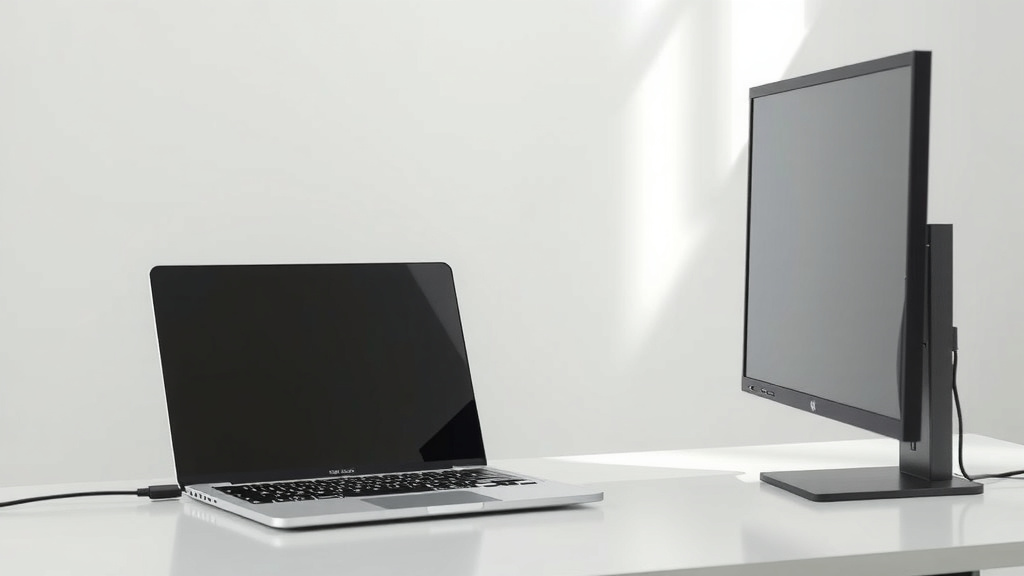
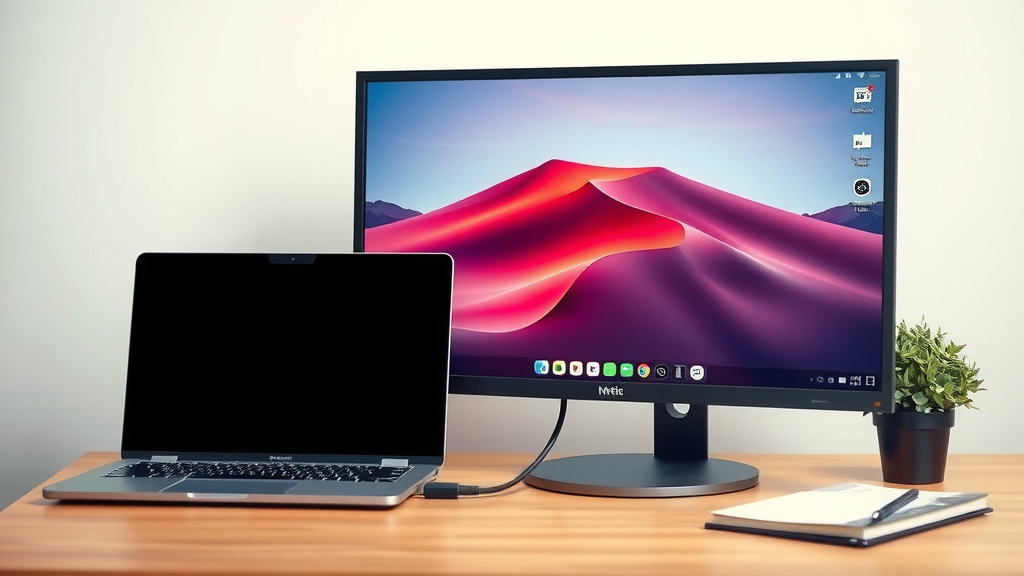
Yes, you absolutely can close your laptop when it’s connected to an external monitor. In fact, it’s a common setup that many people use to create a dual-screen workspace. Your laptop screen will simply turn off, and your desktop will remain displayed on the external monitor, allowing you to continue working without interruption. Just make sure your display settings are configured correctly before you close the lid.
When you close your laptop lid while it’s connected to an external display, your laptop goes into a power-saving mode for the internal screen. This doesn’t affect the connection to your monitor. It’s a great way to save space and keep your desk tidy. You’ll often find this setup improves your productivity and allows for a more comfortable viewing experience.
- You can close your laptop lid.
- Your external monitor will remain active.
- Check your display settings first.
- It helps save desk space.
- Enjoy a dual-screen setup.
Let’s walk through exactly how to ensure your laptop behaves the way you want it to when you close the lid. We’ll cover the simple steps to get this working for you.
Using Your Laptop With the Lid Closed and an External Monitor
You’re probably wondering if you can actually close your laptop when it’s connected to an external screen. The good news is, yes, you absolutely can! It’s a common setup that many people use to create a more ergonomic and spacious workspace. Your laptop screen will simply go black, while your desktop will remain visible on your external monitor. This allows you to continue working without any interruptions. It’s a fantastic way to keep your desk tidy and often leads to a more comfortable viewing experience.
Think of it like this: your laptop is doing all the heavy lifting internally. When you close the lid, you’re just telling the laptop, “Hey, no need to power the internal display anymore. Keep doing your thing, but just show it on the big screen.” We’ll walk you through the simple steps to make sure this works perfectly for your setup.
Configuring Your Display Settings: The Key to Success
Before you close that lid, there’s one vital step: configuring your display settings. This tells your laptop how to behave when the lid is shut. Without this, your laptop might go to sleep, which isn’t what you want. We found that most operating systems have a straightforward way to adjust this. It’s usually just a few clicks.
Windows Display Settings
If you’re using a Windows computer, the process is usually quite simple. You’ll need to access the Power Options. This is where you tell your computer what to do when you close the lid.
Accessing Power Options
First, right-click on the battery icon in your system tray (usually at the bottom right of your screen). From the menu that pops up, select “Power Options.” If you don’t see the battery icon, you can also search for “Power Options” in the Windows search bar.
Choosing “What closing the lid does”
Once you’re in Power Options, look for a link on the left-hand side that says “Choose what closing the lid does.” Click on that. Here, you’ll see settings for both when the computer is “On battery” and “Plugged in.” For this setup, you’ll want to focus on the “Plugged in” section.
Setting the Lid Close Action
Under the “Plugged in” column, you’ll see a dropdown menu next to “When I close the lid.” You’ll want to change this setting to “Do nothing.” This is the magic setting that keeps your external monitor active even when your laptop lid is closed. Make sure you also set it to “Do nothing” for “On battery” if you plan to use it unplugged this way, though many prefer to have it sleep on battery to save power. Once you’ve made your selection, click “Save changes” at the bottom.
macOS Display Settings
For Mac users, the process is a bit different but equally straightforward. Apple has a specific mode for using your Mac with the lid closed, often called “clamshell mode.”
Requirements for Clamshell Mode
To use clamshell mode on a Mac, you generally need a few things: your Mac must be connected to a power adapter. It also needs to have an external keyboard and mouse (or trackpad) connected. Finally, you need to have your external display already connected.
Enabling Clamshell Mode
Once these conditions are met, you can simply connect your Mac to its power adapter, connect your external display, and then connect your external keyboard and mouse. After that, you can close your MacBook’s lid. Your Mac should then automatically switch to using only the external display. We found that this typically happens within a few seconds.
Ensuring a Stable Connection
A stable connection between your laptop and your external monitor is key. You want to avoid any flickering or signal loss. Using the right cables and ports can make a big difference.
Understanding Your Ports and Cables
Most modern laptops and monitors come with several connection options. You’ll often see HDMI, DisplayPort, and USB-C (which can often carry video signals, especially Thunderbolt 3 or 4). For the best resolution and refresh rates, DisplayPort or USB-C are often preferred when available. HDMI is also a very common and reliable choice.
We recommend using a high-quality cable that matches the ports on both your laptop and monitor. If you’re using adapters, ensure they are also reputable. Sometimes, a cheap adapter can cause signal issues. Many experts suggest checking your laptop’s specifications to see what display outputs it supports and what resolution and refresh rate it can handle.
Troubleshooting Common Issues
While setting this up is usually easy, you might run into a few hiccups. Don’t worry, most problems have simple solutions.
Laptop Goes to Sleep Anyway
If your laptop still goes to sleep when you close the lid, double-check your power settings. Make sure you clicked “Save changes” after setting the lid action to “Do nothing.” Also, ensure your laptop is plugged into power, as some settings only apply when plugged in.
External Monitor Doesn’t Turn On
If your external monitor remains blank, try a few basic troubleshooting steps. First, ensure both the monitor and your laptop are powered on. Check that the video cable is securely plugged into both devices. Try unplugging and replugging the cable at both ends. If that doesn’t work, try a different cable or a different port on your laptop or monitor if available.
We also found that sometimes, simply restarting your laptop after making display setting changes can resolve the issue. It’s like giving the system a fresh start. For Mac users in clamshell mode, confirm all the requirements are met – power, external input devices, and the external display connection.
Quick Checklist for Success
- Confirm your laptop is plugged into a power source.
- Adjust your power settings to “Do nothing” when the lid is closed.
- Ensure your external display is powered on and set to the correct input.
- Use a high-quality video cable (HDMI, DisplayPort, or USB-C).
- For Macs, ensure external keyboard/mouse are connected and power adapter is plugged in.
- Restart your laptop if the external display doesn’t activate immediately.
Conclusion
You’ve learned that closing your laptop while connected to an external monitor is a simple yet effective way to enhance your workspace. By adjusting your operating system’s power settings, you can ensure your external display remains active. This transforms your setup into a more organized and productive environment. Remember to check your display and power settings, use quality cables, and ensure your device is powered. Now you can enjoy a clutter-free desk and a more comfortable computing experience!
Frequently Asked Questions
What happens if my laptop battery dies while the lid is closed and connected to a monitor?
If your laptop battery runs out of power while in this configuration, your laptop will likely shut down, causing your external monitor to go blank as well. To prevent this, always ensure your laptop is plugged into its charger when you intend to use it with the lid closed for extended periods.
Can I charge my laptop while using it with the lid closed and connected to an external monitor?
Yes, absolutely. In fact, it’s highly recommended. Connecting your laptop to its power adapter is often a requirement for certain configurations, like macOS’s clamshell mode. It also prevents your battery from draining, especially if you’re running power-intensive applications.
Will my laptop overheat if I leave it running with the lid closed?
Generally, no, if your laptop has adequate ventilation. Modern laptops are designed to manage heat effectively, even with the lid closed. However, if you notice your laptop feels unusually hot, ensure the vents aren’t blocked and consider opening the lid slightly or ensuring better airflow around the device.
Is it okay to leave my laptop plugged in all the time with the lid closed?
For most modern laptops, leaving them plugged in constantly is fine. Battery management systems are designed to prevent overcharging. However, some users prefer to unplug occasionally to exercise the battery. The most important thing is to ensure your power settings are configured to “Do nothing” when the lid is closed to keep your external monitor working.
Do I need a special type of monitor to use my laptop with the lid closed?
No, you don’t need a special monitor. Any external monitor that can connect to your laptop via HDMI, DisplayPort, USB-C, or another compatible port will work. The key is configuring your laptop’s settings to keep the display active when the lid is shut, not the monitor itself.