How to Hook Up Three Monitors to a Computer
You absolutely can hook up three monitors to your computer, and it’s easier than you might think! Most modern computers have the ports you need, and with the right cables or adapters, you can easily **expand your screen real estate** for better productivity or gaming. It’s all about understanding your computer’s video outputs and choosing the correct **connections for multiple displays**.
Adding extra screens can dramatically change your workflow. Imagine having more space for your documents, code, or streaming software right in front of you. Many people find that a triple-monitor setup significantly boosts their efficiency and can even be a fun way to **enhance your gaming experience**. We found that setting this up correctly prevents common headaches like choppy video.
- Check your computer’s available video ports (HDMI, DisplayPort, etc.).
- Identify the ports on your monitors.
- Get the right cables or adapters (USB-C to HDMI is common).
- Connect each monitor to your computer.
- Configure your display settings in Windows or macOS.
Ready to enjoy a bigger, better workspace? Let’s walk through exactly how to get those three monitors connected and working perfectly.
“`htmlConnecting Three Monitors to Your PC
Yes, you absolutely can connect three monitors to your computer! It might sound a bit technical, but the process is surprisingly straightforward for most modern setups. You’re not alone in wanting more screen space. Many users find that adding just one extra monitor makes a big difference, so three can truly transform your workspace.
The key is understanding what your computer and monitors can do. We found that most desktop computers and many laptops made in the last five to seven years are equipped with the necessary ports. If yours isn’t, don’t worry; there are still ways to achieve your three-monitor dream. Let’s break down how to get this done smoothly.
Checking Your Computer’s Video Outputs
First things first, let’s look at the back of your computer. You need to identify the video ports available. These are the sockets where you’ll plug in your monitors. The most common types you’ll see are HDMI, DisplayPort, and sometimes VGA or DVI. It’s important to know these because your monitors will need to match, or you’ll need adapters.
Common Video Port Types
Let’s get familiar with the usual suspects. You’ll likely find at least one or two of these:
- HDMI: This is super common on almost all modern devices. It carries both video and audio.
- DisplayPort (DP): Often found on business-oriented computers and graphics cards. It’s also excellent for high resolutions and refresh rates.
- VGA: An older analog connection. You might see this on very old computers or monitors. It’s generally lower quality than digital options.
- DVI: Another digital connection, though less common now than HDMI or DisplayPort.
Your goal is to find ports that can each drive a separate monitor. For a three-monitor setup, you’ll ideally want three distinct video outputs directly from your computer. If you only have two, we’ll cover solutions for that later.
Identifying Your Monitor’s Inputs
Now, turn your attention to your monitors. They will also have input ports, and these should match or be adaptable to your computer’s outputs. Look at the back or underside of your monitor. You’ll see similar connection types: HDMI, DisplayPort, VGA, or DVI.
Make a quick note of which ports each of your three monitors has. This inventory is critical for choosing the right cables. For example, if your computer has two HDMI ports and one DisplayPort, and your monitors have HDMI and DisplayPort inputs, you’re in great shape. You can connect two monitors via HDMI and one via DisplayPort.
Understanding Graphics Card Capabilities
For desktop PCs, your graphics card (GPU) is the main component responsible for video output. Most dedicated graphics cards are designed to support multiple monitors right out of the box. We’ve found that even mid-range cards usually support at least three or four displays.
Laptops, especially ultrabooks, might have fewer dedicated video ports. Some newer laptops use USB-C ports that can also carry video signals. These are often labeled with a small lightning bolt or a “DP” symbol. If your laptop has one or more of these USB-C ports that support DisplayPort Alternate Mode, you can often use them to connect monitors, sometimes with adapters.
If you’re unsure about your graphics card’s capabilities, a quick search online for your specific model number should tell you how many displays it supports. Manufacturers’ websites are usually very clear about this. Many graphics cards can handle three or more monitors, but it’s always best to check.
Choosing the Right Cables and Adapters
This is where many people get stuck. The correct cables or adapters are essential. You want to match your computer’s output port to your monitor’s input port. Here’s how to approach it:
Direct Connections: The Ideal Scenario
If your computer has three video outputs (like three DisplayPorts or two HDMI and one DisplayPort) and your monitors have corresponding inputs, you’re in luck! You can simply buy three cables to connect each monitor directly. For example, if your PC has two HDMI and one DisplayPort, and your monitors have these inputs, you’d need two HDMI cables and one DisplayPort cable.
When Ports Don’t Match: Adapters and Converters
What if your computer has ports your monitors don’t? This is common. You might have a DisplayPort on your PC but only HDMI inputs on your monitors. In this case, you’ll need an adapter or a specific cable. A DisplayPort to HDMI adapter or a cable with a DisplayPort connector on one end and an HDMI connector on the other will work perfectly.
Be aware that not all adapters are created equal. For example, you can’t typically convert VGA to HDMI or vice-versa without an active converter box, which is more complex and expensive. Stick to converting between digital formats (HDMI, DisplayPort, DVI) for the best results.
USB-C for More Displays
As mentioned, many modern laptops use USB-C ports for video output. If your laptop has USB-C ports that support DisplayPort Alternate Mode (often called “DP Alt Mode”), you can use them. You’ll likely need a USB-C to HDMI adapter or a USB-C hub that has multiple video outputs (like two HDMI ports).
A single USB-C port can sometimes drive multiple monitors if you use a docking station or a specialized hub. This is a popular solution for laptops, as it often simplifies cable management. Just ensure the adapter or hub explicitly states support for multiple displays and the resolutions you need.
Graphics Cards with Multiple Outputs
Some older or more basic graphics cards might have multiple ports of the same type, like four DVI ports. In such cases, you might need DVI to HDMI adapters to connect to modern monitors. Always check the specifications of your graphics card to see exactly how many displays it supports and what types of ports it offers.
Connecting Your Monitors: Step-by-Step
With your cables and adapters ready, it’s time to connect everything. This is usually the easiest part. We found that being organized beforehand makes this go even faster.
- Power Down: It’s good practice to turn off your computer completely before connecting or disconnecting hardware.
- Connect the First Monitor: Take a video cable. Plug one end into a video output port on your computer and the other end into the corresponding input port on your first monitor.
- Connect the Second Monitor: Repeat step 2 for your second monitor, using a different video output on your computer and an input on the second monitor.
- Connect the Third Monitor: Do the same for your third monitor. Ensure you’re using a third available video output port on your computer.
- Power On: Turn on your monitors, then turn on your computer.
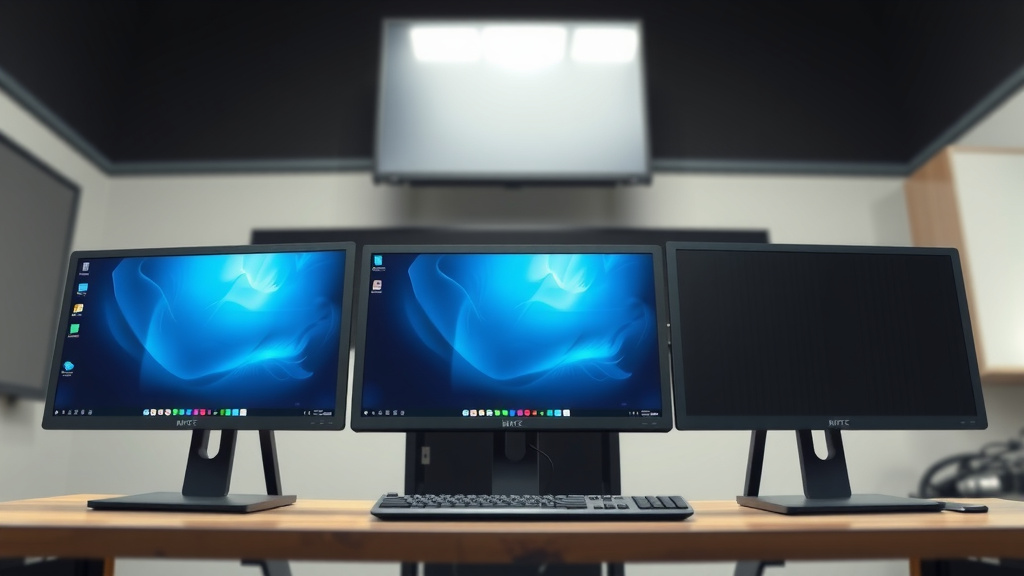
Most of the time, your computer will automatically detect the new monitors. You might see your desktop appear on all three screens, perhaps duplicated or extended. If not, don’t panic; we’ll adjust the settings next.
Configuring Your Display Settings
Once everything is plugged in and your computer is booted up, you’ll need to tell your operating system how to use these extra screens. Both Windows and macOS make this fairly simple.
In Windows
Right-click anywhere on your desktop and select “Display settings.” Here, you’ll see representations of your monitors. You can drag these boxes to match the physical arrangement of your monitors on your desk. This ensures your mouse moves logically between screens.
Under the “Multiple displays” dropdown, you’ll typically want to select “Extend these displays.” This gives you one large desktop spread across all three screens. You can also choose “Duplicate these displays” if you want the same image on all screens, but that’s less common for productivity.
Scroll down, and you can set your “Primary display” – this is where your taskbar and icons will appear by default. You can also adjust the resolution and orientation for each monitor individually.
In macOS
Go to the Apple menu, then System Settings (or System Preferences on older versions). Click on “Displays.” You’ll see your monitors arranged graphically. You can drag these to match their physical layout.
To use them as separate workspaces, ensure “Mirror Displays” is unchecked. If you check it, all screens will show the same thing. You can drag the white menu bar to the monitor you want to be your primary display.
Each display can have its own resolution and arrangement adjusted. It’s like giving your Mac a much bigger canvas to work on!
Troubleshooting Common Issues
What if one of the monitors isn’t showing a picture? Or maybe it’s showing a very low resolution?
- Check Cables Again: Make sure all cables are firmly seated in their ports on both the computer and monitor.
- Restart Your Computer: Sometimes a simple reboot is all it takes.
- Update Graphics Drivers: Outdated drivers are a frequent culprit. Visit the website of your graphics card manufacturer (NVIDIA, AMD, Intel) and download the latest drivers.
- Adapter Compatibility: If you’re using adapters, ensure they are active if necessary and compatible with your specific ports.
- Check Monitor Input Source: Some monitors automatically select the input, but others require you to manually choose the correct source (HDMI 1, DisplayPort, etc.) using the monitor’s buttons.
We found that most of these issues can be resolved with a few basic checks. If you’re still having trouble, looking up your specific graphics card model and the problem you’re experiencing can often yield solutions.
“` “`htmlConclusion
You’ve successfully learned how to connect three monitors to your computer, transforming your setup for better productivity and gaming. By understanding your computer’s video outputs, identifying your monitor’s inputs, and using the right cables or adapters, you can easily expand your screen space. Remember to configure your display settings in Windows or macOS to extend your desktop across all screens. If you encounter any issues, don’t hesitate to recheck your connections or update your graphics drivers. Your new multi-monitor workspace is just a few steps away!
Frequently Asked Questions
Can I hook up three monitors if my computer only has two video ports?
Yes, you often can! Many modern laptops and desktops allow you to use USB-C ports for video output. You might need a USB-C hub or adapter that supports multiple displays to achieve this. We found this to be a common solution for those with limited built-in ports.
Do I need a special graphics card to run three monitors?
Most modern dedicated graphics cards are designed to support three or even more monitors right out of the box. For laptops or older computers, integrated graphics might have limitations, but it’s rare that you absolutely *need* a new graphics card just for three displays. Checking your graphics card’s specifications is usually sufficient.
Will I lose performance in games when using three monitors?
If you’re running a game across all three monitors, yes, you’ll likely see a performance drop because you’re essentially rendering a much wider image. However, if you’re using three monitors for gaming and having other applications or streams open on the side screens, the impact on the main gaming screen is usually minimal, especially with a decent graphics card.
What’s the difference between extending and duplicating displays?
Extending displays treats each monitor as a separate workspace, giving you one large desktop area. Duplicating displays shows the exact same image on all connected monitors. For productivity, most users prefer extending to have more space for different applications. Duplicating is useful for presentations or showing the same content simultaneously.
How do I know if my USB-C port supports video output?
Look for a small lightning bolt symbol or a “DP” logo next to your USB-C port; this indicates support for DisplayPort Alternate Mode, which allows it to carry video signals. If you’re unsure, consult your computer’s user manual or the manufacturer’s website for its specifications. We’ve seen this feature become standard on many newer laptops.
“`