How to Get Two Monitors to Work Together
Yes, you can absolutely get two monitors to work together to create a larger, more productive workspace. Setting up a dual monitor system is surprisingly straightforward. It often involves simply connecting your monitors to your computer and configuring your display settings. We found this can drastically improve your workflow.
Many users wonder if they need special software or hardware for this. The good news is, most modern computers and operating systems are designed to handle multiple displays with ease. You’ll be amazed at how much more you can get done when you have the extra screen real estate. It’s like getting a free upgrade for your desk.
- Connect your monitors to your computer.
- Configure your display settings in your operating system.
- Extend your desktop across both screens.
- Adjust resolution and arrangement as needed.
Let’s walk through exactly how to get your two monitors working together in harmony, step by step.
Here is the main body content for your blog post:Getting Your Dual Monitors Connected and Ready
So, you’re ready to expand your digital horizon? Connecting a second monitor is much simpler than you might think. Most modern computers are built to handle multiple displays right out of the box. You won’t need any special software to get started. The hardware connection is usually the first step. This is where you physically link your new screen to your computer.
Understanding Your Ports and Cables
Before you can enjoy that expanded desktop, you need to know what kind of connections your computer and monitors support. Think of these like different types of doorways for your video signal. The most common types you’ll encounter are HDMI, DisplayPort, and sometimes older ones like DVI or VGA. Check the back of your computer tower or laptop and your monitors. See which ports match up. You’ll likely need a cable that has the same connector on both ends, or an adapter if they don’t.
HDMI: The All-Around Player
HDMI cables are everywhere. They carry both video and audio signals. This makes them a convenient choice for many setups. If your computer and monitor both have HDMI ports, this is often the easiest route. Just plug one end into your computer and the other into your monitor. It’s that simple for many users.
DisplayPort: The Performance Champ
DisplayPort is another popular modern connection. It’s often found on business-class laptops and desktop graphics cards. DisplayPort is known for supporting higher resolutions and refresh rates. This can be great for gaming or professional design work. Like HDMI, it’s a direct connection if your devices have matching ports.
When Ports Don’t Match: Adapters and Converters
What if your computer has a DisplayPort but your monitor only has HDMI? Don’t panic! You can often use an adapter or a specific type of cable. For example, a DisplayPort to HDMI adapter lets you connect these different types of ports. Make sure you get the right kind of adapter. Some adapters only go one way (e.g., DisplayPort to HDMI, not the other way around). Researching your specific ports will save you frustration.
Configuring Your Displays in Your Operating System
Once your monitors are physically connected, your computer needs to know they’re there. Your operating system, whether it’s Windows or macOS, will usually detect the new monitor automatically. You’ll then tell it how you want to use the extra screen. This is where you bring your desktop to life across both displays. This setup is typically done through your display settings.
Windows Display Settings Walkthrough
On Windows, getting your dual monitors set up is quite straightforward. First, right-click on an empty space on your desktop. From the menu that pops up, select “Display settings”. You should see boxes representing your monitors, usually labeled ‘1’ and ‘2’. If you don’t see both, try clicking the “Detect” button. You might need to identify which physical monitor corresponds to which number. Click the “Identify” button, and numbers will briefly appear on each screen. This helps you orient them correctly.
Extending vs. Duplicating Your Display
In the Display settings, you’ll find a crucial dropdown menu labeled “Multiple displays”. This is where you choose how your monitors work together. You’ll typically see options like “Duplicate these displays” or “Extend these displays.”
- Duplicate: This shows the exact same image on both screens. It’s useful for presentations where you want the audience to see what you see. It doesn’t give you more workspace.
- Extend: This is what most people want for productivity. It turns your two monitors into one large, continuous desktop. You can drag windows from one screen to the other. This is how you get that amazing extra screen real estate.
Arranging Your Monitors
After selecting “Extend,” you need to tell Windows how your monitors are positioned relative to each other. This is important for mouse movement. If your second monitor is to the left of your primary one, you should drag the monitor box labeled ‘2’ to the left of box ‘1’ in the settings. When you move your mouse to the edge of one screen, it will smoothly glide onto the other. Getting this arrangement right makes using your dual setup feel natural.
Adjusting Resolution and Scaling
Sometimes, the text or icons might look too small or too large on one of your monitors. You can adjust this in the Display settings. Scroll down to find “Scale and layout”. Here, you can change the size of text, apps, and other items. You can also adjust the screen resolution. It’s best to use the “Recommended” resolution for each monitor. This ensures the sharpest picture quality.
macOS Display Settings Guide
For Mac users, the process is similarly user-friendly. Connect your second monitor to your MacBook or iMac. Then, go to the Apple menu in the top-left corner. Select “System Settings” (or “System Preferences” on older macOS versions). Click on “Displays”. Your Mac should automatically detect both monitors. You’ll see representations of your screens here.
Arrangement and Mirroring Options
In the Displays settings, you’ll see an “Arrangement” tab or section. Here, you can drag and drop the monitor icons to match their physical placement on your desk. This controls how your mouse pointer moves between screens. Just like Windows, macOS offers options to “Mirror Displays” or extend your desktop. For dual-monitor productivity, you’ll want to keep mirroring turned off and ensure your desktop is extended. You can also choose which monitor is your “Primary” display. This is where your menu bar and Dock will appear by default.
Optimizing Resolution and Arrangement
macOS is generally very good at detecting the optimal resolution for external displays. However, if you need to adjust it, select a monitor in the Displays settings. You can then choose different resolutions. You can also adjust scaling to make text and icons appear larger or smaller. The goal is to make both screens look clear and comfortable to use.
Tips for a Smooth Dual Monitor Experience
Now that your monitors are working together, here are a few quick tips to make your dual-monitor life even better. These small adjustments can lead to a big boost in your daily workflow. You’ll be surprised at how quickly you get used to having more space.
- Taskbar Placement: On Windows, you can extend your taskbar to both monitors. Right-click the taskbar, go to Taskbar settings, and look for options under “Multiple displays.”
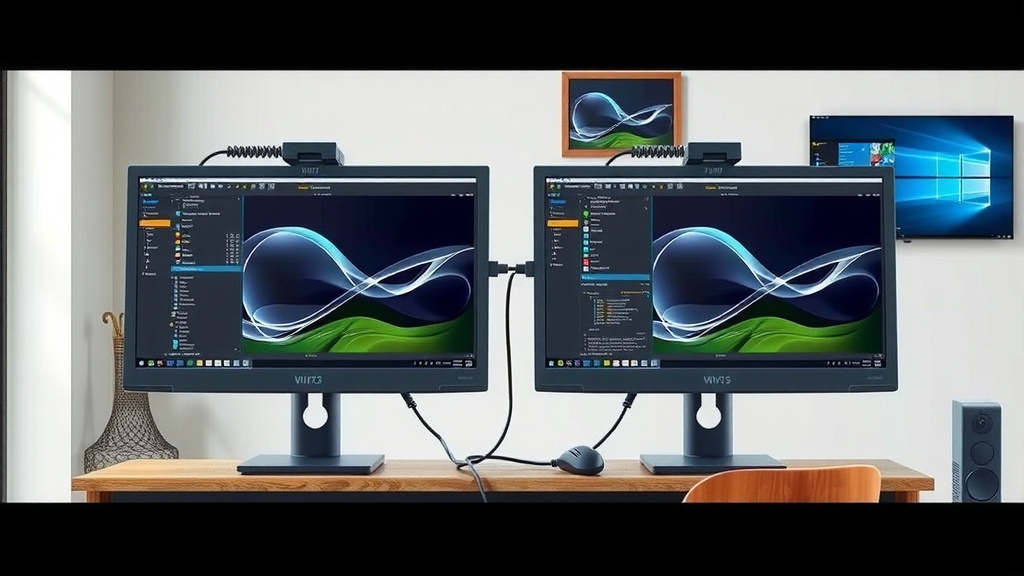
- Wallpaper: Consider using a wallpaper that spans across both screens for a unified look. Or, set different wallpapers on each for more visual interest.
- Monitor Height: Try to get the tops of your monitors as close to the same height as possible. This reduces neck strain when you move your eyes between them.
- Cable Management: Tidy up those cables! Use Velcro ties or cable sleeves. A clean setup makes your workspace feel more professional and less cluttered.
Setting up two monitors is a fantastic way to improve your productivity and make your computer usage more enjoyable. With a few simple connections and setting adjustments, you can unlock a new level of efficiency. Enjoy your expanded digital workspace!
Conclusion
You’ve now seen how easy it is to set up and enjoy a dual monitor system. Connecting your monitors, understanding your ports, and configuring your display settings are the main steps. You can quickly extend your desktop to gain that much-needed extra screen space for improved productivity. Remember to arrange your monitors in your settings to match their physical placement for smooth mouse movement. With these simple steps, you’re ready to experience a more efficient and enjoyable computing experience. Go ahead and get your second monitor connected today!
Frequently Asked Questions
Can I use monitors with different resolutions in a dual setup?
Yes, you can use monitors with different resolutions. Your operating system will allow you to set each monitor to its native, recommended resolution. While they might look different, you can still extend your desktop across them. Just ensure your display settings reflect their physical arrangement.
What if my computer doesn’t have enough ports for two monitors?
If your computer has limited ports, you might need to use a docking station or a USB-to-video adapter. These devices connect to your computer via USB and provide additional video outputs like HDMI or DisplayPort. Research docking stations compatible with your computer model.
How do I choose which monitor is my primary display?
You can choose your primary display in your operating system’s display settings. On Windows, click on the monitor you want as primary and check the “Make this my main display” box. On macOS, drag the small white bar from one monitor icon to another in the Arrangement tab.
Is it bad for my computer to run two monitors?
Running two monitors generally won’t harm your computer. Modern graphics cards are designed to handle multiple displays. You might notice slightly increased power consumption, but it’s not a strain on the hardware itself. The primary consideration is ensuring your computer’s graphics card supports the resolutions and refresh rates of your chosen monitors.
Can I use a TV as a second monitor?
Absolutely! Many modern TVs can function as a second monitor, especially if they have HDMI ports. Connect your TV to your computer using an HDMI cable. You’ll then configure it in your display settings, just like you would another computer monitor. Just be mindful of potential input lag on some TVs.
![10 Best Monitor Mount For Ultrawide [2026]](https://bestaccir.com/wp-content/uploads/2026/05/10-best-monitor-mount-for-ultrawide-2026-featured-768x432.jpg)