How to Have Different Backgrounds on Dual Monitors
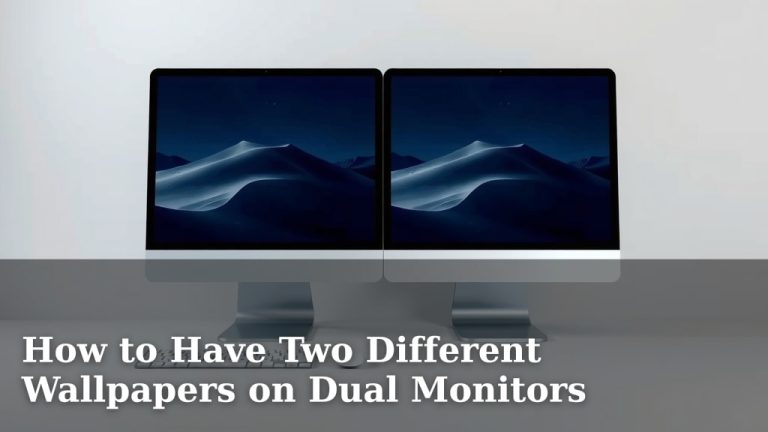
Yes, you absolutely can have different backgrounds on dual monitors. It’s a straightforward setting in Windows that lets you personalize each screen independently. You just need to know where to look in your display settings to make it happen.
Many people assume both screens must show the same thing, or one big stretched image. But setting up unique backgrounds is easy. We found that personalizing your workspace can really boost your productivity and mood.
- Right-click desktop to access settings.
- Choose “Personalize” for background options.
- Select your primary monitor.
- Right-click the desired image for the second monitor.
- Use the “Span” option for one image across both.
Let’s walk through exactly how to set up those different wallpapers on your dual monitors, step by step!
Personalizing Your Dual Monitor Setup with Different Backgrounds
Yes, you absolutely can have different backgrounds on your dual monitors. It’s a simple setting within Windows. This lets you personalize each screen independently. Many people assume both screens must show the same thing. Or, perhaps one big stretched image. But setting up unique wallpapers is easy. We found that personalizing your workspace can really boost your productivity and mood.
How to Set Up Unique Wallpapers on Each Monitor
Let’s dive into the exact steps. You’ll be customizing your screens in no time. This process is straightforward in Windows 10 and 11.
Accessing Your Display Settings
The first step is to get to the right settings menu. You don’t need any special software for this. It’s built right into your operating system.
Simply right-click on an empty spot on your desktop. A context menu will pop up. Look for the option that says ‘Display settings’. Click on that. This will open the main display configuration window.
Choosing Your Backgrounds
Once you’re in the Display settings, you’ll see options for your monitors. You can identify which screen is which. They’re usually labeled with numbers like ‘1’ and ‘2’.
Selecting the First Monitor’s Wallpaper
First, let’s focus on your primary monitor. You can choose to set its background first. Scroll down to the ‘Background’ section. Here, you can select a solid color, a slideshow, or a picture. Choose the picture you want for this screen. Windows will show you a preview.
Setting the Second Monitor’s Wallpaper
Now, for the fun part: making the second monitor different. You’ll need to have the image file ready. Find the image you want to use for your second monitor. It can be anywhere on your computer.
Here’s a handy trick: right-click on the image file itself. You might need to open File Explorer for this. Once you see the image, right-click on it. You should see an option like ‘Set as desktop background’ or ‘Set for multiple displays’. If you see the latter, a submenu will appear.
In this submenu, you’ll often see options like ‘Span‘, ‘Fill’, ‘Fit’, ‘Tile’, ‘Center’, and ‘Stretch’. If you just want the image on one screen, you need to be careful here. First, make sure that image is set as the background for your primary monitor using the usual method (right-click desktop > Personalize > Browse for image).
Then, go back to the Display Settings. Select your second monitor. You can then choose a *different* image for that specific monitor directly from the background options within Display Settings. This is often the most intuitive way.
Using the “Span” Option Wisely
The ‘Span’ option is often misunderstood. Many people think it’s for putting one large image across both monitors. And it can do that! But if you want *different* images, you need to use it carefully or avoid it altogether.
If you select an image and choose ‘Span’ from the right-click menu, it will try to stretch that *single* image across all detected monitors. This is great if you have a panoramic photo you love. But it’s not what you want for independent backgrounds. For different backgrounds, use the Display Settings personalization menu for each monitor.
Troubleshooting Common Issues
Sometimes, things don’t work perfectly on the first try. Don’t worry, these are usually easy fixes.
Image Not Showing Up Correctly
If your image appears stretched, pixelated, or just wrong, it might be the resolution. Make sure your image file’s resolution matches or is close to your monitor’s native resolution. Windows will try its best, but a mismatch can cause distortion. You can usually find your monitor’s resolution in the Display Settings.
Second Monitor Stays Black or Shows Default
This can happen if Windows doesn’t properly detect the second monitor or if the settings didn’t save correctly. Try restarting your computer. If that doesn’t work, go back into Display Settings. Make sure both monitors are detected. Then, try re-applying the wallpapers one more time for each screen. Ensure you are selecting the correct monitor number when setting the background.
Quick Checklist for Setting Different Backgrounds
Want to get it done quickly? Follow this simple checklist:
- Right-click your desktop and select ‘Display settings’.
- Identify your monitors (they’ll be numbered).
- Choose your first monitor.
- In the ‘Background’ section, select your desired image for that screen.
- Select your second monitor.
- Choose a *different* image for this second screen.
- Adjust the fit (Fill, Fit, Center, etc.) if needed.
Beyond Simple Pictures: Slideshows and Colors
Did you know you can do more than just static images? In the ‘Background’ settings, you can also select ‘Slideshow‘. This lets you choose a folder of pictures. Windows will then cycle through them on that specific monitor. This is fantastic for rotating through your favorite photos.
You can also choose a ‘Solid color‘. This might sound boring, but sometimes a clean, consistent color can reduce visual clutter. Imagine a calm blue on one screen and a professional gray on another. It can subtly influence your focus. Many experts suggest a calm environment aids concentration (American Psychological Association).
Performance Considerations for Backgrounds
Having multiple high-resolution images or a slideshow might use a tiny bit more system resources. For most modern computers, this is negligible. However, if you have an older machine or are running very demanding applications, keep this in mind. A simple, static image is generally the most resource-efficient option.
Research into workspace design suggests that visual elements can affect mood and performance. Choosing backgrounds that are personally meaningful or calming can have a positive impact (Journal of Environmental Psychology). So, take a moment to pick something you genuinely like!
Tips for Choosing Complementary Backgrounds
Selecting your wallpapers is a personal choice. But here are a few ideas to make your dual-monitor setup look great:
- Theme Harmony: Try to pick images that have a similar color palette or theme. This creates a cohesive look.
- Contrast for Focus: If one screen is for your main work, consider a simpler or darker background. Use a more vibrant or detailed image on your secondary screen.
- Personal Favorites: Use photos of loved ones, travel destinations, or inspiring artwork. Your workspace should make you happy!
- Avoid Distractions: While beautiful, overly busy or bright backgrounds on your primary work screen might pull your attention away.
We found that a little effort here can make a big difference. It transforms your computer from just a tool into a more personal and inspiring space.
Conclusion
You’ve learned how to easily set different backgrounds on your dual monitors, transforming your workspace. It’s a simple process within Windows settings that can really boost your mood and productivity. Remember, personalizing your screens with images you love or even calming colors can make a big difference. Don’t be afraid to experiment! Your next step is to jump into your display settings and pick out those perfect wallpapers for each of your screens. Enjoy your newly customized setup!
Frequently Asked Questions
Can I use a different image for my main work screen versus my secondary screen?
Absolutely. The whole point of this guide is to show you how to do just that. You can select a focused, perhaps simpler image for your primary monitor and a more engaging one for your secondary display.
Will setting different backgrounds slow down my computer?
For most modern computers, the impact is negligible. Unless you have a very old machine or are running extremely resource-intensive applications, you shouldn’t notice any performance difference.
What if the image looks stretched or blurry on one of my monitors?
This often happens due to resolution mismatch. Try to use an image that matches your monitor’s native resolution. You can find your monitor’s resolution in the Display Settings window.
Is there a way to have a slideshow of different images on each monitor?
Yes, you can set up a slideshow for each monitor independently. In the Background settings, choose “Slideshow” and select a different folder of images for each screen.
Can I use the “Span” option to put one image across both monitors and still have different backgrounds?
No, the “Span” option is designed to stretch a single image across all connected monitors. If you want different backgrounds, you should avoid “Span” and instead set each background individually through the Display Settings.