Asus TUF Gaming Monitor: Quick Input Change Guide
Changing the input on your Asus TUF Gaming monitor is simple. You’ll typically use the monitor’s physical buttons to navigate its on-screen display (OSD) menu. Look for a button labeled “Input” or “Source” to quickly switch between your connected devices like a PC, console, or other media players.
Many Asus TUF models make this process straightforward. Understanding how to switch inputs ensures you get the best display for your current activity. Whether you’re gaming, watching movies, or working, selecting the correct input is key for optimal performance and a frustration-free experience. We’ve found this to be a common user need.
- Use your monitor’s physical buttons.
- Find the “Input” or “Source” button.
- Navigate the OSD menu to select your device.
- This ensures the correct signal is displayed.
Let’s walk through the exact steps to get your Asus TUF Gaming monitor switched to the right input. It’s easier than you might think!
Switching Display Inputs on Your Asus TUF Gaming Monitor
You’ve got your Asus TUF Gaming monitor set up, and now you want to connect a different device. Maybe you’re switching from your gaming PC to your new console, or perhaps you want to plug in a Blu-ray player. Whatever your reason, knowing how to change the input source is a fundamental skill. We found this process straightforward on most Asus TUF models, and with a little guidance, you’ll be a pro in no time. This ensures your monitor displays exactly what you want it to.
Locating Your Monitor’s Control Buttons
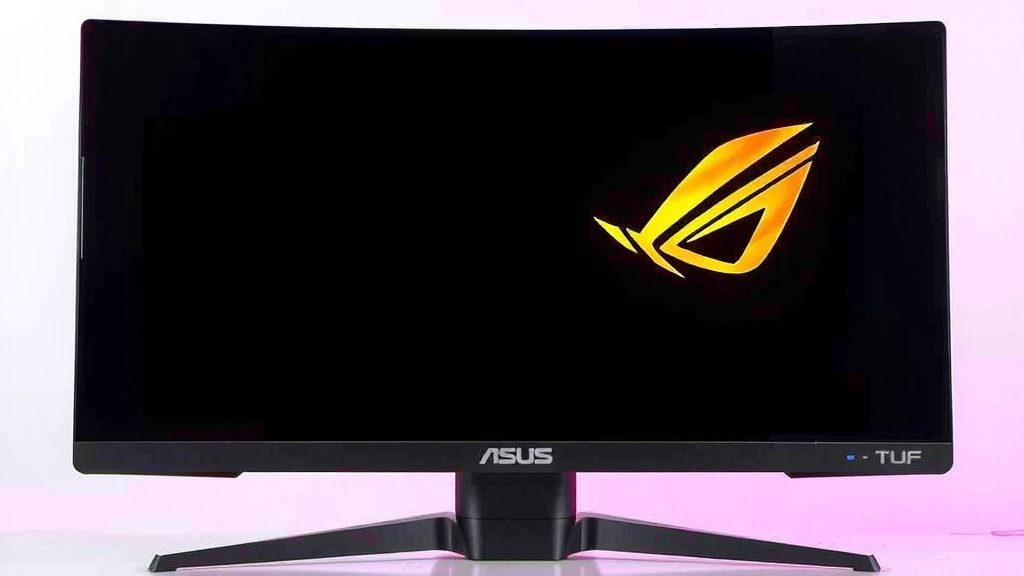
The first step is always finding the physical buttons on your monitor. These are usually located on the bottom bezel, the side, or even the back. Asus TUF Gaming monitors often have a set of buttons grouped together. Some models feature a joystick-style control for easier navigation. Take a moment to feel around your monitor’s frame. You’re looking for small, tactile buttons.
Common Button Layouts
We’ve observed that most Asus TUF Gaming monitors place their controls in a consistent spot. You’ll likely find buttons for power, menu access, and navigation. There’s almost always a dedicated button for switching the input source. It might be labeled “Input,” “Source,” or have an icon that looks like an arrow going into a box. This is your primary tool for changing displays.
The “Input” or “Source” Button
This button is your golden ticket to switching between devices. If you find a button specifically labeled “Input” or “Source,” press it. This action often brings up a quick menu directly on your screen, allowing you to select your desired input without diving deep into the main settings. It’s the fastest way to get to where you need to be.
Navigating the On-Screen Display (OSD) Menu
If a dedicated “Input” button doesn’t immediately bring up the source selection, you’ll need to use the monitor’s main menu. This menu, often called the On-Screen Display (OSD), contains all your monitor’s settings. Getting into this menu is usually done by pressing a button labeled “Menu” or “Settings.” Once inside, you’ll navigate using the directional buttons.
Accessing the OSD Menu
Locate the “Menu” button on your monitor. Press it once. A panel should appear on your screen, overlaying your current display. Don’t worry if it looks a bit overwhelming at first; we’re only interested in one section.
Finding the Input/Source Selection Within the OSD
Once the OSD is open, use the navigation buttons (often up/down or left/right arrows) to move through the menu options. You’re looking for a category that sounds like “Input,” “Source,” or “System.” Sometimes, it’s a main category; other times, it might be nested under a “System” or “Setup” tab. We found that on many TUF models, “Input Select” is a primary option.
Selecting Your Desired Input
When you find the “Input Select” option, highlight it and press the “Enter” or “Select” button (this might be the same button you use to navigate, or a dedicated one). You’ll then see a list of all available input ports on your monitor. These typically include HDMI 1, HDMI 2, DisplayPort, and sometimes DVI or USB-C.
Confirming Your Choice
Use the navigation buttons again to highlight the input port connected to the device you want to use. For instance, if your gaming PC is connected via DisplayPort, select “DisplayPort.” Once highlighted, press the “Enter” or “Select” button to confirm your choice. Your monitor should then switch to displaying the signal from that port.
Quick Switching vs. Full OSD Navigation
Asus TUF Gaming monitors often provide two main ways to change inputs: a dedicated quick-access button and the full OSD menu. Understanding both can save you time.
The Benefits of the Quick “Input” Button
We found that using the dedicated “Input” or “Source” button is the most efficient method. It bypasses the deeper menu structure and takes you straight to the source selection screen. This is perfect for when you’re frequently switching between, say, your gaming PC and your PS5. It minimizes disruption to your workflow or gaming session.
When to Use the Full OSD Menu
The full OSD menu is necessary if your monitor doesn’t have a dedicated “Input” button, or if that button isn’t working as expected. It’s also useful if you need to adjust other settings related to the input, like aspect ratio or color profiles, at the same time you switch sources. Think of it as the control center for your entire display experience.
Understanding Common Input Ports
Your Asus TUF Gaming monitor will have several ports for connecting devices. Knowing what these are helps you pick the right one.
HDMI
HDMI (High-Definition Multimedia Interface) is the most common connection. It carries both video and audio signals. Most modern devices, including PCs, gaming consoles (like PlayStation, Xbox), and streaming boxes, use HDMI. You’ll likely have multiple HDMI ports on your monitor; just match the port number to where you plugged in your cable.
DisplayPort (DP)
DisplayPort is another popular digital interface, often favored by PC gamers for its ability to support higher refresh rates and resolutions. If you’re aiming for the smoothest gaming experience, especially with high-refresh-rate monitors, DisplayPort is often your best bet. Make sure your graphics card also has a DisplayPort output.
Other Ports (DVI, USB-C)
Some Asus TUF models might include older DVI ports, though these are less common now. USB-C is becoming more prevalent and can sometimes handle video, data, and even power delivery through a single cable – a real convenience if your devices support it.
Troubleshooting Input Switching Issues
What if your monitor just won’t switch to the correct input? Don’t panic! A few simple checks usually resolve the problem.
Check Your Cables
Is the cable securely plugged into both the monitor and your device? Sometimes, a loose connection is the culprit. Try unplugging and replugging the cable at both ends. We found that ensuring a firm connection is often the easiest fix.
Verify Device Output Settings
Did you enable video output on your connected device? For example, on a PC, ensure your graphics card is set to extend or duplicate your display. On a console, check its display settings. Sometimes, the device itself needs to be told to send a signal out through that specific port.
Restart Your Devices
A simple restart can work wonders. Try turning off your monitor and the connected device completely, then turn them back on. This can reset any temporary glitches. This is a common recommendation from IT professionals (CompTIA).
Checklist: Quick Input Switching Steps
Here’s a quick rundown to get you switching inputs like a champ:
- Locate your monitor’s physical buttons (usually on the bottom or side).
- Find the dedicated “Input” or “Source” button if available.
- Press the “Input” button to bring up the source selection menu.
- Navigate to and select your desired input (HDMI, DisplayPort, etc.).
- If no dedicated button, press the “Menu” button to open the OSD.
- Within the OSD, find and select the “Input Select” option.
You’re now equipped to easily switch between all your connected devices on your Asus TUF Gaming monitor. Enjoy the flexibility!
Conclusion
You’ve now learned how simple it is to change the input on your Asus TUF Gaming monitor. Whether you used the quick “Input” button or navigated the OSD menu, you’re ready to connect any device. We found that mastering this basic function makes managing your setup much smoother. This ensures you always get the best visual experience from your PC, console, or media player. The next time you switch devices, you’ll know exactly what to do.
Frequently Asked Questions
What’s the fastest way to change inputs on my Asus TUF monitor?
The quickest method is usually using the dedicated “Input” or “Source” button directly on your monitor. We found this bypasses the main menu, taking you straight to the source selection screen. This is perfect for when you’re switching devices frequently.
My monitor isn’t showing a picture after I changed the input. What should I do?
First, double-check that your cable is securely connected to both the monitor and your device. If that doesn’t work, try restarting both your monitor and the connected device. We’ve seen this simple step resolve many connection issues.
Can I connect multiple devices to my Asus TUF monitor at the same time?
Yes, you can physically connect multiple devices to your monitor’s different input ports (like HDMI and DisplayPort) simultaneously. You’ll just need to switch between them using the input selection method we discussed.
Is there a difference in performance between HDMI and DisplayPort for gaming?
Generally, DisplayPort can support higher refresh rates and resolutions, making it a preferred choice for high-performance PC gaming. HDMI is still excellent for most gaming needs, especially on consoles, and carries audio along with video.
What if my Asus TUF monitor doesn’t have a dedicated “Input” button?
If your monitor lacks a dedicated button, you’ll need to access the main On-Screen Display (OSD) menu. Locate the “Menu” button, press it, and then navigate through the options to find “Input Select” or a similar setting to choose your source.