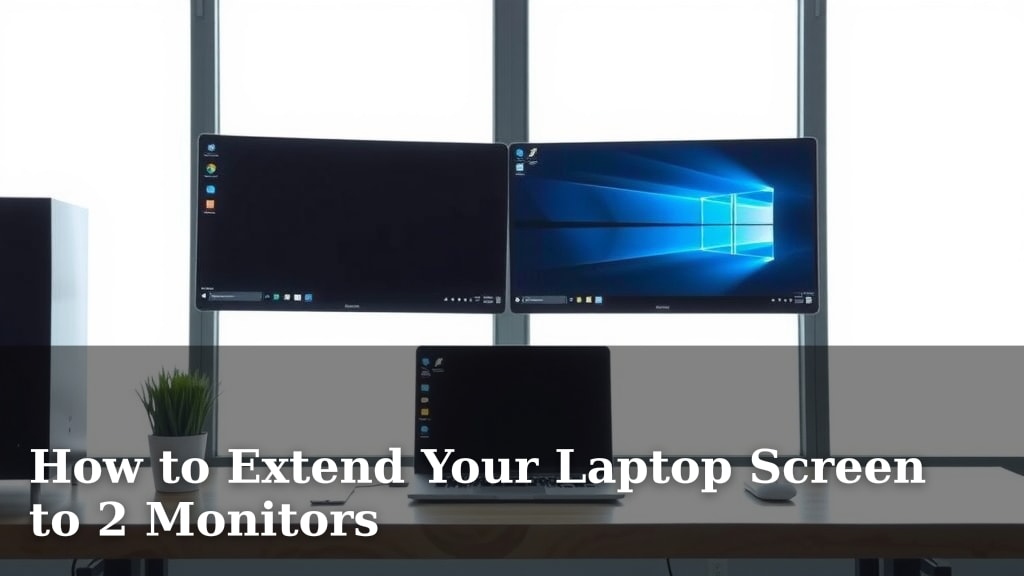
How to Extend Your Laptop Screen to 2 Monitors
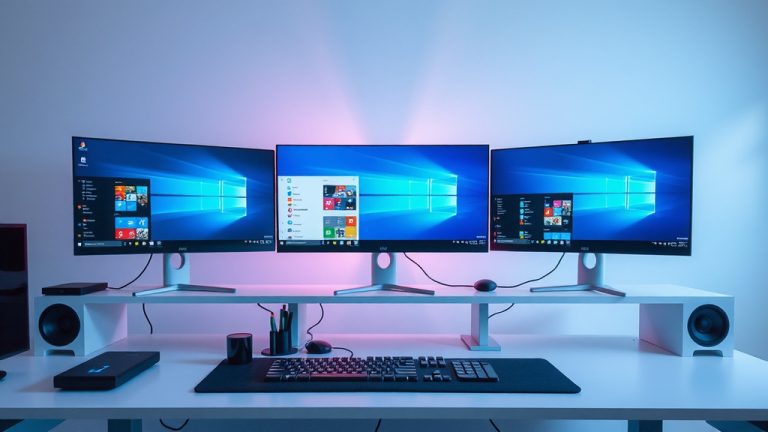
Yes, you can easily extend your laptop screen to 2 monitors with a few simple steps. This setup boosts your productivity and makes multitasking a breeze. You’ll be surprised how much easier your daily tasks become with extra screen space for your laptop.
Connecting two external displays to your laptop might seem tricky, but it’s often quite straightforward. We found that most modern laptops can support multiple monitors without issue. It’s a fantastic way to upgrade your home or office workstation for less than you might think, offering a huge improvement to your workflow.
- Most laptops can connect to 2 external monitors.
- You’ll likely need a docking station or a special adapter.
- Check your laptop’s port types (HDMI, USB-C, DisplayPort).
- Ensure your graphics card supports multiple displays.
- This setup dramatically improves multitasking.
Let’s walk through exactly how to get your second and third screens up and running, so you can get back to work (or play!) with your expanded digital real estate.
Setting Up Your Laptop with Dual External Monitors
Adding a couple of external displays to your laptop setup is a fantastic way to boost your productivity. You’ll have more space to multitask. It makes comparing documents easy. It also helps when switching between different applications.
Understanding Your Laptop’s Display Capabilities
Before you buy anything, it’s wise to check what your laptop can handle. Most modern laptops are designed to support multiple screens. You just need to know how to connect them properly.
Checking Your Laptop’s Ports
Your laptop’s physical ports are key. Look for HDMI, DisplayPort, or USB-C ports. These are the most common connections for external monitors. Some laptops have more than one of these. Others might only have one and require an adapter. Researching your specific laptop model can tell you a lot.
Understanding Graphics Card Limitations
Your laptop’s graphics card (GPU) is what powers your displays. Most integrated graphics can handle two external monitors. However, some older or very basic models might struggle. We found that checking your GPU’s specifications can clarify its display output limits. Many manufacturer websites list these details.
Essential Hardware for a Multi-Monitor Setup
You’ve checked your laptop; now let’s talk about what you need to make it happen. Getting two extra screens working might require a few accessories. These are usually quite affordable.
The Role of Docking Stations and Hubs
A docking station or a USB-C hub is often your best friend here. These devices connect to your laptop with a single cable. Then, they provide multiple ports for monitors, USB devices, and more. This is especially useful if your laptop has limited ports. It also helps keep your desk tidy.
Choosing the Right Docking Station
When choosing a dock, ensure it supports the number of monitors you want. Also, check for the right display ports (HDMI, DisplayPort). Many docks also offer extra USB ports and Ethernet. Read reviews to find one that’s reliable. We found that brands like Anker and Dell often have good options.
When Adapters Might Be Enough
If your laptop has, say, two USB-C ports that support display output, you might just need a couple of simple adapters. These are smaller and more portable than docks. They convert one port type to another. For example, a USB-C to HDMI adapter. This can be a cost-effective solution for basic setups.
Cabling and Monitor Considerations
Don’t forget the cables! You’ll need appropriate cables for each monitor. HDMI cables are common. DisplayPort cables are also widely used. Ensure the cables support the resolution and refresh rate you want for your monitors. You’ll also want monitors with the correct input ports.
Connecting Your External Monitors: Step-by-Step
Now for the fun part! Actually getting those screens connected and working. It’s usually a pretty straightforward process once you have the right gear.
Step 1: Physical Connections
First, connect your two monitors to your chosen docking station, hub, or directly to your laptop’s ports. Use the appropriate cables. Make sure the monitors are powered on. Plug the docking station or hub into your laptop using its main connection cable (often USB-C or Thunderbolt).
Step 2: Configuring Display Settings in Windows
Once everything is plugged in, your laptop should detect the new displays. You’ll need to tell Windows how you want them to work. Go to your Display Settings. Right-click on your desktop and select “Display settings.”
Understanding Display Modes
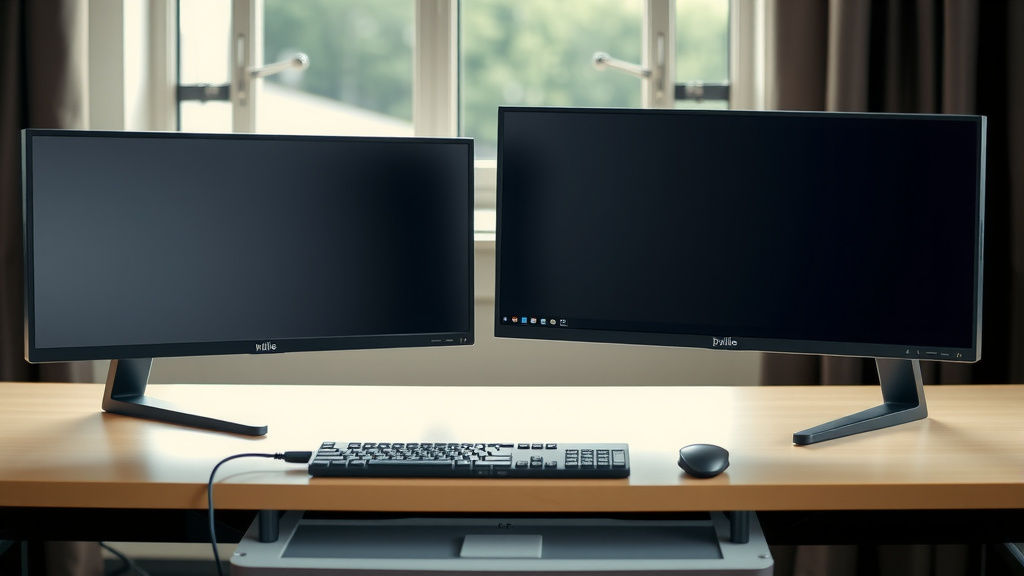
In Display Settings, you’ll see your connected screens represented by numbered boxes. You can drag these boxes to match your physical monitor arrangement. This helps your mouse move naturally between screens. Scroll down to the “Multiple displays” section. Here you can choose how the screens interact:
- Duplicate these displays: Shows the same content on all screens. Not ideal for multitasking.
- Extend these displays: This is what you want! It creates one large desktop across all screens.
- Show only on 1 / 2 / etc.: Turns off the other displays.
Select “Extend these displays”. Then, click “Keep changes” if prompted. You can also set your primary display here. The primary display is where your taskbar and icons will appear by default.
Step 3: Configuring Display Settings in macOS
For Mac users, the process is similar. Go to System Settings (or System Preferences on older macOS versions). Click on “Displays.” Your connected monitors should appear. You can arrange them by dragging their representations. Make sure “Mirror Displays” is unchecked to extend your desktop. If you want them to extend, you’ll typically see a checkbox or an option to “Use as Extended Desktop.”
Troubleshooting Common Multi-Monitor Issues
Sometimes, things don’t work perfectly the first time. Don’t worry; most issues are fixable. We’ve found a few common snags and their solutions.
When a Monitor Isn’t Detected
If a screen isn’t showing up, try these steps. First, check all cable connections are secure. Power cycle your monitors and laptop. Sometimes, simply unplugging and replugging the display cable helps. Ensure your docking station or adapter is properly connected to the laptop. Try a different port on your laptop or dock if available.
Resolution or Refresh Rate Problems
Is the display blurry or not showing the correct colors? This might be a resolution issue. In Display Settings (Windows) or Displays (macOS), select the problematic monitor. Look for resolution and refresh rate options. Ensure you’re using the highest settings supported by both the monitor and your laptop’s graphics card. Always use the cables recommended by the monitor manufacturer for best results.
Performance Issues or Lagging
If your system feels slow with multiple monitors, it could be your graphics card working hard. For general use, most modern GPUs are fine. However, for intensive tasks like gaming or video editing, you might hit limits. Ensure your laptop’s drivers are up to date. We found that updated graphics drivers can sometimes resolve performance hiccups (NVIDIA, AMD, Intel).
Checklist: Get Your Dual Monitors Ready
Here’s a quick checklist to make sure you’re all set:
- Confirm your laptop has the necessary ports (HDMI, USB-C, DisplayPort).
- Choose a docking station or adapter that supports two external monitors.
- Buy the correct display cables for your monitors.
- Connect all cables securely.
- Set your display mode to “Extend these displays” in your OS settings.
- Adjust resolution and arrangement for optimal viewing.
Conclusion
You’ve now learned how to transform your laptop into a powerful multi-display workstation. Extending your screen to two monitors is entirely achievable with the right setup. We’ve covered checking your laptop’s capabilities, selecting essential hardware like docks or adapters, and configuring your display settings in both Windows and macOS. Troubleshooting common issues is also within your reach. Don’t hesitate to take the next step!
Your next move is to identify your laptop’s ports and start shopping for the docking station or adapter that best suits your needs. You’ll be enjoying your expanded workspace in no time.
Frequently Asked Questions
Can I connect three external monitors to my laptop?
It depends on your laptop’s specific hardware. Most laptops can handle two external monitors with the right docking station or adapter. Connecting three external displays often requires a more powerful laptop with advanced graphics capabilities and specific port configurations.
Will extending my laptop screen to 2 monitors slow down my computer?
For general productivity tasks like browsing, writing, and managing documents, most modern laptops can handle two external monitors without a noticeable slowdown. However, for demanding tasks like gaming or video editing, you might experience performance issues if your laptop’s graphics card is not powerful enough.
Do I need a special cable to extend my screen to 2 monitors?
You’ll need the correct cable type for your monitors and laptop ports (HDMI, DisplayPort, USB-C). If your laptop doesn’t have enough ports, you’ll likely need a docking station or a multi-port adapter that can output to two displays. The quality of your cable can also affect resolution and refresh rates.
What’s the difference between mirroring and extending displays?
Mirroring displays shows the exact same content on all connected screens. Extending displays creates one continuous desktop area across multiple monitors, allowing you to show different windows or applications on each screen for better multitasking. For using two external monitors, extending is typically what you’ll want.
Can I use different types of monitors with my laptop?
Yes, you can often mix and match monitors. As long as your laptop’s docking station or graphics card supports multiple outputs and the correct port types, you can connect monitors with different resolutions, sizes, and brands. You can then adjust their settings in your operating system to ensure they work together effectively.