How to Extend Your Desktop to 3 Monitors
Yes, you absolutely can extend your desktop to three monitors. It’s a fantastic way to boost your productivity and multitasking. The key is understanding your computer’s graphics capabilities and the right connection types.
Adding more screens can transform your workspace. Imagine having your email, a document, and a web browser all visible at once. We found that this setup significantly reduces task switching time. Many users report feeling much more organized with an extended display.
- Connect via graphics card ports (HDMI, DisplayPort).
- Check your laptop’s USB-C capabilities (Thunderbolt).
- Consider an external graphics adapter if needed.
- Ensure your operating system is set up for multiple displays.
Let’s walk through exactly how to get your PC or Mac ready for three monitors, step by step.
Setting Up Your Desktop for Three Monitors
Adding more screens to your setup can seriously change how you work. You can see more at once, making it easier to juggle tasks. We’ve found that this can really boost your efficiency. Let’s get your computer ready for this exciting upgrade!
Checking Your Computer’s Graphics Power
The first step is to figure out what your computer can handle. Most modern computers can support multiple monitors, but you need to know your graphics card’s limits. Your graphics card is like the engine for your displays. It determines how many and what kind of screens you can connect.
Understanding Your Graphics Card Ports
Look at the back of your desktop computer or along the sides of your laptop. You’ll see different types of ports. The most common ones for monitors are HDMI and DisplayPort. These are the primary ways you’ll connect your displays directly to your graphics card.
Some older computers might have DVI or even VGA ports. While these can work, they often have lower quality than HDMI or DisplayPort. For the best experience with three monitors, aim for HDMI and DisplayPort connections whenever possible.
Identifying Your Graphics Card Model
Knowing your graphics card model is helpful. You can usually find this information in your system settings. For Windows, right-click on your desktop and select “Display settings,” then scroll down to “Advanced display settings.” For Mac, click the Apple menu, select “About This Mac,” and then “Graphics.”
Once you have the model, you can search online for its specifications. This will tell you exactly how many monitors it supports and what resolutions it can handle. Many graphics cards have multiple ports, but some might only support two monitors natively. Don’t worry if yours does; we have solutions!
Connecting Your Displays: The Basics
Once you know your graphics card’s capabilities, you can start connecting. The simplest way to add screens is by using the ports directly on your graphics card. Make sure you have the correct cables for each port (HDMI to HDMI, DisplayPort to DisplayPort, etc.).
Using Different Port Types
If your graphics card has multiple different ports, like two DisplayPorts and one HDMI, you can use them all! You’ll just need the corresponding cables. It’s like having different types of plugs for your electrical devices.
For example, you could connect one monitor via DisplayPort and another via HDMI. The key is matching the cable to the port on both your computer and your monitor. Many users find this setup straightforward and effective for adding a third monitor.
What If Your Graphics Card Only Supports Two Monitors?
This is a common question, and thankfully, there are ways around it. If your built-in graphics card can only handle two displays, you have a couple of excellent options to get that third screen working.
Adding a Second Graphics Card (Desktop PCs Only)
For desktop computers, you can often install a second graphics card. This is a more advanced step and requires opening up your computer tower. You’ll need to ensure your motherboard has an extra PCIe slot and that your power supply can handle the extra demand.
Installing a second graphics card effectively doubles your display output capability. Many professionals do this to run four or even six monitors. It’s a powerful solution if you need a lot of screen real estate.
Using a USB Graphics Adapter
A much simpler solution for both desktops and laptops is a USB graphics adapter. These devices plug into a USB port on your computer and provide an extra video output, usually HDMI or DisplayPort. They essentially act as an external graphics card.
We found that these adapters are incredibly convenient. You just plug them in, install the drivers (which usually come on a CD or are available online), and you can connect your third monitor. They work by processing graphics data through your computer’s CPU and RAM, rather than relying solely on the primary graphics card.
Keep in mind that USB graphics adapters are great for general productivity tasks like browsing, email, and document editing. For graphically intensive activities like gaming or high-end video editing, they might not offer the same performance as a dedicated graphics card. However, for extending your desktop, they are often a perfectly suitable solution.
Leveraging USB-C and Thunderbolt for Laptops
If you’re using a laptop, you might have USB-C ports. Some of these ports, especially those with Thunderbolt 3 or Thunderbolt 4 capabilities, can also output video signals. This is fantastic news for expanding your display options.
Understanding Thunderbolt Capabilities
Thunderbolt ports are very versatile. They can handle data transfer, power delivery, and video output. If your laptop has Thunderbolt 3 or 4, you might be able to connect multiple monitors through a single port using a Thunderbolt dock or hub.
A Thunderbolt dock often has several video outputs (like DisplayPort or HDMI) and other ports. You can plug your laptop into the dock with one cable, and the dock then connects to your monitors. This keeps your setup clean and uncluttered. Many users report a much tidier workspace this way.
Checking for DisplayPort Alternate Mode
Even if your USB-C port doesn’t support Thunderbolt, it might support “DisplayPort Alternate Mode” (often shortened to DP Alt Mode). This allows the USB-C port to carry a DisplayPort video signal. You can often connect one monitor directly via a USB-C to HDMI or USB-C to DisplayPort cable.
To confirm if your USB-C port supports DP Alt Mode, check your laptop’s specifications or look for a DisplayPort logo next to the port. If it does, you can use this for one of your additional monitors. For the third, you might still need a USB graphics adapter or a Thunderbolt dock if your primary graphics card only supports two displays.
Configuring Your Displays in the Operating System
Once all your monitors are physically connected, you need to tell your computer how to use them. This is done through your operating system’s display settings. It’s a bit like arranging furniture in a room so you can move around easily.
Setting Up on Windows
On Windows, right-click your desktop and select “Display settings.” Here, you’ll see boxes representing each of your monitors. You can drag these boxes to match the physical arrangement of your screens on your desk.
Scroll down to the “Multiple displays” section. You’ll see an option to “Extend these displays.” Make sure this is selected. You can also choose to “Duplicate these displays,” but that would show the same thing on each screen, which isn’t what we want for extending your desktop.
Windows will automatically detect the monitors. If it doesn’t, click the “Detect” button. You can also set which monitor is your main display. This is the one where your taskbar and system icons will appear by default.
Setting Up on macOS
On a Mac, go to System Settings (or System Preferences on older macOS versions), then click on “Displays.” You should see all your connected monitors represented. Click the “Arrange” button to bring up a view where you can drag the displays into your desired layout.
Just like on Windows, you’ll want to ensure your displays are set to “Extend display.” You can also drag the white menu bar from one display to another to designate your primary monitor. Macs are usually very good at automatically recognizing multiple displays.
Tips for an Optimal Triple-Monitor Setup
Now that you’re connected, a few extra tips can make your triple-monitor experience even better.
- Monitor Placement: Arrange your monitors so they are roughly at the same height and viewing angle. This reduces neck strain.
- Resolution and Scaling: Ensure all monitors are set to their native resolution. You might need to adjust text and icon scaling in your display settings for readability.
- Taskbar Management: Many users like to extend their taskbar across all screens for easier app access. Both Windows and macOS offer settings for this.
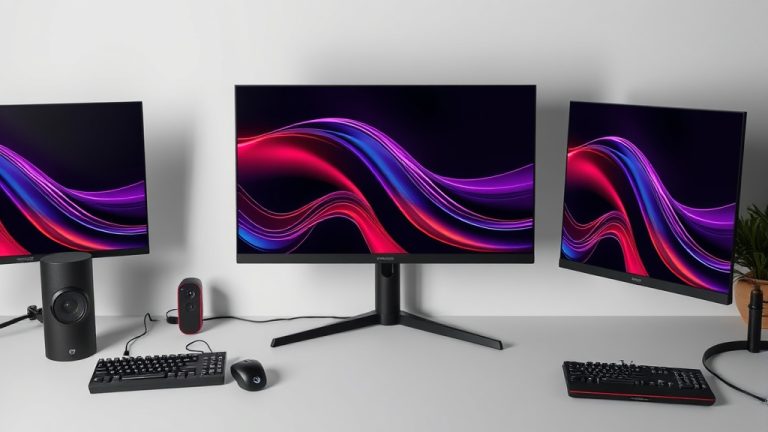
- Wallpaper: Consider a cool wallpaper that spans across all three monitors! It can really personalize your space.
Here’s a quick checklist to make sure you’re on track:
- Check your graphics card’s monitor support.
- Verify the available ports on your PC or laptop.
- Gather the correct video cables (HDMI, DisplayPort, USB-C).
- Install any necessary drivers for adapters or docks.
- Configure your displays in your operating system’s settings.
- Arrange your monitors for comfortable viewing.
Conclusion
You’ve got the power to transform your workspace with three monitors! We’ve walked through checking your computer’s graphics ports and capabilities, connecting your displays, and even finding solutions like USB adapters or Thunderbolt docks if your card has limits. Don’t forget the final step: configuring your operating system in Windows or macOS. By following these steps, you’re well on your way to a more productive and organized setup. Your next step? Gather your cables and get those screens connected!
Frequently Asked Questions
Will my laptop even support three monitors?
Many modern laptops, especially those with Thunderbolt 3 or 4 ports, can support three monitors. Check your laptop’s specifications for details on video output capabilities, often listed as DisplayPort Alternate Mode or Thunderbolt support. You might need a docking station or adapter for the best results.
Can I use a mix of HDMI and DisplayPort cables?
Absolutely! You can mix and match HDMI and DisplayPort cables as long as your graphics card has the corresponding ports. Just ensure you have the correct cable for each connection. This flexibility is key to utilizing all your available ports.
What’s the difference between extending and duplicating displays?
Extending your displays creates a larger, continuous desktop across all monitors, allowing you to show different content on each. Duplicating shows the exact same image on multiple screens, which is less useful for multitasking. For a triple-monitor setup, you’ll want to extend.
Do USB graphics adapters work well for gaming?
For most general tasks like browsing, office work, and video playback, USB graphics adapters work great. However, they might not provide the performance needed for graphically demanding games or high-end video editing. A dedicated graphics card is typically better for those intensive applications.
How do I know if my USB-C port supports video output?
Look for a DisplayPort logo or a Thunderbolt symbol next to your USB-C port. If you see either, it likely supports video output (DisplayPort Alternate Mode or Thunderbolt). You can also check your laptop’s manual or manufacturer’s website for detailed specifications on its USB-C port capabilities.