How to Extend Your Desktop to 2 Monitors
Yes, you absolutely can extend your desktop to 2 monitors, and it’s simpler than you might think! Doing so can dramatically boost your productivity and make multitasking a breeze. You just need the right connections and a quick trip into your computer’s settings to get it working. We’ll show you exactly how to make your dual-monitor setup a reality.
Adding a second monitor transforms how you work and play. Imagine having your email open on one screen while writing a report on the other. Or spreading out your video editing timeline across two displays for a much smoother workflow. Many people find this setup a huge improvement over a single screen. We found that it really makes a difference in daily tasks.
- Connect your second monitor to your computer using the correct cable.
- Adjust your display settings to extend your desktop.
- Choose how you want your monitors to arrange.
- Ensure your graphics card supports multiple displays.
Let’s walk through exactly how to extend your desktop to two monitors, step by step. It’s easier than you might expect!
Getting Your Second Monitor Set Up
Setting up a second monitor is an excellent way to boost your productivity. You might be surprised at how straightforward the process is. It really comes down to a few simple steps. We’ll guide you through each one. You’ll be enjoying your expanded digital workspace in no time. Let’s dive right in!
Checking Your Computer’s Capabilities
Before you buy that shiny new monitor, let’s make sure your computer can handle it. Most modern computers can easily support multiple displays. Your computer’s graphics card is the key component here. It’s like the engine that drives your visuals.
Do You Have the Right Ports?
The first thing to check is the type of ports your computer has. Common video ports include HDMI, DisplayPort, and DVI. You might even see older VGA ports on some machines. Your second monitor will also have these connection types.
You’ll need to match the port on your computer to the port on your monitor. Sometimes, adapters can help if the ports don’t match exactly. But it’s always best to use direct connections if possible. This often gives you the best picture quality. We found that adapters can sometimes introduce minor issues.
Your Graphics Card and Multiple Displays
Your graphics card needs to be capable of outputting to more than one screen. Most built-in graphics chips on newer motherboards can support at least two displays. Dedicated graphics cards, often found in gaming or professional workstations, usually support three or even four monitors.
How do you check this? You can look up your computer’s model number online. Or, you can check your system information. For Windows, search for “System Information” in the Start menu. Then, look for “Display” under the “Components” section. This will list your graphics adapter. Many experts say that checking your graphics card manufacturer’s website is the most reliable way to confirm its capabilities (NVIDIA, AMD, Intel).
Connecting Your Second Monitor
Once you know your ports and your graphics card is ready, it’s time to connect. This is a very physical step. Make sure your computer and monitor are turned off before you start plugging things in. This is a good safety practice for electronics.
The Cables You’ll Need
Grab the correct video cable for the ports you identified. This could be an HDMI cable, a DisplayPort cable, or something else. You’ll also need a power cable for the monitor, of course. Ensure these cables are long enough to reach comfortably.
Plug one end of the video cable into the matching port on your computer. Then, plug the other end into the corresponding port on your new monitor. Finally, plug in the power cable for the monitor and connect it to a wall outlet. We found that having a longer cable is always better than being just a little too short.
Configuring Your Display Settings
Now for the digital magic! Once everything is connected and powered on, your computer will likely detect the new monitor. You might see your desktop duplicated on both screens. Or, it might only be showing on one. Your computer needs instructions on how to use both screens effectively.
Accessing Display Settings in Windows
On Windows, right-click anywhere on your desktop. Then, select “Display settings” from the context menu. This will open a window showing your connected monitors. You should see boxes representing each screen, usually labeled “1” and “2.”
If you don’t see the second monitor, scroll down and click the “Detect” button. This might help Windows find it. Sometimes, a simple reboot after connecting the cable is all that’s needed. We found that rebooting is a common fix for many detection issues.
Choosing How to Extend Your Desktop
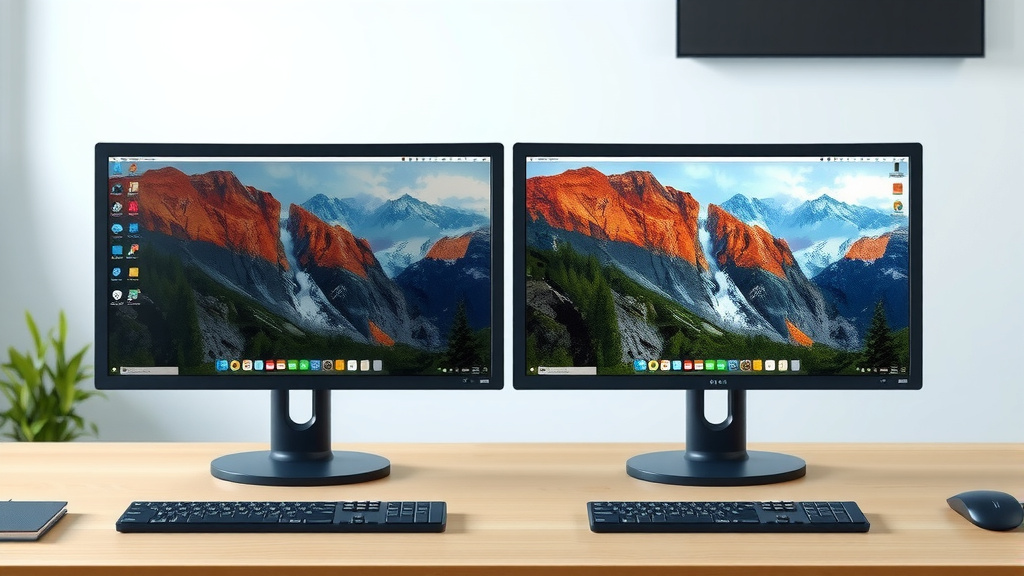
In the Display settings, you’ll see a dropdown menu labeled “Multiple displays.” This is where you tell Windows what to do with your monitors. To extend your desktop, select “Extend these displays.” This is usually the default if your computer supports it.
This option creates one large desktop that spans across both screens. You can drag windows from one monitor to the other. This is the most common and useful setup for productivity. Other options include “Duplicate these displays” (showing the same thing on both) or “Show only on 1” / “Show only on 2.”
Arranging Your Monitors
Below the “Multiple displays” option, you’ll see visual representations of your monitors. These boxes are usually numbered “1” and “2.” You can click and drag these boxes to match the physical arrangement of your monitors on your desk. For example, if your second monitor is to the right of your primary one, drag box “2” to the right of box “1.”
This arrangement is important. It dictates how your mouse cursor moves between screens. If you don’t arrange them correctly, moving your mouse might feel strange. You might find yourself “teleporting” to the wrong screen. Getting this right makes the experience feel much more natural. Many users find this step surprisingly satisfying once done correctly.
Setting Your Main Display
You can choose which monitor is your “main” display. This is where your taskbar and system icons will typically appear. It’s also where new applications often open by default. To set a monitor as main, select its corresponding box in the Display settings. Then, scroll down and check the box that says “Make this my main display.”
Adjusting Resolution and Scaling
Once your monitors are set up to extend, you might want to fine-tune things. You can adjust the screen resolution for each monitor. You can also adjust scaling. Scaling affects the size of text and icons.
We recommend leaving the resolution at its recommended setting for each monitor. This usually ensures the sharpest image. However, if text appears too small, you can use the “Scale and layout” options. Increasing the percentage under “Change the size of text, apps, and other items” can help. Many users find a 125% or 150% scale comfortable. This is especially true for higher-resolution monitors. Research shows that proper scaling can reduce eye strain (Cleveland Clinic).
Troubleshooting Common Issues
While setting up a second monitor is usually smooth, you might run into a snag. Don’t worry, most problems have simple solutions.
Monitor Not Detected
If your monitor isn’t showing up in Display settings, try these steps:
- Double-check all cable connections. Ensure they are firmly plugged in at both ends.
- Try a different port on your computer, if available.
- Use a different video cable. Cables can sometimes fail.
- Restart your computer. A full reboot can often resolve detection issues.
- Update your graphics card drivers. Outdated drivers are a common culprit.
Fuzzy or Incorrect Colors
A fuzzy display or wrong colors often point to a cable or resolution issue. Ensure you’re using a digital cable like HDMI or DisplayPort, not analog VGA, if possible. Also, confirm that the resolution in your Display settings is set to the monitor’s native resolution. The native resolution is usually marked as “(Recommended).”
Performance Issues
Running multiple monitors can sometimes impact performance, especially on older computers or for demanding tasks like gaming. If you notice slowdowns, consider closing unnecessary background applications. You might also need to adjust graphics settings in games or applications. For very demanding visual tasks, a more powerful graphics card might be necessary.
Conclusion
You’ve now learned how to extend your desktop to two monitors, a fantastic way to boost your productivity. We walked through checking your computer’s ports and graphics card, connecting your new display, and configuring Windows settings. Remember to arrange your monitors logically in the settings to match their physical placement. This setup offers a much smoother workflow for multitasking. Go ahead and take these steps to enjoy your expanded workspace!
Frequently Asked Questions
Can any computer connect to two monitors?
Most modern computers can connect to two monitors. You’ll need to ensure your graphics card supports multiple displays and that you have the correct ports and cables available. Older or very basic systems might have limitations, but it’s uncommon for recent models.
Do I need to buy a special cable for a second monitor?
You’ll need a video cable that matches a port on your computer and a port on your second monitor. Common cables are HDMI or DisplayPort. If your ports don’t match, you might need an adapter, but a direct connection usually offers the best quality.
What’s the difference between “Extend” and “Duplicate” display modes?
In “Extend” mode, your desktop is spread across both monitors, creating one large workspace. In “Duplicate” mode, both monitors show the exact same content. For productivity, “Extend these displays” is generally preferred as it allows you to have different applications open on each screen.
My second monitor is not showing up, what should I do?
If your monitor isn’t detected, first check all cable connections are secure. Try a different video cable or port on your computer. Restarting your computer is also a common fix, and updating your graphics card drivers can often resolve detection issues.
Will running two monitors slow down my computer?
For most everyday tasks, running two monitors won’t noticeably slow down your computer, especially if it’s a few years old or newer. However, if you have an older machine or are running very demanding applications like high-end games or complex video editing software, you might see a performance impact.