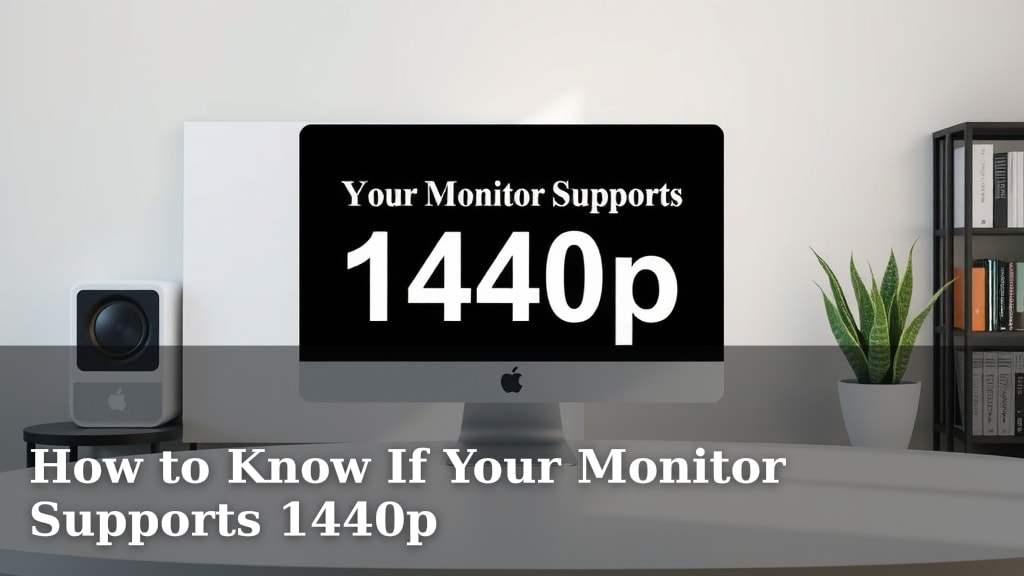
How to Know If Your Monitor Supports 1440p
You can easily tell if your monitor supports 1440p by checking its native resolution. Most monitors will list this spec clearly in their product details or on a sticker. If it says 2560 x 1440, congratulations, you’re in business! If not, your current screen probably won’t give you that sharper 1440p picture.
Finding this resolution is key for a crisper, more detailed visual experience, especially for gaming and productivity. Many newer monitors and those aimed at enthusiasts boast this capability. It’s a sweet spot between standard 1080p and the super-sharp 4K resolution, offering a great balance of visual fidelity and performance.
- Check your monitor’s native resolution specs.
- Look for “2560 x 1440” to confirm 1440p support.
- This resolution offers a sharper, more detailed image.
- It’s a popular choice for gaming and work.
Ready to find out for sure? Let’s walk through the simple ways you can check your monitor’s capabilities.
Checking Your Monitor for 1440p Capability
So, you’re curious if your monitor can handle that sweet 1440p resolution. It’s a fantastic upgrade for your screen’s clarity and detail. Let’s break down the easiest ways to find out if your display is ready for this jump.
Understanding Monitor Resolutions
Before we dive in, let’s quickly talk about resolution. Think of it like pixels being tiny dots that make up your screen’s image. The more dots you have, the sharper and more detailed the picture will be. Resolutions are usually written as width x height in pixels.
Common Resolutions Explained
You’ve probably heard of 1080p, which is 1920 pixels wide by 1080 pixels tall. It’s been the standard for a long time and offers a good viewing experience. 4K, on the other hand, is much higher at 3840 x 2160 pixels, giving you incredible sharpness.
1440p, also known as QHD (Quad High Definition), sits right in the middle. Its native resolution is **2560 x 1440 pixels**. This offers about 78% more pixels than 1080p. Many users find this resolution to be the sweet spot for gaming and productivity.
Why 1440p Matters for You
If your monitor supports 1440p, you’ll notice a significant improvement in how crisp text looks. Images will appear more detailed, and fine lines will be clearer. For gamers, this means seeing more of the virtual world with greater precision. For everyday tasks, like working with spreadsheets or editing photos, the extra screen real estate and clarity can be a real productivity booster.
Methods to Confirm 1440p Support
There are a few straightforward ways to check your monitor’s specs. We’ll go through them step-by-step so you can get a clear answer.
Checking Your Monitor’s Specifications (Online and Physical)
The most reliable way is to check the monitor’s original documentation or product page. If you still have the box, the specifications might be printed on it. Look for terms like “native resolution” or “display resolution.”
If you bought your monitor online, search for its model number on the retailer’s website or the manufacturer’s site. The product details page will almost always list the native resolution. This is usually the most accurate method.
Physical Inspection
Sometimes, there’s a sticker on the back or bottom of your monitor with its model number and basic specifications. If you can find it, check for the resolution listed there. It might be a bit harder to read, but it’s worth a quick look.
Checking Through Your Operating System Settings
Your computer’s display settings are another excellent place to check. This tells you what resolution your computer is currently using and what resolutions your monitor supports. The steps vary slightly between Windows and macOS.
On Windows
Right-click anywhere on your desktop and select “Display settings.” Scroll down to the “Display resolution” dropdown menu. You’ll see a list of resolutions your monitor can handle. If “2560 x 1440” is listed here, your monitor supports it.
We found that this setting reflects the highest resolution your monitor can natively display. If 2560 x 1440 is available, you can select it. Be aware that your graphics card also needs to support this resolution, but most modern cards do.
On macOS
Click the Apple menu in the top-left corner and select “System Settings” (or “System Preferences” on older versions). Click on “Displays.” You should see a section for resolution. Select “Scaled” if you don’t see all options immediately. Look for “2560 x 1440” or a similar QHD option in the list. If it’s there, your Mac is seeing your monitor’s 1440p capability.
Many Mac users find that holding the Option key while clicking “Scaled” reveals more resolution options. This can be helpful if the standard view doesn’t show everything your monitor is capable of.
Using Graphics Card Control Panels
Your graphics card (like NVIDIA or AMD) often comes with its own control panel software. This software provides detailed information about your display and its capabilities. It’s another great place to verify the supported resolutions.
NVIDIA Control Panel
Right-click on your desktop and select “NVIDIA Control Panel.” Navigate to “Display” and then “Change resolution.” In the resolution dropdown, you’ll see a list of supported modes. If 2560 x 1440 is present, your monitor is good to go.
AMD Radeon Software
Right-click on your desktop and choose “AMD Radeon Software.” Go to “Display” settings. Here, you can see the current resolution and often a list of supported modes or resolutions. Look for 2560 x 1440.
These control panels can sometimes allow you to create custom resolutions. However, for simply checking native support, the listed options are what you need.
Understanding Native Resolution vs. Supported Resolution
It’s important to know the difference between a monitor’s native resolution and a resolution it can simply display. A monitor’s native resolution is the one it’s designed for, offering the sharpest image. It can sometimes display lower resolutions, but they might look blurry or stretched.
When we’re talking about supporting 1440p, we mean it can be set to its 2560 x 1440 native resolution without any scaling or distortion. You want to see “2560 x 1440” as the highest available option in your display settings.
What If My Monitor Doesn’t Support 1440p?
If you’ve checked all these places and 2560 x 1440 isn’t listed, your current monitor likely doesn’t support it. This often happens with older monitors or budget-friendly models designed primarily for 1080p. Don’t worry, though!
You can still enjoy a great visual experience at 1080p. If you’re set on experiencing 1440p, you’ll need to consider purchasing a new monitor. Many excellent 1440p monitors are available, offering a fantastic upgrade for your setup.
Quick Checklist: Is Your Monitor 1440p Ready?
Here’s a quick way to summarize what you’re looking for:
- Check the monitor’s product page for “native resolution.”
- Look for 2560 x 1440 pixels specifically.
- In Windows, see if 2560 x 1440 is in the display resolution dropdown.
- On Mac, check “System Settings” > “Displays” for 2560 x 1440.
- Your graphics card control panel should also list 2560 x 1440.
- If you see it clearly and it’s the native setting, you’re good to go!
Conclusion
So, you’ve learned how to find out if your monitor is ready for 1440p. It’s all about checking that native resolution, which should be 2560 x 1440. Whether you’re looking at the box, the manufacturer’s website, or your computer’s display settings, the “2560 x 1440” number is your golden ticket. This resolution truly enhances your viewing experience with sharper images and more detail. If your monitor doesn’t support it, you know it’s time to consider an upgrade for that crisp QHD visual upgrade you’re after.
Frequently Asked Questions
Can my graphics card affect 1440p support?
Yes, your graphics card plays a role. While the monitor needs to support 1440p, your graphics card must also be capable of outputting that resolution. Most modern graphics cards easily handle 1440p, but older or very basic ones might struggle or not support it at all.
What’s the difference between 1080p and 1440p?
1080p has a resolution of 1920 x 1080 pixels, while 1440p has a higher resolution of 2560 x 1440 pixels. This means 1440p has about 78% more pixels, resulting in a sharper and more detailed image on your screen.
Is it possible for a monitor to list 1440p but not support it well?
While a monitor might list 2560 x 1440 as a supported resolution, its native resolution is the one it’s designed for, offering the best clarity. Sometimes, a monitor can display lower resolutions, but they might appear slightly blurry or distorted.
What does “QHD” mean in relation to 1440p?
“QHD” stands for Quad High Definition. It’s another name for the 1440p resolution, specifically 2560 x 1440 pixels. It’s called Quad HD because it has four times the number of pixels as standard HD (720p).
If my monitor is 1440p, will my games automatically look better?
Your games will look sharper and more detailed if your monitor supports 1440p and you set your game’s resolution to match. You’ll also need to ensure your graphics card is powerful enough to run games smoothly at this higher resolution for the best experience.