Monitor Size Explained: What’s the Right Fit For You
A computer monitor’s size isn’t a single number; it refers to the diagonal measurement of its viewable screen. Most common monitors range from 21 to 32 inches diagonally. Smaller screens are found on laptops, while very large displays can exceed 40 inches.
Understanding monitor size involves more than just inches. You also need to consider the screen resolution and aspect ratio. These factors affect how much you can see and how images are displayed. A bigger screen doesn’t always mean a better experience if other specs aren’t right for you.
- Monitor size is measured diagonally across the screen.
- Typical sizes are between 21 and 32 inches.
- Resolution and aspect ratio also matter for your viewing experience.
- Think about your main use case (gaming, work, general browsing).
Ready to figure out what monitor size is just right for your needs? Let’s break down the specifics and help you make the best choice.
Understanding Your Monitor’s Diagonal Measurement
So, how big is a monitor, really? It’s a question many of us ask when shopping. The size of a computer monitor is **measured by the diagonal length** of its viewable screen area. Think of it like measuring a TV screen. This measurement is always in inches. This is the industry standard for describing monitor sizes.
The Standard Screen Sizes You’ll See
Most common desktop monitors fall into a specific range. You’ll frequently see sizes like 24-inch, 27-inch, and 32-inch monitors. These sizes offer a good balance for many users. For everyday tasks like browsing and work, these are often ideal. Gamers and creative professionals might prefer slightly larger screens.
Smaller Screens for Portability
Laptops, of course, have much smaller screens. These can range from 11 inches to 17 inches. They are designed for portability. The smaller size makes them easy to carry around. However, this comes at the cost of screen real estate. You’ll have less space for multiple windows or detailed work.
Larger Displays for Immersive Experiences
On the other end, some monitors are quite massive. You can find displays that are 40 inches or even larger. These are often used for specialized applications. Think of video editing suites or control rooms. They can offer an incredibly immersive experience for movies or games. But they require a lot of desk space.
Beyond Inches: What Else Matters?
While the diagonal measurement tells you the physical size, it’s not the whole story. Two other factors are extremely important for your viewing experience. These are screen resolution and aspect ratio. They work together with size to determine how clear and how much content you see.
Resolution: The Pixel Powerhouse
Screen resolution refers to the number of pixels displayed on the screen. Pixels are tiny dots that make up the image. More pixels mean a sharper, more detailed picture. Common resolutions include 1920×1080 (Full HD or 1080p) and 2560×1440 (QHD or 1440p). The highest standard for many monitors is 3840×2160 (4K or 2160p).
How Resolution Affects Your View
A higher resolution allows you to see more content at once. Imagine spreading out more documents side-by-side on your desk. On a large monitor with a low resolution, text might look blurry. Images might appear pixelated. On a smaller monitor with a very high resolution, text can look tiny. You might need to adjust scaling settings. Many experts recommend matching resolution to screen size. For example, a 27-inch monitor often looks best with 1440p or 4K resolution.
Aspect Ratio: The Screen’s Shape
The aspect ratio describes the relationship between the width and height of the screen. The most common aspect ratio today is 16:9. This is a widescreen format that’s great for movies and most modern applications. Older monitors might use a 16:10 or even a 4:3 aspect ratio.
Widescreen vs. Ultrawide
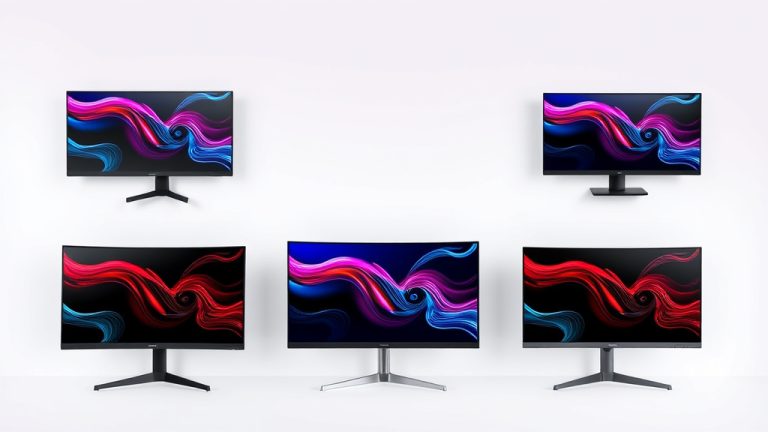
You might also encounter ultrawide monitors. These have aspect ratios like 21:9 or 32:9. They are much wider than standard screens. Ultrawide monitors offer incredible immersion for gaming and simulations. They are also fantastic for multitasking. You can easily fit three or even four windows across the screen. However, some older content might not display correctly on these. It may appear stretched or have black bars on the sides.
Finding Your Perfect Monitor Size Match
Choosing the right monitor size depends heavily on what you’ll be doing. Think about your primary use cases. Are you a student needing space for research papers? Are you a gamer chasing the win? Or do you just need something for checking email?
Gaming: Immersion and Refresh Rate
For gaming, size can enhance immersion. Many gamers prefer 27-inch or 32-inch monitors. This gives them a good field of view. However, resolution and refresh rate are often more critical than sheer size. A 27-inch 1440p monitor with a high refresh rate (like 144Hz) is a popular choice. It balances detail with smooth motion.
Productivity: Space for Tasks
If you work from home or do a lot of multitasking, screen space is key. A 27-inch or 32-inch monitor is a great start. Many people find that an ultrawide monitor truly boosts productivity. Being able to see multiple documents or applications side-by-side without overlap is a game-changer. Some even use dual monitors. This setup gives you ample space for complex workflows.
General Use: Balanced Experience
For general web browsing, email, and light office work, a 24-inch or 27-inch monitor is usually sufficient. These sizes are readily available and affordable. They provide enough screen real estate without overwhelming your desk. A 1080p or 1440p resolution is perfectly adequate for these tasks.
Consider Your Desk and Budget
Don’t forget to measure your desk space! A 32-inch monitor or an ultrawide can take up a significant amount of room. Also, larger monitors with higher resolutions and advanced features will cost more. Research and found that budget is a major deciding factor for most consumers (Statista).
Here’s a quick checklist to help you decide:
- Measure your desk space first.
- Think about your main computer tasks.
- Consider the resolution you need for clarity.
- Decide if a widescreen or ultrawide format fits your workflow.
- Set a realistic budget before you start looking.
Conclusion
You’ve learned that monitor size is more than just a number. It’s the diagonal measurement of your screen. But resolution and aspect ratio also shape your experience. Think about your daily tasks, from gaming to productivity. A 24-inch screen might suit general use, while a 32-inch or ultrawide monitor could boost your workflow. Always measure your desk space and set a budget. By considering these factors, you can find the perfect monitor that fits your needs and your setup. Your next step is to start comparing monitors that match your ideal size and specs.
Frequently Asked Questions
How do I measure my monitor’s size?
You measure a monitor’s size by its diagonal screen measurement. This is the distance from one corner of the viewable screen to the opposite corner. It’s always measured in inches and is the standard way manufacturers describe monitor dimensions.
Is a bigger monitor always better?
Not necessarily. A bigger monitor might be great for immersion, but if the resolution is too low, images can look blurry. Also, a very large monitor might not fit your desk space. It’s about finding the right balance for your specific use and viewing distance.
What’s the difference between monitor size and resolution?
Monitor size refers to the physical dimensions of the screen, measured diagonally. Resolution refers to the number of pixels on the screen, like 1080p or 4K. A larger screen with a low resolution will appear less sharp than a smaller screen with a high resolution.
Can I use a monitor that’s too big for my desk?
While technically possible, it’s not recommended. A monitor that’s too large can be uncomfortable to view, as you’ll constantly be moving your head. It can also make your workspace feel cramped. Always check the monitor’s dimensions against your available desk space.
Do I need an ultrawide monitor for multitasking?
Ultrawide monitors offer a lot of horizontal space, which can be excellent for multitasking. You can easily display multiple windows side-by-side. However, a standard large monitor or even dual monitors can also provide sufficient space for many productivity tasks.