Mac Monitor Sizes Explained: Find Your Perfect Display
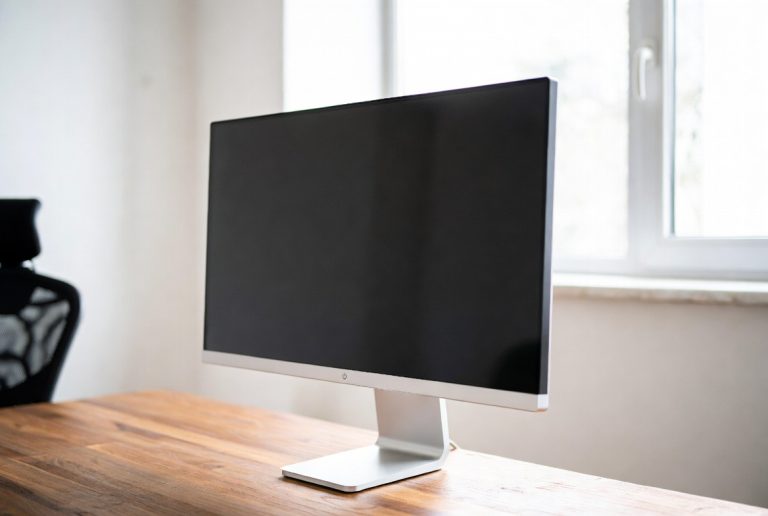
When you’re asking how big a Mac monitor is, the answer depends entirely on the specific model you’re looking at. Apple offers Mac monitors in a **range of sizes**, from more compact displays suitable for minimalist setups to massive screens perfect for creative professionals. For instance, Apple’s Pro Display XDR boasts a **huge 32-inch screen**, while older iMac models have featured screens as small as 21.5 inches.
Your choice will likely depend on your needs and desk space. Are you looking for something to handle everyday tasks, or do you need a large canvas for detailed design work? Apple has developed displays with various **resolutions and pixel densities** to cater to different visual demands. We’ve researched the typical dimensions to help you figure out what might be best for your setup.
- Mac monitors come in various sizes.
- Sizes range from around 21.5 inches up to 32 inches.
- Your needs dictate the best size for you.
- Consider resolution and desk space.
Below, we break down the popular Mac monitor sizes and what you should consider when choosing the right one for your workspace.
Understanding Mac Monitor Sizes for Your Workspace
When you’re curious about how large a Mac monitor typically is, the answer really boils down to the specific Apple device you’re considering. Apple has a history of offering a **diverse range of screen sizes**, catering to everyone from casual users to demanding creative professionals. We’ve seen everything from compact, all-in-one computers to expansive, professional-grade displays. Let’s break down what you can expect.
The iMac: A Popular All-in-One Display
The iMac has long been a go-to for many Mac users. It’s a computer built right into the monitor, offering a clean and simple setup. Over the years, iMacs have come in a couple of key sizes that are still relevant to understand.
The 21.5-inch iMac
For a long time, the 21.5-inch iMac was the entry-level option. It offered a good balance for everyday tasks like browsing the web, writing emails, and basic photo editing. Its size makes it quite adaptable to different desk setups without feeling overwhelming. Many people found this size perfect for a home office or a dorm room.
The 27-inch iMac
Stepping up, the 27-inch iMac provided a much larger canvas. This bigger screen was a favorite among those who juggled multiple applications, worked with larger documents, or enjoyed a more immersive visual experience. Designers, photographers, and video editors often gravitated towards this size for the extra real estate. It really gives you more room to spread out your work.
Apple’s Studio Display: A Modern Monitor Option
More recently, Apple introduced the Studio Display. This is a dedicated monitor, meaning it’s just the screen, and you connect your Mac separately. It’s designed to complement Mac mini and Mac Studio, but it works with any Mac laptop or desktop.
The Studio Display’s Single Size
The Apple Studio Display comes in a single size: 27 inches. This display focuses heavily on its 5K resolution and advanced features, offering a sharp and vibrant viewing experience. It’s built for users who want a high-quality, dedicated display that offers a fantastic visual output without being excessively large.
Apple’s Pro Display XDR: For the Most Demanding Workflows
When we talk about Apple’s most professional-grade monitors, the Pro Display XDR stands out. This is a serious piece of equipment designed for professionals who need the absolute best in terms of color accuracy, brightness, and detail.
The Pro Display XDR’s Expansive Screen
The Pro Display XDR boasts a massive 32-inch Retina 6K display. This screen is incredibly spacious, allowing creative professionals to view and edit high-resolution images and videos with unparalleled clarity. Imagine editing a 4K video with plenty of room for your timeline and editing tools visible simultaneously. That’s the kind of workspace this monitor provides.
What to Consider When Choosing Your Mac Monitor Size
So, you know the sizes, but how do you pick the right one for *you*? It’s not just about the inches on the screen; it’s about how that screen fits into your life and work.
Desk Space and Ergonomics
First, take a good look at your desk. Do you have ample room, or are you working with a cozy nook? A 27-inch or 32-inch monitor can dominate a smaller desk, potentially leaving you with less space for other essentials like your keyboard, mouse, or even a cup of coffee. On the flip side, if you have plenty of space, a larger monitor can significantly improve your viewing comfort and productivity. We found that proper desk setup, including monitor height, is key for comfort (Cleveland Clinic).
Your Primary Use Case
What will you be doing most often on your Mac? For general use like email, web browsing, and word processing, a smaller screen like a 21.5-inch iMac might be perfectly adequate. If you’re a photographer editing photos, a graphic designer working on layouts, or a video editor cutting footage, you’ll likely benefit immensely from the extra screen real estate a 27-inch or 32-inch display offers. More screen means less zooming and panning, making your workflow smoother.
Resolution and Pixel Density (PPI)
While size is important, resolution plays a huge role in how sharp and clear your content appears. Apple is known for its “Retina” displays, which pack a lot of pixels into a small area. This means even smaller screens can look incredibly sharp.
- A 21.5-inch iMac might have a 1080p or 4K resolution.
- A 27-inch iMac typically featured a 5K resolution.
- The Studio Display is a 27-inch 5K monitor.
- The Pro Display XDR is a 32-inch 6K monitor.
A higher resolution on a larger screen means you get more detail. For example, a 32-inch monitor with a 6K resolution will show far more detail than a 21.5-inch monitor with a 1080p resolution. This is critical for tasks where detail matters.
Budget Considerations
Larger, higher-resolution displays generally come with a higher price tag. Apple’s Pro Display XDR, for instance, is a premium product for professionals. When deciding on size, be realistic about your budget. You want to find the best screen that meets your needs without breaking the bank.
A Quick Comparison of Common Mac Display Sizes
To help visualize, let’s think about how these sizes might feel on your desk.
| Display Type | Diagonal Screen Size | Typical Resolution | Best For |
|---|---|---|---|
| Older iMac (Entry-Level) | 21.5 inches | 1920 x 1080 or 4096 x 2304 | Everyday tasks, web browsing, general productivity |
| Older iMac (Larger) / Studio Display | 27 inches | 5120 x 2880 (5K) | Creative work, multitasking, a comfortable viewing experience |
| Pro Display XDR | 32 inches | 6016 x 3384 (6K) | Professional video editing, color-critical work, high-end photography |
Choosing the Right Fit for Your Workflow
Ultimately, the “best” size for a Mac monitor is highly personal. It’s about finding that sweet spot where your screen is large enough to be productive and comfortable, yet small enough to fit your space and budget.
Here’s a quick checklist to help you decide:
- Measure your desk space realistically.
- List your top 3-5 daily computer tasks.
- Consider if you need a larger workspace for specific software.
- Think about how many windows you typically have open at once.
- Set a clear budget for your monitor purchase.
- Prioritize resolution if visual clarity is key.
Conclusion
Choosing the right Mac monitor size is all about matching Apple’s diverse display options to your personal needs. We’ve seen how sizes can range from the more compact 21.5-inch iMacs perfect for basic tasks, up to the expansive 32-inch Pro Display XDR designed for serious creative professionals. The 27-inch Studio Display and larger iMacs offer a great middle ground for many users. Ultimately, your desk space, what you do on your Mac, and your budget will guide your decision. Take a moment to measure your space and think about your daily workflow before you decide.
Frequently Asked Questions
Can I use a Mac monitor with a Windows PC?
Yes, in most cases, you can use an Apple display with a Windows PC. You’ll typically need to use a compatible cable, such as DisplayPort or USB-C, depending on the ports available on both your PC and the monitor. The display itself is hardware that can accept video signals from various sources.
Are older iMac sizes still good for modern use?
Older iMacs, like the 21.5-inch and 27-inch models, can still be perfectly functional for everyday tasks such as web browsing, email, and word processing. However, for demanding applications or tasks requiring high detail, their performance and screen resolution might feel limited compared to newer, dedicated displays.
Does monitor size affect eye strain?
Monitor size can influence eye strain, but it’s often more about viewing distance and resolution. Sitting too close to a large monitor or having a low-resolution screen can cause strain. Adjusting your viewing distance and ensuring the monitor has a high enough pixel density for its size are key to comfort.
How do I measure a monitor’s size?
Monitor size is measured diagonally across the screen, from one corner to the opposite corner, excluding the bezel. This measurement is typically given in inches. It’s important to remember this is the screen size, not the overall physical dimensions of the monitor.
Is a larger screen always better for productivity?
A larger screen can definitely boost productivity for certain tasks, like multitasking or working with detailed visuals. However, for simpler tasks, a smaller screen might be sufficient and even more comfortable. It really depends on what you’re using your Mac for and how much space you need to spread out your work.