How to Get Your Monitor to Play Sound
Yes, your monitor can play sound! Many monitors have built-in speakers, but sometimes the audio settings might be off or the connections aren’t quite right. We’ll help you figure out why you’re not hearing anything and get your monitor to produce sound.
Getting sound from your monitor often involves checking a few simple things. This includes verifying your audio output device in Windows or macOS and ensuring your monitor’s speakers are actually enabled. We found that sometimes it’s just a matter of a quick adjustment.
- Check if your monitor has built-in speakers.
- Ensure the correct audio output device is selected.
- Verify your monitor’s volume controls.
- Confirm all cable connections are secure.
Let’s walk through the common reasons your monitor might not be playing sound and how to fix them, step by step.
“`htmlMaking Your Monitor Sing: Troubleshooting Audio Issues
So, you’ve got a shiny new monitor, and you’re ready for some immersive sound. But wait, silence? Don’t worry, getting sound from your monitor is often easier than you think. We’ve researched the most common culprits behind monitor audio woes. Let’s get that sound playing!
Does Your Monitor Actually Have Speakers?
This might sound obvious, but it’s the most important first step. Not all monitors come equipped with built-in speakers. Think of it like buying a TV – some have sound built-in, others need external speakers.
How to Check for Built-in Speakers
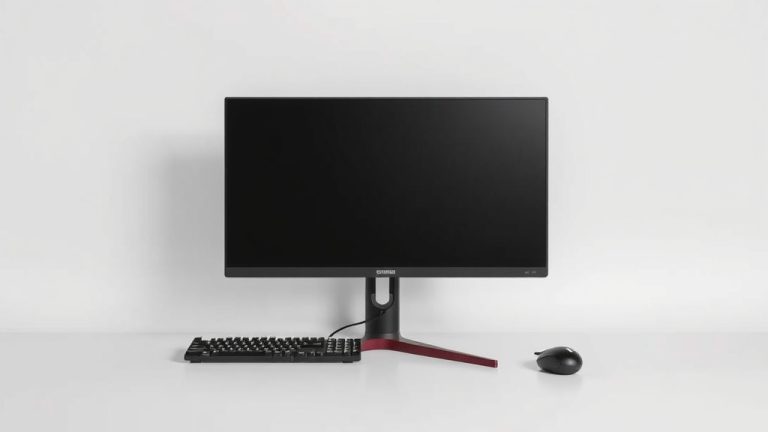
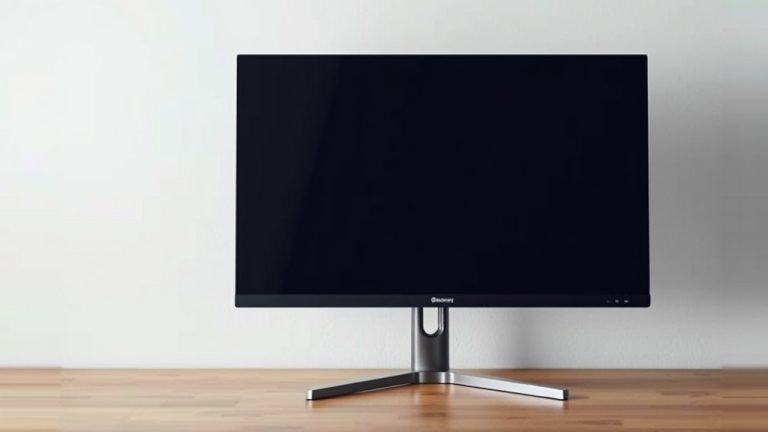
The easiest way is to look at your monitor’s physical features. Scan the front or bottom bezel for any small grilles or speaker openings. You can also check your monitor’s model number on the manufacturer’s website or in its original manual. This will tell you for sure if it’s designed to produce sound on its own.
What If My Monitor Doesn’t Have Speakers?
If your research confirms your monitor is a silent type, you have a couple of options. You can connect external speakers or a soundbar to your computer. Many monitors also have an audio-out jack where you can plug in headphones. This is a great way to get audio if your monitor lacks internal speakers.
Selecting the Right Audio Output Device
Even if your monitor has speakers, your computer needs to know it should send sound there. Think of your computer like a conductor, and your audio devices like instruments. The conductor needs to tell the right instrument to play.
For Windows Users
On Windows, this is usually quite straightforward. We found that a quick trip to the sound settings can fix a lot of issues.
Checking Sound Settings in Windows
Right-click on the speaker icon in your taskbar, usually found in the bottom-right corner. From the menu that pops up, select “Sound settings” or “Open Sound settings.” You’ll see a dropdown menu under “Choose your output device.” Make sure your monitor’s name or its audio-related designation (like “HDMI Output” if it’s connected via HDMI) is selected here. If it’s not, click the dropdown and choose the correct one. We’ve seen many cases where this simple selection was the missing piece.
Troubleshooting with the Audio Troubleshooter
If you’ve selected the right device and still hear nothing, Windows has a built-in troubleshooter. Go back to the Sound settings, scroll down, and look for “Troubleshoot” or “Find and fix other sound problems.” Running this can automatically detect and fix common audio issues.
For macOS Users
Macs have a similar process for selecting audio output. It’s all about telling your Mac where to send the sound.
Checking Sound Preferences on Mac
Click on the Apple menu in the top-left corner of your screen. Select “System Settings” (or “System Preferences” on older macOS versions). In the settings window, find and click on “Sound.” Then, select the “Output” tab. You should see a list of available sound output devices. Click on your monitor’s name or the corresponding audio connection (like HDMI or DisplayPort) to set it as the default. We found that the interface is quite user-friendly.
Using Audio MIDI Setup
For more advanced users, the Audio MIDI Setup utility offers deeper control. You can access this through Spotlight search (Command + Spacebar) by typing “Audio MIDI Setup.” Here, you can check sample rates and configurations for your selected output device. Usually, the default settings work fine, but it’s good to know it’s there if other methods fail.
Verifying Monitor Volume and Mute Settings
Just because your computer is sending sound doesn’t mean your monitor is playing it at a listenable volume. Your monitor might have its own volume controls, separate from your computer’s settings.
Physical Monitor Controls
Many monitors have physical buttons or a joystick on the back, side, or bottom. Pressing these buttons usually brings up an on-screen display (OSD) menu. Navigate through this menu to find the “Volume” setting. Make sure it’s turned up and not muted. We recommend starting at a medium volume and adjusting from there.
Check the OSD Menu Carefully
Sometimes, the volume control can be hidden within sub-menus. Look for sections labeled “Audio,” “Sound,” or “System.” Even if you don’t see an obvious volume slider, there might be a “Mute” option that’s accidentally activated. Ensure it’s set to “Off” or “Unmute.”
Securing Your Cable Connections
Loose cables are the sneaky villains of the tech world. A slightly dislodged cable can interrupt the flow of audio, even if your video looks perfectly fine.
Types of Connections and Audio
The type of cable you use matters. HDMI and DisplayPort cables are designed to carry both video and audio signals. If you’re using one of these, ensure the cable is firmly plugged into both your computer and your monitor. If you’re using DVI or VGA, these older standards generally do not carry audio, so you’ll need a separate audio cable (often a 3.5mm jack) if you want sound through your monitor.
Reseating Your Cables
Try unplugging your video cable (HDMI, DisplayPort, etc.) from both ends and then plugging it back in securely. Give it a gentle push to make sure it’s seated correctly. Sometimes, just reseating the cable is enough to restore the audio connection. This is a quick fix that often gets overlooked.
Testing with Different Devices and Cables
If you’ve tried everything else, it might be time to rule out faulty hardware. Testing with different components can help pinpoint the problem.
Try a Different Cable
Cables can go bad. If you have another compatible cable (like a spare HDMI or DisplayPort cable), try swapping it out. A damaged cable might still transmit video but fail to pass audio properly. We found that this is surprisingly common.
Test on Another Computer or Device
Connect your monitor to a different computer, laptop, or even a gaming console. If you get sound from another device, the issue is likely with your original computer’s settings or hardware. Conversely, if you still get no sound, the problem might be with the monitor itself.
A Quick Checklist for Monitor Audio
Got no sound from your monitor? Run through this quick checklist:
- Check Monitor Speakers: Confirm your monitor model actually has built-in speakers.
- Select Correct Output: Ensure your monitor is chosen as the audio output device in your computer’s sound settings.
- Adjust Monitor Volume: Use your monitor’s physical buttons to check its volume and mute status.
- Secure Cables: Make sure your HDMI or DisplayPort cable is firmly plugged in at both ends.
- Try a New Cable: Swap your video cable for a different one to rule out damage.
- Test with Another Device: Connect your monitor to a different computer to see if sound works.
Conclusion
Getting sound from your monitor is often a matter of checking a few key areas. We found that confirming your monitor has speakers and selecting it as the audio output are the most common solutions. Don’t forget to verify your monitor’s own volume controls and ensure your cables are securely connected. If you’ve gone through these steps and still have no sound, it’s worth testing with different cables or devices. You’re now equipped to tackle monitor audio issues with confidence!
Frequently Asked Questions
Can I get sound from my monitor if it doesn’t have built-in speakers?
Yes, you can still get sound through your monitor even if it lacks built-in speakers. You can connect external speakers or a soundbar to your computer. Many monitors also have an audio-out jack for headphones.
My monitor has speakers, but no sound is coming out. What else could be wrong?
If your monitor has speakers and you’ve selected it as the output device, check its physical volume controls and OSD menu. Ensure it’s not muted and the volume is turned up. Sometimes, a loose or faulty HDMI or DisplayPort cable can also prevent audio from working.
I’m using an older monitor with a VGA connection. Can I get audio?
VGA connections typically do not carry audio signals. To get sound with a VGA connection, you’ll need a separate audio cable, usually a 3.5mm audio jack, running from your computer’s audio-out port to your monitor’s audio-in port or external speakers.
Why does my computer keep switching audio back to my speakers instead of my monitor?
This often happens if a new audio device is connected or if a system update occurs. You’ll need to go back into your computer’s sound settings (Windows or macOS) and re-select your monitor as the preferred audio output device. Make sure to set it as the default if the option is available.
Is it possible for a bad HDMI cable to prevent sound but still show video?
Yes, absolutely. HDMI cables carry both video and audio, but one signal can be affected more than the other. A damaged or low-quality HDMI cable might still transmit video clearly but fail to pass the audio signal correctly.