Boost Productivity: How to Use 2 Monitors
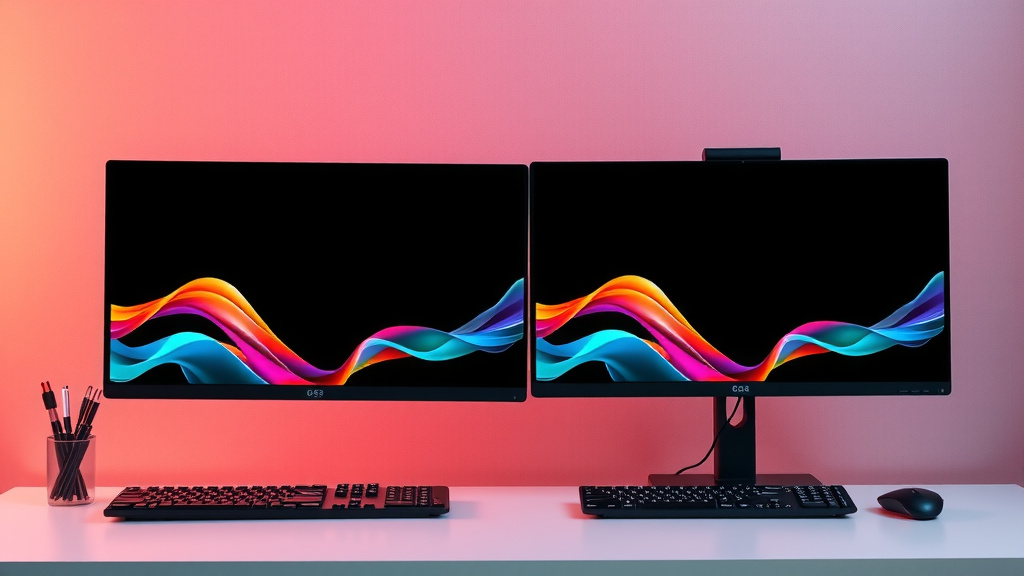
Yes, using two monitors can significantly boost your productivity and make multitasking much easier. You can easily set up two monitors by connecting them to your computer and adjusting your display settings. This dual-display setup helps you work more efficiently.
Many people find that adding a second monitor makes a big difference in their daily workflow. You can keep reference materials open on one screen while you work on a project on the other. It’s like having a larger digital workspace without buying a whole new desk.
- Why use two monitors? Boosts productivity and makes multitasking easier.
- How to set up? Connect via cables and adjust computer display settings.
- Benefits: Keep multiple windows open, improve workflow efficiency.
- What you can do: Reference info on one screen, work on another.
We’ll walk you through exactly how to connect and configure two monitors so you can start enjoying the benefits right away.
Getting Started with Your Dual Monitor Setup
You’re probably wondering how to actually use two monitors. It’s simpler than you might think! Connecting two screens to your computer can really change the way you work. It’s like giving yourself extra desk space. You can spread out your tasks. This setup helps you get more done. Let’s get you up and running.
What You’ll Need for Your Second Monitor
First, let’s make sure you have the right gear. You’ll need a second monitor, of course. Most modern monitors connect using an HDMI or DisplayPort cable. Check the ports on your computer and your new monitor. You want to ensure you have matching connectors. Most laptops and desktops come with at least one of these ports. Some older computers might use DVI or VGA. These are less common now, but still work if that’s what you have.
You’ll also need the correct cables. Often, a new monitor comes with a cable. But if you’re buying used or don’t have one, make sure to get the right type. An HDMI cable is very common. DisplayPort offers higher resolutions and refresh rates, which is great for gaming or high-end graphics work. For most users, HDMI is perfectly fine. You’ll also need a power cable for the second monitor. That usually comes included.
Checking Your Computer’s Ports
Before you buy anything, take a look at the back or sides of your computer. You’ll see several ports. Look for HDMI or DisplayPort symbols. If your computer only has one of these, you might need a graphics card upgrade. This is especially true for older desktops. However, many newer computers and laptops have multiple video output ports. Some laptops even support Thunderbolt ports, which can often carry video signals.
Connecting Your Monitors: The Physical Steps
Now for the fun part – plugging everything in! First, turn off your computer completely. This is a good practice to avoid any electrical issues. Place your second monitor where you want it. Make sure it’s stable and has enough space. Then, take your HDMI or DisplayPort cable. Plug one end into the back of your second monitor. Plug the other end into the corresponding port on your computer. It should click or slide in snugly.
Once the video cable is connected, plug in the power cable for the second monitor. Connect it to the monitor and then to a wall outlet or power strip. If your computer is a desktop, you might have multiple video ports on the graphics card. Generally, you want to use the ports on the graphics card, not the ones directly on the motherboard, if you have a separate graphics card. This ensures you get the best performance.
After everything is plugged in, turn on your second monitor. Then, power on your computer. Your computer should detect the new display automatically. You might see your desktop appear on both screens, or just on the original one. Don’t worry if it looks a little off; we’ll fix that in the software settings.
Configuring Your Dual Displays in Windows
Your computer needs to know how to use both monitors. This is where display settings come in. Windows makes this process quite straightforward. You’ll tell your PC how to arrange the screens and what to do with them. This is where the magic happens. You’re telling your computer to extend your desktop.
Accessing Display Settings
The easiest way to get to display settings is by right-clicking on an empty part of your desktop. You’ll see a context menu pop up. Look for an option that says something like “Display settings” or “Screen resolution.” Click on that. This will open a new window with all your display options. You should see boxes representing your monitors, usually numbered 1 and 2.
Identifying and Arranging Your Monitors
In the display settings window, you’ll see rectangles representing your screens. If you’re not sure which number corresponds to which physical monitor, click the “Identify” button. Numbers will briefly flash on each screen. This helps you know which is which. Drag and drop these rectangles to match how your monitors are physically arranged on your desk. For instance, if your second monitor is to the left of your main one, place rectangle 2 to the left of rectangle 1.
This arrangement is super important. It determines how your mouse cursor moves between screens. If you set them up correctly, moving your mouse off the right edge of screen 1 will make it appear on the left edge of screen 2. If they aren’t arranged to your liking, your mouse might jump strangely or feel disconnected. Spend a moment getting this right. It’s a small step that makes a big difference in usability.
Choosing Your Display Mode
Now, you need to tell Windows how you want these two screens to work together. Below the monitor arrangement, you’ll see a dropdown menu for “Multiple displays.” Here are your main options:
- Duplicate these displays: This shows the exact same thing on both monitors. It’s good for presentations, but not for productivity.
- Extend these displays: This is what you want for a dual-monitor setup. It creates one large desktop space across both screens.
- Disconnect this display: This option is usually for when you have more than two monitors and want to turn one off.
Select “Extend these displays.” This gives you that expanded workspace. You can drag windows from one screen to the other. It’s like having a bigger canvas for all your tasks.
Setting the Primary Display and Resolution
One of your monitors will be your “primary” display. This is where your taskbar and system icons usually appear by default. You can choose which monitor is primary. In the display settings, select the monitor you want as primary. Then, scroll down and check the box that says “Make this my main display.” You can also adjust the resolution and scaling for each monitor individually. It’s best to set both monitors to their native resolution. This provides the sharpest image. Native resolution is usually the highest resolution listed.
Adjusting Your Monitor Settings
Sometimes, the colors or brightness might not look quite right on one of the monitors. Most monitors have physical buttons on them to access their own menu. You can adjust brightness, contrast, and color settings there. It’s a good idea to match them as closely as possible. You want a consistent look and feel across your extended desktop.
Tips for Maximizing Your Dual Monitor Experience
Now that you have two monitors set up, let’s talk about making the most of them. It’s not just about having more screen space; it’s about using it smartly. Think of it like having two skilled assistants helping you work.
Organizing Your Workspace
Decide what works best for your workflow. Many people use their primary monitor for their main task. This could be your coding editor, document, or creative software. Your second monitor is perfect for reference materials. Think about keeping email, chat applications, or web browsers open there. Or maybe you use one for research and the other for writing. Experiment to find your ideal setup.
Common Dual Monitor Layouts
A popular setup is to have your main work screen in the center. Then, place your secondary monitor to the left or right. Another common approach is stacking monitors vertically. This works well if you have limited desk width. For example, a coding screen on top and a terminal or documentation screen below. We found that having frequently used tools on the secondary screen saves a lot of time switching between applications.
Using Keyboard Shortcuts and Window Management
Learn some window management shortcuts. Windows has built-in features to help. You can snap windows to the sides of your screen. Pressing the Windows key + Left Arrow or Right Arrow will do this. Holding down the Windows key and using the Up or Down arrow keys can maximize, minimize, or snap to corners. These shortcuts become even more powerful with a dual-monitor setup.
Many experts suggest using window management software. Tools like FancyZones (part of Microsoft PowerToys) allow you to create custom layouts for your windows. You can define specific zones on your screens. Then, simply drag windows into those zones. This helps keep your workspace tidy and efficient. Research indicates that organized digital workspaces can reduce cognitive load (Harvard Business Review).
When to Use a Third Monitor?
While two monitors are fantastic, some professionals might consider a third. For example, graphic designers might want a screen dedicated to their tools palette. Gamers might use one for the game, one for streaming software, and another for chat. However, for most everyday tasks, two monitors strike a great balance. They offer a significant boost without overwhelming your desk space.
Troubleshooting Common Issues
What if your second monitor isn’t working? Double-check all cable connections. Ensure they are plugged in securely at both ends. Try a different cable if you have one available. Sometimes, restarting your computer can resolve detection issues. If you’re still having trouble, visit your computer manufacturer’s support website. They often have troubleshooting guides for display problems.
Another issue can be flickering. This is often caused by a loose cable or an incorrect refresh rate setting. Go back into your display settings. Check the refresh rate for each monitor. It should ideally be set to the highest supported rate, but if you see flickering, try lowering it slightly. You might also need to update your graphics drivers. You can usually find these on the website of your graphics card manufacturer, like NVIDIA or AMD.
Here’s a quick checklist to ensure your setup is perfect:- Ensure all cables are securely connected.
- Verify your display mode is set to “Extend.”
- Arrange monitors to match your physical desk layout.
- Set each monitor to its native resolution.
- Adjust brightness and color for consistency.
- Restart your computer if issues persist.
Conclusion
You’ve now learned how to connect and configure a second monitor, transforming your computer into a more powerful workstation. Remember, the goal is to create a workspace that fits your unique needs. By extending your display and arranging your monitors logically, you can significantly reduce time spent switching between applications. Don’t hesitate to experiment with different layouts and window management techniques to find what feels most productive for you. Now, go ahead and optimize your dual-monitor setup to boost your efficiency!
Frequently Asked Questions
Can I connect two monitors to a laptop?
Yes, most modern laptops can support two external monitors. You’ll need to check your laptop’s ports for HDMI, DisplayPort, or USB-C (Thunderbolt) outputs. Often, you can use a docking station or adapter if your laptop doesn’t have enough ports.
What if my computer only has one video output port?
If your computer only has one video output, you might need to use a USB-to-HDMI adapter or a docking station. These devices create additional video outputs. For desktops, upgrading your graphics card is also an option if you need more ports.
How do I make sure my mouse moves smoothly between screens?
The key is to correctly arrange your virtual monitors in the display settings to match their physical placement on your desk. If your second monitor is to the right of your main screen, drag the monitor’s representation to the right in the settings. This ensures your cursor moves intuitively.
Can I use monitors with different resolutions?
Yes, you can use monitors with different resolutions. Windows will allow you to set each monitor to its native resolution. However, for the best visual experience, try to use monitors with similar resolutions if possible, and always set them to their highest native setting.
My second monitor is blurry. What should I do?
A blurry second monitor usually means it’s not set to its native resolution. Go into your display settings, select the problematic monitor, and choose its highest listed resolution. Also, check that the cable is securely connected and consider trying a different cable to rule out a faulty one.