Dual Monitor: Set Different Wallpapers Easily
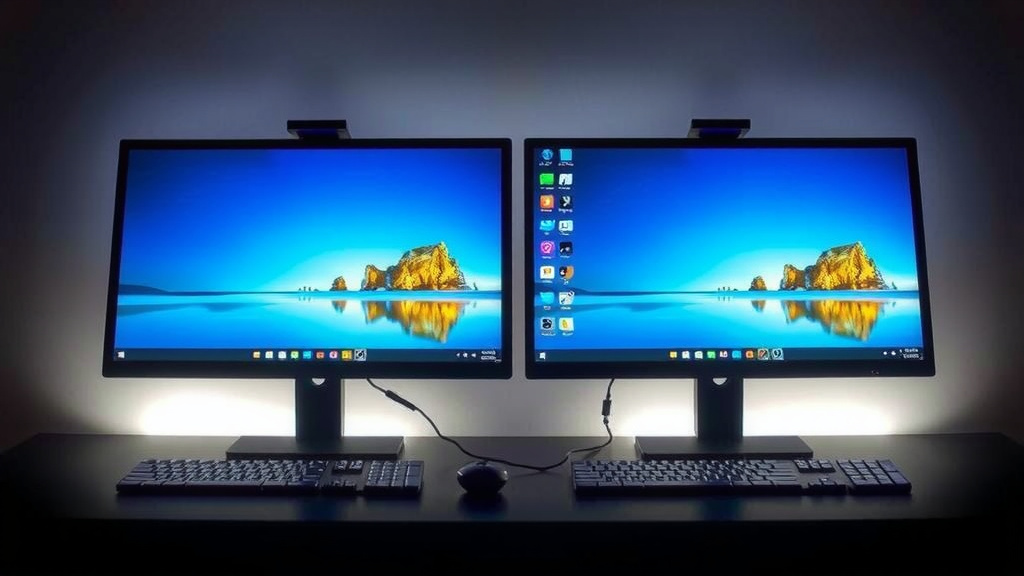
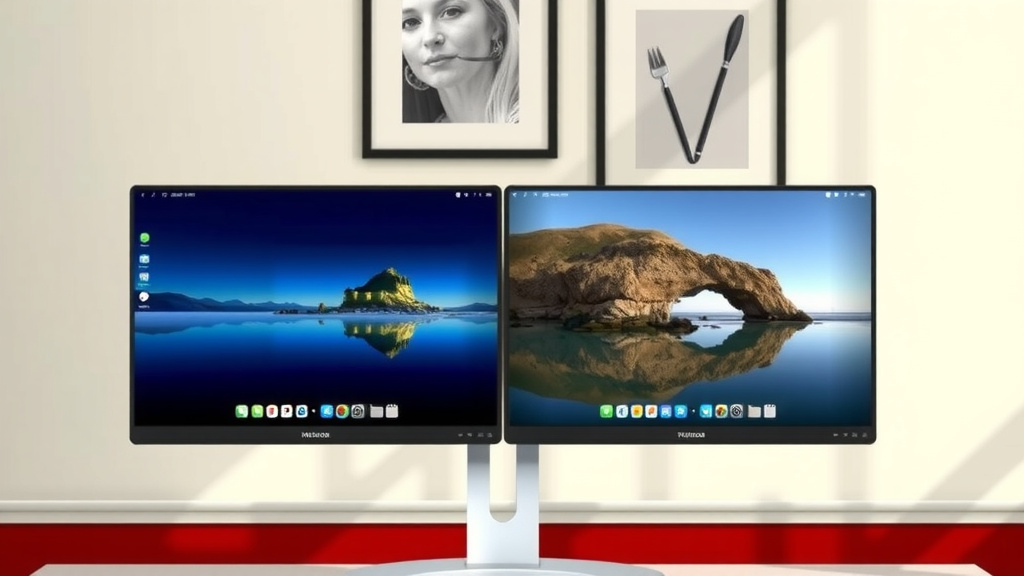
Yes, you can absolutely set different wallpapers for each monitor on your computer. It’s a fantastic way to personalize your workspace and make your dual setup feel truly yours. Most modern operating systems make this surprisingly straightforward.
Having two screens opens up a world of possibilities for productivity and fun. You might want a calming scene on one and a dynamic image on the other. We found that with just a few clicks, you can transform your desktop and avoid a cluttered or boring look.
- You can use different wallpapers.
- It’s easy to do on Windows and Mac.
- Personalize your dual monitor setup.
- Make your workspace more visually appealing.
Let’s walk through exactly how to set a unique wallpaper for each of your monitors step by step.
“`htmlMaking Your Dual Monitors Shine: Different Wallpaper Ideas
You’ve got a dual monitor setup, and now you’re ready to make it truly yours. That’s where setting different wallpapers comes in handy. It’s easier than you might think to give each screen its own personality. We’ll guide you through the simple steps for both Windows and macOS.
Windows: Setting Unique Wallpapers for Each Screen
Windows makes this process quite intuitive. You can easily assign a different background to each of your monitors. Let’s dive into how you can achieve this.
Using the Right-Click Method
The quickest way to set a unique wallpaper on Windows involves a simple right-click. First, make sure the images you want to use are saved somewhere accessible on your computer. Then, find your desired wallpaper image in File Explorer.
Right-click on the image file. You’ll see an option that says “Set as desktop background.” If you have multiple monitors connected and detected by Windows, you’ll actually get an extra step here.
After clicking “Set as desktop background,” a new menu will pop up. This menu lets you choose which monitor you want to apply the image to. You’ll typically see options like “Desktop 1,” “Desktop 2,” or sometimes “All Desktops.” Just select the monitor you want to customize and click.
Applying Wallpapers Through Settings
For a more visual approach, you can also manage your wallpapers through the Windows Settings app. This method gives you a clearer overview of your current desktop setup.
Navigate to Settings. You can do this by clicking the Start menu and then the gear icon. From there, select Personalization, and then click on Background. Here, you’ll see your current wallpaper. Below that, you’ll find a dropdown menu or a section specifically for selecting which display you want to customize.
Under the “Choose a picture” or “Choose a slideshow” section, you’ll see a dropdown menu labeled “Display” or similar. Select the monitor you wish to change. Then, choose your desired image. You can browse for pictures or select from recently used ones.
Repeat this process for your other monitor. It’s a straightforward way to ensure each screen matches your aesthetic. Many users find this the most organized way to manage their dual-monitor backgrounds.
What About Wallpaper Software?
While Windows offers built-in tools, you might want more advanced features. Software like DisplayFusion or Wallpaper Engine can offer amazing control. These programs allow for more dynamic wallpapers, things like animated backgrounds, and even custom slideshows across multiple screens.
These tools can create slideshows that span across both monitors, or manage very specific image alignments. They often come with extensive online libraries of wallpapers. Some users find that the effort of learning a new tool is worth the advanced customization. We found that free versions of some software offer a good starting point for personalization.
macOS: Personalizing Each Display
Mac users also have an easy time setting different wallpapers. The process is very similar to Windows, focusing on a clean and user-friendly interface.
Using the Desktop & Screen Saver Settings
The primary way to set unique wallpapers on macOS is through System Settings. First, go to your Apple menu and select System Settings. Then, click on Wallpaper. You’ll see your current desktop background displayed.
When you have multiple displays connected, macOS usually shows previews of each. You can click on the specific display you want to change. Then, you can choose a new image from Apple’s built-in collection or select one of your own photos. Dragging and dropping your desired image onto the preview of the correct monitor is also an option.
To select your own photos, navigate to the “Photos” section or click “Add Folder” to bring in images from your Pictures folder or another location. Once you’ve chosen an image for one display, you simply repeat the process for the second display. It’s quite intuitive.
What If Your Mac Doesn’t Show Both Displays?
Occasionally, your Mac might not automatically recognize both displays in the wallpaper settings. If this happens, don’t worry. Ensure your monitors are properly connected and powered on.
Sometimes, a simple restart of your Mac can help it recognize all connected displays correctly. You can also check the display settings under System Settings > Displays to make sure both monitors are detected and configured properly. Once they are, the wallpaper settings should update to show both screens.
Tips for Choosing Your Dual Monitor Wallpapers
Now that you know how to set them, let’s talk about what makes a great dual-monitor wallpaper setup. It’s about creating a look that’s both appealing and functional for your eyes.
Consider Resolution and Aspect Ratio
High-resolution images are key. For dual monitors, especially if they are different sizes or resolutions, you’ll want images that scale well. A 4K image will look sharp on most modern screens. If you use images with different aspect ratios, they might get stretched or cropped awkwardly.
Researching the native resolution of your monitors is a good first step. For example, if both your monitors are 1920×1080, you might want images that are at least that resolution. We found that using images designed for dual setups often ensures a perfect fit.
Think About Your Workflow
Does your work involve lots of bright white documents? Perhaps a darker, calming wallpaper on one screen would be easier on your eyes. Are you a visual person who needs inspiration? Maybe a stunning landscape on one side and a motivational quote on the other.
Many users opt for a split image that looks like one large picture across both screens. Others prefer two completely different themes. There’s no right or wrong way, it’s about what helps you focus. We’ve seen users create amazing visual divides that make multitasking feel more organized.
Syncing or Contrasting Themes
You can go for a cohesive look by choosing wallpapers that complement each other. This might mean two images from the same artist, two scenes from the same location, or simply two wallpapers that share a similar color palette. This creates a sense of harmony.
Alternatively, you might enjoy a bold contrast. Imagine a vibrant, energetic image on one screen and a minimalist, serene image on the other. This can reflect different moods or tasks you’re undertaking. It’s your digital canvas, so feel free to experiment!
Quick Checklist for Your Dual Monitor Wallpaper Setup
Ready to personalize? Here’s a quick rundown:
- Ensure your monitors are properly connected and detected by your OS.
- Save your chosen wallpaper images to an easy-to-access folder.
- For Windows, right-click an image and select “Set as desktop background,” then choose the monitor.
- For macOS, go to System Settings > Wallpaper and select the desired monitor to customize.
- Use high-resolution images that match your monitor’s resolution for the best clarity.
- Experiment with matching, contrasting, or split-image themes to find your perfect look.
Conclusion
You’ve learned how simple it is to personalize your dual monitor setup with unique wallpapers. We’ve walked you through the easy steps for both Windows and macOS, showing you how to make each screen reflect your style. Remember to choose high-resolution images that fit your monitors’ specs for the best look.
Don’t be afraid to experiment with themes that match or contrast! Your desktop is your digital canvas. The next step is to find those perfect images and give your workspace the personal touch it deserves. Start customizing today to make your dual monitor experience truly yours!
Frequently Asked Questions
Can I use an animated wallpaper across both my monitors?
Yes, you often can! While built-in OS tools might not support animated wallpapers for multiple screens, many third-party wallpaper programs like Wallpaper Engine can handle this. These applications are designed for advanced customization, allowing for dynamic backgrounds that can span or differ across your displays.
What’s the best resolution for dual monitor wallpapers?
We recommend using images that match the native resolution of your monitors. For example, if you have two 1920×1080 monitors, a 4K (3840×2160) image scaled down often works well. Using images designed specifically for dual setups also ensures they won’t appear stretched or pixelated.
My new wallpaper looks blurry on one screen. What did I do wrong?
This usually happens if the image resolution is too low for your monitor. Ensure the wallpaper you selected meets or exceeds your monitor’s resolution. Using a high-quality image file and avoiding excessive zooming or stretching within the wallpaper settings can also prevent blurriness.
Is there a way to have a single image that spans both monitors?
Absolutely! Many dual monitor wallpaper programs are built specifically for this. You can also find images that are pre-designed to be split across two screens. When setting them through your OS, you might need to select an option like “Span” or manually position the image if your system allows for that granular control.
What if I want to change my wallpapers often? Is there a quick way?
For frequent changes, consider setting up a wallpaper slideshow. Both Windows and macOS allow you to create slideshows from a folder of images. You can then set these slideshows to change wallpapers on one or both monitors at chosen intervals, keeping your desktop fresh without manual effort.