How to Display Two Different Things on Two Monitors
Yes, you can absolutely display different things on two monitors. It’s a common setup for boosting productivity, allowing you to drag and drop windows between screens. This makes multitasking much easier and more efficient.
Setting this up involves a few simple steps, mainly focused on your computer’s display settings. Many people find this setup dramatically improves their workflow. You can have your email open on one screen and your work document on the other. It’s a simple yet powerful way to get more done.
- You can extend your desktop to multiple monitors.
- This lets you run different applications on each screen.
- It’s great for multitasking and productivity.
- Simply adjust your display settings to enable this feature.
Let’s walk through exactly how to get your two monitors working independently, so you can start enjoying your expanded digital workspace right away.
Configuring Your Dual Monitor Setup
You’re probably wondering how to actually get two different things on two monitors. It’s simpler than you might think! Most modern computers are designed to handle multiple displays with ease. The main goal is to extend your desktop, not just mirror it. This means each screen can show something unique.
Understanding Display Modes
When you connect a second monitor, your computer usually defaults to a ‘Duplicate’ or ‘Mirror’ mode. This just shows the same thing on both screens. That’s handy for presentations, but not for multitasking. You want ‘Extend’ mode. This treats your two monitors as one giant desktop. You can then drag windows from one screen to the other.
Duplicate vs. Extend Mode Explained
Think of ‘Duplicate’ mode like having two TVs showing the exact same movie. Useful, but not very exciting if you want different channels. ‘Extend’ mode is like having two separate TVs. You can watch the news on one and a sports game on the other. This is where the real productivity magic happens. We found that most users switch to ‘Extend’ mode for daily tasks.
Accessing Display Settings
The way you access these settings depends on your operating system. Let’s look at the most common ones: Windows and macOS. The core process involves right-clicking or using system preferences to find the display options. You don’t need to be a tech wizard to figure this out.
On Windows
For Windows users, it’s quite straightforward. Right-click anywhere on your desktop. You’ll see a menu pop up. Look for an option that says something like ‘Display settings’. Click that, and a new window will open. You’ll see boxes representing your monitors. This is where you’ll tell your computer how to use them.
On macOS
Mac users will find similar controls. Go to the Apple menu in the top-left corner of your screen. Then, select ‘System Settings’ (or ‘System Preferences’ on older versions). In the sidebar, you should see an option for ‘Displays’. Clicking this will bring up your monitor configuration. It’s usually very visual and intuitive.
Setting Up the ‘Extend’ Display
Once you’re in the display settings, the next step is selecting ‘Extend’. This is the key to showing different things on each monitor. It tells your computer to treat each display as an individual part of a larger workspace.
Windows: Step-by-Step
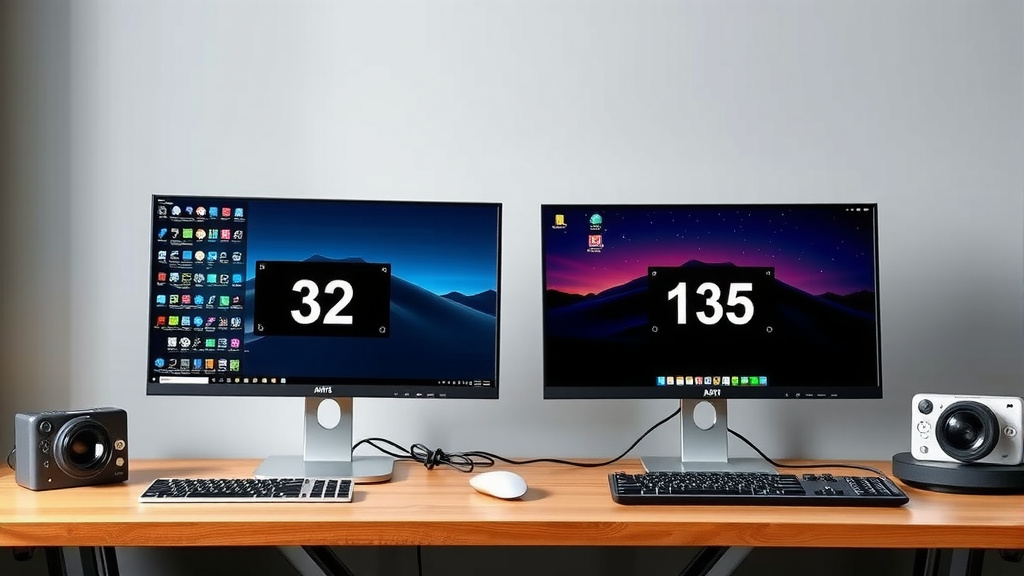
In the Windows Display settings, you’ll see numbered rectangles representing your monitors. If you have two, you’ll see two. Under the “Multiple displays” dropdown, choose ‘Extend these displays’. Your screens might flicker for a moment. This is normal as they adjust to the new setting. You might also need to arrange the monitor icons to match their physical placement on your desk. Drag the boxes so the blue monitor is to the left if it’s physically on the left. This ensures your mouse moves correctly between them.
macOS: Step-by-Step
On macOS, when you go to Displays, you’ll likely see your monitors represented. If they are set to mirror, you’ll see a notification or an option to change this. Look for a checkbox or setting that says ‘Mirror Displays’. Unchecking this box will typically enable the extended desktop mode. Like Windows, you can arrange the monitors by dragging their icons to match their physical layout. This keeps your mouse movement natural across screens.
Arranging Your Monitors for Flow
Proper physical arrangement is important. If your main monitor is on the left and your second is on the right, make sure the display icons in the settings reflect that. Otherwise, moving your mouse from one screen to the other will feel awkward. It’s like trying to navigate a room with doors in the wrong place. Many users find this small adjustment greatly improves their workflow (PCMag).
Optimizing Your Dual Monitor Workspace
Now that your monitors are extended, you can really start to customize your setup. The goal is to make it work for *you*. This is where you tailor the experience to fit your specific needs and tasks.
Dragging and Dropping Windows
This is the most intuitive part. Simply click and drag the top bar of any open window. Move your mouse cursor across the edge of one screen, and the window will follow onto the other. This is perfect for keeping reference material on one screen while you work on another. You can have your email open on one monitor and your writing document on the other. It’s a huge productivity booster for many people.
Taskbar Configuration (Windows)
Windows offers some nice options for taskbars. By default, the taskbar might only appear on your primary monitor. You can change this! Go back into Display settings, scroll down, and you’ll see options related to the taskbar. You can choose to show the taskbar on all displays. This makes it easier to access running applications on either screen. Some users prefer to have different pinned apps on each taskbar.
Dock and Menu Bar (macOS)
macOS generally handles the Dock and Menu Bar automatically. The Menu Bar will appear on whichever display your mouse cursor is currently active. The Dock usually appears on your primary display, but you can adjust its behavior in System Settings > Desktop & Dock. You can choose to have it show on all displays if you wish, though many prefer it on just one.
Example Scenarios
Imagine you’re a graphic designer. You could have your design software on your main, larger monitor. Then, use the second monitor for reference images, your color palette, or even your email and chat applications. A writer might keep their research articles open on one screen and their manuscript on the other. A programmer can have their code editor on one monitor and the running application or documentation on the second. The possibilities are vast.
Adjusting Resolution and Scaling
Sometimes, text or icons might appear too small or too large on one of your monitors. This is where resolution and scaling come in. In the Display settings, you can adjust the ‘Scale’ setting for each monitor independently. You can also set the ‘Display resolution’. It’s best to use the recommended resolution for each monitor, as this is usually its native resolution and provides the sharpest image. If things look weird, check these settings first.
| Task | Status |
|---|---|
| Connect second monitor | ☐ |
| Open Display Settings | ☐ |
| Select ‘Extend Displays’ | ☐ |
| Arrange monitor icons physically | ☐ |
| Configure taskbar/dock (optional) | ☐ |
| Adjust scaling/resolution if needed | ☐ |
Conclusion
You’ve now learned how to set up your computer to display different things on two monitors. This dual-monitor setup is a simple yet powerful way to boost your productivity. By extending your desktop, you gain a larger workspace. This allows you to multitask efficiently, keeping all your important applications visible and accessible. Don’t hesitate to experiment with window placement and taskbar settings to find what works best for your workflow. Your next step is to dive into your computer’s display settings and make this upgrade a reality today!
Frequently Asked Questions
Will I need special cables to connect a second monitor?
Generally, no. Most modern computers and monitors use standard HDMI or DisplayPort cables. You just need to ensure your computer has the correct ports available. If your computer is older, you might need a separate adapter or graphics card, but this is becoming less common.
Can I use two monitors with different resolutions?
Yes, you can use monitors with different resolutions. Your operating system (Windows or macOS) will allow you to set individual resolutions for each screen. It’s often best to use the recommended or native resolution for each monitor to ensure the sharpest image quality.
What happens to my mouse cursor when I move between screens?
When you’re in ‘Extend’ mode, your mouse cursor will move smoothly from one monitor to the other as if they were part of one continuous desktop. Properly arranging the monitor icons in your display settings ensures this movement feels natural and matches their physical placement on your desk.
Is it possible to have my main applications only on one monitor?
Absolutely. You can choose which monitor acts as your primary display. Applications will typically open on the primary monitor by default, but you can easily drag any window to your second monitor. You can also configure taskbars or docks to appear on one or both screens.
My second monitor isn’t being detected. What should I do?
First, double-check that all cables are securely connected to both your computer and the monitor. Then, try restarting your computer. If it’s still not detected, go into your display settings and look for an option to “Detect” displays manually. Sometimes, updating your graphics card drivers can also resolve detection issues.