Citrix: Master Multiple Monitors for Enhanced Productivity
Yes, you can absolutely use multiple monitors with Citrix, and it can make your work so much easier. The key is often in your Citrix Workspace app settings and how your IT department has configured your connection. Properly setting up multiple displays with Citrix means less clicking and a lot more screen real estate for your applications.
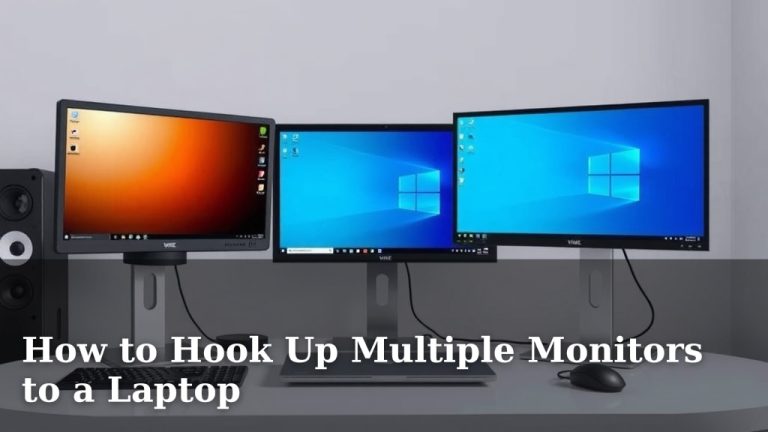
Many users find that being able to stretch their virtual desktop across several screens dramatically improves their productivity. It’s like having a bigger desk right in front of you. We found that when properly configured, Citrix can support multiple monitors with excellent performance, making it feel almost native.
- Citrix fully supports using multiple monitors.
- Your setup depends on Citrix Workspace app settings.
- IT configuration also plays a big role.
- Multiple monitors boost productivity greatly.
- Check your settings for the best experience.
Let’s walk through how to get your Citrix setup playing nicely with all your screens so you can stop juggling windows and start getting more done.
Getting Your Citrix Workspace to Work with Multiple Monitors
So, you’re ready to conquer your tasks with more screen space. Using multiple monitors with Citrix can feel like getting a promotion without the extra work. The main idea is to tell your Citrix Workspace app how you want your displays arranged. It’s often simpler than you think.
Understanding Your Display Settings in Citrix Workspace
The Citrix Workspace app is your central hub for this. It’s where you’ll tell Citrix what your physical setup looks like. Your IT team might have set some things up already. But you often have control over how your virtual desktop uses your screens.
Accessing Display Preferences
First, you need to find where these settings live. Usually, you can access them from the Citrix Workspace app itself. Look for preferences or settings. It might be a gear icon or an option in a menu bar.
Once you find the settings, you’re looking for display or multi-monitor options. This is where the magic happens. You’ll see choices for how your desktop spans across your monitors.
Common Display Configuration Options
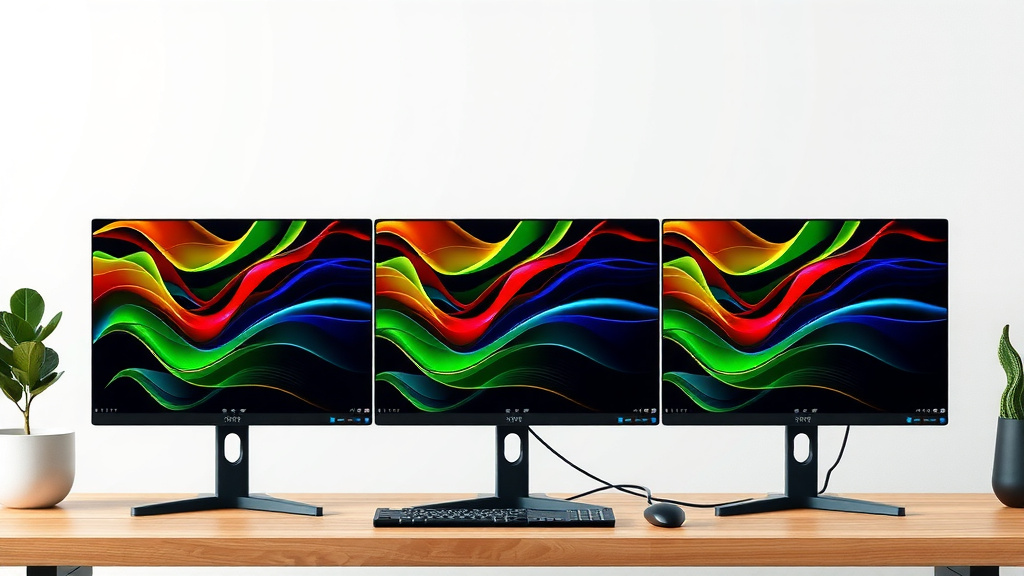
You’ll typically see options like “Span across monitors” or “Extend desktop.” “Span” tries to make your virtual desktop one giant screen. It stretches across all connected displays. “Extend” treats each monitor as a separate screen. This is usually what most people want.
Some versions might offer a “Single display” option. This is useful if you only want to use one monitor. Make sure you select the one that matches how you want to work. We found that “Extend desktop” is the most flexible for most users.
| Setting | What it Does | Best For |
|---|---|---|
| Span across monitors | Stretches your virtual desktop across all connected screens as one large display. | Users who want one continuous workspace, like a massive canvas. |
| Extend desktop | Treats each physical monitor as a separate, independent display. | Most users who want to drag windows between screens. |
| Single display | Forces your virtual desktop to only use one monitor. | When you only want to use one specific screen. |
How to Enable and Configure Multiple Monitors
The exact steps can vary a bit. This depends on your operating system and the version of Citrix Workspace you’re using. But the general process is quite consistent. You’re telling the software how to “see” your screens.
Checking Your Operating System’s Display Settings First
Before you even touch Citrix, make sure your computer recognizes all your monitors. Go to your system’s display settings. This is usually in your computer’s Control Panel or Settings app. Your monitors should be showing up there. Make sure they are set to “Extend these displays.” If your computer doesn’t see them, Citrix won’t either.
It’s like setting the table before you can serve the food. Your computer is the table, and your monitors are the plates. You need everything in place.
Configuring Within Citrix Workspace App
Once your computer is set up, open Citrix Workspace. Start your virtual desktop session. Now, look for the Citrix viewer window. You might see an option on its toolbar or menu bar. It could say “Citrix Viewer,” “Preferences,” or “Connection.”
Within these options, find the display settings. You might see a checkbox or a dropdown menu. Select “Span across monitors” or “Extend desktop.” If you choose “Span,” the virtual desktop will fill all your screens. If you choose “Extend,” you’ll have multiple distinct desktop areas.
Some configurations might not give you these options. This often happens if your IT department has locked them down. They might have specific policies about display use. If you can’t find the settings, your IT help desk is your next step.
Troubleshooting Common Multi-Monitor Issues
Even with the best setup, things can sometimes go a little wonky. Don’t worry, most issues are fixable. The key is to stay calm and work through it step by step. We found that many problems stem from simple configuration mistakes.
Performance Lag or Flickering
If your multiple monitors are slow or flickering, it could be a performance issue. This might happen if your network connection is weak. It can also be related to the graphics capabilities of your computer or the server.
Try closing unnecessary applications on your local machine. Also, consider reducing the number of monitors you’re using. Sometimes, fewer screens perform better. Your IT department can also check the server-side settings. They might be able to optimize the graphics performance for your session.
Incorrect Display Arrangement
Sometimes, Citrix might not arrange your monitors the way they are physically set up. Your primary monitor might appear on the left, or one screen might be upside down. This is usually a simple fix.
Go back to your computer’s main display settings. Reorder your monitors there. Drag them into the correct physical arrangement. Make sure the monitor you want as your main display is designated as such. After you rearrange them, restart your Citrix session. It should now recognize the correct layout.
“Span” Not Working as Expected
If you chose “Span across monitors” and it’s not filling all your screens perfectly, check a few things. Ensure your computer’s display settings are correct. Also, make sure the Citrix Workspace app is updated. Older versions might have bugs.
Sometimes, the resolution settings within Citrix can conflict with your system settings. You might need to adjust the resolution for your virtual desktop. Look for resolution options in the Citrix display preferences. We found that matching resolutions generally works best.
Tips for Maximizing Your Multi-Monitor Citrix Setup
Once you have your multiple monitors working, you’ll want to make the most of them. It’s not just about having more space. It’s about how you use that space efficiently. Think of it as organizing your workspace for maximum impact.
- Arrange your monitors logically.
- Keep your primary monitor in the most comfortable position.
- Use keyboard shortcuts to move windows.
- Assign different applications to different screens.
- Experiment to find what works best for you.
For example, you could keep your email and chat on one screen. Your main work application could live on another. Reference documents might sit on a third. This reduces the need to constantly switch between windows. It’s a real productivity booster.
Many experts say that using multiple monitors can reduce eye strain and neck movement. This is because you’re not constantly turning your head. You can also maintain a more consistent viewing distance (Cleveland Clinic).
When to Contact Your IT Department
If you’ve tried everything and still have issues, it’s time to call in the pros. Your IT department is there to help. They manage the Citrix environment and can often spot problems you can’t see.
Don’t hesitate to reach out if:
- You can’t find the display settings in Citrix Workspace.
- Your computer doesn’t detect all your monitors.
- You experience persistent performance issues.
- Your IT policy restricts multi-monitor use.
They can check server configurations, network speeds, and user permissions. Sometimes, a small tweak on their end solves everything. Providing them with details about what you’ve tried will help them diagnose the problem faster. Remember, a smooth multi-monitor experience is achievable!
Conclusion
You’ve learned that using multiple monitors with Citrix is not only possible but a fantastic way to boost your productivity. It all comes down to configuring your Citrix Workspace app correctly and ensuring your computer’s display settings are in sync. By understanding the options like “Span across monitors” and “Extend desktop,” you can tailor your virtual workspace to your needs. Remember, if you encounter persistent issues, your IT department is your best resource. Take these steps to start enjoying a more expansive and efficient Citrix experience today!
Frequently Asked Questions
Can I use more than two monitors with Citrix?
Yes, absolutely! Citrix Workspace generally supports multiple monitors beyond just two. The exact number of displays you can use often depends on your computer’s capabilities and your IT department’s policies. You should be able to extend your virtual desktop across all detected screens.
What if my Citrix session doesn’t show up on all my monitors?
First, ensure your operating system correctly detects and extends to all your monitors. If your computer sees them, then check your Citrix Workspace app display settings, looking for options like “Span across monitors” or “Extend desktop.” If problems persist, contact your IT support.
Why is my Citrix multi-monitor setup lagging or flickering?
Performance issues like lag or flickering can often be related to your network connection or the server’s graphics processing power. Try closing unnecessary local applications and ensure you have a stable internet connection. Your IT team can also check server-side optimizations.
How do I set my primary monitor in a multi-monitor Citrix setup?
You should set your primary monitor within your computer’s operating system display settings. This is usually done by dragging the monitor icons to represent their physical arrangement and designating one as the main display. Citrix typically follows these OS-level configurations.
What if I don’t see the multi-monitor settings in my Citrix Workspace?
If you cannot find or adjust multi-monitor settings within your Citrix Workspace app, it’s likely due to IT policy restrictions. Your organization may have pre-configured these settings for all users. In this case, you’ll need to reach out to your IT department for assistance or to request changes.