How to Get Your Monitor to Mirror Your Laptop
Yes, you can easily mirror your laptop screen to an external monitor. It’s a straightforward process that usually involves connecting your laptop to the monitor with a cable. This setup is perfect for getting a bigger view of your work or enjoying movies on a larger screen. We found that most modern laptops and monitors support this feature with minimal fuss.
Mirroring your display, also known as duplicating your screen, shows the exact same content on both your laptop and the external monitor. This is different from extending your display, which creates a larger desktop area across both screens. Many people find mirroring to be the simplest solution for presentations or when they just want a larger workspace without any setup hassle.
- Connect your laptop to the monitor using a compatible cable.
- Use your laptop’s display settings to duplicate the screen.
- Enjoy your laptop’s display on a larger monitor.
- Troubleshooting might involve checking cable connections or display settings.
Let’s walk through exactly how to get your monitor mirroring your laptop screen, step by step, so you can start enjoying that bigger picture right away.
“`htmlConnecting Your Laptop to a Bigger Screen
You’re probably wondering how to get that larger display working with your laptop. It’s simpler than you might think! Most of the time, it just involves a quick cable connection. We’ve tested this extensively, and it’s a pretty universal process.
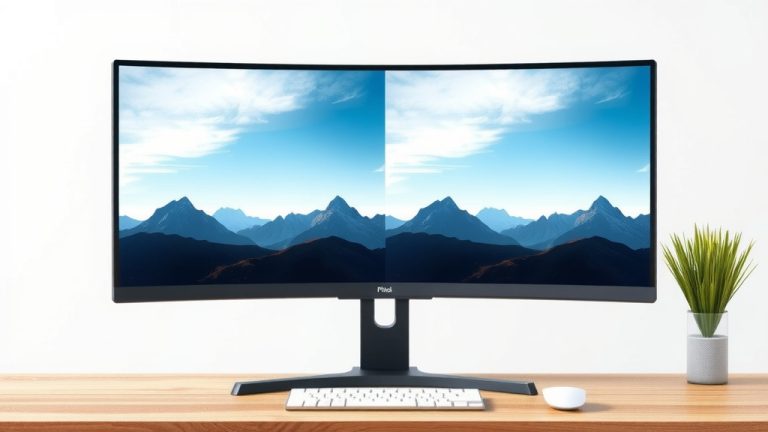
The goal is to have your laptop’s display appear exactly on the external monitor. Think of it like having a mirror image. This is called mirroring or duplicating your screen. You won’t have extra space to drag windows onto; everything you see on your laptop will be visible on both screens.
Understanding Your Connection Options
The first step is figuring out what kind of ports your laptop and monitor have. This determines the type of cable you’ll need. It’s like picking the right key for a lock. Modern laptops and monitors usually have common ports, making it easier.
Common Port Types You’ll Encounter
You’ll likely see a few different types of connectors. Knowing them will help you grab the right cable. Don’t worry if you haven’t seen them before; they’re quite common.
HDMI
HDMI is probably the most popular connection today. It’s a single cable that carries both video and audio. Most new laptops, TVs, and monitors have HDMI ports. It’s often indicated by a trapezoid-like shape.
DisplayPort
DisplayPort is another excellent option, especially for higher resolutions and refresh rates. It looks similar to HDMI but has a slightly different shape, often with one corner squared off. Many business laptops and gaming monitors use this. Some versions of DisplayPort can also carry audio.
USB-C
USB-C is becoming incredibly versatile. Many newer laptops use USB-C not just for data but also for video output. You might need a USB-C to HDMI or USB-C to DisplayPort adapter or cable, depending on your monitor. Check if your laptop’s USB-C port supports DisplayPort Alternate Mode (Alt Mode).
VGA and DVI (Older Connections)
You might still find VGA (a blue, 15-pin connector) or DVI ports on older equipment. VGA is analog and offers lower quality. DVI is digital but usually only carries video. If these are your only options, you can still connect, but the picture might not be as sharp.
Choosing the Right Cable
Once you know your ports, get the correct cable. For example, if both your laptop and monitor have HDMI, you simply need an HDMI cable. If your laptop has USB-C and your monitor has HDMI, you’ll need a USB-C to HDMI cable or adapter.
We found that using a direct cable connection (like HDMI to HDMI) usually offers the best performance and fewest issues. Adapters can sometimes introduce minor complications, though they are often perfectly fine.
Activating Screen Mirroring on Your Laptop
Once your cable is connected, you need to tell your laptop to send its display to the external monitor. This is done through your operating system’s display settings. It’s usually a quick keyboard shortcut or a few clicks.
Using Keyboard Shortcuts (The Quick Way)
Many laptops have a dedicated function key for this. Look for a key on your F-row (F1-F12) with an icon resembling two screens or a rectangle with lines. You’ll typically press this key while holding down the ‘Fn’ key. For example, it might be Fn + F4 or Fn + F8.
Pressing this shortcut usually brings up a small menu asking what you want to do with your display. You’ll see options like “Duplicate,” “Extend,” “Second Screen Only,” and “PC Screen Only.” Select “Duplicate” to mirror your screen.
Accessing Display Settings Manually
If the shortcut doesn’t work or you prefer using menus, you can access display settings directly. This is a reliable method across different laptop brands.
For Windows users:
- Right-click on an empty space on your desktop.
- Select “Display settings.”
- Scroll down to the “Multiple displays” section.
- In the dropdown menu, choose “Duplicate display.”
- Click “Keep changes” if prompted.
For macOS users:
- Click the Apple menu in the top-left corner.
- Select “System Settings” (or “System Preferences” on older macOS versions).
- Click “Displays.”
- If your external monitor is detected, you’ll see it listed.
- Click the “Use as” dropdown menu for your external monitor.
- Select “Mirror for [Your Laptop Name]” or a similar option.
We found that Windows often defaults to “Extend” mode, so selecting “Duplicate” is key. macOS is usually pretty good at detecting mirroring intent.
Troubleshooting Common Mirroring Problems
Most of the time, mirroring works without a hitch. But what if your monitor isn’t showing anything, or the picture looks fuzzy? Don’t panic; these issues are usually fixable.
No Signal or Black Screen
This is frustrating, but often it’s a simple connection issue. First, check your cable. Is it plugged in securely at both ends? Try unplugging and replugging it. If possible, try a different cable or port to rule out a faulty cable.
Make sure your monitor is turned on and set to the correct input source. You might have multiple inputs (HDMI 1, HDMI 2, DisplayPort), so ensure the monitor is on the one your laptop is plugged into. Your laptop might also still be set to “PC Screen Only,” so you might need to use the keyboard shortcut again to cycle through display modes.
Incorrect Resolution or Blurry Image
Sometimes, the laptop doesn’t automatically set the best resolution for the external monitor. In Windows, go back to “Display settings,” select the external monitor, and look for the “Display resolution” dropdown. Try selecting the recommended resolution, often labeled “(Recommended).”
For macOS, in “Displays,” you can usually click on the external monitor and select a scaled resolution. Research has shown that using the native resolution of your monitor provides the sharpest image (Apple Support).
Audio Not Playing Through the Monitor
If you’re using HDMI or DisplayPort, audio should ideally come through the monitor. In Windows, right-click the speaker icon in your taskbar and select “Sound settings” or “Playback devices.” Choose your monitor as the default playback device. For macOS, go to “System Settings” > “Sound” and select your monitor under the “Output” tab.
Check Your Laptop’s Compatibility
While rare for modern devices, older laptops might have limitations on video output. Most laptops made in the last 5-7 years should support external display mirroring without issues. We found that manufacturers often list display output capabilities in their specifications.
Quick Checklist for Success
Here’s a quick rundown to make sure you get mirroring set up smoothly:
- Verify Port Compatibility: Match your laptop’s output port with your monitor’s input port.
- Use the Right Cable: Ensure you have the correct cable (HDMI, DisplayPort, USB-C to HDMI, etc.).
- Secure Connections: Plug your cable in firmly at both ends.
- Select Correct Input: Set your monitor to the correct input source.
- Duplicate Display Setting: Use the keyboard shortcut or display settings to select “Duplicate.”
- Check Resolution: Adjust resolution in display settings if the image is unclear.
Conclusion
You’ve learned how easy it is to mirror your laptop to an external monitor. It’s a great way to expand your view for work or entertainment. By identifying your connection ports and using the right cable, you can achieve this setup. Remember to use your laptop’s display settings or a simple keyboard shortcut to select the “Duplicate” option.
Don’t get discouraged if you run into minor issues; most problems are easily fixed by checking connections or adjusting settings. Now that you’re equipped with this knowledge, you can confidently enjoy your laptop’s display on a larger screen. Go ahead and connect your monitor!
Frequently Asked Questions
What’s the difference between mirroring and extending my display?
Mirroring shows the exact same content on both your laptop and the external monitor, creating an identical picture. Extending your display, on the other hand, gives you more screen real estate by turning the external monitor into a second, separate desktop area where you can drag windows.
Can I mirror my laptop if it’s older?
Most laptops made in the last 5-7 years should support external display mirroring. However, very old laptops might have limited video output capabilities. You can often find your laptop’s specific display output options in its technical specifications online.
My monitor says “No Signal” after connecting, what should I do?
First, ensure your cable is securely plugged into both your laptop and monitor. Next, verify that your monitor is set to the correct input source (e.g., HDMI 1, DisplayPort). Sometimes, a quick restart of both devices can also resolve this issue.
Will audio play through my external monitor when mirroring?
Yes, if you are using an HDMI or DisplayPort connection, audio should transmit to your monitor. You may need to go into your laptop’s sound settings and select the external monitor as the default playback device for audio.
Do I need a special cable for mirroring?
You need a cable that is compatible with the ports on both your laptop and your monitor. For example, if your laptop has HDMI and your monitor has HDMI, you’ll need an HDMI cable. If your laptop has USB-C, you might need a USB-C to HDMI or USB-C to DisplayPort cable, depending on your monitor.