How to Hook Up Dual Monitors to a Laptop
Hooking up dual monitors to your laptop is surprisingly straightforward. You can easily expand your workspace by connecting one or two external displays. This process usually involves just a few cable connections and some simple settings adjustments on your laptop.
Adding more screens can really boost your productivity. Many professionals find that using multiple monitors helps them manage tasks more efficiently. It’s like giving your brain more room to think and organize information. You can see more at once, reducing the need to constantly switch between windows.
- Connect your monitors using the right cables.
- Adjust display settings on your laptop.
- Choose how you want your screens to work together.
- Troubleshoot common connection issues.
- Enjoy your expanded workspace!
Let’s walk through exactly how to connect those extra screens step by step.
Connecting Extra Screens to Your Laptop
Adding more displays to your laptop setup is a smart move. You can greatly boost your productivity and multitasking abilities. Think of it like giving yourself a bigger desk to spread your work across. This guide will walk you through the steps.
Understanding Your Laptop’s Ports
Before you buy any new cables, it’s essential to know what ports your laptop has. This is the gateway for connecting your monitors. Most modern laptops come with a few common options. You’ll want to match these to the ports on your external monitors.
Common Laptop Video Ports
You’ll likely find one or more of these video output ports on your laptop:
- HDMI: This is the most common port you’ll see. It carries both video and audio signals. Many TVs and monitors use HDMI.
- DisplayPort (DP): Similar to HDMI, it offers high-quality video and audio. Some laptops and monitors prefer this for its bandwidth.
- USB-C / Thunderbolt: This is a newer, versatile port. It can often carry video signals, data, and power. Some USB-C ports support DisplayPort Alternate Mode. Thunderbolt ports are even more powerful and can support multiple displays.
- VGA: An older analog port. You might find it on older laptops or monitors. The video quality isn’t as good as digital options.
- DVI: Another digital connection, often found on older monitors. It mainly carries video signals.
Checking Your Monitor’s Ports
Your external monitors will also have input ports. You need to see which ones your monitors support. They usually have HDMI, DisplayPort, DVI, or VGA. Sometimes, they even have USB-C inputs that can receive a video signal.
Choosing the Right Cables
Once you know your laptop’s output ports and your monitor’s input ports, you can choose the correct cables. The goal is to find a cable that bridges the connection between the two.
Matching Laptop to Monitor
If your laptop has HDMI and your monitor has HDMI, an HDMI-to-HDMI cable is your simplest choice. If your laptop has DisplayPort and your monitor has DisplayPort, use a DisplayPort-to-DisplayPort cable. What if the ports don’t match?
Using Adapters and Converters
Don’t worry if your ports aren’t a perfect match. Adapters and converters can help. For instance, a USB-C to HDMI adapter lets you connect a USB-C port to an HDMI monitor. A DisplayPort to DVI converter can link a DisplayPort source to a DVI input. Research suggests these adapters are widely available and work well for many setups (TechRadar).
When using adapters, make sure they support the resolution and refresh rate you want. Some cheaper adapters might limit performance. Always check the adapter’s specifications.
How Many Monitors Can You Connect?
The number of external monitors you can connect depends on your laptop’s capabilities. Many laptops can support at least two external displays. Some higher-end models with Thunderbolt can handle even more. You might also need a docking station or port replicator for multiple connections.
Connecting the Hardware
This part is usually the easiest. You’ll be physically plugging in the cables.
- Power Up: Ensure both your laptop and external monitors are powered on.
- Connect the Cable: Plug one end of your chosen cable (or adapter and cable) into your laptop’s video output port. Then, plug the other end into your monitor’s video input port.
- Repeat for Second Monitor: If you’re connecting a second monitor, repeat the process using another available port on your laptop and monitor.
If your laptop has limited video output ports, a docking station is a great solution. It provides multiple ports, allowing you to connect several monitors, plus other peripherals like keyboards and mice, with a single connection to your laptop. Many experts recommend docking stations for a cleaner, more expanded workspace (CNET).
Configuring Your Display Settings
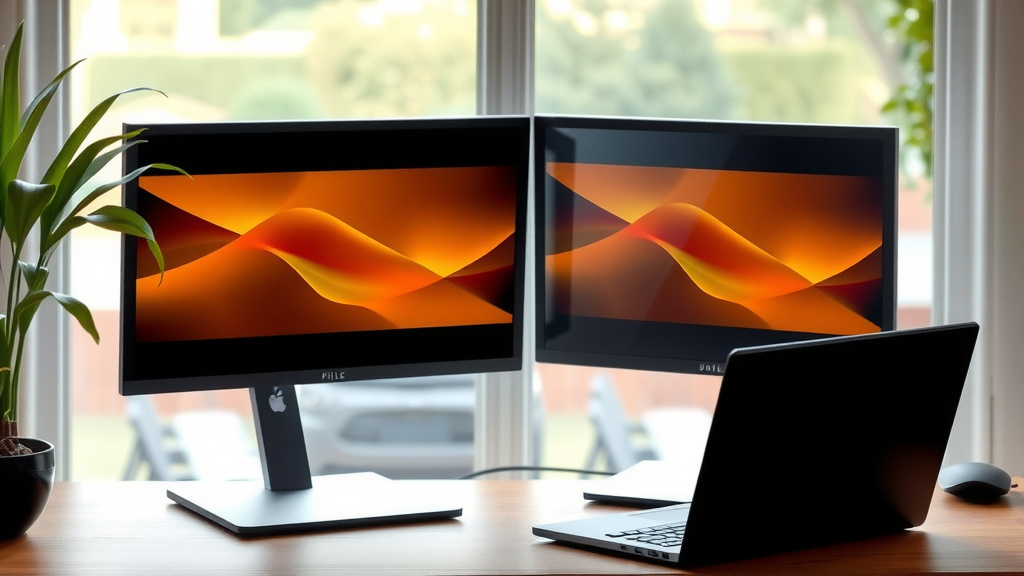
Once everything is plugged in, your laptop needs to know how to use the new screens. This involves adjusting display settings in your operating system.
Windows Display Settings
On Windows, right-click anywhere on your desktop. Select “Display settings” from the menu. You should see a diagram showing your monitors. Windows will usually detect them automatically.
You’ll see options to “Extend these displays,” “Duplicate these displays,” or “Show only on 1/2.”
- Extend: This is the most popular option. It makes your desktop larger, allowing you to drag windows between screens. It’s like having one giant workspace.
- Duplicate: This shows the exact same image on all screens. It’s useful for presentations when you want an audience to see what you see.
- Show only on 1/2: This turns off one of your displays, either the laptop screen or the external monitor.
You can also rearrange the monitors in the display settings to match their physical layout on your desk. Drag the numbered monitor boxes to match. This ensures your mouse moves correctly between screens.
macOS Display Settings
On a Mac, go to the Apple menu. Click “System Settings” (or “System Preferences” on older macOS versions). Then select “Displays.”
Your Mac will show the connected displays. You can choose between “Mirror Displays” or “Extend Display.”
“Mirror Displays” is like the duplicate option in Windows. “Extend Display” is like the extend option, giving you more screen real estate. You can also arrange your displays by dragging their icons to match their physical positions.
Troubleshooting Common Issues
Sometimes, things don’t work perfectly the first time. Don’t get discouraged; most issues are fixable.
- No Signal: If a monitor says “No Signal,” double-check all cable connections. Make sure they are plugged in securely at both ends. Try a different cable or adapter if possible. Also, verify the monitor is on the correct input source (e.g., HDMI 1, DisplayPort).
- Wrong Resolution: If the display looks blurry or too large, you need to adjust the resolution. Go back to your laptop’s display settings. Select the external monitor and choose the recommended or native resolution for that screen. Research indicates using the monitor’s native resolution provides the sharpest image (RTINGS.com).
- Laptop Screen Off: If your laptop screen turns off, check the “Multiple displays” setting. Ensure you haven’t accidentally selected “Show only on 2.”
- Performance Lag: If your displays are stuttering or slow, ensure your cables and adapters support the required bandwidth. Older cables or adapters might not handle high resolutions or refresh rates well. Also, check that your laptop’s graphics drivers are up to date.
Here’s a quick checklist to help you get set up:
- Verify laptop and monitor port types.
- Select the correct cables or adapters.
- Connect all cables securely.
- Power on all devices.
- Configure display settings in your OS.
- Test with different applications.
Conclusion
You’ve now seen how connecting dual monitors to your laptop is well within your reach. By understanding your ports, choosing the right cables, and configuring your display settings, you’re ready to expand your workspace. This upgrade can seriously boost your productivity and make multitasking a breeze. Don’t let the initial setup intimidate you; following these steps makes it manageable. Your next step is to identify your laptop’s video ports and gather your cables, and you’ll be enjoying your expanded digital real estate in no time!
Frequently Asked Questions
Can I connect two monitors to a laptop that only has one HDMI port?
Yes, you often can! You might need a USB-C adapter or a docking station. Many USB-C ports support video output, allowing you to connect a second monitor via an adapter. A docking station provides multiple video outputs and connects to your laptop with a single cable.
Will connecting two monitors slow down my laptop?
It depends on your laptop’s hardware and the resolution of the monitors. For most modern laptops, running two external displays at standard resolutions should not cause significant slowdowns. However, if your laptop is older or you’re using very high-resolution monitors, you might notice a difference.
What’s the difference between “Extend” and “Duplicate” displays?
Extend creates one large, continuous desktop across all your screens, letting you drag windows between them for better multitasking. Duplicate shows the exact same image on all displays, which is useful for presentations.
Do I need a special cable for each monitor?
Not necessarily. You need a cable that matches your laptop’s output port and your monitor’s input port. If the ports don’t match, an adapter or converter is required. For example, you might use an HDMI cable for one monitor and a USB-C to DisplayPort cable for the other, if your laptop supports both.
How do I make sure my mouse moves correctly between screens?
This is adjusted in your display settings. On Windows, go to “Display settings” and drag the monitor boxes to match their physical positions on your desk. On macOS, arrange the display icons in “System Settings” > “Displays” to reflect their real-world layout. This ensures smooth cursor movement.