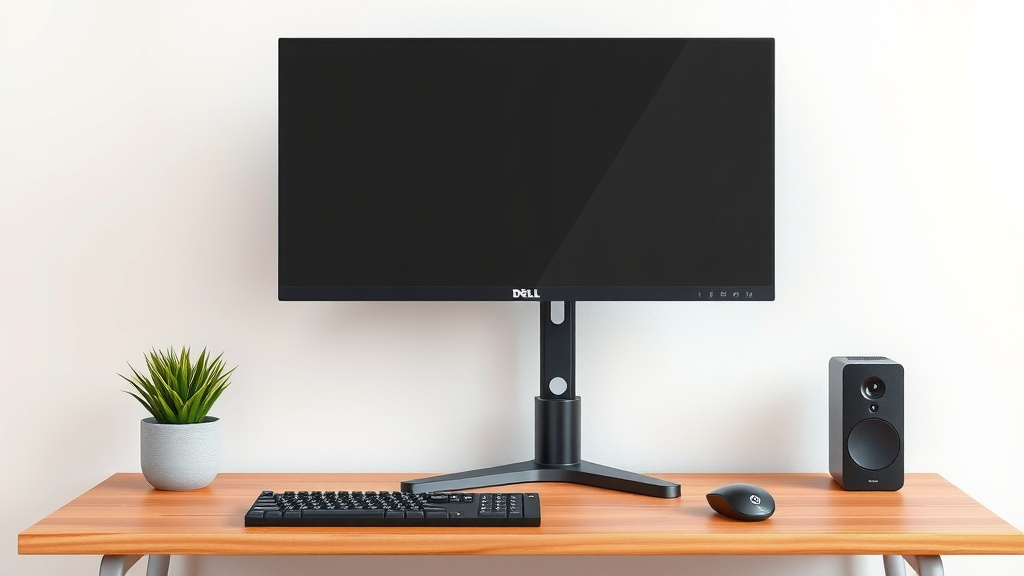
Dell Monitor Stand Height Adjustment Guide
Adjusting your Dell monitor stand’s height is usually a simple push or pull motion. Most Dell stands use a release lever or button at the back or underside of the monitor arm. Once you locate this, you can easily slide the monitor up or down to find your perfect eye level.
Getting your monitor height right is key for comfort. An improperly positioned screen can lead to neck strain and eye fatigue. We found that many users overlook this simple adjustment. Making this change can make a big difference in your workday and overall well-being.
- Find the release lever on your Dell stand.
- Gently push or pull the monitor to your desired height.
- Release the lever to lock the monitor in place.
- Ensure your monitor is at eye level for best comfort.
Let’s walk through exactly how to get that Dell monitor stand adjusted for your comfort, step by step.
How to Adjust Your Dell Monitor’s Height for Better Ergonomics
Getting your Dell monitor set at the right height is a game-changer for comfort. You’ve likely heard that having your screen at eye level is important. We found that most Dell monitor stands are designed for easy adjustment, often using a simple lever or button mechanism. Let’s break down how you can achieve that perfect screen position.
Locating the Height Adjustment Mechanism
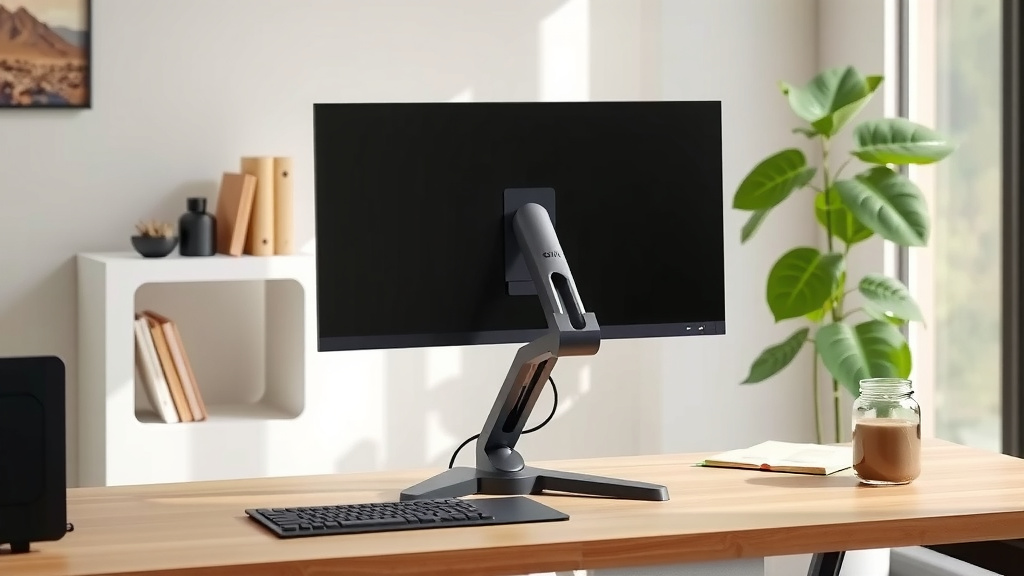
The first step is finding the part of your stand that allows for movement. Most Dell monitor stands utilize a release mechanism. This is commonly found on the monitor arm itself, often near where the arm connects to the stand base or where it attaches to the back of the monitor. It might be a button, a small lever, or even a squeeze grip.
Common Places to Look
We’ve seen a few common spots where manufacturers hide these adjustment points. For your Dell monitor, try looking:
- On the back of the monitor arm, usually where it bends or swivels.
- Underneath the monitor arm, close to the neck of the stand.
- Sometimes, it’s integrated into a small button or paddle that you squeeze.
Don’t be afraid to gently tilt and turn your monitor. This can help you get a clearer view of the arm and its connection points to spot the lever or button.
Making the Height Adjustment: Step-by-Step
Once you’ve found the adjustment mechanism, the actual height change is usually quite straightforward. It’s designed to be a smooth, one-handed operation for most users.
Engaging the Release Mechanism
The way you engage the release depends on the type of mechanism. If it’s a lever, you’ll likely need to pull it outward or push it down. If it’s a button, you might need to press it in. Some stands have a grip you squeeze. The key is to apply gentle pressure until you feel or hear a click, indicating it’s unlocked.
It’s important to be gentle here. You don’t need a lot of force. We found that a light touch is usually all it takes to free the arm for movement. Forcing it could potentially damage the stand mechanism.
Moving the Monitor to Your Desired Height
With the mechanism released, you can now move the monitor. Gently push down or pull up on the monitor or its arm. You should feel it slide smoothly along the vertical track. Move it slowly until the top of your monitor screen is roughly at eye level.
Why eye level? Experts recommend this position to reduce strain on your neck and shoulders (Occupational Safety and Health Administration). When your eyes are level with the top third of your screen, your head and neck are in a more neutral position. This can prevent discomfort during long work sessions.
Locking the Monitor in Place
Once you’ve found the perfect height, you need to secure the monitor. Simply release the lever, button, or grip you were holding. You should feel or hear a satisfying click as the mechanism locks the arm back into place. Give the monitor a very gentle wiggle to ensure it’s stable and won’t accidentally slide down.
If the monitor feels loose or doesn’t stay put, try re-engaging the release and then letting it lock again. Sometimes, a slight repositioning is all that’s needed. We found that giving it a second to settle after locking helps confirm its stability.
Troubleshooting Common Dell Monitor Stand Issues
What if your Dell monitor stand doesn’t seem to adjust easily? Don’t worry, we’ve encountered a few common snags that users often run into. Usually, they have simple fixes.
Stiff or Stuck Adjustment Mechanism
Sometimes, the adjustment mechanism can feel a bit stiff, especially if it hasn’t been moved in a while. Dust or dried lubricant can sometimes cause this.
Our research suggests that a gentle cleaning might help. You can try wiping down the visible parts of the arm and mechanism with a slightly damp, soft cloth. If the mechanism is particularly stubborn, a tiny amount of silicone-based lubricant spray applied to the moving parts (avoiding the screen!) might be recommended by some manufacturers, but always check your specific monitor manual first. We found that often, just wiggling it a bit more firmly (but still carefully) after the initial unlock can free it up.
Monitor Won’t Stay at Desired Height
This is frustrating, right? If your monitor keeps sliding down after you’ve adjusted it, it could indicate a worn-out locking mechanism or that the stand is overloaded. Dell monitors vary in weight, and some stands are designed for specific weight ranges.
First, ensure you’ve properly locked the mechanism. If it still slides, check your monitor’s weight against the stand’s specifications if possible. Some users have found that slightly tightening a visible bolt or screw on the arm mechanism (if accessible and present) can help, but this should be done with extreme caution. Many experts suggest that if a stand is consistently failing to hold weight, it might be time to consider a replacement stand or a different mounting solution (like a VESA mount if your monitor supports it).
Not Enough Range of Motion
What if you can’t get the monitor high enough or low enough? This is often a limitation of the specific stand model. Some stands offer extensive vertical travel, while others have a more limited range.
We found that checking the specifications for your particular Dell monitor model can clarify its stand’s capabilities. If the range isn’t sufficient for your ergonomic needs, you might need to use external aids. For example, placing a sturdy, stable object like a ream of paper or a purpose-built monitor riser underneath the stand’s base can add a little extra height, though this isn’t ideal for vertical arm movement. For significant height adjustments, a different stand or a wall mount might be the best long-term solution.
Ergonomic Checklist for Your Perfect Setup
Once you’ve adjusted your Dell monitor’s height, take a moment to run through this quick checklist to ensure you’re maximizing comfort and minimizing strain. We found that even small tweaks can make a big difference!
- Eye Level: Is the top of your monitor screen at or just below eye level?
- Distance: Are you sitting about an arm’s length away from the screen?
- Posture: Are your feet flat on the floor and your back supported by your chair?
- Neck Position: Is your head and neck in a neutral, relaxed position, not craning forward or tilting excessively?
- Screen Tilt: Is the monitor tilted slightly upward so you don’t have to look down?
Conclusion
You’ve learned how to adjust your Dell monitor stand’s height for better comfort. Finding that release mechanism and sliding your monitor into the perfect eye-level position is a simple yet impactful change. This adjustment can significantly reduce neck strain and eye fatigue. Remember, a comfortable setup is key to a productive and healthy workday. Take a moment now to make that adjustment and feel the difference it makes!
Frequently Asked Questions
How do I know if my Dell monitor stand can adjust height?
Most modern Dell monitors come with stands that offer height adjustment. Look for a lever, button, or squeeze grip on the monitor arm. If you can’t find one, check your monitor’s manual or the Dell support website for your specific model’s specifications. Some older or basic models might not have this feature.
Can I adjust the height without the monitor attached to the stand?
While some stands might allow this, it’s generally not recommended. The weight of the monitor often helps stabilize the stand during adjustment. It’s best to keep the monitor attached to ensure the mechanism works as intended and to avoid accidental drops or damage. We found it’s easiest when the monitor is already mounted.
What if the release lever on my Dell monitor stand is hard to press?
If the lever is stiff, it might just need a little lubrication or cleaning. Try wiping down the visible parts of the arm and mechanism with a soft, dry cloth. If it’s still difficult, a tiny spray of silicone lubricant on the moving parts (avoiding the screen) might help, but always consult your manual first. Gentle, repeated attempts can sometimes loosen it up.
My Dell monitor stand only moves up and down, not side-to-side. Is this normal?
Yes, that’s perfectly normal for many Dell monitor stands. Height adjustment is a common feature, while swivel, tilt, and rotation capabilities can vary greatly by model. Your stand is likely functioning as designed if it adjusts vertically but not horizontally. Check your stand’s specifications if you need more versatile movement.
Is it okay to put books under the monitor stand base to raise it?
While placing items under the stand’s base can add some height, it’s not the ideal ergonomic solution. This method doesn’t allow for fine-tuning the monitor’s vertical position relative to your eyes and can sometimes make the setup less stable. For proper ergonomic adjustment, using the stand’s built-in height feature is always best.