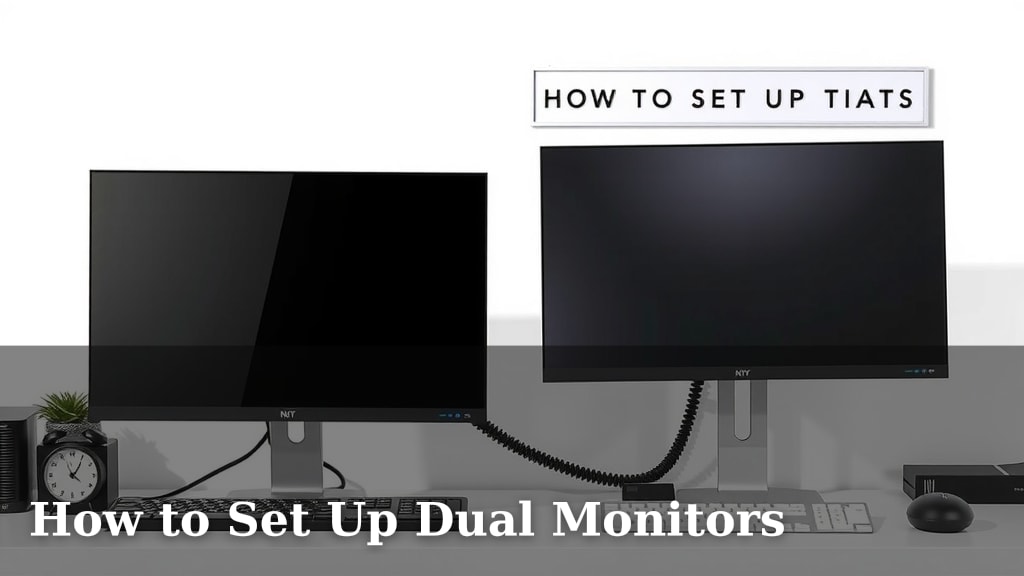
How to Set Up Dual Monitors
Setting up dual monitors is surprisingly easy and can dramatically boost your productivity. You just need to connect your second monitor to your computer and tell your system how you want to use it. This process typically takes less than 15 minutes.
Many people find that having two screens makes multitasking much simpler. You can keep reference materials open on one screen while you work on the other. This setup is ideal for anyone who juggles multiple tasks, from programmers to graphic designers and even busy students needing to manage research and writing simultaneously. It really transforms how you interact with your computer.
- Connect your second monitor to your PC.
- Adjust display settings in your operating system.
- Choose between duplicating or extending your desktop.
- Position your monitors for comfortable viewing.
Let’s walk through exactly how this works step by step so you can enjoy your expanded digital workspace in no time.
Getting Your Second Monitor Connected
You’re ready to expand your screen real estate! Connecting your second monitor is usually a **straightforward process**. Most computers have several ports you can use. You’ll just need to match the port on your computer to the port on your monitor.
Understanding Your Ports
First, take a look at the back or sides of your computer. You’ll likely see a few different types of video output ports. The most common ones are HDMI, DisplayPort, and sometimes DVI or VGA. HDMI and DisplayPort are the modern standards and offer the best quality. You’ll also need to check your monitor for its available input ports.
HDMI
HDMI is like the universal adapter for most modern electronics. It carries both **video and audio signals**. If both your computer and monitor have HDMI ports, this is often the easiest option. You’ll just need an HDMI cable.
DisplayPort
DisplayPort is another excellent modern option. It’s often found on business-class computers and higher-end graphics cards. DisplayPort can support very **high resolutions and refresh rates**. It’s a great choice if you’re into gaming or high-definition content.
DVI and VGA
DVI ports are a bit older. They carry **digital video signals** but not audio. VGA is the oldest, using an analog signal. If your computer or monitor only has these ports, they will still work, but the video quality might not be as sharp as HDMI or DisplayPort.
Making the Physical Connection
Once you’ve identified your ports, it’s time to connect. You’ll need the right cable. If your ports match (e.g., HDMI to HDMI), it’s a simple plug-and-play. If they don’t match, you might need an **adapter**. For example, you could use a USB-C to HDMI adapter if your laptop only has USB-C ports but your monitor has HDMI.
Carefully plug one end of the cable into your computer’s video output port. Then, connect the other end to your monitor’s video input port. Make sure the connection is snug. Don’t force it; if it doesn’t feel right, double-check that you have the correct cable and port orientation.
After connecting the video cable, plug in your monitor’s power cord and turn it on. Your computer should automatically detect the new display. You might see your desktop appear on the second screen right away, or you might need to adjust some settings.
Configuring Your Display Settings
Your operating system is where you tell your computer how to use the extra screen. Both Windows and macOS have user-friendly display settings menus. This is where you’ll choose whether to mirror your display or extend it. You’ll also adjust resolution and orientation here.
Accessing Display Settings
On Windows, the easiest way is to right-click on your desktop and select “Display settings.” You’ll see a visual representation of your monitors there. On macOS, go to “System Settings” (or “System Preferences” on older versions) and click on “Displays.”
Choosing Between Extend and Duplicate
This is the most important decision you’ll make in the settings. Your computer needs to know how you want to use the two screens.
Duplicate Mode (Mirroring)
If you choose to duplicate your display, both monitors will show the **exact same thing**. This is handy for presentations or showing someone else what’s on your screen. Think of it like having two identical windows open. It’s simple but doesn’t give you more usable workspace.
Extend Mode
This is where the magic happens for productivity. When you extend your desktop, your second monitor becomes a **seamless extension of your primary screen**. You can drag windows from one screen to the other. You’ll have a much larger, combined workspace. This mode is ideal for multitasking.
We found that most users looking for increased productivity prefer the “Extend” option. It allows you to keep different applications open on each screen simultaneously. For instance, you could have your email and calendar on one monitor and your work documents on the other. Many experts agree this setup significantly reduces task-switching friction (Nielsen Norman Group).
Arranging Your Monitors
In the display settings, you’ll see numbered boxes representing your monitors. You can drag these boxes around to match the physical arrangement of your monitors on your desk. This is essential so that when you move your mouse from one screen to the other, it feels natural and **doesn’t jump around unexpectedly**.
For example, if your second monitor is to the right of your main one, you’ll drag its box to the right of the primary monitor’s box in the settings. This ensures your cursor moves logically between them. It’s a small step, but it makes a big difference in usability.
Setting Resolution and Orientation
You might also need to adjust the resolution and orientation of your second monitor. The resolution determines how much content fits on the screen and how sharp it looks. Most modern monitors work best at their “native” resolution, which is usually the highest option available. Ensure both monitors are set to their recommended resolutions for the clearest picture.
Orientation allows you to rotate your screen, usually to portrait mode (vertical). This can be useful for reading long documents or coding. Simply select the monitor you want to adjust, choose the desired orientation, and click “Apply.” You’ll be prompted to keep the changes.
Optimizing Your Dual Monitor Setup
Once everything is connected and configured, you can fine-tune your workspace. Think about how you physically position your monitors and how you organize your digital windows.
Physical Placement for Comfort
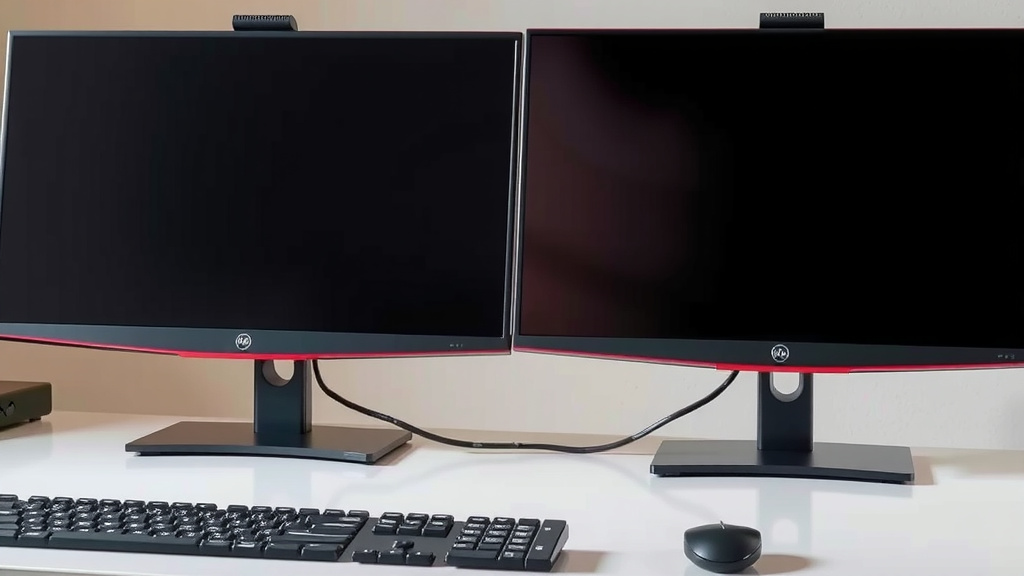
Ergonomics matter! Position your monitors so you’re not constantly straining your neck. Ideally, the top of your primary monitor should be at or slightly below eye level. Keep them at a comfortable viewing distance, usually about an arm’s length away. If you have two monitors side-by-side, they should be angled slightly inward to form a gentle arc.
Understanding Viewing Angles
Different monitors have different viewing angles. This refers to how far you can look off-center before the colors or brightness start to degrade. For side-by-side setups, ensure both monitors have good viewing angles so the colors look consistent across both screens.
Tips for Efficient Window Management
With more screen space, it’s easy to get lost in a sea of windows. Here are a few tips to keep things organized:
- Keep your **taskbar** (or dock) on your primary monitor.
- Assign specific applications or types of tasks to each monitor.
- Use keyboard shortcuts for moving windows between screens. For example, on Windows, Win + Shift + Left/Right Arrow moves a window to another monitor.
- Take advantage of **window snapping** features to quickly arrange windows side-by-side on a single screen.
We found that creating a routine for where you open specific applications can greatly improve workflow. For instance, always opening your web browser on the left monitor and your coding editor on the right. This kind of habit formation helps your brain adapt to the dual-screen environment more quickly.
Considerations for Different Tasks
Your ideal setup might change based on what you do. Programmers might want their code on one screen and the compiler/browser on another. Writers might prefer a distraction-free writing app on one and research materials on the other. Graphic designers might spread out their tools and canvas across both displays.
Here’s a quick summary checklist to ensure you’ve got it all:
- Confirm Compatible Ports: Checked your computer and monitor ports and have the right cable/adapter.
- Secure Physical Connections: Both video and power cables are firmly plugged in.
- OS Detects Second Monitor: Your computer recognizes the new display in settings.
- Extended Desktop is Active: You’ve selected “Extend these displays” (or similar).
- Monitor Arrangement is Accurate: The on-screen boxes match your physical setup.
- Primary Monitor is Set: Your main screen is designated correctly for tasks like the taskbar.
Conclusion
You’ve successfully navigated the steps to set up your dual monitors. Connecting your hardware and configuring your system settings is now complete. Remember, a dual monitor setup is about making your work more efficient. You can now drag windows freely and organize your digital space. Keep experimenting with different layouts. Find what feels most natural for your workflow. Now, go enjoy your expanded digital canvas and boost your productivity!
Frequently Asked Questions
Can I use monitors with different resolutions or sizes?
Yes, you absolutely can. Your operating system will allow you to mix and match monitors of different resolutions and sizes. You might need to adjust the scaling settings in your display preferences to ensure text and icons look consistent across both screens.
What if my computer doesn’t automatically detect the second monitor?
If your computer doesn’t immediately recognize the second monitor, try restarting your computer with the monitor connected and powered on. You can also manually scan for hardware changes in your display settings. Sometimes, a simple cable re-plug can also resolve the issue.
How do I decide which monitor should be my primary display?
Your primary monitor is where your taskbar and system icons will appear by default. Choose the monitor you use most often for main tasks or the one with the better display quality as your primary. You can easily change this designation in your display settings.
Will setting up dual monitors slow down my computer?
For most modern computers, running two monitors will not significantly impact performance. Older or less powerful machines might see a slight difference, especially when running demanding applications or high-resolution displays. Generally, the productivity gains far outweigh any minor performance dip.
Is it better to use HDMI or DisplayPort for my second monitor?
Both HDMI and DisplayPort are excellent choices for modern monitors. DisplayPort often supports higher refresh rates and resolutions, making it ideal for gaming or professional graphics work. For general productivity, HDMI is usually just as good and often more common.
![What Is The Best 10 Bit Monitor [In 2026]](https://bestaccir.com/wp-content/uploads/2026/03/Best-10-Bit-Monitor-768x516.jpg)