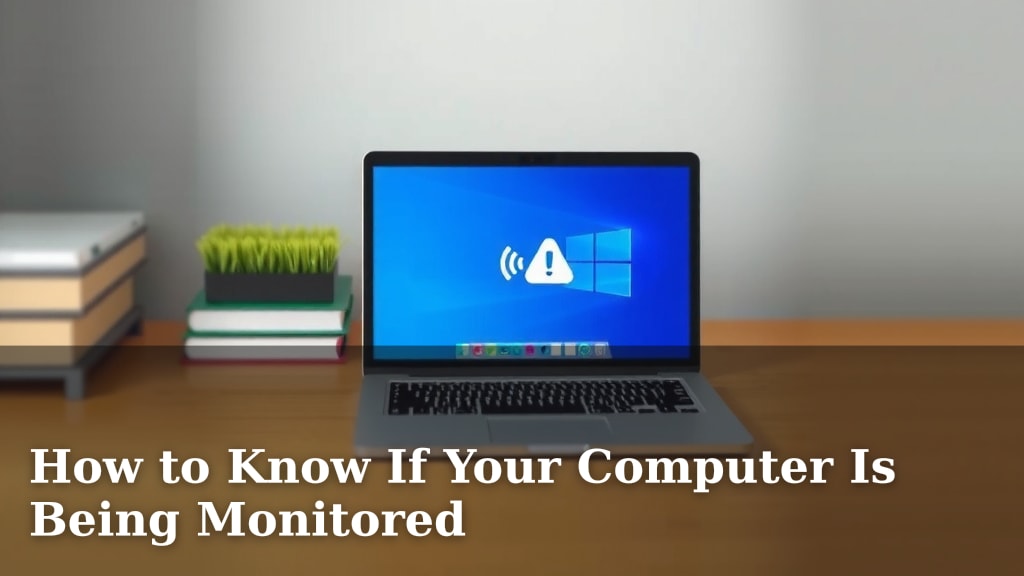
How to Know If Your Computer Is Being Monitored
You might be wondering if someone is snooping on your computer activity. The truth is, there are several telltale signs that your computer might be monitored. Often, these signs point to unusual software or unexpected network traffic. Knowing what to look for can help you reclaim your privacy.
It’s understandable to feel concerned about your online privacy. We’ve researched common indicators that suggest your computer’s activity isn’t entirely private. These include things like your computer acting strangely or unfamiliar programs running in the background. Many experts agree that being aware of these signs is the first step toward security.
- Look for unusual pop-ups.
- Check for unfamiliar running programs.
- Monitor your network activity.
- Notice sudden slowdowns.
Let’s walk through the key indicators that might suggest your computer is being monitored, so you can take appropriate action.
Uncovering Signs of Computer Monitoring
It’s a disturbing thought, isn’t it? The idea that someone might be peeking at your screen or tracking your online moves. You might be wondering, “Is my computer being watched?” This guide will help you spot the clues. We’ve looked into common signs that suggest your digital activity might not be as private as you thought. Think of these as breadcrumbs that could lead you to a clearer understanding.
Unusual Pop-Ups and Advertisements
Have you noticed a sudden flood of unexpected pop-up ads? Perhaps they appear even when you’re not browsing the web. This can be a strong indicator. Some monitoring software uses pop-ups to deliver messages or to distract you. They might also be signs of adware, which often comes bundled with other programs. If these ads are intrusive and hard to close, it’s worth investigating further. Your browser might also be redirecting you to strange websites without your input.
Strange Behavior and Performance Issues
Your computer might be trying to tell you something. If it’s suddenly running much slower than usual, that’s a red flag. Many programs that monitor your activity run in the background. They consume resources like memory and processing power. This can lead to significant slowdowns. Have you experienced unexplained crashes or freezes? These glitches could also be symptoms of something running without your knowledge.
Slow Startup and Shutdown Times
Pay attention to how long it takes your computer to boot up or shut down. If these processes have become noticeably longer than they used to be, it’s a potential clue. Monitoring software often needs to load and run at startup. This adds to the time it takes for your system to become ready or to power off completely.
Unexpected Hard Drive Activity
Does your hard drive seem to be working overtime, even when you’re not actively doing much? You might hear the drive constantly whirring or see the activity light blinking more than normal. This constant activity can mean data is being accessed or transmitted. This is often a sign of background processes, including potential monitoring tools, at work.
Unfamiliar Programs and Processes
Let’s check what’s actually running on your machine. You can do this by opening your Task Manager (on Windows) or Activity Monitor (on Mac). Look for any applications or processes that you don’t recognize. Some monitoring software tries to hide itself, but it still needs to run. If you see something that doesn’t sound familiar, do a quick online search for its name. You might be surprised by what you find.
Checking Your Running Processes
To open Task Manager on Windows, press Ctrl+Shift+Esc. On a Mac, go to Applications > Utilities > Activity Monitor. Scroll through the list of running processes. If you see a name you don’t recognize, right-click on it and select “Search online” or a similar option. This can help you identify if it’s a legitimate system process or something suspicious. Some legitimate background programs might sound unfamiliar, so cross-referencing is key.
Unusual Network Activity
Your computer communicates with the internet. Monitoring software often needs to send collected data somewhere. We found that unusual network traffic can be a sign. Look for patterns that seem out of the ordinary. Is your internet connection slower than usual, even when you’re not downloading large files? This could mean data is being uploaded in the background without your permission.
Monitoring Your Connections
You can check your network activity using tools built into your operating system. On Windows, the Resource Monitor can show you which applications are using your network. On a Mac, the Network Utility offers similar insights. If you see a program that you don’t recognize sending or receiving a lot of data, it warrants a closer look. Many experts suggest keeping an eye on your data usage, especially if it spikes unexpectedly (Government cybersecurity guidelines).
Unexpected System Changes
Have you noticed changes to your computer’s settings that you didn’t make? Things like your homepage changing, new toolbars appearing in your browser, or security settings being altered can be signs. Some monitoring tools might adjust these settings to ensure they can operate or to prevent you from detecting them. Always be wary of unexpected modifications to your system’s configuration.
Camera and Microphone Indicators
Modern operating systems often have indicators for when your camera or microphone is active. On many devices, a green or amber light will appear near the camera lens when it’s in use. Similarly, some operating systems display an icon in the taskbar or menu bar when the microphone is active. If you see these indicators light up when you’re not using any applications that require them, it’s a very serious sign that your devices might be accessed remotely.
Checklist: Are You Being Monitored?
Let’s do a quick check of your computer. Go through these points to see if anything sounds familiar:
- Are you seeing more pop-up ads than usual?
- Does your computer feel unusually slow?
- Are you hearing your hard drive work constantly?
- Do you see unfamiliar programs running?
- Is your internet connection acting strangely?
- Did your settings change without you doing it?
What to Do If You Suspect Monitoring
If you’ve found several of these signs, don’t panic. The first step is to trust your instincts and investigate further. Many legitimate software programs can help you scan for malware and spyware. Running a scan with a reputable antivirus or anti-malware program is often recommended. If you suspect your computer is being monitored at work, it’s best to consult your IT department. They can explain company policies regarding computer usage and monitoring.
Conclusion
Spotting potential computer monitoring involves paying attention to subtle changes. You’ve learned to watch for unusual pop-ups, performance dips, and unfamiliar programs. Keep an eye on your network traffic and unexpected system modifications too. Trusting your instincts is key if something feels off. If you suspect monitoring, the next logical step is to run a scan with reputable anti-malware software. If you’re on a work computer, always speak with your IT department first.
Frequently Asked Questions
Can someone see my screen without me knowing?
Yes, it’s possible if monitoring software is installed. Signs like unexpected mouse movements or your screen changing on its own could indicate this. Also, be aware of your camera indicator light – if it turns on when you’re not using it, that’s a major red flag.
How can I check for hidden spy software?
You can check your computer’s Task Manager or Activity Monitor for unfamiliar processes. Regularly scanning your system with a trusted antivirus or anti-malware program is also essential. These tools are designed to detect and remove suspicious software.
Is it normal for my computer to suddenly get slow?
Not usually. A sudden, unexplained slowdown can be a sign of unwanted software running in the background. Monitoring programs often consume system resources like your CPU and RAM, leading to performance issues. Always investigate if your computer’s speed changes drastically.
What if my internet is slow, but I’m not downloading anything?
This could signal unusual network activity. Monitoring software needs to send collected data somewhere, often over the internet. If your connection speed drops without any obvious reason, it might mean data is being uploaded secretly from your computer.
Can my employer monitor my personal computer if I use it for work?
Company policies usually dictate this. If you use a personal device for work, your employer might have the right to monitor it, especially if work-related data is accessed. It’s best to review your company’s IT policy or speak directly with your IT department for clarity.