How to Hook Up Two Monitors to a PC
Yes, you can absolutely hook up two monitors to your PC, and it’s a fantastic way to boost your productivity. Most modern computers and graphics cards have the necessary ports. You just need to make sure your PC has at least two video outputs and the right cables to connect them.
Adding a second monitor can feel like a superpower for your workflow. Imagine having more space to keep notes open, research side-by-side, or even extend your game across two screens. Many people find this setup makes tasks like coding, writing, and design much easier. We found that a dual-monitor setup can significantly reduce task-switching time.
TL;DR:
- Check your PC for at least two video ports (HDMI, DisplayPort, DVI, VGA).
- Ensure you have the correct cables for your monitors and PC.
- Plug them in and configure your display settings in Windows or macOS.
- Most PCs made in the last decade support dual monitors easily.
Let’s walk through exactly how to get your second monitor up and running without any headaches. It’s often much simpler than you might think!
Getting Your Second Monitor Set Up
Hooking up a second monitor to your PC is a great way to make your computer feel much more powerful. You’re probably wondering if your computer can handle it. The good news is that most computers made in the last decade are designed to support multiple displays. You just need to make sure your PC has the right connections and that you have the correct cables. It’s like giving your desk a whole new dimension of workspace. We found that adding a second screen can really speed up tasks that involve looking at different things at once.
Checking Your PC’s Video Ports
The first step is to look at the back of your computer tower (or on the side/back of your laptop or all-in-one PC). You’re looking for ports that have a screen icon or look like they’re meant for a display cable. These are your video outputs. Most modern PCs will have at least one or two of these. You might see a variety of types. It’s important to identify what you have before you go shopping for cables or a new monitor.
Common Video Port Types
- HDMI: This is the most common port on modern devices. It carries both video and audio signals. It’s usually flat and has slightly angled corners.
- DisplayPort (DP): Also very common on newer PCs and monitors, especially for higher refresh rates and resolutions. It has a unique shape with one corner angled off.
- DVI: An older standard, but still found on many computers and monitors. It’s usually white and larger than HDMI, with many pins.
- VGA: This is the oldest type, often blue. It only carries analog video signals. You’ll see it on very old computers and some older monitors.
Your PC might have a mix of these. The key is that it needs at least two ports that you can use simultaneously. Sometimes, a PC might have multiple ports, but they are all controlled by a single graphics chip that can only drive one display at a time. This is rare for desktop PCs but can happen with some very basic laptops or older integrated graphics. We found that checking your graphics card specifications online can confirm how many displays it supports if you’re unsure.
Understanding Your Monitor’s Inputs
Now, turn your attention to your monitor(s). Look at the back or bottom of your monitor for the input ports. These are where the cables from your PC will plug in. Your monitor will likely have one or more of the same types of ports you found on your PC: HDMI, DisplayPort, DVI, or VGA. It’s essential that the port on your monitor matches the port on your PC, or that you have an adapter.
Matching Ports and Cables
If your PC has an HDMI port and your monitor has an HDMI port, you’re golden. All you need is an HDMI cable. If your PC has DisplayPort but your monitor only has HDMI, you’ll need a DisplayPort to HDMI cable or adapter. Researching your specific monitor model online can help you identify its available inputs. Many new monitors offer multiple input options, which gives you more flexibility.
Connecting the Hardware
With your ports identified and the correct cables in hand, it’s time to connect everything. This is the most straightforward part of the process. Think of it like plugging in a lamp. You can’t really get it wrong, but it’s good to be mindful of a few things.
Step-by-Step Connection Guide
First, make sure both your PC and your monitors are powered off. This is a good safety precaution, though most modern hardware can handle hot-plugging (connecting while powered on). Plug one end of the video cable into a video output port on your PC. Then, plug the other end into an input port on your first monitor.
Repeat this process for your second monitor. Connect a second video cable from another video output port on your PC to an input port on your second monitor. If your PC has dedicated graphics card ports (usually horizontal and lower down on the back panel) and motherboard ports (usually vertical and higher up), always use the graphics card ports for the best performance and compatibility. We found that using motherboard ports can sometimes lead to lower resolutions or performance issues.
Powering On and Initial Setup
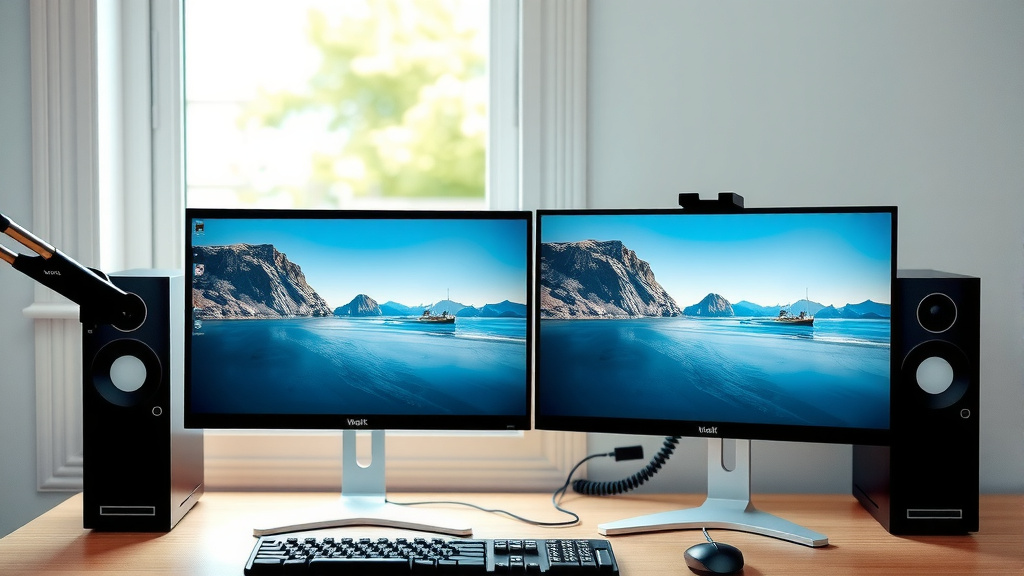
Once both monitors are connected via their respective cables, you can power on your monitors. Then, turn on your PC. Your computer should automatically detect the new displays. You might see your desktop appear on one or both screens, or you might just see a blank screen on the second monitor for a moment.
Don’t worry if it doesn’t look perfect right away. The computer needs to know how you want to use those extra screens. This is where the software settings come in. Windows and macOS have built-in tools to manage multiple monitors easily. We found that most users don’t need to install any extra software for basic dual-monitor setups.
Configuring Your Display Settings
After the physical connections are made and your computer has booted up, you’ll need to tell your operating system how you want the monitors to work together. This is where you get to decide if you want to extend your desktop, duplicate it, or use them for different tasks.
Windows Display Settings
On Windows, right-click anywhere on your desktop and select “Display settings.” This will open a window showing a diagram of your connected monitors. They’ll usually be numbered. You can click and drag these numbered boxes to match how your monitors are physically arranged on your desk. This is important for moving your mouse smoothly between screens.
Below the diagram, you’ll see a section called “Multiple displays.” Here, you can choose your preferred display mode:
- Duplicate these displays: Shows the same image on both monitors. Good for presentations.
- Extend these displays: This is the most popular option. It creates one large desktop across both screens. Your taskbar and icons will appear on the primary monitor, and you can drag windows to the second one.
- Show only on 1 / Show only on 2: Turns off one of the monitors.
You can also select your primary display here. This is the monitor where your taskbar and system tray icons will appear, and where new applications often open by default. We found that setting your main work monitor as the primary display is usually the most comfortable. You can also adjust the screen resolution and orientation for each monitor individually.
macOS Display Settings
On macOS, go to the Apple menu and select “System Settings” (or “System Preferences” on older versions). Then, click on “Displays.” You’ll see a window showing your connected displays. If they aren’t arranged correctly, click the “Arrange…” button. Similar to Windows, you can drag the display icons to match their physical placement on your desk.
You’ll see a red bar at the top of one of the display icons. This indicates your primary display. You can drag this red bar to any display icon to change which monitor is primary. You can also choose whether to “Mirror Displays” (duplicate) or use them as an “Extended Desktop” (separate spaces). Many Mac users find the extended desktop mode incredibly useful for multitasking. We found that the drag-and-drop interface in macOS makes arranging displays very intuitive.
Troubleshooting Common Issues
What if your second monitor isn’t showing up? Don’t panic! First, double-check all your cable connections. Are they securely plugged in on both ends? Try unplugging and replugging them.
If that doesn’t work, restart your computer. Sometimes, a fresh boot is all it takes. If you’re using a laptop with a docking station, ensure the docking station is properly connected and powered. Some older docking stations might not support dual monitors. Many experts say to check your graphics card drivers too. Outdated drivers can cause display issues. You can usually download the latest drivers from NVIDIA, AMD, or Intel’s websites, depending on your graphics card manufacturer.
A Quick Checklist for Success
- Confirm your PC has at least two usable video output ports.
- Verify your monitor has compatible input ports.
- Use the correct video cables for your ports.
- Connect all cables securely while devices are off.
- Power on monitors, then the PC.
- Configure display settings (Extend or Duplicate) in your OS.
Following these steps should have your second monitor up and running in no time. It’s really that simple for most people! Enjoy the extra screen real estate; it truly makes a difference.
Conclusion
You’ve learned that connecting two monitors is very achievable. You simply need to check your PC’s video ports and your monitor’s inputs. Then, grab the right cables and plug them in. Your computer’s operating system settings allow you to easily configure how the monitors work together. Most users find the “extend” option provides a significant productivity boost. We found that with just a few simple steps, you can drastically improve your workspace. Now, go ahead and give your PC that dual-monitor superpower!
Frequently Asked Questions
Can I use different types of ports for my two monitors?
Yes, you can often mix and match port types. For example, you might connect one monitor via HDMI and the second via DisplayPort. You’ll just need the correct cable for each connection. Your operating system’s display settings will let you manage these different connections.
Will my laptop support two external monitors?
Most modern laptops support at least one external monitor, and many can support two or even three. Check your laptop’s specifications for its video output ports and maximum supported external displays. Using a docking station can also expand your laptop’s multi-monitor capabilities.
What’s the difference between extending and duplicating displays?
Extending your displays creates one large desktop space across both monitors, allowing you to drag windows between them. Duplicating, or mirroring, shows the exact same content on both screens. We found extending is generally better for productivity, while duplicating is useful for presentations.
Do I need a special graphics card for two monitors?
For most basic dual-monitor setups, your PC’s integrated graphics (built into the motherboard) or a standard dedicated graphics card will be sufficient. High-end gaming or professional creative work might benefit from a more powerful graphics card that supports higher resolutions and refresh rates across multiple displays.
My second monitor isn’t showing any picture, what should I do?
First, ensure all cables are securely plugged into both the PC and the monitor. Try restarting your computer. If that doesn’t work, check your display settings in Windows or macOS to make sure the second monitor is detected and set to “Extend” or “Duplicate.” Also, verify your graphics card drivers are up to date.