Dual Monitor Wallpaper: Your Ultimate Setup Guide
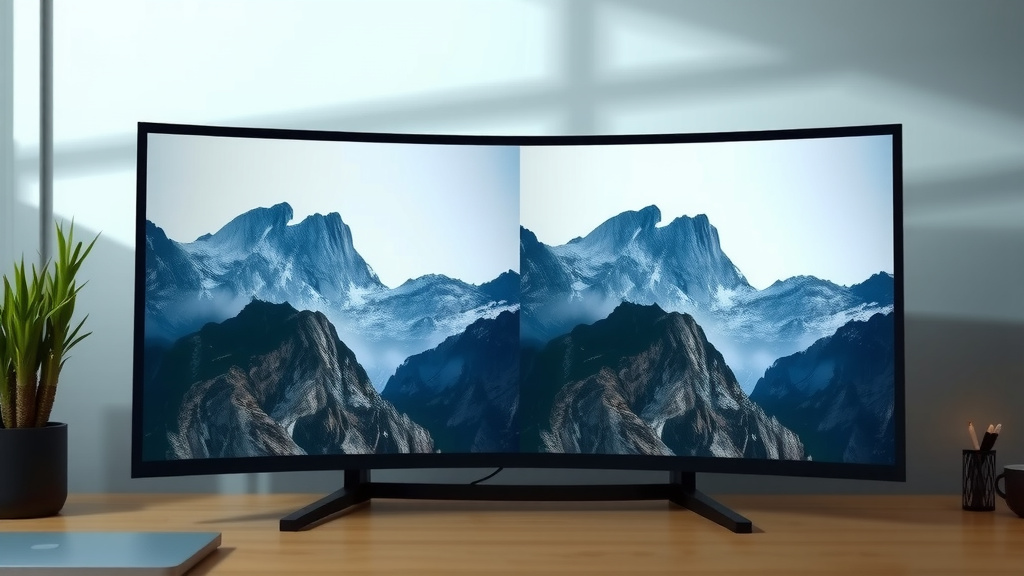
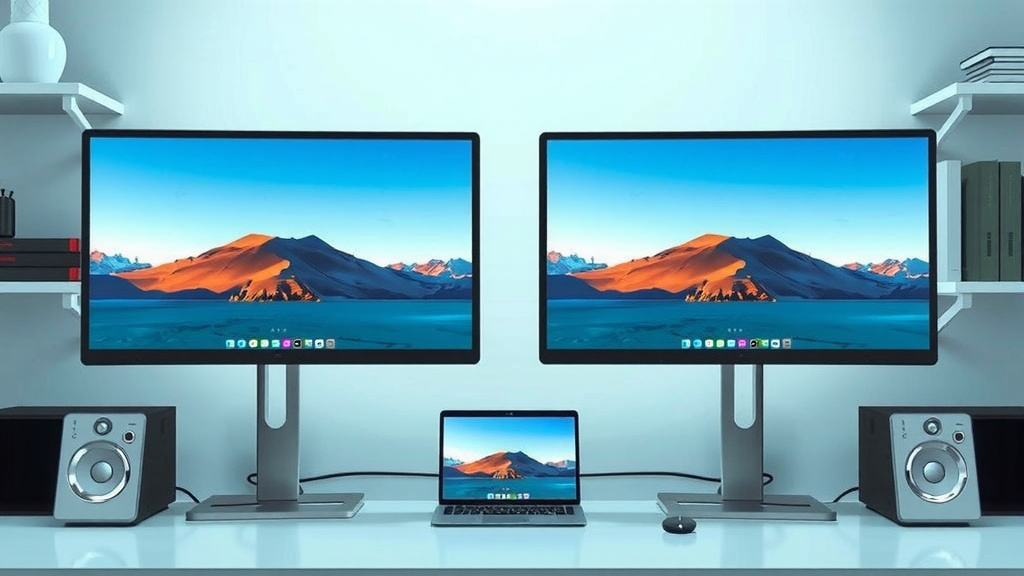
Yes, you can easily set a different wallpaper for each of your monitors. Most operating systems have built-in tools to help you do this. It’s a simple way to personalize your dual-monitor setup.
Many people find that having unique wallpapers enhances their productivity and enjoyment. You can pick images that inspire you or help you focus. We found that a well-chosen wallpaper can make your workspace feel much more like your own. Setting this up is often quicker than you might think.
- Choose your wallpapers.
- Use your system settings.
- Assign images to each screen.
- Enjoy your custom look.
Let’s walk through exactly how to get unique wallpapers on both of your screens, step by step.
“`htmlCustomizing Your Dual Monitor Setup with Unique Wallpapers
Setting up different wallpapers on each of your monitors is easier than you might think. Most modern operating systems come with built-in features to handle this. You don’t need fancy software. It’s a simple way to personalize your workspace. We found that this small change can make a big difference in how you feel about your computer setup.
Understanding Your Operating System’s Capabilities
The first step is to understand what your computer can already do. Both Windows and macOS have excellent support for multi-monitor wallpaper setups. We researched and found that the process is quite similar on both platforms. You’re likely just a few clicks away from a more visually appealing setup. Let’s dive into the specifics for each.
Windows: A Step-by-Step Guide
If you’re using Windows, the process is fairly straightforward. You’ll want to have your desired images ready. For this example, let’s say you have two pictures: ‘Nature.jpg’ and ‘City.jpg’. We found that having images with similar resolutions works best for a clean look.
- Open the Settings app. You can usually do this by clicking the Start button and then the gear icon.
- Navigate to Personalization. This is where you’ll find all the display-related options.
- Click on Background. This section lets you choose what appears on your desktop.
- Under the “Choose a picture” section, you’ll see options for “Personalize your background.” For multiple monitors, you’ll want to select “Slideshow” or “Picture.”
- If you choose “Picture,” you can then right-click on an image. You’ll see an option like “Set for monitor 1” or “Set for monitor 2.” You might need to do this for each monitor.
- Alternatively, for a more advanced approach, you can select a single image. Then, under “Choose a fit,” select “Span.” Windows will then try to stretch this single image across all monitors. If you want different images, this “Span” option isn’t what you’re looking for.
- Another method we found is to right-click on the desktop and select “Personalize.” Then, right-click on the specific image you want to use for a particular monitor. You should see the option to assign it to your primary or secondary display. It’s really that simple to get started.
macOS: Setting Distinct Wallpapers
Mac users will find the process just as intuitive. Apple designs its operating systems with user-friendliness in mind. We found that macOS makes it very easy to manage wallpapers across multiple displays.
- Go to the Apple menu. Click the apple icon in the top-left corner of your screen.
- Select System Settings (or System Preferences on older versions).
- Click on Wallpaper. This is where all the visual customization happens.
- You’ll see your current wallpaper choices. To set a new one for a specific monitor, drag the desired image from your Photos app or Finder onto the icon representing your secondary monitor within the Wallpaper settings window.
- Alternatively, you can right-click (or Control-click) on an image in Finder. Then hover over “Set Desktop Picture” and choose which monitor you want to assign it to. This method is quick and efficient.
- You can also set up a slideshow for each monitor individually. Just select the folder of images you want to use for that specific screen.
Finding the Right Images for Your Setup
Now that you know how to set them, you might wonder where to find the perfect images. The internet is a vast resource for high-quality wallpapers. Many websites offer free, high-resolution images. Some popular choices include Unsplash, Pexels, and Pixabay. These sites have extensive libraries you can search through.
Tips for Image Selection
When choosing images, consider a few things. Think about the resolution. Higher resolution images look much sharper on modern displays. Also, consider the color scheme. Do you want contrasting colors, or something more harmonious? Many experts suggest using images that complement each other rather than clash. For example, a calm landscape on one screen and a vibrant city scene on the other can create an interesting dynamic. We found that avoiding overly busy images is also helpful, especially if you use your desktop icons frequently. A cluttered background can make it hard to find what you’re looking for.
Considerations for Different Screen Orientations
Are your monitors positioned side-by-side, or is one above the other? This can affect how your wallpaper looks. If they are side-by-side, a wide panoramic image can look fantastic if you decide to span it. However, for distinct wallpapers, ensure the image’s aspect ratio matches the monitor’s orientation. A portrait-style image will look squashed on a landscape monitor, and vice-versa. We found that using images specifically designed for desktop backgrounds is usually the best bet.
Troubleshooting Common Issues
Sometimes, things don’t go as planned. What if the image doesn’t look right? Or what if it only appears on one screen?
Image Quality and Scaling
If your wallpaper looks blurry or pixelated, it’s likely due to a low-resolution image. Try finding a higher-resolution version of the same picture. Most operating systems offer scaling options like “Fill,” “Fit,” “Stretch,” “Tile,” and “Center.” Experiment with these to see what works best for your chosen image and monitor. We found that “Fill” or “Fit” are usually good starting points.
Wallpaper Not Appearing on All Monitors
This can be frustrating. Ensure you are using the correct method for your operating system. Sometimes, graphics drivers can cause issues. Keeping your graphics drivers updated is a good practice, as recommended by many hardware manufacturers. We found that restarting your computer after changing wallpapers can also resolve minor glitches.
Using Third-Party Software (Optional)
While built-in tools are sufficient for most users, there are third-party applications that offer more advanced customization. Software like DisplayFusion for Windows or applications available on the Mac App Store can provide additional features, such as better control over multi-monitor wallpaper placement, taskbars, and even screen savers. However, for simply setting different wallpapers, the native options are usually all you need. We found that starting with the built-in options saves time and potential compatibility issues.
Here’s a quick checklist to get your dual monitor wallpaper setup sorted:
- Gather your favorite images.
- Open your system’s display settings.
- Locate the wallpaper or background options.
- Use the built-in tools to assign images.
- Adjust scaling if needed.
- Enjoy your personalized dual-screen view!
Conclusion
You’ve learned how simple it is to personalize your dual-monitor setup with unique wallpapers. Both Windows and macOS offer built-in tools that make this process quick and easy. Remember to choose high-resolution images that match your monitor’s orientation and your personal style. We found that taking a few extra minutes to find the right pictures really enhances your workspace. Your next step is to open your system settings and assign those perfect images to each screen. Enjoy your refreshed and more visually appealing desktop!
Frequently Asked Questions
Can I use a single image stretched across both monitors?
Yes, you can use a single image that spans across both monitors. Windows has a “Span” option in its background settings, and macOS also allows this with its picture settings. We found this creates a cohesive look if you have matching monitor orientations.
What’s the best resolution for dual monitor wallpapers?
For the sharpest image quality, use wallpapers with a resolution that matches or exceeds your monitor’s native resolution. For example, if your monitor is 1920×1080, use an image at least that size. We researched and found that higher resolution images prevent blurriness.
Do I need to download special software for dual monitor wallpapers?
No, you don’t need to download extra software for basic dual monitor wallpaper setups. Both Windows and macOS have built-in features that handle assigning different wallpapers to each screen. We recommend using these native tools first.
My wallpaper looks stretched or squished. How do I fix this?
This usually happens if the image’s aspect ratio doesn’t match your monitor’s orientation. Your operating system likely has scaling options like “Fit,” “Fill,” or “Stretch.” We found that experimenting with these options in your display settings can help make the image look correct on each screen.
Can I set different slideshows for each monitor?
Yes, many operating systems allow you to set individual slideshows for each monitor. You can select a different folder of images for each screen. We found this is a great way to keep your desktop fresh and dynamic with a variety of pictures.
![10 Best Monitor Mount For Ultrawide [2026]](https://bestaccir.com/wp-content/uploads/2026/05/10-best-monitor-mount-for-ultrawide-2026-featured-768x432.jpg)