How to Get Your Third Monitor to Display
Getting your third monitor to display might seem tricky, but it’s often a simple fix. You can usually get your third monitor working by checking your display cable connections and adjusting your display settings in Windows or macOS. Many users find these steps resolve the issue quickly.
Adding a third monitor can seriously boost your productivity. But when it doesn’t show up, it’s understandably frustrating. We’ve found that most common problems involve outdated drivers or the monitor simply not being detected correctly by your computer. Let’s get that extra screen visible!
- Check all your cables are plugged in firmly.
- Make sure your graphics card can support three monitors.
- Update your graphics card drivers.
- Use the display settings to detect and arrange your monitors.
- Try a different port or cable if needed.
Let’s walk through the most common reasons your third monitor isn’t showing up and how to fix them, step by step.
Getting Your Third Monitor to Work
It’s exciting to add a third monitor to your setup. More screens often mean more productivity. But what happens when it just won’t show up? We’ve looked into this common problem. Usually, it’s something simple you can fix yourself. Let’s troubleshoot why your third monitor isn’t displaying.
Checking the Physical Connections
Before we dive into software, let’s make sure everything is plugged in correctly. Loose cables are the culprit more often than you might think. It’s like trying to start a car with a dead battery – no matter what else you do, it won’t go!
Secure Your Display Cables
Take a good look at the back of your computer and your monitors. Are all the cables pushed in all the way? This includes the video cable connecting the monitor to your computer (like HDMI, DisplayPort, or DVI). Also, check the power cables for both the monitor and your PC. Sometimes, a cable can look connected but still be a little loose.
We recommend unplugging and then firmly replugging each video cable at both ends. Give them a gentle tug to ensure they’re seated properly. This simple step can solve the issue for many users.
Understanding Your Ports and Cables
Your computer likely has several video output ports. These are where you plug in your monitors. Make sure you’re using the ports on your graphics card, not the ones on your motherboard. The motherboard ports are usually disabled when a dedicated graphics card is installed (Nvidia or AMD). Consult your PC’s manual if you’re unsure.
Different ports support different resolutions and refresh rates. HDMI is common, but DisplayPort often offers more bandwidth for higher resolutions and multiple monitors. Ensure your cable matches the port type on both your graphics card and your monitor.
Troubleshooting Display Settings
Once you’re sure the cables are secure, it’s time to check your computer’s display settings. Your operating system needs to recognize that a new monitor is connected. This is where we tell Windows or macOS about your new screen.
Windows Display Settings
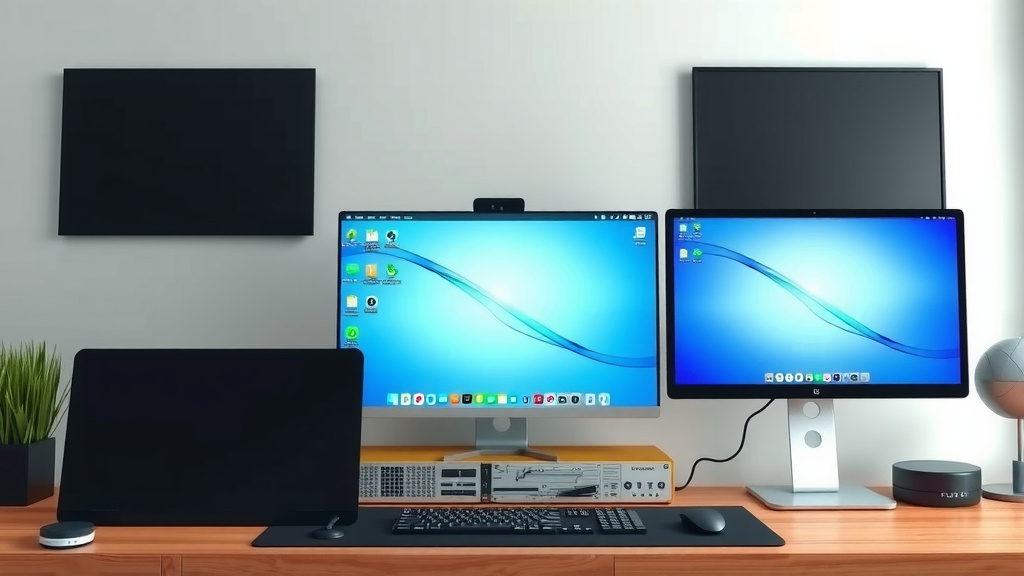
On Windows, you’ll usually access display settings by right-clicking on your desktop. Choose “Display settings” from the menu. Here, you’ll see a diagram representing your connected monitors. If your third monitor isn’t showing, click the “Detect” button. This prompts Windows to scan for new displays.
If “Detect” doesn’t work, try restarting your computer with the monitor connected. Sometimes, a fresh boot is all it takes for the system to recognize the hardware. After detection, you’ll want to arrange the monitors to match their physical placement on your desk. Drag the numbered boxes to align them correctly.
macOS Display Settings
For Mac users, go to the Apple menu, then “System Settings” (or “System Preferences” on older macOS versions). Click on “Displays.” You should see your connected monitors listed. If your third monitor is missing, try holding down the Option key while the Displays window is open. This may reveal a “Detect Displays” button.
Like Windows, arranging your displays on a Mac is done by dragging their representations in the settings window. Make sure the arrangement in macOS matches how your monitors are physically positioned on your desk. This helps your mouse cursor move smoothly between screens.
Graphics Card Capabilities and Drivers
Your graphics card is the powerhouse that drives your displays. Not all cards can handle three or more monitors. Also, outdated drivers can prevent new hardware from being recognized correctly. Think of drivers as translators between your hardware and your operating system.
Can Your Graphics Card Handle Three Monitors?
Most modern graphics cards are designed to support multiple displays. However, older or very basic cards might have limitations. You can usually find the specifications for your graphics card online by searching for its model number. Look for information on the maximum number of displays it supports.
Many experts suggest that if your graphics card has at least three video output ports, it’s likely capable of supporting three monitors. The actual number of supported displays can depend on the resolution and refresh rate you’re trying to use.
Updating Graphics Card Drivers
Outdated graphics drivers are a very common reason for display issues. We found that updating these drivers often resolves problems with new monitors not being detected. Visit the website of your graphics card manufacturer (Nvidia, AMD, or Intel) to download the latest drivers.
You’ll need to know your graphics card model. If you’re unsure, Windows can help you find it. Press Windows Key + X and select “Device Manager.” Expand “Display adapters,” and you’ll see your graphics card listed. Download the appropriate driver and follow the installation instructions carefully. Sometimes, a restart is needed after the update.
When Basic Steps Don’t Work
If you’ve tried the steps above and your third monitor still won’t display, don’t despair! There are a few more things we can check. These are less common, but still worth investigating.
Trying Different Ports and Cables
It’s possible a specific port or cable is faulty. Try plugging your third monitor into a different port on your graphics card. If you have another compatible cable (e.g., another HDMI cable), try using that one instead. This helps determine if the issue lies with the port or the cable itself.
We’ve found that sometimes a cable can look fine but have an internal break. Using a known-good cable or a different port can quickly rule these out as the problem. If one port or cable combination works, you’ve found your fix!
Checking Monitor Settings
Some monitors have their own settings menus, accessible via buttons on the monitor itself. Ensure your monitor is set to the correct input source. For example, if you’re using an HDMI cable, make sure the monitor’s input is set to HDMI and not DisplayPort or another option.
Troubleshooting Checklist
Here’s a quick rundown of the most effective checks:
- Ensure all power and video cables are plugged in firmly at both ends.
- Verify you are using ports on your graphics card, not the motherboard.
- Restart your computer with all monitors connected.
- Update your graphics card drivers to the latest version.
- Use your operating system’s display settings to detect and arrange monitors.
- Try a different port or cable if the monitor still isn’t recognized.
By systematically going through these steps, you can get your third monitor up and running. It’s usually a matter of finding that one loose connection or outdated setting!
Conclusion
Getting your third monitor to display is often a straightforward process. We’ve found that most issues stem from simple physical connections or overlooked software settings. By systematically checking your cables, updating your graphics drivers, and adjusting your display settings, you can successfully expand your workspace. Remember to ensure your graphics card is capable of supporting multiple displays.
If you’re still facing difficulties, don’t hesitate to try different ports or cables. Your next step is to confidently apply these troubleshooting techniques. Soon, you’ll be enjoying the productivity boost of your expanded setup!
Frequently Asked Questions
Why isn’t my computer detecting my third monitor at all?
Often, this happens if a video cable isn’t plugged in securely at either end. Also, make sure you are using ports on your dedicated graphics card, not the ones on your motherboard. Restarting your computer with the monitor connected can also prompt detection.
Can my graphics card actually support three monitors?
Most modern graphics cards can support three or more monitors. However, older or entry-level cards may have limitations. You can check your graphics card’s specifications online by searching its model number to confirm its maximum display support.
How do I make sure my monitor is set to the correct input?
You’ll need to use the physical buttons on your monitor to access its on-screen menu. Look for an “Input Source” or “Input Select” option. Make sure it matches the type of cable you are using, such as HDMI or DisplayPort.
What’s the difference between motherboard ports and graphics card ports?
Motherboard ports are built into your computer’s main circuit board and are generally used when there’s no separate graphics card. Graphics card ports are on a dedicated expansion card and are usually more powerful. When you have a graphics card, you should plug your monitors into it.
My third monitor is detected but showing a blank screen. What should I do?
This could mean the display is set to an incorrect resolution or refresh rate. Try accessing your operating system’s display settings and select “Detect.” You might also need to manually set the display mode to “Extend these displays.” If that doesn’t work, a driver update is often the next best step.