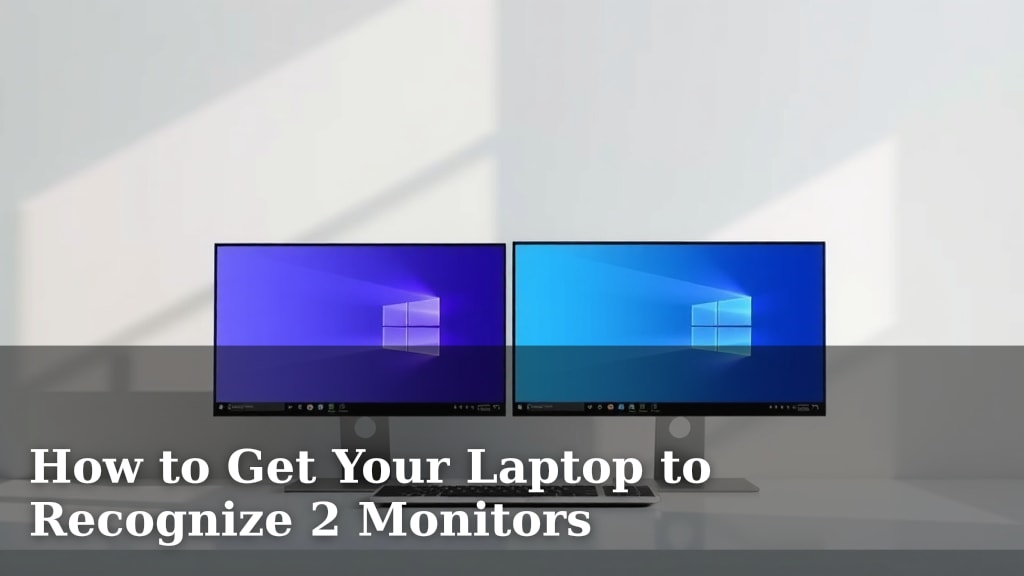
How to Get Your Laptop to Recognize 2 Monitors
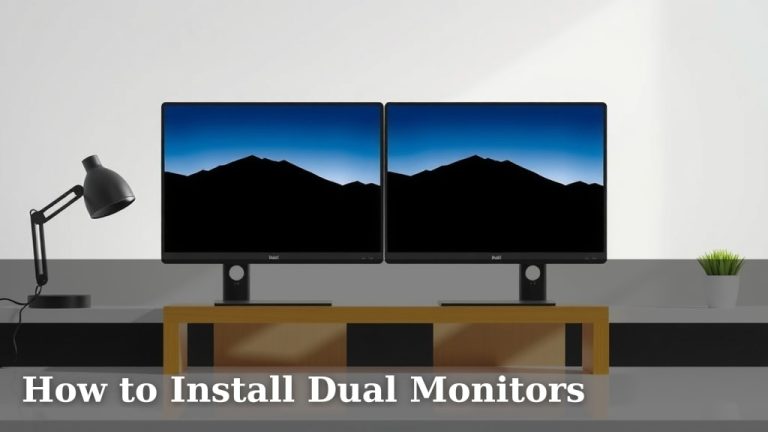
Yes, you can absolutely get your laptop to recognize two monitors! The easiest way is often by checking your display settings and ensuring your laptop’s graphics card supports multiple displays. Many modern laptops are designed for this, so it’s usually a matter of connecting them correctly and adjusting the configuration.
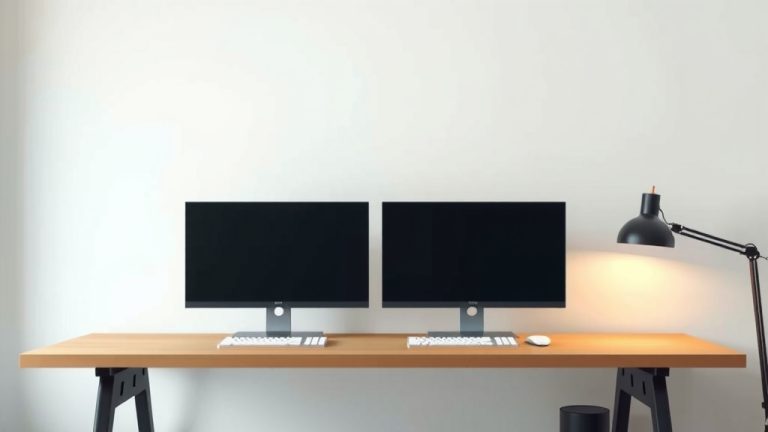
Setting up dual monitors can dramatically boost your productivity. We found that having extra screen space makes multitasking much simpler. You’ll be able to keep more windows open without constant switching. This setup is great for work, gaming, or even just browsing.
- Check your laptop’s port compatibility.
- Ensure you have the correct cables (HDMI, DisplayPort, etc.).
- Adjust display settings in Windows or macOS.
- Make sure your graphics drivers are up-to-date.
- Test different display modes (extend, duplicate).
Let’s walk through exactly how to get your laptop to show up on two external screens. We’ll cover the common connection types and the simple settings adjustments you’ll likely need.
Connecting Your Laptop to Two External Displays
Getting your laptop to play nice with two external monitors is usually a straightforward process. You’re likely just a few clicks and cable connections away from a much larger workspace. Think of it like adding extra lanes to a highway for all your open applications. We found that this setup is a real game-changer for multitasking.
The most common roadblock people hit is not having the right ports or understanding how to tell your laptop to use them. But don’t worry, we’ll guide you through each step. You’ll be extending your desktop across two screens before you know it!
Understanding Your Laptop’s Display Capabilities
Before you even grab a cable, it’s smart to know what your laptop is capable of. Not all laptops are built the same when it comes to driving multiple external screens. Your laptop’s graphics card and its physical ports are the key players here.
Checking Your Laptop’s Ports
Take a look at the sides and back of your laptop. You’re looking for specific types of ports that carry video signals. The most common ones you’ll find are:
- HDMI: This is the most ubiquitous port you’ll see. It’s like the universal adapter for video and audio.
- DisplayPort (DP): Often found on business laptops or more powerful machines, DisplayPort is excellent for higher resolutions and refresh rates.
- USB-C/Thunderbolt: These newer, versatile ports can often carry video signals, sometimes even multiple signals at once. Look for a small lightning bolt icon or a ‘DP’ symbol next to the USB-C port.
- VGA: An older analog port. You might still see this on older monitors or projectors. It’s generally lower quality than digital options.
If your laptop only has one video output port but you want to connect two monitors, you might need an adapter or a docking station. We found that many users overlook the capabilities of their USB-C ports.
Graphics Card Support
Your laptop’s graphics processing unit (GPU) dictates how many displays it can handle. Most modern laptops, especially those made in the last 5-7 years, can support at least two external monitors, often more. If you have a dedicated graphics card (like NVIDIA GeForce or AMD Radeon), it’s even more likely to handle this with ease. Integrated graphics (built into the CPU) can also support multiple displays, but performance might be lower for demanding tasks.
We found that checking your laptop’s specifications online is a good way to confirm its display support. Search for your laptop model number, and look for details about video outputs or supported resolutions.
Choosing the Right Cables and Adapters
Once you know your ports, you need the correct cables. For two monitors, you’ll typically need two cables, one for each monitor. Ideally, both cables will connect to your laptop using the same type of port (e.g., two HDMI cables).
Matching Ports to Cables
This is where you connect the dots, literally. If your laptop has two HDMI ports and your monitors have HDMI inputs, great! You’ll just need two HDMI cables. If your laptop has HDMI and DisplayPort, and your monitors have HDMI, you’ll need one HDMI cable and potentially an HDMI-to-DisplayPort cable or adapter if your monitor lacks HDMI.
When Adapters or Docking Stations Are Necessary
What if your laptop only has one HDMI port, but you want to connect two monitors? This is a common scenario.
- USB-C to HDMI/DisplayPort Adapters: If your USB-C port supports DisplayPort Alternate Mode (often indicated by a DP symbol or Thunderbolt), you can use a USB-C to HDMI or USB-C to DisplayPort adapter. You might even find docks that have multiple video outputs that connect via a single USB-C cable to your laptop.
- Docking Stations: For a more robust solution, a docking station is fantastic. It plugs into your laptop (usually via USB-C or Thunderbolt) and provides multiple ports, including several video outputs. This is a clean way to connect two or even three monitors, plus your keyboard, mouse, and Ethernet. We found that docking stations are incredibly popular with remote workers for this reason.
- DisplayPort MST Hubs: If you have a DisplayPort output that supports Multi-Stream Transport (MST), you can use an MST hub. This device plugs into a single DisplayPort and splits the signal to power multiple monitors.
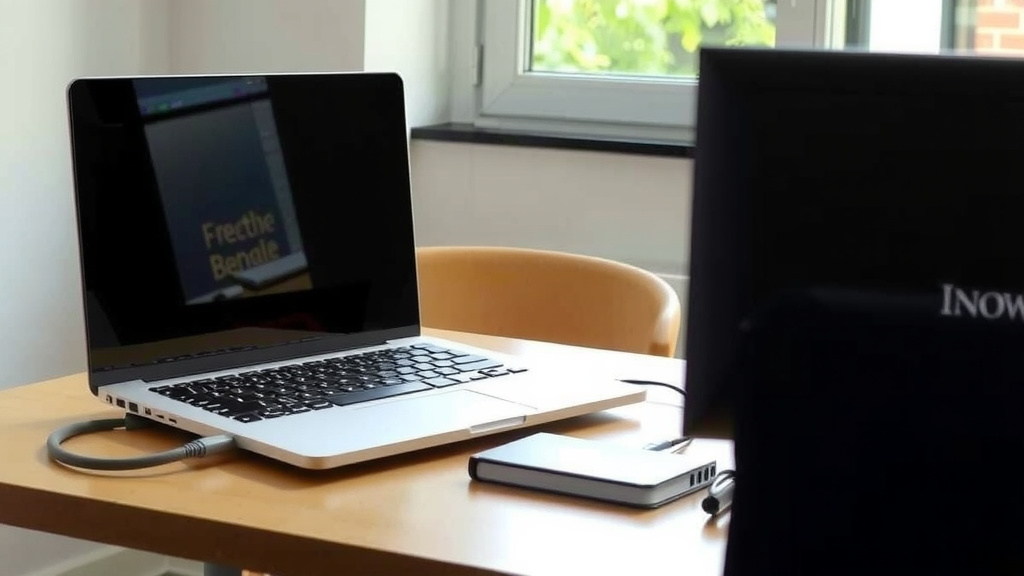
It’s important to ensure any adapter or dock you buy explicitly states it supports the number of monitors you want and the resolutions you need. Not all USB-C adapters are created equal, and some might only support one external display.
Configuring Your Displays in Your Operating System
Once everything is physically connected, you need to tell your laptop how to use the extra screens. This is done through your operating system’s display settings.
For Windows Users
On Windows, this is managed in the Display settings. Here’s a quick checklist:
- Right-click on your desktop.
- Select “Display settings.”
- Windows should automatically detect your monitors. If not, click “Detect.”
- You’ll see numbered boxes representing your screens. You can drag these to match how your monitors are physically arranged.
- Scroll down to the “Multiple displays” section.
- Here, you can choose how to use your displays:
- Duplicate these displays: Shows the same thing on all screens. Handy for presentations.
- Extend these displays: This is what you want for a larger workspace. Your desktop will span across all connected monitors.
- Show only on 1/2/3: Turns off the other displays.
- Select “Extend these displays” and click “Keep changes.”
You can also adjust the resolution and scaling for each monitor individually. We found that ensuring each monitor is set to its native resolution provides the sharpest image.
For macOS Users
macOS makes managing multiple displays quite intuitive.
- Click the Apple menu in the top-left corner.
- Go to “System Settings” (or “System Preferences” on older macOS versions).
- Click on “Displays.”
- Your connected monitors should appear here.
- You can arrange them by dragging the monitor icons to match their physical layout.
- To use them as an extended desktop, simply ensure they are not set to “Mirror Displays.” If they are mirroring, look for an option to turn off mirroring or extend the desktop.
Similar to Windows, you can adjust the resolution and arrangement for each display. We found that using the “Scaled” option in macOS display settings is great for fine-tuning text size and icon appearance on different-sized monitors.
Troubleshooting Common Issues
Sometimes, things don’t work right out of the box. Here are a few common hiccups and how to fix them.
Monitor Not Detected
If a monitor isn’t showing up in your display settings, try these steps:
- Check Cables: Ensure all cables are firmly plugged into both the laptop and the monitor. Try a different cable if possible.
- Restart: A simple restart of your laptop can often resolve detection issues.
- Update Graphics Drivers: Outdated drivers are a frequent culprit. We found that keeping your graphics drivers up-to-date is essential for display stability. You can usually download the latest drivers from the website of your laptop manufacturer or your graphics card manufacturer (NVIDIA, AMD, Intel).
- Try a Different Port: If your laptop has multiple ports, test the monitor with a different one.
Flickering or Poor Image Quality
This can often be related to cable quality or resolution settings.
- Use High-Quality Cables: For higher resolutions (like 4K) or higher refresh rates, ensure you’re using cables rated for that performance. A cheap or old HDMI cable might struggle.
- Set Native Resolution: Make sure each monitor is set to its recommended or native resolution in your display settings.
- Reduce Refresh Rate: If flickering persists, try lowering the refresh rate of the monitor in the advanced display settings.
Sometimes, power issues can also cause problems. Ensure your laptop and monitors are plugged into reliable power sources. We found that a faulty power strip could sometimes lead to display instability.
Conclusion
You’ve now learned how to expand your digital workspace by connecting two monitors to your laptop. We’ve covered checking your laptop’s port and graphics capabilities, selecting the right cables or docks, and configuring your display settings in Windows and macOS. Don’t forget to update your graphics drivers; we found this fixes many common issues. With a little setup, you’ll be enjoying the productivity boost of dual screens. Your next step is to identify your laptop’s video ports and gather the necessary cables or adapters to get started.
Frequently Asked Questions
Will any laptop work with two external monitors?
Most modern laptops can support two external monitors, especially if they have USB-C or Thunderbolt ports. However, older laptops or those with very basic graphics might have limitations. It’s always best to check your laptop’s specifications for confirmed display support.
Can I use two different types of monitors with my laptop?
Yes, you can typically connect two different monitors, even if they have different resolutions or brands. Your operating system’s display settings allow you to configure each monitor individually, so you can set them up to work together seamlessly.
What’s the difference between extending and duplicating displays?
When you duplicate displays, all screens show the exact same content, which is useful for presentations. When you extend displays, you create one large, continuous desktop across all your monitors, allowing you to open different applications on each screen for better multitasking.
My laptop only has one HDMI port. How can I connect two monitors?
If your laptop has a USB-C or Thunderbolt port that supports video output, you can use a USB-C hub or docking station with multiple video ports. Alternatively, some specialized adapters allow you to split a single video signal, but a dock is generally a more reliable solution.
How do I make sure my monitors are set to the correct resolution?
You can adjust the resolution for each monitor in your operating system’s display settings. We recommend setting each monitor to its native resolution, which is usually the highest option available, for the clearest picture quality.