How to Get Sound on an Alienware Monitor
Yes, you can definitely get sound on your Alienware monitor, and it’s usually quite straightforward. Most Alienware monitors that include built-in speakers will output audio automatically through HDMI or DisplayPort connections, provided your computer is set up correctly. If you’re not hearing anything, the most common reason is a simple audio output setting on your PC.
Many gamers and users wonder about their Alienware monitor’s audio capabilities, especially if they’re used to separate speakers. We’ve found that checking your system’s audio preferences is key. Sometimes, a quick driver update or ensuring the correct audio device is selected can solve the mystery of silent screens. It’s often a quick fix!
- Check your PC’s audio output settings.
- Ensure your monitor is selected as the playback device.
- Verify your cables are securely connected.
- Update your audio drivers if needed.
Let’s walk through exactly how to get your Alienware monitor singing with sound.
So, you’ve got that slick Alienware monitor, ready for some epic gaming or serious work. But wait… where’s the sound? Don’t worry, this is a common hurdle many run into. Getting audio to play through your Alienware monitor is usually quite simple. It often boils down to a quick check of your computer’s settings or ensuring your connections are just right. Let’s get that audio flowing!
Getting Audio to Play on Your Alienware Display
The good news is that most Alienware monitors designed with built-in speakers are set up to output sound automatically. This typically happens when you connect your PC using an HDMI or DisplayPort cable. If silence is all you hear, it’s rarely a hardware failure. More often than not, it’s a setting that just needs a little tweak. We’ve found that most issues are resolved with a few simple steps.
Checking Your Computer’s Sound Output Settings
Your computer is the conductor of your audio orchestra. It needs to know where to send the sound. If your Alienware monitor is your desired sound output, you need to tell your PC this. This is the most frequent reason for a silent monitor experience. It’s like trying to send a letter without a clear address!
Windows Audio Settings
For Windows users, accessing these settings is pretty straightforward. You’ll want to find the sound icon, usually located in the bottom-right corner of your screen near the clock. This little speaker icon is your gateway to managing audio devices.
- Right-click on the speaker icon in your taskbar.
- Select “Sounds” or “Open Sound settings.” This might vary slightly depending on your Windows version.
- A new window or settings panel will appear. Look for a section labeled “Playback” or “Output devices.”
- Here, you’ll see a list of all the audio output devices connected to your computer.
Your Alienware monitor should appear in this list if it’s recognized by your system. It might be named something like “Alienware [Model Number],” “NVIDIA High Definition Audio,” or “Generic HDMI Audio.” If you see it, select your monitor and click the “Set Default” button. This tells your PC to send all sound through that device.
Mac Audio Settings
Mac users will find the process equally simple. The core idea is the same: tell your Mac where to send the sound.
- Click the Apple menu in the top-left corner of your screen.
- Select “System Settings” (or “System Preferences” on older macOS versions).
- Find and click on “Sound.”
- Within the Sound settings, select the “Output” tab.
- You should see your Alienware monitor listed here along with other available audio devices.
- Click on your Alienware monitor to make it the default audio output.
Once you’ve set your monitor as the default, try playing some audio or video. You should hear sound from your monitor’s speakers. If not, don’t fret! We have more steps to try.
Ensuring Proper Cable Connections
Sometimes, the simplest solutions are overlooked. Your cables are the highways for your audio and video signals. Making sure they’re securely connected is vital. Loose connections can cause all sorts of unexpected issues, including a lack of sound.
- Check both ends of your HDMI or DisplayPort cable. Ensure they are firmly plugged into both your computer and your Alienware monitor.
- If possible, try using a different HDMI or DisplayPort cable. Cables can sometimes fail or be incompatible, leading to signal loss.
- If your monitor has multiple input ports, confirm you are using the one that is currently selected as the active input source on your monitor.
It might sound basic, but we’ve found that a slightly loose cable is the culprit more often than you might think. Give them a good push!
Verifying Monitor Volume and Mute Settings
It’s easy to forget about the controls right on your monitor. Just like your PC, your monitor itself has volume controls and a mute function. These can sometimes be accidentally activated.
- Locate the physical buttons on your Alienware monitor. These are usually on the bottom, side, or back of the display.
- Press the menu button to bring up your monitor’s On-Screen Display (OSD).
- Navigate through the OSD menus to find the “Volume” or “Audio” settings.
- Ensure the volume is turned up and that the mute function is not activated.
- If there’s a specific input audio setting, make sure it’s enabled for the input you are using (e.g., HDMI audio).
Sometimes, the monitor’s internal settings are the hidden reason for your silence. A quick check here can save you a lot of troubleshooting time.
Updating Your Audio Drivers
Drivers are like tiny instruction manuals for your computer hardware. They tell your operating system how to communicate with devices like your graphics card and sound hardware. Outdated or corrupted drivers can cause audio problems.
For sound that travels via HDMI or DisplayPort, your graphics card drivers are often involved. For other audio outputs, your motherboard’s audio drivers are key. We recommend checking both.
Updating Graphics Card Drivers
Since HDMI and DisplayPort audio often route through your graphics card, keeping these drivers current is essential. NVIDIA (who makes Alienware components) has its own driver utility.
- Go to the NVIDIA driver download page.
- Enter your graphics card model and operating system.
- Download the latest drivers and follow the on-screen instructions for installation.
- It’s often a good idea to perform a “clean install” if the option is available. This removes old driver files completely.
Updating Motherboard Audio Drivers
If you’re using a separate audio solution or troubleshooting general audio issues, your motherboard’s audio drivers are important.
- Visit your motherboard manufacturer’s support website.
- Find the support or downloads section for your specific motherboard model.
- Download the latest audio drivers.
- Install them and restart your computer.
A system restart is often necessary for driver updates to take full effect. Think of it as giving your computer a fresh start with the new instructions.
Troubleshooting Specific Alienware Monitor Models
While the general steps above apply to most Alienware monitors, some specific models might have unique features or troubleshooting paths. We’ve found that consulting the user manual can sometimes reveal model-specific tips.
For instance, some higher-end Alienware displays might have a dedicated audio control panel or specific settings within their OSD that require attention. Your monitor’s user manual is the best resource for these details. You can usually find it on the Dell support website by entering your monitor’s model number or service tag.
When to Consider External Speakers or Soundbars
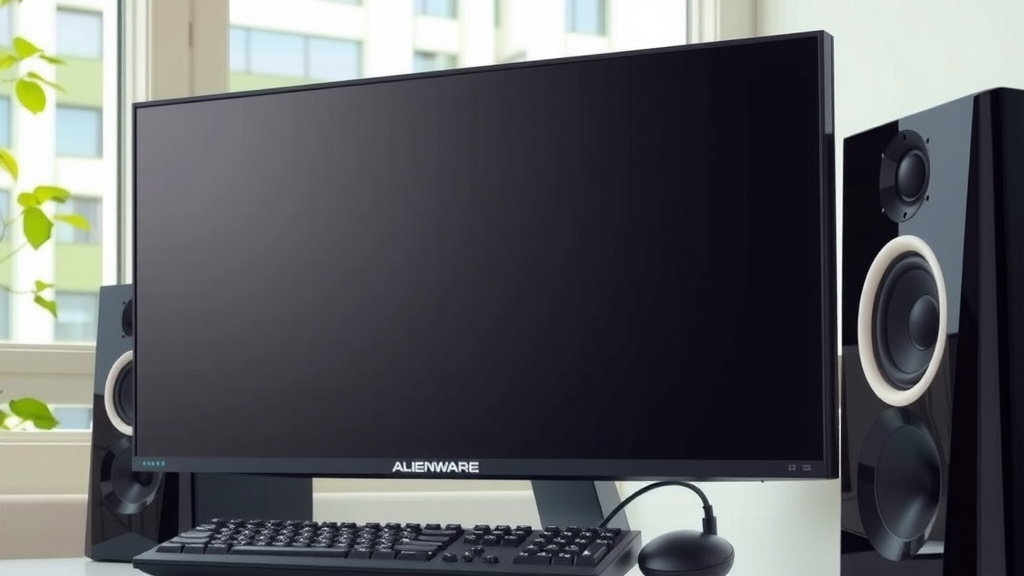
While many Alienware monitors do have built-in speakers, their audio quality can vary. If you’ve gone through all the troubleshooting steps and are still not satisfied with the sound, or if your specific Alienware monitor model doesn’t include speakers, it might be time to consider external audio solutions. Connecting a dedicated set of PC speakers or a soundbar can dramatically improve your audio experience, especially for immersive gaming and media consumption. Many Alienware monitors have audio output jacks (like a 3.5mm headphone jack) that make connecting external speakers straightforward. You would then select this external device as your default audio output in your PC’s sound settings.
Quick Checklist for Sound Issues
Here’s a handy list to run through if you’re still experiencing silence:
- Is your PC’s volume turned up and not muted?
- Is your Alienware monitor selected as the default playback device in your PC’s sound settings?
- Are your HDMI or DisplayPort cables securely connected at both ends?
- Have you checked your monitor’s own volume and mute settings via its OSD?
- Are your graphics card and motherboard audio drivers up to date?
- Have you tried a different cable or input port?
By systematically working through these steps, you should be able to get that satisfying sound coming from your Alienware monitor in no time!
Conclusion
Getting sound on your Alienware monitor is usually a simple fix. We’ve shown you how checking your PC’s audio output settings is the most common solution. Remember to verify your cable connections and your monitor’s own volume controls too. If sound is still elusive, updating your audio drivers is your next best step. Don’t let silence win!
If you’ve tried these steps and still face issues, it might be worth consulting your monitor’s user manual for model-specific guidance. For the ultimate audio boost, consider external speakers or a soundbar. Your Alienware setup deserves to sound as good as it looks!
Frequently Asked Questions
My Alienware monitor has HDMI, but I don’t hear anything. What’s wrong?
This usually means your computer isn’t sending audio through the HDMI cable. You need to go into your PC’s sound settings and make sure your Alienware monitor is selected as the default playback device. Sometimes, a quick cable re-plug at both ends can also fix it.
Can I use my Alienware monitor’s built-in speakers with a DisplayPort connection?
Yes, you absolutely can! DisplayPort, much like HDMI, is designed to carry both video and audio signals. Just ensure your PC is configured to output audio through the DisplayPort connection by setting your monitor as the default audio device in your sound settings.
What if my Alienware monitor doesn’t show up in my PC’s sound playback devices list?
If your monitor isn’t appearing, it could be a driver issue or a connection problem. Try updating your graphics card drivers, as they often handle HDMI/DisplayPort audio. Also, double-check that your cable is fully seated in both the monitor and your PC, and consider trying a different cable.
Do I need to install special software for my Alienware monitor to get sound?
Generally, no special software is required for basic audio output. Your operating system should recognize the monitor as an audio device when connected via HDMI or DisplayPort. However, ensuring your graphics and motherboard audio drivers are up-to-date is always a good practice.
How do I adjust the volume on my Alienware monitor if the PC controls aren’t working?
Your Alienware monitor likely has its own physical buttons. Use these to bring up the On-Screen Display (OSD) menu. Within the OSD, you should find a “Volume” or “Audio” section where you can adjust the sound level directly on the monitor itself, and also check if it’s accidentally muted.