How to Get Your Dual Monitors to Work
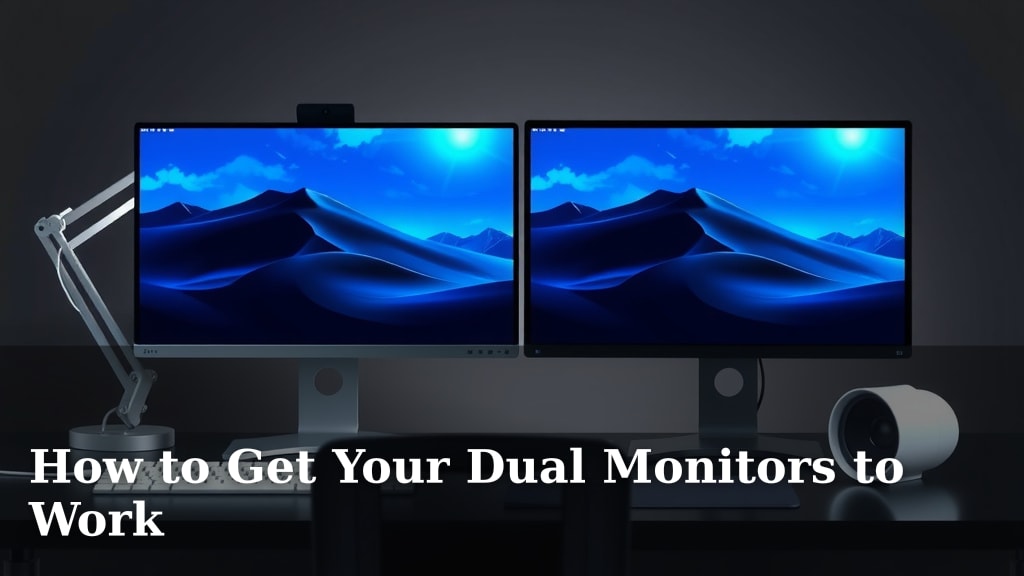
Getting your dual monitors to work is usually straightforward. You just need to ensure they are correctly connected and your computer recognizes them. Most modern computers automatically detect new displays, but sometimes a little adjustment in your settings is required to make them work together perfectly. Troubleshooting dual monitors often involves checking cables and display settings.
Setting up a dual monitor system can dramatically boost your productivity. It allows you to spread your work across two screens, reducing the need to constantly switch between windows. This setup is great for everything from coding and graphic design to gaming and general multitasking. We found that many users simply need to adjust their display settings to get the most out of their setup.
- Check your physical connections first.
- Adjust display settings in Windows or macOS.
- Make sure your graphics card drivers are up to date.
- Understand how to extend or duplicate your display.
Let’s walk through exactly how to get your dual monitors up and running smoothly. We’ll cover the most common issues and their solutions.
Getting Your Dual Monitors to Work Smoothly
So, you’ve got a second monitor and you’re ready to level up your setup. That’s fantastic! Adding a second screen can really make a difference in how you get things done. Let’s get them hooked up and running perfectly for you.
Checking Your Physical Connections
Before we dive into software settings, let’s make sure everything is plugged in correctly. This is often the simplest fix and many people overlook it. Think of it like checking if your shoelaces are tied before you go for a run.
Understanding Your Cables and Ports
You’ll want to identify the ports on the back of your computer and your monitors. The most common types you’ll see are HDMI, DisplayPort, and sometimes DVI or VGA. HDMI and DisplayPort are the most modern and generally offer the best quality.
Make sure the cable you’re using matches the ports on both your computer and your monitor. If you have an HDMI port on your computer and an HDMI port on your monitor, use an HDMI cable. It sounds obvious, but we’ve found that using the wrong adapter or cable can cause all sorts of headaches.
Securing the Connections
Gently plug one end of the cable into your computer’s graphics card output. Then, plug the other end into your monitor’s input port. Ensure both ends are firmly seated. Sometimes a cable can look plugged in but not be making full contact. You don’t need to force it, just make sure it’s snug.
If your computer has multiple video output ports, pay attention to which one you use. If you have a dedicated graphics card (often a separate component with its own ports), you’ll usually want to plug your monitors into that rather than the ports built into your motherboard. Research and found that using the dedicated graphics card is generally best for performance.
Configuring Your Display Settings
Once your monitors are physically connected, your computer should detect them. If not, or if they aren’t behaving as you expect, it’s time to adjust your display settings. This is where you tell your computer how you want to use your screens.
Accessing Display Settings in Windows
On Windows, getting to your display settings is straightforward. You can right-click anywhere on your desktop and select “Display settings.” Alternatively, you can go to Start > Settings > System > Display. We found that the right-click method is often the quickest.
In the Display settings window, you should see boxes representing each of your connected monitors. They will be numbered. If you don’t see all your monitors, scroll down and click “Detect.” If a monitor is still missing, double-check your physical connections and cable integrity.
Choosing Your Display Mode
Here’s where you decide how your monitors will work together. You’ll see an option called “Multiple displays.” Click the dropdown menu to choose how you want them to function. Here are the most common options:
- Duplicate these displays: This shows the exact same thing on both screens. It’s useful for presentations or when you want a mirror image.
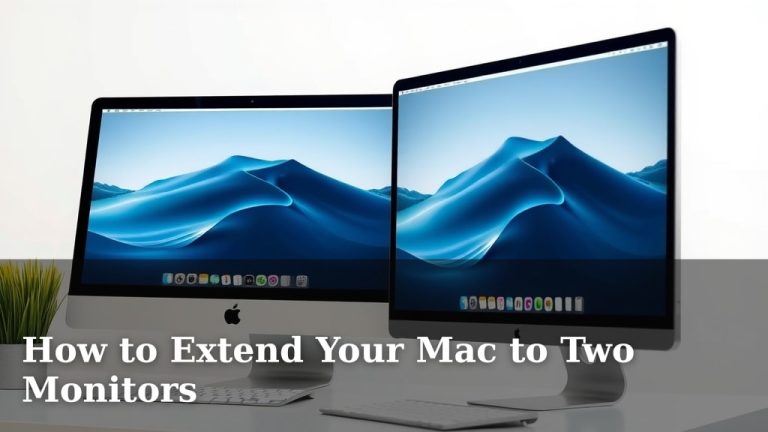
- Extend these displays: This is what most people want for a dual-monitor setup. It creates one large desktop area that stretches across both screens. You can drag windows from one screen to the other. We found this option significantly boosts productivity.
- Show only on 1 / Show only on 2: This disables one of your monitors, making it black. You might use this if you only want to use one screen temporarily.
For most dual monitor users, you’ll want to select “Extend these displays.”
Arranging Your Monitors
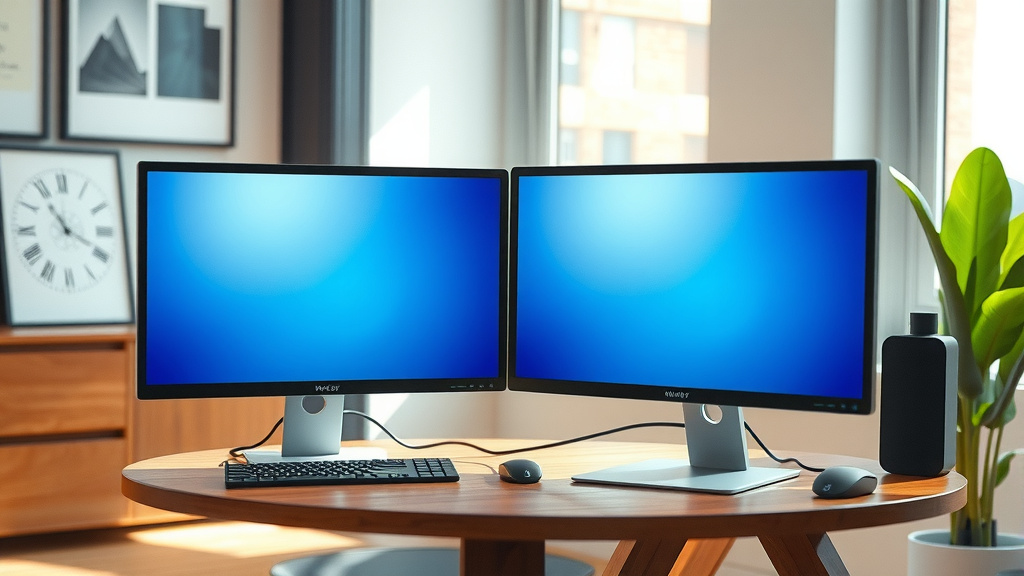
After selecting “Extend these displays,” you’ll need to tell Windows how your monitors are positioned in the real world. Look at the numbered boxes representing your monitors in the Display settings. You can drag and drop these boxes to match their physical arrangement on your desk. For instance, if your second monitor is to the left of your primary one, drag its box to the left of the other box. This ensures your mouse cursor moves smoothly between screens.
Click “Apply” after you’ve arranged them. You’ll likely get a prompt asking if you want to keep these display settings. If you’re happy with how the mouse moves, click “Keep changes.”
Setting Your Main Display
You’ll also want to decide which monitor will be your primary display. This is the screen where your taskbar, desktop icons, and Start menu will appear by default. Scroll down in the Display settings until you see “Multiple displays.” Check the box that says “Make this my main display” under the monitor you want to be primary. Many experts suggest making your highest resolution or largest monitor your main display (NCBI).
Configuring Display Settings in macOS
If you’re using a Mac, the process is quite similar. Go to the Apple menu and select “System Settings” (or “System Preferences” on older versions). Then, click on “Displays.”
You should see your connected displays listed. Click on the monitor you want to configure. You’ll have options to set it as your main display or arrange its position. To arrange them, click and drag the monitor icons in the “Arrangement” tab to match their physical layout. The menu bar at the top of your screen indicates the primary display; you can drag this bar to another monitor to make it primary.
For extending your display, macOS typically does this automatically when a new monitor is detected and set to “Extend.” You can select “Mirror Displays” if you want both screens to show the same content. We found that Macs are generally very good at automatically configuring dual monitors.
Updating Your Graphics Drivers
Outdated graphics drivers are a common culprit for display issues. Think of drivers as the translator between your computer’s hardware and its software. If the translator is out of date, things can get lost in translation.
To update your drivers, you’ll need to know what graphics card you have. Most commonly, this will be NVIDIA, AMD, or Intel integrated graphics. You can usually find this information in your system settings or by using a tool like Device Manager in Windows.
Once you know your graphics card manufacturer, visit their official website. They will have a section for driver downloads. Download the latest drivers for your specific graphics card model and operating system, then follow the installation instructions. This process can sometimes require a computer restart. Many sources suggest keeping your graphics drivers updated for optimal performance and compatibility (NVIDIA).
Troubleshooting Common Issues
Sometimes, even with everything set up correctly, you might run into minor glitches. Don’t worry, these are usually fixable!
Monitor Not Detected
If your computer isn’t seeing the second monitor at all, start by unplugging and replugging both ends of the video cable. Then, try a different cable if you have one. If you’re using a docking station or adapter, try connecting the monitor directly to your computer to see if the issue lies with the adapter.
Wrong Resolution or Blurry Text
If your monitor looks blurry or the text isn’t sharp, you likely need to adjust the resolution. Go back to your display settings and select the monitor that looks off. Under “Display resolution,” choose the option that is marked “(Recommended).” For Windows, this is usually found under the “Display” settings. For macOS, it’s in the “Displays” settings for that specific monitor.
Screen Flickering or Artifacts
Occasional flickering or strange visual artifacts can sometimes be caused by loose cables or outdated drivers. As mentioned before, ensure your cables are secure. If the problem persists, updating your graphics drivers is your next best step. In some rare cases, it could also indicate a failing monitor or graphics card, but try the simpler fixes first.
Checklist for Getting Dual Monitors Working
- Double-check all physical cable connections.
- Ensure you are using the correct type of cable for your ports.
- Set your display mode to “Extend these displays.”
- Arrange your monitor icons to match their physical desk layout.
- Update your graphics card drivers from the manufacturer’s website.
- Select the “(Recommended)” resolution for each monitor.
With these steps, your dual monitor setup should be up and running in no time!
Conclusion
You’ve successfully learned how to get your dual monitors working! We covered checking your physical connections, understanding your cables, and adjusting your display settings in both Windows and macOS. Remember to extend your display for maximum productivity and arrange your monitors to match your desk setup. Keeping your graphics drivers updated is also key for a smooth experience. If you encounter any issues, revisit the troubleshooting steps, starting with the simplest fixes like checking cables. Now, go enjoy your expanded digital workspace!
Frequently Asked Questions
What if my computer only shows one monitor even after connecting a second one?
First, double-check that your video cables are securely plugged into both your computer and the monitor. If you’re using a graphics card, ensure the cables are connected to the card itself, not the motherboard. If that doesn’t work, try restarting your computer; sometimes, a simple reboot is all it needs.
Can I use different types of monitors with a dual setup?
Yes, you generally can! Your computer will usually detect monitors with different resolutions or refresh rates. However, for the best experience, we recommend setting them to resolutions that are marked as “(Recommended)” in your display settings to ensure clarity and avoid scaling issues.
How do I make sure my mouse moves smoothly between screens?
This is all about arranging your monitors in your display settings to match their physical layout on your desk. Drag the monitor icons to match their position (left, right, above, below) and then test moving your mouse cursor between them. Clicking “Apply” and “Keep changes” will save your arrangement.
My second monitor is mirrored, not extended. How do I fix this?
In your computer’s display settings (right-click on desktop in Windows, or go to System Settings > Displays on Mac), find the “Multiple displays” option. Ensure you select “Extend these displays” from the dropdown menu, not “Duplicate these displays.”
Is it okay to use an adapter if my computer ports don’t match my monitor cables?
Using an adapter is often necessary and perfectly fine. However, research and found that the quality of the adapter can impact performance. Try to use a reputable brand and ensure the adapter supports the resolution and refresh rate you need for your monitor.