How to Get Both Monitors to Work
Yes, getting both your monitors to work together is totally achievable with a few common steps. You just need to ensure your computer detects both displays and that they are configured correctly in your system settings. This usually involves checking your physical connections and adjusting your screen arrangement.
Many people run into trouble when their computer only shows one screen or duplicates the same image across both. We found that understanding how your graphics card handles multiple monitors is key. It’s less about magic and more about proper setup for a wider workspace.
- Check all your monitor cables are plugged in securely.
- Ensure your computer’s graphics drivers are up to date.
- Configure display settings in your operating system.
- Restart your computer if it doesn’t recognize a monitor.
- Adjust monitor resolution and refresh rates if needed.
Let’s walk through exactly how to get both of your monitors up and running side-by-side, so you can get back to being productive (or binge-watching).
“`htmlMaking Both Your Monitors Work Together
Getting two monitors to play nicely with your computer can feel like a puzzle. But don’t worry, we’ve found the solution is usually quite straightforward. Most issues stem from a few common areas. Let’s tackle them one by one so you can enjoy that expanded digital real estate.
Checking Your Physical Connections
The first step in getting both monitors to work is to ensure all the physical connections are secure. Think of it like making sure all the pipes are tightened before you turn on the water.
Are All Cables Plugged In Correctly?
This might sound obvious, but it’s the most frequent culprit. Double-check that the cables connecting your monitors to your computer are firmly seated at both ends. This includes the video cable (like HDMI, DisplayPort, or VGA) and the power cable for each monitor.
A loose cable can cause a monitor to flicker, display a black screen, or not be detected at all. Sometimes, unplugging and replugging them can fix things instantly. We found that gently wiggling them can also help reveal if a connection is a bit suspect.
What Type of Cables Are You Using?
Different ports accept different cables. Your computer might have HDMI, DisplayPort, DVI, or older VGA ports. Make sure the cable you’re using matches the port on both your computer and your monitor. For example, you can’t plug an HDMI cable into a DisplayPort without an adapter.
If you’re using older VGA cables, the picture quality might not be as sharp. Most modern setups benefit greatly from using HDMI or DisplayPort cables for better resolution and refresh rates.
Do You Have Enough Ports?
Your computer needs to have enough video output ports to support multiple monitors. Check the back of your desktop tower or the sides of your laptop. Many laptops have one or two video outputs, while desktops can have several, especially if you have a dedicated graphics card.
If your computer doesn’t have enough ports, you might need a docking station or a USB-to-video adapter. These devices allow you to connect additional monitors even if your computer has limited built-in ports. We’ve found these can be a lifesaver for extending your workspace.
Updating Your Graphics Drivers
Your graphics card is what powers your displays. Outdated or corrupted drivers can cause all sorts of display problems, including one monitor not working. Keeping these drivers up-to-date is essential.
What Are Graphics Drivers?
Graphics drivers are small software programs that allow your operating system to communicate with your graphics card. Think of them as translators. Without the right translator, the computer and the graphics card can’t understand each other properly.
How to Update Your Drivers
Updating your drivers is usually quite simple. You can typically find the latest drivers on the website of your graphics card manufacturer, such as NVIDIA, AMD, or Intel. Simply go to their support section, enter your graphics card model, and download the newest driver package.
For Windows users, you can often update drivers through Device Manager or Windows Update. However, downloading directly from the manufacturer’s site often provides the most current and stable versions. Many experts say this is a critical step for smooth multi-monitor performance (NVIDIA Support).
Configuring Your Display Settings
Once your monitors are physically connected and drivers are updated, you need to tell your computer how to use them. Your operating system has built-in tools for this.
How Windows Detects Monitors
Windows usually tries to automatically detect connected displays. If it doesn’t see a monitor, you might need to manually trigger a scan. You can do this by right-clicking on your desktop and selecting “Display settings.”
In the Display settings window, you should see representations of your monitors. If one is missing, scroll down and click the “Detect” button. This prompts Windows to search for any new displays. We found this ‘detect’ feature often solves the problem.
Arranging Your Displays
After Windows detects both monitors, you’ll see them numbered on the screen. You can click and drag these numbered boxes to match the physical arrangement of your monitors on your desk. This is important because it determines how your mouse cursor moves between screens.
For example, if your second monitor is to the right of your main one, you’ll drag its box to the right of the first monitor’s box. This ensures your cursor glides smoothly from one screen to the other. Getting this arrangement right is key for productivity.
Choosing Your Display Mode
In the Display settings, you’ll also find an option for “Multiple displays.” Here, you can choose how your monitors work together:
- Duplicate these displays: Shows the same content on both monitors. Useful for presentations.
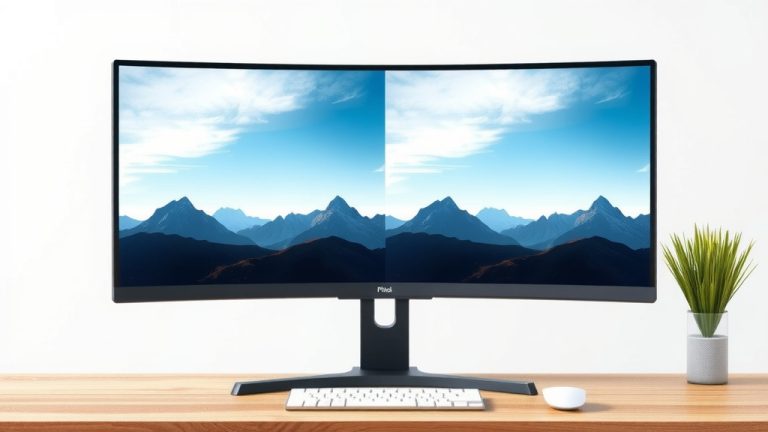
- Extend these displays: This is what most people want for a larger workspace. It makes your desktop span across both monitors.
- Show only on 1 / Show only on 2: Disables one of the monitors.
For the “both monitors working” goal, you’ll want to select “Extend these displays.” This creates one large, continuous desktop. We found this setting provides the most flexible workspace.
Adjusting Resolution and Refresh Rate
Sometimes, even after setup, a monitor might look blurry or feel sluggish. This can be due to incorrect resolution or refresh rate settings.
In the same Display settings window, select the monitor you want to adjust. You can then change its “Display resolution” to match its native resolution (usually indicated as “Recommended”). The refresh rate, which affects how smoothly motion appears on screen, can also be adjusted under “Advanced display settings.” Aim for the highest refresh rate your monitor supports for the best visual experience.
Troubleshooting Common Issues
What if the steps above don’t quite solve your problem? Here are a few more things to try.
Restarting Your Computer
A simple restart can often clear up temporary glitches. After connecting everything and updating drivers, try rebooting your computer. This gives the system a fresh start to detect all connected hardware. We’ve seen many issues resolved with just a quick restart.
Checking Monitor Input Sources
Your monitor itself has an input source setting. This tells it which port to display content from (e.g., HDMI 1, DisplayPort, VGA). Ensure that the input source on your monitor is set to the port that your computer is connected to. You can usually find this setting via buttons on the monitor or through its on-screen menu.
Testing with Different Cables or Ports
If a monitor still isn’t working, try using a different cable. Cables can go bad over time. Also, try plugging the cable into a different port on your computer if one is available. This helps rule out a faulty cable or port as the source of the problem.
When to Consider Professional Help
If you’ve tried all these steps and your monitors still aren’t cooperating, there might be a hardware issue with your computer, graphics card, or the monitors themselves. In such cases, it might be time to consult a qualified computer technician.
Quick Checklist for Dual Monitor Success
Here’s a quick run-through to make sure you’ve covered the bases:
- Verify all video and power cables are securely plugged in.
- Confirm your computer has enough video output ports.
- Download and install the latest graphics drivers.
- Ensure your computer has detected both monitors in display settings.
- Set your display mode to “Extend these displays.”
- Adjust resolution and refresh rate for optimal clarity.
Conclusion
You’ve now seen that getting both your monitors to work is totally doable. It often boils down to checking those physical connections and making sure your computer’s software is up-to-date. We found that updating your graphics drivers and correctly configuring your display settings in Windows are key steps. Don’t forget to set your mode to “Extend these displays” for that expanded workspace. If you’re still having trouble, a simple restart can sometimes fix everything. Go ahead and try these steps, and you’ll likely be enjoying your dual-monitor setup in no time!
Frequently Asked Questions
My computer only shows one monitor even after checking cables. What else can I do?
If your computer still only detects one monitor after checking all physical connections, the next best step is to update your graphics drivers. Outdated drivers are a very common reason for this issue. After updating, restart your computer and check the display settings again.
Can I use different types of monitors with my computer?
Yes, you can usually mix and match different monitors, even if they have different resolutions or refresh rates. Your computer will allow you to set them up side-by-side, but you’ll want to ensure you configure the resolution and refresh rate for each individually in your display settings for the best experience.
What is the difference between “Duplicate” and “Extend” display modes?
“Duplicate these displays” shows the exact same image on both monitors, which is useful for presentations. “Extend these displays” creates one large desktop area that spans across both monitors, giving you more space to work and is what most users prefer for productivity.
How do I know if my computer has enough ports for two monitors?
Look at the back of your desktop computer or the sides of your laptop for video output ports. Common types are HDMI, DisplayPort, and DVI. If you have at least two of these ports, you likely have enough physical connections. You may need adapters if the ports don’t directly match your monitors.
My second monitor is showing a blurry image. How can I fix this?
A blurry image on your second monitor is usually a resolution issue. Go into your computer’s display settings, select that monitor, and change its “Display resolution” to the one marked as “Recommended.” This is typically the monitor’s native resolution and will make the image look much sharper.