How to Fix Scaling on a Second Monitor
Fixing scaling issues on your second monitor is often easier than you think. The most common fix involves adjusting your display settings in Windows or macOS to match the resolution and scaling of your primary screen, ensuring everything looks sharp and correctly sized. You’ll typically want to ensure both monitors are set to their native resolution and adjust the scaling percentage if text or icons appear too large or small.
Sometimes, scaling problems can arise from outdated graphics drivers or conflicting software. We found that making sure your graphics card drivers are up-to-date is a quick win. This step is critical for ensuring your system communicates properly with your displays, preventing common scaling glitches that can make your desktop look blurry or oddly proportioned, especially when using multiple monitors with different resolutions. It’s frustrating when your workspace isn’t working for you!
- Adjust display settings for resolution and scaling.
- Update your graphics card drivers.
- Check for scaling differences between monitors.
- Restart your computer after making changes.
Let’s walk through exactly how to tackle those pesky scaling problems so your second monitor looks just as good as your first.
Getting Your Second Monitor’s Scaling Just Right
It’s incredibly frustrating when your second monitor looks a bit… off. Text might be fuzzy, icons could be tiny, or maybe everything is just too big. We’ve all been there. Thankfully, fixing scaling problems on a secondary display is usually straightforward. You just need to tell your computer how to display things properly on that specific screen. Let’s get your dual-monitor setup looking sharp and working harmoniously.
Understanding Display Scaling Basics
Think of scaling like adjusting the zoom level on your computer. When you have monitors with different screen sizes or resolutions, Windows or macOS tries to make things look consistent. Sometimes, it gets this wrong, especially on a second monitor. The goal is to match the native resolution of your display. This means setting the resolution to what the manufacturer intended. Higher resolutions mean sharper images but can make things look smaller. Lower resolutions make things bigger but can reduce sharpness. Scaling then adjusts the size of text, apps, and icons within that resolution.
Why Does Scaling Get Tricky?
The most common reason for scaling issues is simply that your monitors aren’t the same. One might be a crisp 4K display, while the other is a standard HD. Your operating system tries to make the text and icons roughly the same physical size on both. This can lead to blurry text or oversized elements if not configured correctly. We found that ensuring both monitors are set to their native resolution is the most important first step.
Checking Your Current Display Settings
Before we change anything, let’s see what you’re currently working with. This helps you understand the problem. You’ll want to look at both the resolution and the scaling percentage for each monitor.
For Windows Users
Right-click on your desktop and select Display settings. You’ll see a diagram of your monitors at the top. Click on the second monitor you want to adjust. Scroll down to the ‘Scale and layout’ section. Note the ‘Display resolution’ and the ‘Scale’ percentage. We’ve seen that many users overlook the ‘Scale’ setting.
For macOS Users
Click the Apple menu and choose System Settings (or System Preferences). Select Displays. You’ll see your connected monitors. Click on your second monitor. You should see options for resolution and scaling. macOS often handles scaling more automatically, but it’s still good to check. Many Mac users find that ‘Default for display’ works best, but you can experiment with ‘Scaled’ options.
Troubleshooting Common Scaling Problems
Once you know your current settings, we can start fixing things. Most issues can be resolved by tweaking these settings.
Setting the Correct Resolution
The absolute most critical step is ensuring each monitor is set to its native resolution. This is the resolution the monitor was designed for. Using a non-native resolution can lead to a stretched or blurry image. You can usually find your monitor’s native resolution in its manual or by searching the model number online.
Windows Steps
In the Display settings, make sure the dropdown menu for ‘Display resolution’ shows the ‘(Recommended)’ option. This is usually the native resolution. Select it for your second monitor and click ‘Keep changes’ if prompted.
macOS Steps
Under the ‘Resolution’ settings for your second monitor, select the option that is marked as ‘Recommended’ or shows the highest pixel count. We found this usually ensures the sharpest display.
Adjusting Scaling Percentage
After setting the correct resolution, you might find that text and icons are still too small or too large. This is where the scaling percentage comes in. If things look tiny, you’ll want to increase the scaling. If everything is huge, you’ll want to decrease it.
Windows Scaling Options
Under ‘Scale and layout’ in Windows Display settings, you’ll see a ‘Change the size of text, apps, and other items’ dropdown. If your second monitor looks different, try selecting a different percentage. For example, if your primary monitor is set to 100% and your second is set to 125%, but the second looks smaller, you might need to try 100% on the second monitor as well, or vice versa. Many experts suggest keeping scaling percentages as low as possible for clarity (Microsoft).
macOS Scaling Options
On macOS, you’ll typically choose from options like ‘Default’, ‘Larger Text’, or ‘More Space’. ‘More Space’ makes things smaller, and ‘Larger Text’ makes them bigger. Experiment to see what looks best for your second monitor, keeping in mind its resolution and your viewing distance.
Ensuring Monitor Compatibility
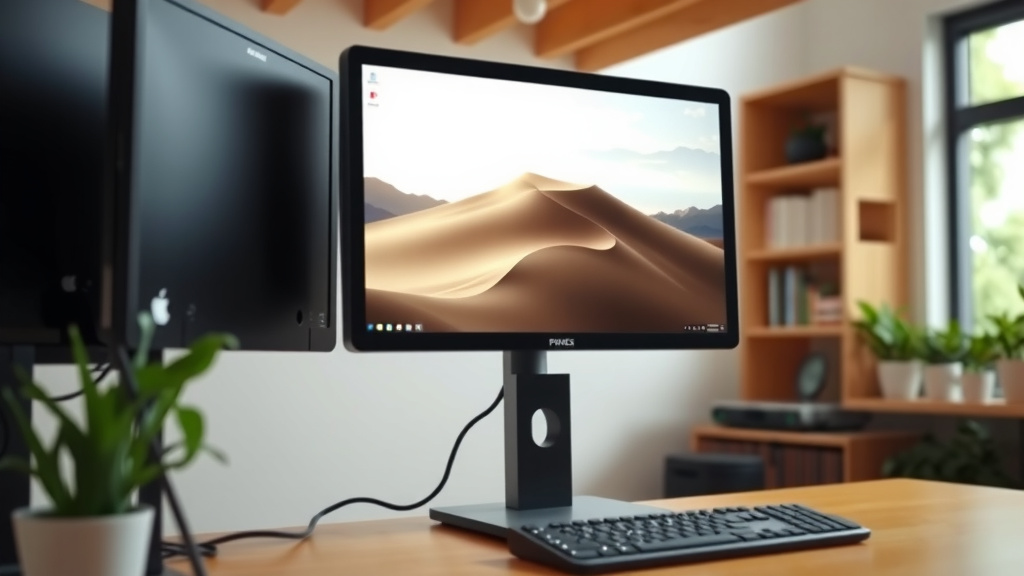
Sometimes, the issue isn’t just settings; it’s how your computer talks to your monitor. Ensure you’re using good quality cables (like DisplayPort or HDMI) that support the resolution and refresh rate of your monitors. Older or lower-quality cables can cause display issues.
When Settings Aren’t Enough: Advanced Fixes
If you’ve adjusted resolution and scaling and things still look off, there are a couple more things you can try. These steps often resolve deeper issues.
Update Your Graphics Drivers
Outdated graphics drivers are a frequent culprit for display problems, including scaling glitches. Your graphics card (like NVIDIA, AMD, or Intel) software needs to be up-to-date to communicate properly with your monitors. Many IT professionals recommend this as a standard first troubleshooting step (NVIDIA).
- For NVIDIA: Visit the NVIDIA website and download GeForce Experience or find drivers manually.
- For AMD: Go to the AMD support website and download the Adrenalin Edition software or drivers.
- For Intel: Visit the Intel Download Center for integrated graphics drivers.
Restart Your Computer
It sounds simple, but a fresh restart can fix a surprising number of glitches. After making any significant changes to display settings or drivers, rebooting your system allows all the new settings to load correctly. We’ve found that this step is often overlooked but can be a quick win.
Check Application-Specific Scaling
Some older applications might not play well with Windows or macOS scaling. You can often override scaling settings for individual programs.
For Windows Applications
Right-click the application’s shortcut, select Properties, go to the Compatibility tab, and click ‘Change high DPI settings’. Here, you can try options like ‘System (Enhanced)’ or ‘System’ to see if it improves the app’s appearance on your second monitor.
Here’s a quick checklist to get your scaling sorted:
- Confirm your second monitor is connected properly.
- Set both monitors to their native resolution.
- Adjust the scaling percentage for the second monitor.
- Update your graphics card drivers.
- Restart your computer.
- Test applications to see if they scale correctly.
Conclusion
You’ve now got the tools to conquer those tricky scaling issues on your second monitor. We’ve seen that setting the correct native resolution and adjusting the scaling percentage are your primary fixes. Don’t forget the power of updated graphics drivers and a simple computer restart. Your dual-monitor setup should now feel much more comfortable and visually consistent. Your next step is to apply these settings. Go ahead and make your screens work perfectly together!
Frequently Asked Questions
Why does my second monitor look blurry after connecting it?
A blurry second monitor often means its resolution or scaling settings aren’t optimized. We recommend first ensuring your monitor is set to its native resolution in your display settings. If it’s still blurry, try adjusting the scaling percentage to match your primary display more closely.
Can I use different scaling settings for each monitor?
Yes, you absolutely can. Both Windows and macOS allow you to set different scaling percentages for each individual monitor. This is often necessary when you have monitors with different resolutions or sizes. We suggest setting the resolution first, then adjusting scaling to get the best look on each screen.
My text is too small on my second monitor, what should I do?
If your text appears too small, you need to increase the scaling percentage for that monitor. In Windows, go to ‘Display settings’ and under ‘Scale and layout,’ choose a higher percentage. On macOS, select ‘Larger Text’ in the display options for that monitor.
What’s the difference between resolution and scaling?
Resolution refers to the number of pixels on your screen, determining overall sharpness. Scaling adjusts the size of text, icons, and apps within that resolution. Setting the native resolution is key for clarity, while scaling ensures elements are a comfortable size to view on each display.
Is it normal for apps to look different on my second monitor?
It can be, especially with older applications. Some programs aren’t designed to handle varying scaling settings across multiple displays gracefully. If an app looks off, try adjusting its specific compatibility settings in Windows or ensuring your main display settings are consistent.