How to Fix Display Settings for Dual Monitors
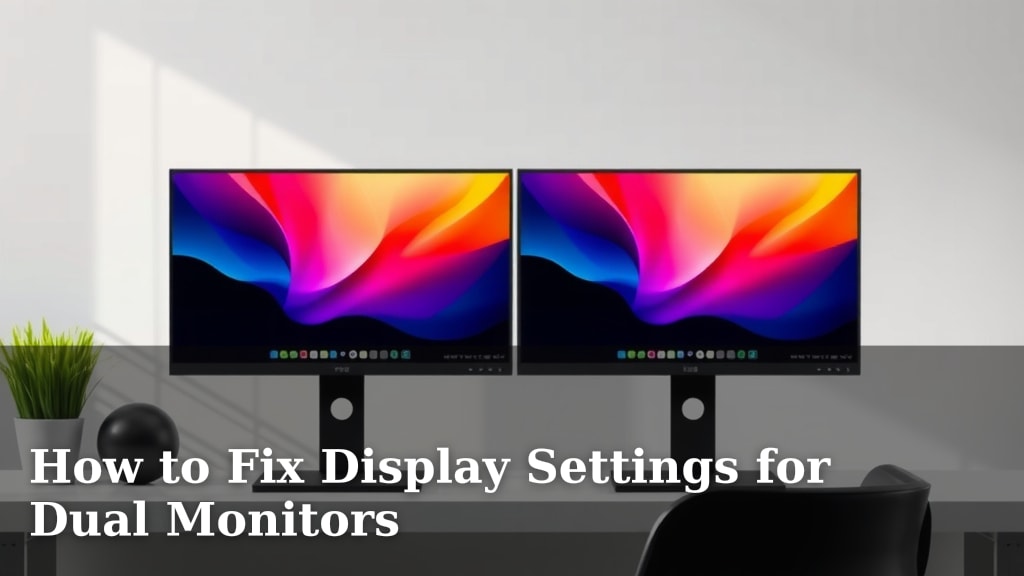
Fixing your dual monitor display settings is often simpler than you think. You can adjust them by going to your Windows Display Settings and choosing how your monitors should work together. This allows you to arrange them, set their resolution, and decide if you want to extend or duplicate your screen. It’s all about making your setup work for you.
Getting your dual monitors just right can really boost your productivity. Maybe your mouse jumps between screens awkwardly, or the colors don’t match. We found that many common display issues stem from simple setting adjustments. Properly configuring your monitors ensures a smooth workflow and a more enjoyable computing experience, letting you multitask like a pro.
- Access display settings easily via Windows Settings.
- Arrange monitors to match their physical placement.
- Choose between extending or duplicating your display.
- Adjust resolution and scaling for clarity.
- Troubleshoot common issues like black screens or mismatched sizes.
Let’s walk through exactly how to get your dual monitor setup looking and feeling perfect. We’ll cover the easiest steps first.
Configuring Your Dual Monitor Display Settings in Windows
Getting your dual monitors to play nice together often involves tweaking a few settings in Windows. You can make them work perfectly by adjusting them in your display settings. This will help you arrange them, set the right resolution, and choose how your screens extend or mirror each other.
Accessing Your Display Settings
The first step is to open your display settings. It’s usually quite straightforward. You can access these settings in a few quick clicks. This is where all the magic happens for your dual monitor setup.
Using Windows Settings
On your keyboard, press the Windows key + I. This will open the main Windows Settings app. From there, click on System, and then select Display. You should now see a visual representation of your monitors.
Right-Clicking the Desktop
A quicker way to get there is by right-clicking on an empty space on your desktop. From the context menu that pops up, select Display settings. This takes you directly to the screen you need.
Arranging Your Monitors for Optimal Workflow
Once you’re in the Display settings, you’ll see numbered boxes representing your monitors. The key is to arrange these boxes so they match how your monitors are physically placed on your desk. This makes moving your mouse between screens feel natural.
Identifying Your Monitors
You can click the Identify button. Windows will then display a large number on each of your screens. This helps you know which box in the settings corresponds to which physical monitor. It’s like giving each screen a name tag!
Dragging and Dropping to Arrange
Click and drag the numbered boxes to match their real-world positions. If your second monitor is to the right of your primary one, drag its box to the right of the other. Make sure the top edges align if they are the same height. This prevents your mouse cursor from jumping unexpectedly when you move between screens.
| Physical Setup | Display Settings Arrangement |
|---|---|
| Monitor 2 to the right of Monitor 1 | Box 1, then Box 2 to its right. |
| Monitor 2 above Monitor 1 | Box 1, then Box 2 positioned above it. |
| Monitor 2 to the left of Monitor 1 | Box 2, then Box 1 to its right. |
Applying Your Arrangement
After you’ve arranged the boxes, scroll down to the Multiple displays section. Click the Apply button. Windows will ask you to confirm these changes. If everything feels right, select Keep changes. If not, it will revert after a few seconds.
Choosing Your Display Mode: Extend or Duplicate
You have two main options for how your monitors work together: Extend these displays or Duplicate these displays. Your choice depends on your needs.
Understanding “Extend these displays”
This is the most common setting for dual monitors. It allows you to have different content on each screen. Think of it as giving yourself extra desktop real estate. You can drag windows from one monitor to the other. We found this mode significantly boosts productivity for most users.
Understanding “Duplicate these displays”
This mode shows the exact same image on both monitors. It’s useful for presentations or when you want to show someone what’s on your screen. However, it limits you to the resolution supported by both monitors. For daily work, extend is generally preferred.
Setting Your Preferred Mode
In the Multiple displays dropdown menu within Display settings, select either Extend these displays or Duplicate these displays. Once chosen, click Apply and then Keep changes to confirm.
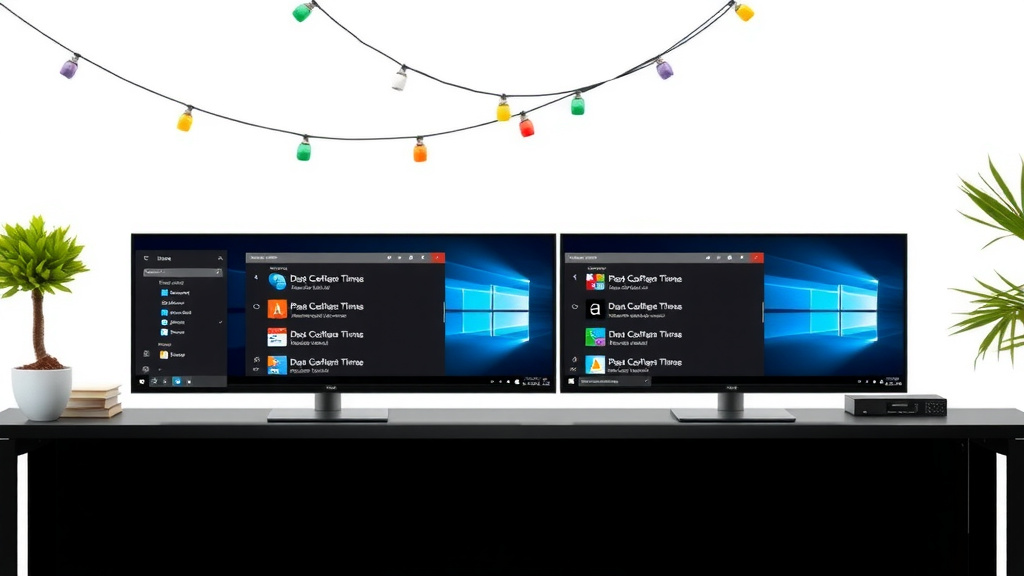
Adjusting Resolution and Scaling for Clarity
Getting the resolution and scaling right is key for a sharp and comfortable viewing experience. Mismatched settings can lead to blurry text or tiny icons.
Setting the Correct Resolution
For each monitor, you can set its resolution. Scroll down to the Display resolution dropdown for the selected monitor. Windows usually recommends the (Recommended) setting, which is typically the native resolution of your screen. Using this ensures the clearest picture.
If you’re using the “Duplicate these displays” option, Windows will choose a resolution that works for both monitors. It might not be the native resolution for one or both. This can sometimes make things look less sharp (Microsoft Support).
Adjusting Scaling for Text and Apps
Sometimes, even with the right resolution, text and app elements can appear too small or too large. The Scale and layout section allows you to adjust this. Under Change the size of text, apps, and other items, select a higher percentage for larger items or a lower percentage for smaller ones.
We found that many users benefit from setting a custom scaling value. However, it’s best to stick with the recommended settings unless you have a specific need. Frequent changes to scaling can sometimes cause display issues with older applications (PCWorld).
Troubleshooting Common Dual Monitor Glitches
Even with the best settings, you might run into a few hiccups. Don’t worry, most dual monitor problems are fixable.
Black Screen on One Monitor
If one monitor is black, first check that it’s properly plugged in. Then, go to Display settings and click Detect under the “Multiple displays” section. Sometimes Windows just needs a nudge to find the connected screen.
Mismatched Sizes or Positions
This usually means your monitor arrangement in settings doesn’t match reality. Revisit the Arranging Your Monitors section above. Make sure the boxes accurately reflect how your monitors sit side-by-side or stacked.
Blurry Text or Images
This is almost always a resolution issue. Ensure each monitor is set to its (Recommended) native resolution in the Display settings. If you’re duplicating displays, consider if extending them might offer a better visual experience, as it allows individual resolution settings.
Here’s a quick checklist to get you back on track:
- Confirm all cables are securely connected.
- Open Display Settings by right-clicking your desktop.
- Use the “Identify” button to know your monitors.
- Drag monitor boxes to match their physical layout.
- Ensure each monitor is set to its recommended resolution.
- Test moving your mouse between screens to ensure smooth transitions.
Conclusion
You’ve now got the tools to fine-tune your dual monitor setup. We’ve covered accessing settings, arranging your screens logically, and choosing between extending or duplicating your display. Remember to set the optimal resolution and scaling for clear visuals. Don’t let minor glitches hold you back; troubleshooting these common issues is usually straightforward.
Take a few minutes to apply these adjustments to your system. You’ll likely notice an immediate improvement in your workflow and overall comfort. Your dual monitor setup is ready to boost your productivity!
Frequently Asked Questions
What’s the difference between “Extend” and “Duplicate” displays?
Extending your displays gives you more screen real estate, allowing you to show different content on each monitor. Duplicating mirrors your primary screen onto the second monitor, showing the exact same image everywhere. For most users, extending is the preferred option for multitasking.
My mouse cursor gets stuck between screens, what should I do?
This usually means your monitor arrangement in Windows Display Settings doesn’t match their physical placement on your desk. Open Display Settings, use the “Identify” button to know which screen is which, and then drag the monitor boxes to accurately reflect their positions.
Why does text look blurry on one of my monitors?
Blurry text is almost always a resolution issue. Ensure that each monitor is set to its (Recommended) native resolution in the Display settings. If you are duplicating displays, this setting is limited by the lowest common resolution, which might cause blurriness on one screen.
How can I make text and icons larger on my second monitor?
You can adjust the size of text, apps, and other items in the Scale and layout section of Display Settings. Select a higher percentage for larger elements if they appear too small on your second monitor. This is especially helpful if your monitors have different resolutions.
What if one of my monitors shows a black screen after I make changes?
First, double-check that all cables are securely connected to both the monitor and your computer. Then, in Display Settings, look for the “Multiple displays” section and click the Detect button. This often prompts Windows to find and activate the missing screen.