How to Fix Mouse Direction on Dual Monitors
If your mouse cursor is jumping erratically between your two monitors, don’t worry! You can easily fix mouse direction on dual monitors by adjusting a few settings in your Windows or macOS display configuration. Often, the issue is simply due to the monitor arrangement not matching where your mouse is physically moving.
Getting your mouse to move smoothly across multiple screens is key to a productive workflow. Many users experience this directional hiccup, and the good news is it’s usually a quick fix. We found that understanding your display settings is the first step to resolving this common annoyance.
- Check your monitor arrangement in display settings.
- Ensure monitors are aligned correctly by side.
- Adjust primary display if needed.
- Restart your computer after making changes.
- Test mouse movement between screens.
Let’s walk through exactly how to get your mouse moving where you expect it to, so you can stop fighting your screens and get back to work.
Getting Your Mouse Cursor to Move Smoothly Between Two Monitors
Is your mouse cursor playing hide-and-seek between your dual monitors? You know the feeling: you move your hand to go from screen one to screen two, and suddenly your cursor is zipping off in the wrong direction. It’s like your mouse has a mind of its own, and not a very helpful one at that. Don’t worry, though! This is a super common issue. Most of the time, it’s just a matter of telling your computer how your monitors are physically arranged. Let’s fix that right now.
Understanding Your Display Arrangement Settings
The core of this problem lies in how your computer perceives the layout of your screens. Think of it like setting up your living room furniture. If you tell your GPS you have a couch to the left of your TV, but you actually put it to the right, you’re going to have a confusing time. Your computer needs to know which screen is where to guide your mouse cursor correctly.
Accessing Display Settings on Windows
For most Windows users, this is where the magic happens. You’ll need to get into your display settings. It’s usually quite straightforward.
First, right-click on an empty space on your desktop. You should see a context menu pop up. Look for an option that says “Display settings.” Click on that. If you’re using Windows 10 or 11, this will take you directly to the correct panel.
If you can’t find it that way, you can also go through the Settings app. Click the Start button, then the gear icon for Settings. From there, select “System,” and then “Display.” This is your command center for all things screen-related.
Accessing Display Settings on macOS
Mac users, your setup is just as easy. The process is a little different, but the goal is the same: telling your Mac how your screens are arranged.
Click on the Apple menu in the top-left corner of your screen. From the dropdown, choose “System Settings” (or “System Preferences” on older macOS versions). Once that window opens, look for “Displays.” Click on that to enter your display configuration.
Here, you’ll see representations of your connected monitors. This is where we’ll do the rearranging.
Arranging Your Monitors for Optimal Mouse Flow
Now that you’re in the right settings panel, it’s time to visually match your computer’s setup to your physical desk. This step is absolutely critical for getting your mouse to move where you expect it to.
Visualizing Your Monitor Layout
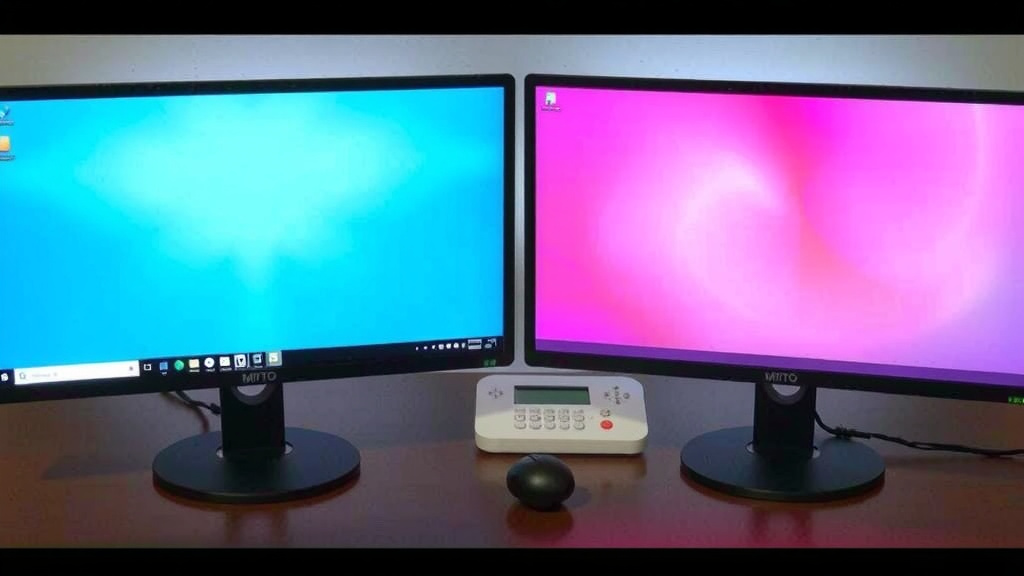
In Windows, you’ll see boxes representing your monitors. They’ll likely be numbered. Your goal is to drag these boxes around so their positions on the screen mirror how they are set up on your desk. If your second monitor is to the right of your main one, you need to ensure the “2” box is to the right of the “1” box in the settings. If one is physically above the other, make sure their boxes are stacked accordingly.
On macOS, you’ll see similar representations. You can click and drag these display icons to match their real-world positions. It’s like playing a simple puzzle game, but with a very practical outcome.
Aligning Monitors by Side
When arranging your monitors side-by-side, pay close attention to the top and bottom edges. If the top edges of your physical monitors are perfectly aligned, try to make the top edges of their representations in the settings also aligned. This helps the mouse cursor travel smoothly without any phantom “drops” or “rises” as you move between screens.
Handling Monitors Stacked Vertically
If you have one monitor positioned above another, align their representations vertically. If your primary monitor is on the bottom and your second is directly above it, make sure the corresponding boxes reflect this stacking order. Imagine drawing a straight line between them; your mouse should be able to cross that line cleanly.
What if the Mouse Jumps Horizontally When It Should Go Vertically?
This is a classic sign that your monitor arrangement isn’t quite right. Let’s say you move your mouse upwards from your main screen, but it instead jumps to the side onto the other monitor. This means the horizontal position of your monitor representations isn’t aligned properly.
In Windows, click and drag the monitor boxes so their sides are directly next to each other, without any overlap or gap on the horizontal axis. On macOS, do the same by dragging the display icons until their edges meet perfectly horizontally.
What if the Mouse Jumps Vertically When It Should Go Horizontally?
Conversely, if you move your mouse left or right, and it suddenly starts moving up or down onto the other screen, your vertical alignment is off. This usually happens when one monitor is physically higher or lower than the other, but their digital representations aren’t matching that.
Adjust the monitor boxes or icons so that their top or bottom edges line up in the display settings. This tells your computer that when you cross that imaginary line, you’re moving strictly left-to-right or right-to-left, not up or down.
Setting Your Primary Display
Your primary display is essentially your “home base” monitor. It’s where your taskbar, Start menu (on Windows), and system icons typically appear. Sometimes, an incorrect primary display can subtly affect mouse behavior. Also, new applications usually open on your primary screen first.
How to Choose a Primary Monitor
In both Windows and macOS display settings, you’ll see an option to “Make this my main display” or a similar wording. Simply select the monitor you wish to be primary, and check that box. Many people prefer their main monitor to be the one they use most often or the one with the highest resolution.
We found that selecting a primary monitor that is centrally located or in your most frequently used position can lead to a more intuitive user experience. It’s a small change, but it can make a difference in how your desktop feels.
Troubleshooting Common Mouse Direction Issues
Even after adjusting the arrangement, you might still encounter a stubborn cursor. Here are a few extra tips to get everything working smoothly.
The Power of a Simple Restart
This might sound like the oldest trick in the book, but it’s often effective. After you’ve made changes to your display settings, restarting your computer can help ensure those changes are fully applied by the operating system. Think of it as giving your computer a fresh start with the new map you’ve provided.
We recommend this step after any significant display configuration changes. It’s a quick way to resolve potential glitches that might prevent the new settings from taking hold. You’d be surprised how often this simple step solves the problem.
Checking for Graphics Driver Updates
Outdated or corrupted graphics drivers can sometimes cause weird display and cursor behaviors. While this is less common for simple mouse direction issues, it’s worth considering if the problem persists.
You can usually update your graphics drivers through your manufacturer’s website (like NVIDIA, AMD, or Intel) or through Windows Update. For Mac users, driver updates are typically bundled with macOS system updates.
Physical Monitor Alignment Matters
Sometimes, the issue isn’t just digital. If your monitors are physically tilted or uneven, it can trick your brain and your mouse into thinking there’s a misalignment. Try to ensure your monitors are level with each other and at the same height on your desk. This physical tidiness can contribute to a better digital experience.
A Quick Checklist for Smooth Mouse Movement
Let’s recap the key steps to ensure your mouse cursor travels with you, not against you:
- Visually match monitor arrangement in display settings to your desk setup.
- Ensure horizontal alignment for side-by-side monitors.
- Ensure vertical alignment for stacked monitors.
- Designate your preferred monitor as the primary display.
- Restart your computer after making changes.
- Test mouse movement in all directions between monitors.
Conclusion
You’ve now learned exactly how to fix your mouse direction issues across dual monitors. By matching your computer’s display arrangement to your physical desk setup, you can achieve smooth cursor movement. Remember, it’s all about aligning those monitor representations correctly in your display settings.
Don’t forget to set your primary display and give your computer a quick restart after making changes. Follow these steps, and you’ll stop fighting your screens and get back to a more productive workflow. Your mouse cursor will thank you!
Frequently Asked Questions
My mouse jumps between monitors when I don’t want it to. What’s wrong?
This usually means your monitor arrangement in your computer’s display settings doesn’t accurately reflect how your monitors are physically placed on your desk. You need to drag the monitor icons in the settings to match their real-world positions.
How do I make sure my mouse moves straight across when going from one monitor to the other?
Pay close attention to the top and bottom edges of your monitor representations in the display settings. If your monitors are side-by-side, align their top edges in the settings to ensure horizontal movement is straight. If they’re stacked, align their sides.
I set up my monitors, but my mouse still feels a little “off.” What else can I try?
Try restarting your computer after adjusting your display settings; this often helps the changes take full effect. Also, ensure your physical monitors are level with each other on your desk, as this can impact perceived mouse movement.
What is a “primary display” and why does it matter for mouse direction?
Your primary display is your main screen, where your taskbar and icons typically appear. While it doesn’t directly control direction, ensuring it’s set correctly and that your arrangement is accurate helps create a more intuitive overall setup for your mouse.
My mouse works fine on one monitor but acts weird on the second. What could cause this?
This often points to a misaligned connection point between the two monitors in your display settings. Double-check that the edges of the monitor icons in your settings are perfectly aligned horizontally or vertically, depending on their physical setup.