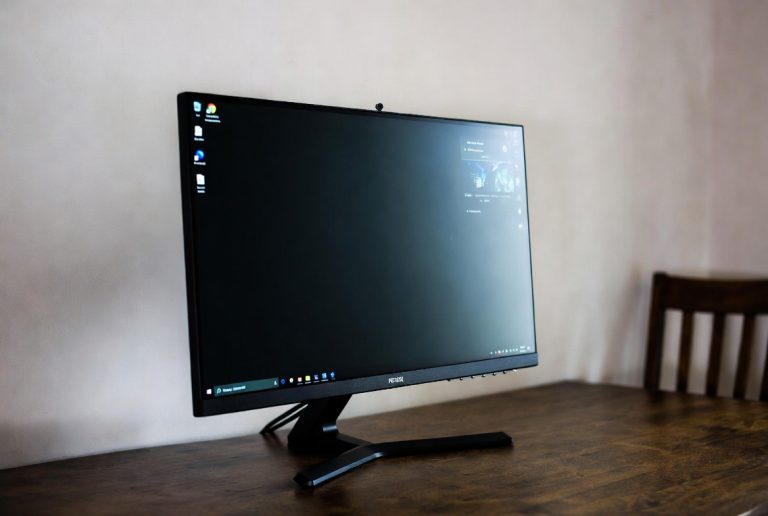
34 Inch Ultrawide Monitor Size Explained
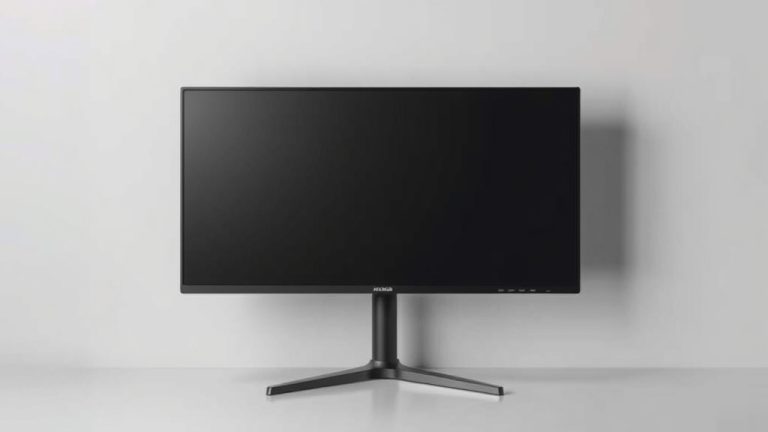
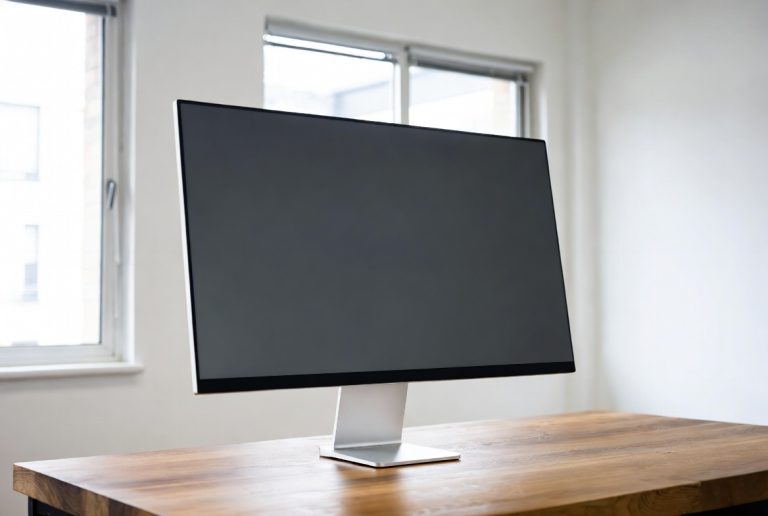
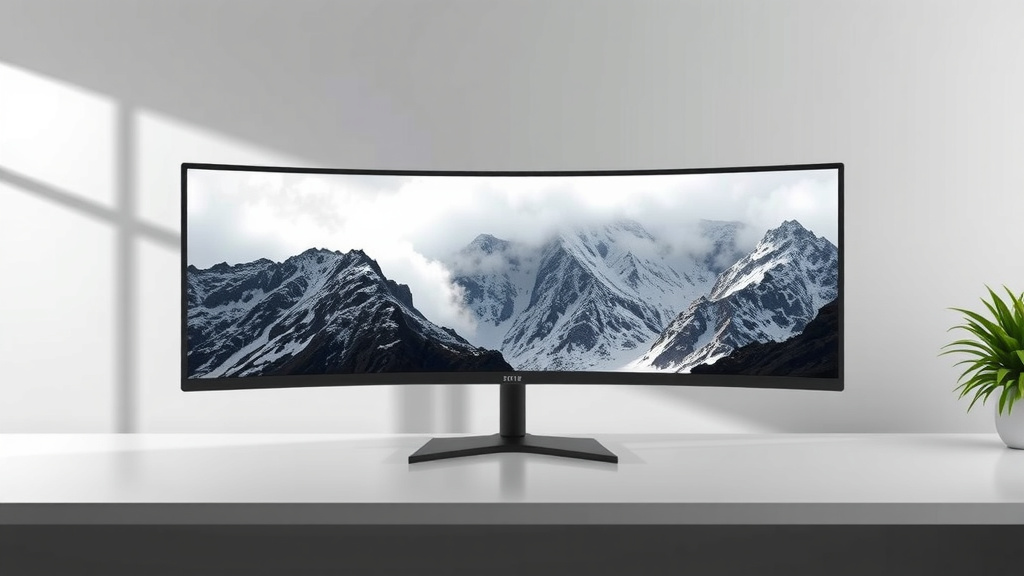
A 34-inch ultrawide monitor is significantly wider than a standard monitor. Think of it like having two or three screens side-by-side, but as one continuous display. This extra width makes a big difference for productivity and gaming.
When we talk about a 34-inch ultrawide, the measurement refers to the diagonal distance across the screen. These monitors typically have a 21:9 aspect ratio. That means they are much wider than they are tall compared to the common 16:9 screens. Many users find this extra real estate incredibly useful.
- A 34-inch ultrawide is primarily about its width.
- It offers much more horizontal space than regular monitors.
- Expect a 21:9 aspect ratio, making it wider than it is tall.
- This setup is great for multitasking and immersive experiences.
- It can often replace needing two separate monitors.
So, how does all that width actually translate into your daily use? Let’s break down what a 34-inch ultrawide really feels like and what it can do for you.
“`htmlUnderstanding the Dimensions of a 34-Inch Ultrawide
So, you’re curious about what a 34-inch ultrawide monitor actually looks like? It’s a question many people ask when they see one for the first time. The simple answer is: it’s really wide! This measurement refers to the diagonal distance across the screen. Think of it like measuring a TV screen – from one corner to the opposite corner.
But the real story is in its aspect ratio. Most standard monitors are 16:9. That means for every 16 inches of width, they are 9 inches tall. A 34-inch ultrawide typically boasts a 21:9 aspect ratio. This means it’s considerably wider than it is tall. This extra width is where all the magic happens for productivity and entertainment.
What “34-Inch” Actually Means for You
When you see “34-inch,” it’s a diagonal measurement. For a 34-inch monitor with a 21:9 aspect ratio, the actual width and height are different from what you might expect if you’re used to 16:9 screens. The height is comparable to a standard 27-inch 16:9 monitor. But the width is where it truly shines.
We found that the typical viewable screen size for a 34-inch 21:9 monitor is around 31.5 inches wide by about 13.2 inches tall. This gives you a lot more horizontal real estate. It’s like having two monitors side-by-side, but without the bezel in the middle. This can dramatically change how you work and play.
Comparing Width to Standard Monitors
Let’s put this into perspective. A typical 27-inch 16:9 monitor is about 23.5 inches wide. A 34-inch ultrawide, at around 31.5 inches wide, is roughly 8 inches wider. That might not sound like a lot, but on a screen, it’s a huge difference.
Imagine lining up those monitors. You could almost fit a 27-inch monitor and a smaller 17-inch monitor side-by-side within the width of a 34-inch ultrawide. This extra space is a game-changer for certain tasks.
The 21:9 Aspect Ratio: Your New Workspace
The 21:9 aspect ratio is the secret sauce of ultrawide monitors. It’s what gives you that expansive view. Think of it as a panoramic window for your digital life. This wider format is designed to be more immersive and productive.
Many content creators and developers prefer this aspect ratio. They can see more of their code, timelines, or designs at once. You might find yourself scrolling less and seeing more of what you need. It really does feel like you have a bigger canvas to work on.
Productivity Boost with Ultrawide
For multitasking, a 34-inch ultrawide is fantastic. You can easily have multiple windows open side-by-side without them feeling cramped. Imagine having your email on one side, a research document in the middle, and a chat window on the other. This setup can reduce alt-tabbing and keep your workflow smooth.
We found that users often report a noticeable increase in productivity. They can arrange their applications in a way that makes sense for their specific tasks. For instance, video editors can have their footage timeline and editing panel visible simultaneously. Spreadsheet wizards can view more columns at a glance. It’s about having the right information right where you need it.
Gaming Immersion on an Ultrawide
Gamers, get ready for a treat! That extra width pulls you right into the game world. Many modern games support ultrawide resolutions, offering a wider field of view. This means you can see more of the action happening on the sides of your screen. It’s incredibly immersive, especially in first-person games or open-world adventures.
You get a more cinematic experience. It feels less like you’re looking through a window and more like you’re part of the scene. Some competitive gamers even find the wider view gives them an advantage, spotting enemies sooner. Just be aware that some older games or games with fixed camera angles might not support ultrawide perfectly, sometimes showing black bars on the sides.
Is a 34-Inch Ultrawide Right for Your Desk?
Now, let’s talk about space. A 34-inch ultrawide monitor is, predictably, quite large. It’s not just about the diagonal measurement; it’s about the physical footprint on your desk. Because it’s so wide, it requires a good amount of desk space.
Before you buy, measure your desk! You’ll need enough depth to position the monitor at a comfortable viewing distance, usually an arm’s length away. You also need enough width to accommodate the monitor itself, plus your keyboard, mouse, and any other accessories. Don’t forget to factor in monitor stand dimensions, as some can be quite deep or wide.
Desk Size Considerations
A common desk depth for comfortable viewing is around 25-30 inches. A 34-inch ultrawide, with its wider aspect ratio, can sometimes appear a bit shorter in height than a large, taller monitor. This can make it feel less imposing on some desks. However, its sheer width means it will dominate the space in front of you.
If your desk is on the smaller side, a 34-inch ultrawide might feel overwhelming. You might find yourself having to sit further back to take it all in. We recommend at least 48 inches of desk width for a comfortable setup, though more is always better. You can also consider a monitor arm to free up desk space and offer more flexible positioning.
Setting Up and Using Your Ultrawide
Getting started with a 34-inch ultrawide is usually straightforward. You’ll connect it to your computer using an HDMI or DisplayPort cable. Most modern graphics cards and laptops support ultrawide resolutions. You might need to adjust display settings in your operating system to get the optimal resolution.
Once set up, you’ll immediately notice the extra screen real estate. For everyday tasks like browsing the web, you can comfortably view two full web pages side-by-side. For coding, you can have your code editor and a reference tab open simultaneously. It’s a very efficient way to manage your digital workspace.
What You’ll Need for the Best Experience
To truly enjoy a 34-inch ultrawide, consider a few things:
- A computer with a graphics card capable of outputting the high resolution (often 3440×1440 pixels).
- Desk space that can accommodate its width.
- Good posture and viewing distance to avoid neck strain.
- Software that can take advantage of the extra screen space.
- A comfortable chair to enjoy those longer work or gaming sessions.
Can it Replace Multiple Monitors?
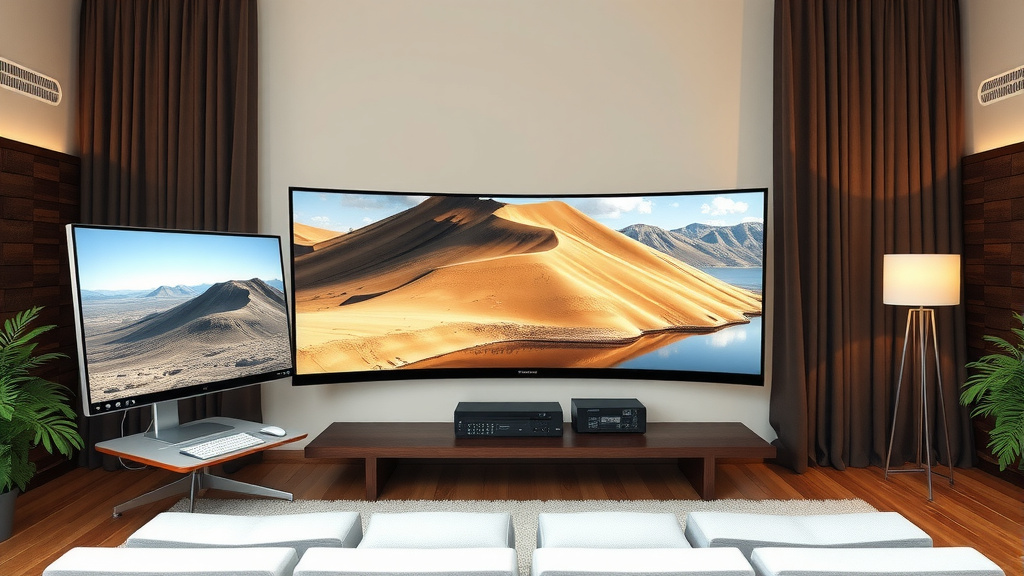
For many users, the answer is a resounding yes! A 34-inch ultrawide can absolutely replace a dual-monitor setup. You get the benefit of a single, unbroken screen, which is fantastic for immersive tasks. You eliminate the distracting bezel that runs down the middle of two separate monitors.
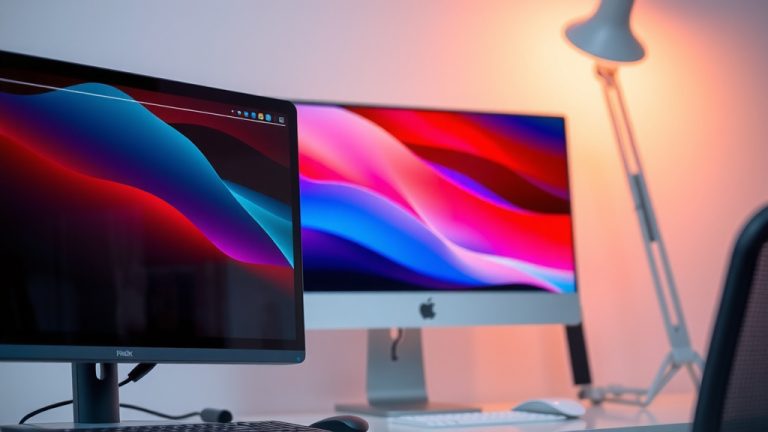
Think about it: two 24-inch monitors placed side-by-side would give you a similar width. However, the ultrawide offers a more integrated experience. Your operating system can handle window management very effectively on a single, wide display. Many users find they don’t miss having separate screens at all.
| Monitor Type | Typical Diagonal | Aspect Ratio | Approx. Width | Approx. Height |
|---|---|---|---|---|
| Standard Monitor | 27 Inches | 16:9 | 23.5 Inches | 13.2 Inches |
| Ultrawide Monitor | 34 Inches | 21:9 | 31.5 Inches | 13.1 Inches |
Final Thoughts on Size and Space
Ultimately, the “size” of a 34-inch ultrawide is best understood by its expansive width and the 21:9 aspect ratio. It offers a significant increase in horizontal screen real estate compared to standard monitors. This translates to better multitasking, more immersive gaming, and a more comfortable viewing experience for many.
Before you commit, take the time to measure your desk and consider your primary use cases. A 34-inch ultrawide is a substantial piece of hardware, but for the right user, it’s a fantastic upgrade that can seriously boost your digital productivity and enjoyment.
“`Conclusion
You’ve learned that a 34-inch ultrawide monitor is all about its impressive width, driven by a 21:9 aspect ratio. It offers a panoramic view that can transform your multitasking efficiency and gaming immersion. While it demands more desk space, its ability to often replace dual-monitor setups makes it a compelling choice for many. We’ve seen how it provides about 8 inches more width than a standard 27-inch monitor, giving you a much larger canvas. Consider your desk dimensions and how you’ll use the screen. If it fits your space and needs, a 34-inch ultrawide can seriously enhance your daily digital experience. Take precise desk measurements before you make the upgrade!
Frequently Asked Questions
Will a 34-inch ultrawide monitor fit on my desk?
A 34-inch ultrawide is quite wide, so you’ll need ample desk space. We recommend at least 48 inches of desk width for comfortable use, along with enough depth for proper viewing distance. Measure your desk carefully before purchasing to ensure it fits without feeling cramped.
How does the height of a 34-inch ultrawide compare to standard monitors?
Surprisingly, the height of a 34-inch ultrawide (around 13.1 inches) is very similar to that of a standard 27-inch 16:9 monitor (around 13.2 inches). The main difference you’ll notice is the dramatically increased width, not the height.
Can I play all my games on a 34-inch ultrawide without issues?
Most modern games support ultrawide resolutions and offer an immersive experience with a wider field of view. However, some older games or those with fixed camera angles might display black bars on the sides or have stretched graphics. Check game compatibility for the best results.
Is a 34-inch ultrawide better than two smaller monitors for productivity?
For many, yes! A 34-inch ultrawide offers a single, unbroken screen that’s fantastic for multitasking without a distracting bezel. You can easily arrange multiple windows side-by-side, often making it feel more integrated than a dual-monitor setup.
What resolution should I expect from a 34-inch ultrawide monitor?
The most common resolution for a 34-inch ultrawide is 3440×1440 pixels. This is often referred to as QHD or 1440p ultrawide. Ensure your computer’s graphics card can support this resolution for the best visual performance.