Optimal Monitor Brightness: Find Your Perfect Setting
The ideal monitor brightness depends on your surroundings and task. A good starting point is often around 120-150 cd/m² for general use in a moderately lit room. Too dim and you’ll strain your eyes; too bright and it can cause fatigue. Finding that sweet spot is key for comfortable viewing.
Many people struggle with monitor brightness settings. Some monitors can go extremely bright, which might seem good for a sunny room. However, research indicates that excessive brightness can contribute to eye strain and headaches over time. Adjusting it to match your environment is more important than just cranking it up.
- Screen brightness should match room lighting.
- Around 120-150 cd/m² is a good general range.
- Avoid making your screen much brighter than its surroundings.
- Regularly adjust brightness for comfort.
Let’s dive into how you can find your perfect monitor brightness level for a more comfortable visual experience.
Understanding Your Monitor Brightness Needs
So, what’s the magic number for your monitor’s brightness? It’s less about a single number and more about finding harmony. We found that a good starting point for typical office environments is often between 100 and 150 candelas per square meter (cd/m²). This range helps prevent your eyes from working too hard.
Think of it like this: if you’re in a dark room, a super bright screen is like a spotlight. Your eyes try to adjust, and it can feel uncomfortable. Conversely, in a sunny room, a dim screen might just fade into the background. The goal is balance. Many guidelines suggest your screen shouldn’t be dramatically brighter than its surroundings (Mayo Clinic).
Factors That Shape Your Ideal Brightness
Your Room’s Lighting Environment
This is perhaps the biggest influencer. Are you working in a basement office with minimal natural light, or a bright room with sunbeams streaming in? The general rule is to match your screen’s brightness to your ambient light. If your room is dim, a lower brightness setting is better. If it’s very bright, you’ll need more brightness from your screen.
We found that too much contrast between your screen and the room can cause eye strain. Imagine driving at night with your headlights on high beam constantly – it’s dazzling and fatiguing. Your monitor brightness should work with your environment, not against it. For daytime use, you’ll likely need a higher setting than for evening work.
The Tasks You’re Performing
What you’re doing on your screen also plays a role. For simple tasks like email or web browsing, a moderate brightness is usually fine. However, if you’re editing photos or videos, you might need to adjust your brightness to accurately see colors. Professional color grading often requires a calibrated monitor, and brightness is a key component of that calibration.
For tasks requiring fine detail, like reading small text or working with detailed graphics, a slightly higher brightness might improve readability. But remember, always balance this with ambient light. If you’re working on detailed graphics in a dim room, you don’t need to push your monitor to its absolute brightest. We found that overdoing it, even for detail work, can lead to headaches.
Your Personal Comfort and Vision
Ultimately, your eyes are the best judges. What feels comfortable to one person might be too bright or too dim for another. Factors like age, vision conditions, and even how tired you are can influence your perception of brightness. Some research suggests that older adults may need higher brightness levels to see clearly (National Institutes of Health).
Don’t be afraid to experiment. Take breaks and see how your eyes feel. If you’re constantly squinting or rubbing your eyes, it’s a sign something needs adjusting. Many experts say that finding your personal sweet spot is key for long-term comfort and productivity.
Adjusting Your Monitor’s Brightness Settings
Using Your Monitor’s On-Screen Display (OSD)
Most monitors have physical buttons, usually on the bottom or back, that bring up an On-Screen Display (OSD) menu. Navigate through this menu using the buttons to find the brightness setting. It’s often labeled simply as “Brightness” and usually has a slider or numerical value.
This is the most direct way to control your monitor. You can adjust it precisely while looking at your screen and your room. We found that it’s helpful to make adjustments while you’re actually performing your typical tasks.
Leveraging Operating System Settings
Your computer’s operating system also offers brightness controls. On Windows, you can usually find this in the Display Settings under the Personalization or System menus. For Mac users, it’s typically in System Preferences under Displays.
These OS settings often provide a quick slider for adjustment. While convenient, they might not offer the same granular control as your monitor’s OSD. Some laptops also have keyboard shortcuts for brightness, often using the Function (Fn) keys.
Exploring Auto-Brightness and Adaptive Features
Many modern monitors and laptops come with features like adaptive brightness or auto-brightness. These sensors detect the ambient light in your room and automatically adjust the screen’s brightness. This can be very convenient, as it removes the need for manual adjustments throughout the day.
However, these features aren’t always perfect. Sometimes, the automatic adjustments can be distracting or not quite right for your specific needs. If you find it more disruptive than helpful, you can usually turn it off in your monitor’s OSD or your operating system’s display settings. We found that manually adjusting is often preferred by those who want precise control.
| Environment | Recommended Brightness Range (cd/m²) | Notes |
|---|---|---|
| Very Dim Room (e.g., home theater) | 30-60 cd/m² | Focus on minimal glare and eye strain. |
| Moderately Lit Room (typical office) | 100-150 cd/m² | Good balance for general productivity. |
| Bright Room (sunny office, next to window) | 150-250 cd/m² | Needs to be bright enough to combat glare. |
| Professional Photo/Video Editing | Calibrated (often ~100-120 cd/m²) | Accuracy is key; brightness supports color rendering. |
Tips for Sustained Visual Comfort
Finding the right brightness is just the first step. For long-term comfort, consider these practices. Regularly take breaks from your screen. The 20-20-20 rule is a good guide: every 20 minutes, look at something 20 feet away for at least 20 seconds (American Optometric Association).
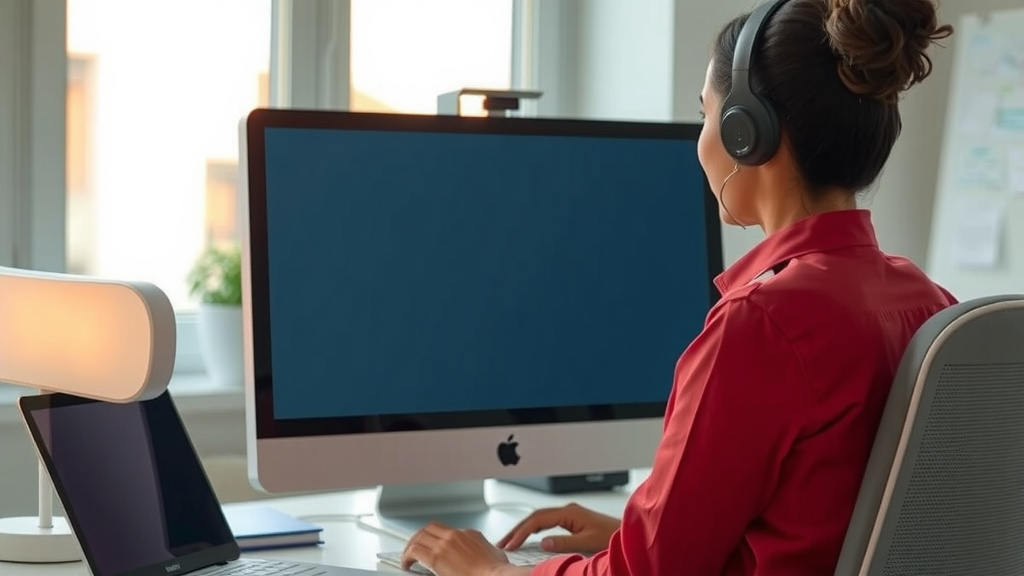
Ensure your screen is positioned correctly. It should be about an arm’s length away and the top of the screen should be at or slightly below eye level. This reduces neck strain and can indirectly help with eye fatigue. Proper ergonomics are a team player for eye health.
Consider using blue light filters, especially if you work late. Many operating systems and third-party apps offer this. While the science on blue light’s impact on sleep is still developing, some people report better sleep with reduced blue light exposure before bed. Research from institutions like the Cleveland Clinic suggests it can help regulate sleep cycles.
Here’s a quick checklist to help you find your sweet spot:
- Check your room lighting first.
- Start with a moderate brightness setting.
- Adjust up or down as needed.
- Compare to your surroundings – avoid major contrast.
- Take frequent eye breaks.
- Listen to your eyes – discomfort means it’s time to adjust.
Conclusion
You’ve learned that the perfect monitor brightness isn’t a one-size-fits-all number. It’s about creating a comfortable viewing experience tailored to your environment and tasks. Remember to balance your screen’s brightness with your room’s lighting and consider what you’re doing on screen. Your personal comfort is the ultimate guide. Don’t hesitate to experiment with your monitor’s settings. Your next step is to take a moment right now and adjust your screen’s brightness. See how it feels!
Frequently Asked Questions
Is it bad to have my monitor too bright?
Yes, having your monitor set too bright can be problematic. Research suggests that excessive brightness can lead to eye strain, headaches, and fatigue over time. It’s important to find a balance that doesn’t feel overwhelming to your eyes.
How often should I adjust my monitor brightness?
You should adjust your monitor brightness as needed throughout the day. If you move between rooms with different lighting or if the natural light in your room changes, you’ll likely need to make adjustments. Listen to your eyes; if you feel discomfort, it’s time to tweak the setting.
Can my monitor brightness affect my sleep?
While the science is still developing, some people find that a very bright screen, especially late at night, can interfere with their sleep patterns. Reducing screen brightness and using blue light filters in the evening might help regulate your sleep cycle.
What does cd/m² mean for monitor brightness?
cd/m² stands for candelas per square meter. It’s the standard unit of measurement for luminance, or brightness, of a display. A higher cd/m² value means the screen is brighter. Most general use monitors fall within a comfortable range of 100-250 cd/m².
Should my monitor be brighter than the room?
Generally, no. Your monitor should not be significantly brighter than your surrounding environment. Having a much brighter screen than the room creates high contrast, which can strain your eyes. Aim to match your screen brightness to your ambient light levels for optimal comfort.